How Truck Drivers Use SafeSite
Truck drivers must sign in to the SafeSite app at the start of their shift.
In this article
Sign In
To sign into the SafeSite app:
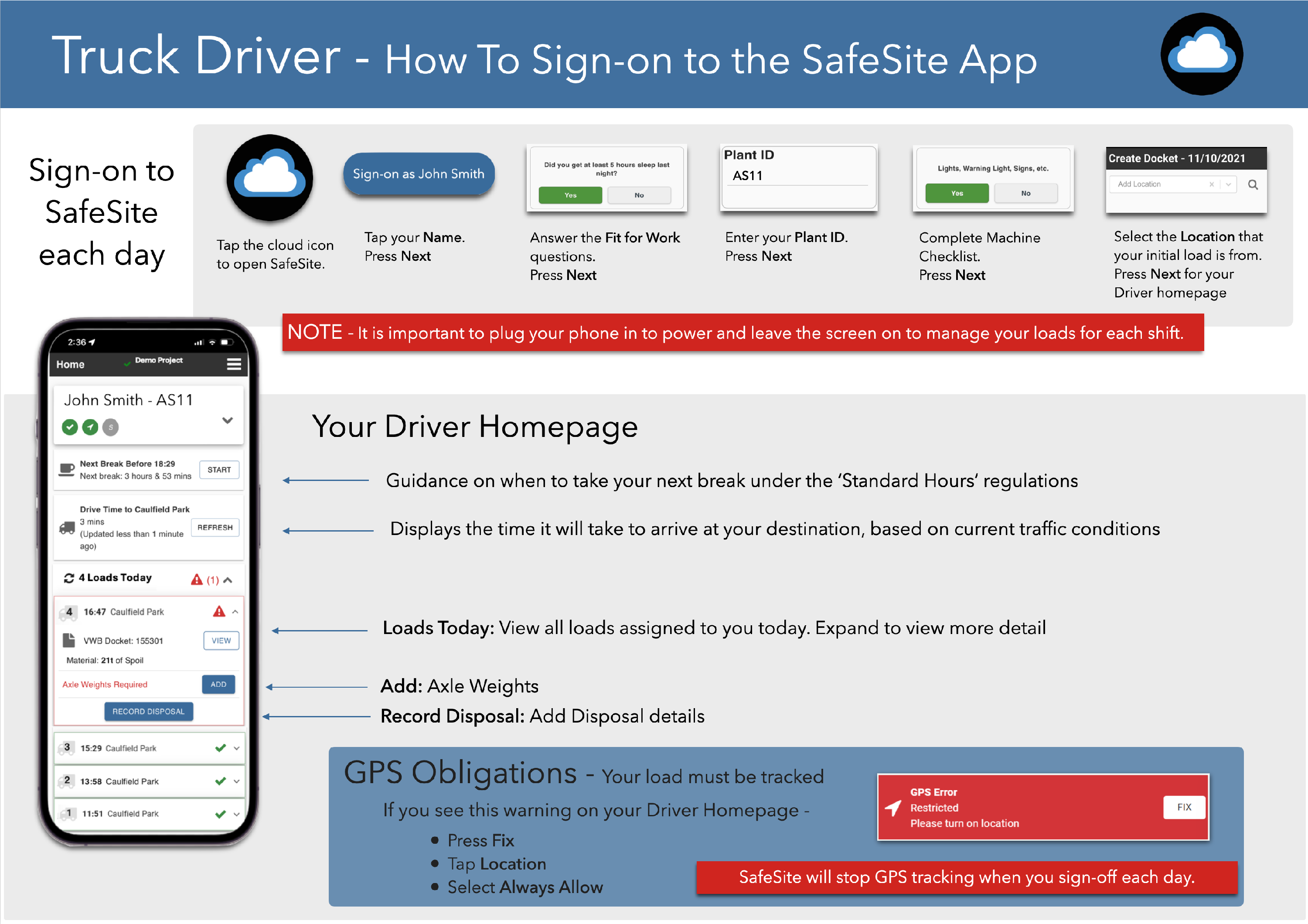
- Open the SafeSite app and tap your name to sign in (Sign-On As [Your Name]). The Fit For Work screen opens.
- Answer each of the Fit For Work questions with a Yes or No. These questions are used to indicate your physical and mental fitness to work safely. Tap Next and the Item screen opens.
- Select a driver item code that matches the work you will be doing today, then tap Next. Item codes are the individual chargeable items that describe the work you will be performing. The Plant Identification screen opens.
- Select the truck that you will be operating on your shift, then tap Next. The Location screen opens.
- Select your location from those listed, then tap Next. The Docket Summary screen opens.
- Tap Save and then Close to close the docket summary.
- Tap the menu in the upper-right corner and select Driver. The Driver home page opens.
Note: Plug your phone into power and leave the screen on throughout your shift. This ensures SafeSite can manage loads and GPS tracking correctly.
Your Driver Home Page
The Driver home page shows your sign-in, checklist and device connection details, it also shows your next scheduled break and the latest time that your break can be taken. Use this information to stay compliant with Standard Hours regulations. When the window for your next scheduled break opens, tap the Start button to begin the break.
Below your break details you will see a Drive Time, a Loads Today and a Record Disposal Details section.
Drive Time
The Drive Time section displays the estimated arrival time at your scheduled destination based on current traffic conditions. Tap Refresh to update the estimated arrival time.
Loads today
The Loads Today section shows all virtual weighbridge (VWB) dockets assigned to you for the day.
- A red exclamation mark indicates that action is required for a load.
- Tap View to see VWB docket details.
- Tap Add to enter axle weights.
- Tap Record Disposal to enter disposal details.
Record disposal details
When recording a disposal, complete the following steps:
- Tap the Disposal Site from the loads list.
- Enter the Net Weight and Gross Weight of the load.
- Tap Add Photo to take a photo.
- Enter any additional details in the Comments field.
GPS Requirements
Your load must be tracked using GPS. If you see a red GPS Error warning on your Driver home page, tap Fix then Location and Always Allow.
SafeSite automatically stops GPS tracking when you sign off at the end of your shift.