
Record a Virtual Weighbridge Docket as a Machine Operator
This guide describes the steps loader operators should perform every day when assigning virtual weighbridge (VWB) dockets to haulers using the SafeSite app.
Note: For a detailed overview of the loader workflow of virtual weighbridge dockets, read the Sign Into SafeSite as a Loader section of the Understand Virtual Weighbridge Dockets help article.
In this article
Daily Procedure
Follow these steps when signing in to SafeSite as a loader operator responsible for assigning loads to haulers transporting material to weighbridge disposal locations.
Note: If you haven't installed the SafeSite app, read the Install and Register the SafeSite App help article.
Sign in and complete your checklists
- Open the SafeSite app and tap your name to sign in (Sign-On As [Your Name]). The Fit For Work screen opens.
- Answer each of the Fit For Work questions with a Yes or No. These questions are used to indicate your physical and mental fitness to work safely. Tap Next and the Item screen opens.
- Select a loader operator item code that matches the work you will be doing today. Item codes are the individual chargeable items that describe the type of work you will be performing, and what home page you can access. Tap Next and the Plant Identification screen opens.
- Select the loader plant you will be operating from those listed, then tap Next. The Create Docket screen opens.
- Tap Take Photo and take a picture of your plant equipment, making sure that its Plant ID sticker or license plate number are visible, then tap Next. The Plant Checklist loads.
- Complete the plant checklist, recording the condition of each item listed by tapping Yes to indicate the item is in good condition. If an item is faulty, tap No then Take Photo and take a photo of the issue. Add a note describing the fault in the Notes field. When the checklist is complete, tap Next. The Date screen opens.
- Check that the docket date shown is correct. Tap the date and correct if needed, then tap Next. The Supervisor screen opens.
- Select your supervisor from the list, then tap Next. The Location screen opens.
- Select your location from those listed, then tap Next. The Docket Summary screen opens.
- Tap Save and then Close to close the docket summary.
View your Operator home page
-
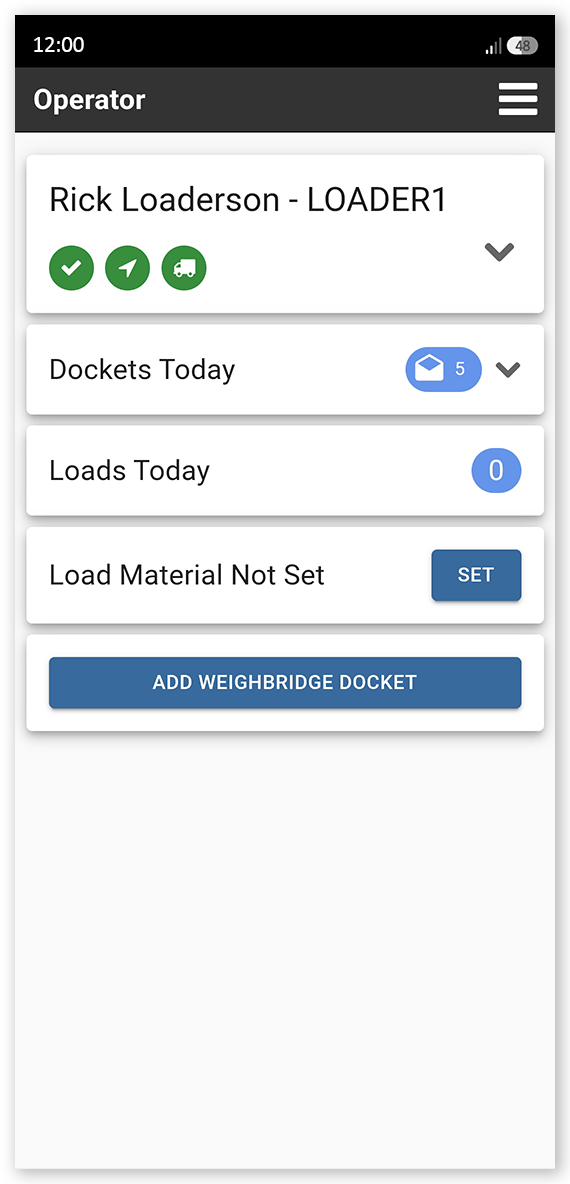
Tap the menu in the upper-right corner and select Operator. The Operator home page opens.
 Click or tap to expand image
The Operator home page displays your sign-in status, checklist status, device connection details, the number of weighbridge dockets created today, and the number of loads completed. It also shows the default material type you are loading, which can be changed for individual loads when loading multiple material types.
To set the material type, tap Set next to Load Material Not Set and then select a material type from the dropdown list.
Create a hauler assignment
- Tap Add Weighbridge Docket to assign a load to a hauler. The Origin screen opens.
- Select the loading location from those listed, then tap Next. This is the location assigned to the hauler as the load collection point in their docket. The Hauler screen opens.
- Select the nearest hauler, then tap Next. The Weight screen opens.
- Type the weight of the load being carried by the hauler into the Net Weight field, and the tare weight of the hauler (the weight of the vehicle when empty, also known as curb weight) into the Tare field. The gross weight (the combined weight of the vehicle and its load) automatically populates in the Gross Weight field. You can edit the Net Weight and Gross Weight fields after you have entered values, and the other fields will automatically calculate new weights. You might also be asked to provide the vehicle's axle weights. Tap Next. The Material Type screen opens.
- Select the material type being hauled from the dropdown, then tap Next. The material selected defaults to the material configured on the Operator home page but can be manually edited. You are returned to the Operator home page opens. A Virtual Weighbridge docket is assigned to the hauler and appears on their Driver home page. You can now assign another load to a hauler.
Sign out at the end of the day
- Tap the menu.
- Tap Sign-off.
- Tap Sign-off again to confirm.