
Edit Default Break Controls for a Supplier
Head contractors can control whether subcontractors can remove default breaks when creating dockets. When default breaks are locked, subcontractors receive a warning if they try to remove a break, and supervisors can reject the docket.
In this article
Permissions
To access the Suppliers page (Menu > Suppliers) and edit default break controls for a supplier, you must have one of the following permissions:
- Admin Manager
- User Admin
Edit Default Break Controls
To disable default break editing for a supplier:
- Open the Suppliers page (Menu > Suppliers).
- Locate the supplier and select it to open the supplier details.
- Open the Docket Options tab.
- Set Breaks are editable to No.
- Click Save.
When default breaks are not editable, SafeSite applies additional checks during docket submission.
Default Break Removal Message for Subcontractors
If a subcontractor removes a default break when creating a docket, SafeSite displays a warning message:
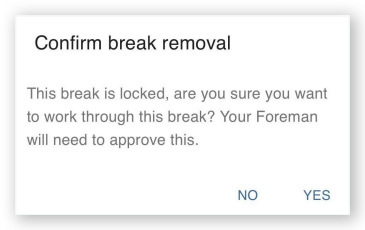
- Select No to return to the docket and restore the default breaks.
- Select Yes to submit the docket without correcting the breaks.
Submitting the docket without correcting the breaks triggers a review message for the supervisor.
Default Break Removal Message for Supervisors
When a supervisor opens a submitted docket in SafeSite or Virtual Superintendent, a confirmation message appears if any locked default breaks were removed by the subcontractor.
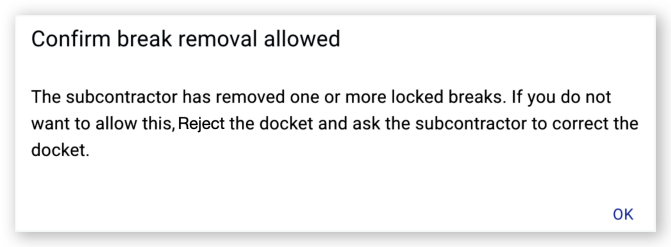
The message alerts the supervisor that default breaks were removed and requires confirmation before continuing.
Supervisor actions
- Click OK to clear the message.
- Review the docket and choose one of the following options:
-
Reject the docket to send it back to the subcontractor for correction. You are prompted to add a reason for the rejection.
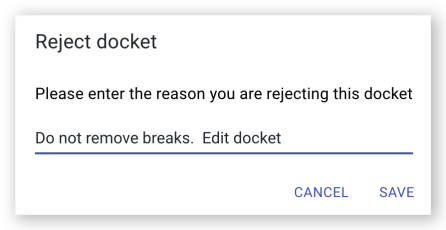 Click or tap to expand image
 - Accept the docket to allow the break removal. The subcontractor is paid for the additional time.
This process helps ensure break compliance while giving supervisors control over exceptions.
