
Clone Existing Dockets
Virtual Superintendent and the SafeSite mobile app allow you to duplicate existing dockets:
- From the Super User Dockets page (for Dockets Super User accounts) and the Dockets page (for Subcontractor Admin users) in Virtual Superintendent
- From the Docket Actions menu when viewing a docket in the SafeSIte app
- When creating a docket in the SafeSite app (for example, from the My Dockets list)
Note: Weighbridge, delivery, and plant dockets cannot be cloned.
In this article
Permissions
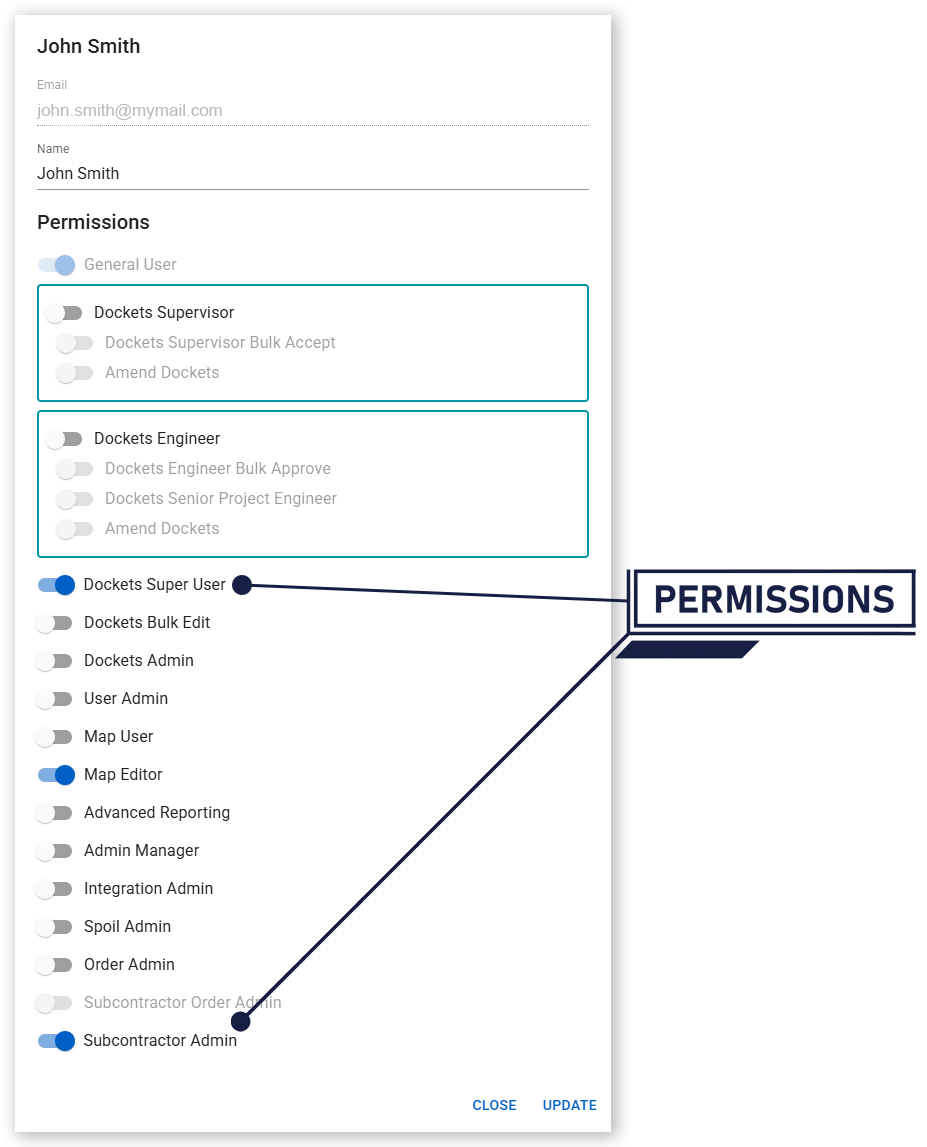
To clone dockets you must have one of the following permissions enabled:
- Dockets Super User
- Subcontractor Admin
In the SafeSite mobile app, docket cloning is available to Docket Contractor users who belong to a supplier with cloning enabled.
Enable Docket Cloning on a Supplier
Docket cloning is enabled at the supplier level. To enable docket cloning for a supplier:
- Sign in to Virtual Superintendent.
- Open the Suppliers page (Menu > Suppliers). User Admin permissions are required to access this page.
- Find the supplier you want to update in the list and select. The Supplier Details dialog opens.
- On the General tab, set Clone Dockets Enabled to Yes.
- Click Save to apply the configuration change and close the dialog.
Once enabled, users associated with this supplier can clone dockets, subject to their user permissions.
Note: Virtual Superintendent users who are Dockets Super Users can clone all dockets regardless of a supplier's Clone Dockets Enabled setting.
What Happens When You Clone a Docket
When a docket is cloned, the new docket is pre‑populated with information from the source docket. The duplicated docket:
- Requires you to select a docket date during the cloning process
- Requires you to assign a Supervisor during the cloning process. This applies only to cloning in SafeSite.
- Includes all attachments and allowances within chargeable items from the source docket
- Removes all file attachments, labels, and approval details from the source docket
- Is automatically created in a Draft state
Once created, the cloned docket can be edited and submitted like any other docket.
Clone a Docket in Virtual Superintendent
To clone a docket in Virtual Superintendent:
- Sign in to Virtual Superintendent.
- Open the dockets page that matches your account permissions. These are listed under the Dockets section of the menu (for example, Menu > Super User).
-
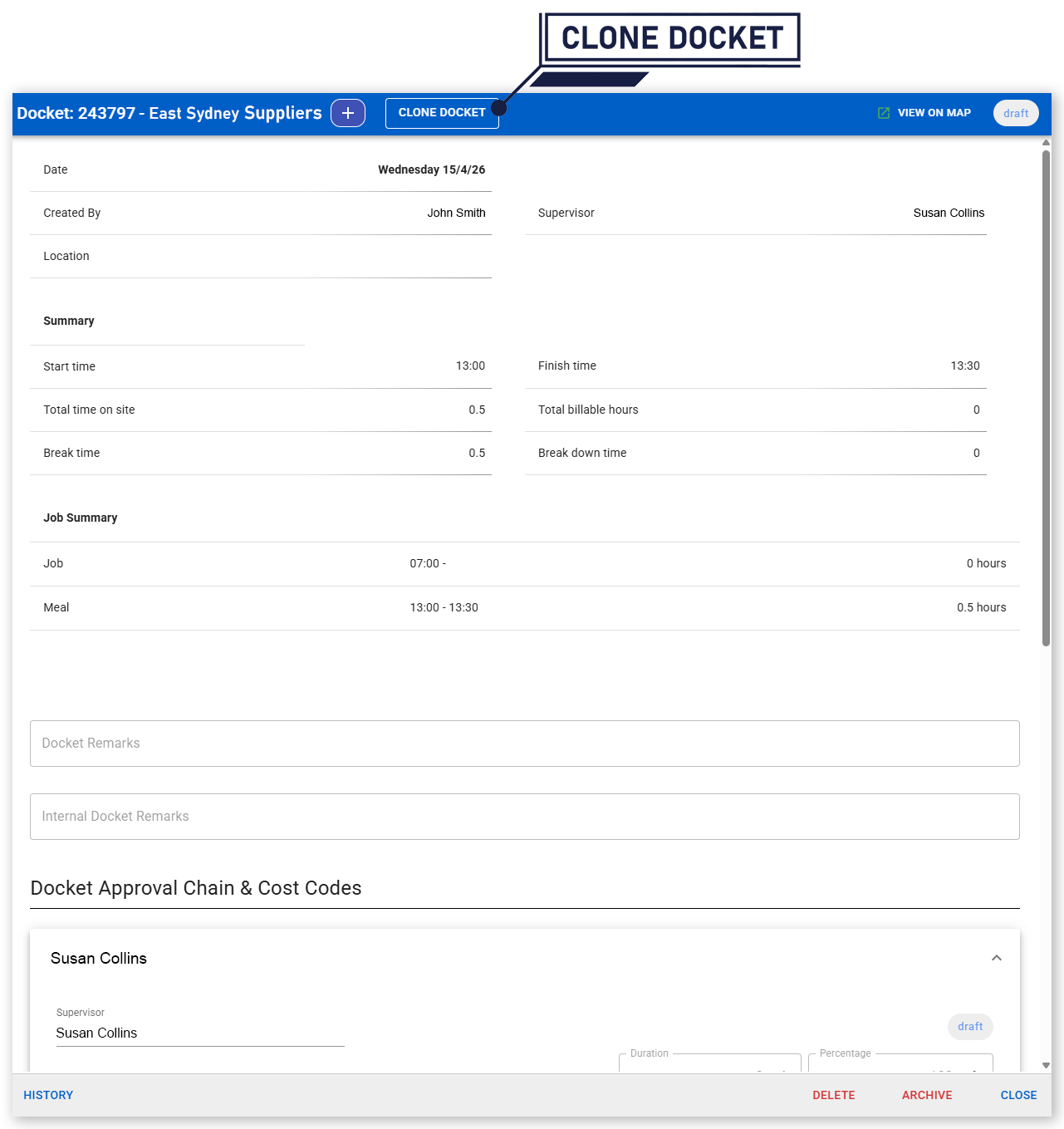
Find a docket that you want to copy in the dockets grid and select it. The Docket Editor dialog opens.
 Click or tap to expand image
 -
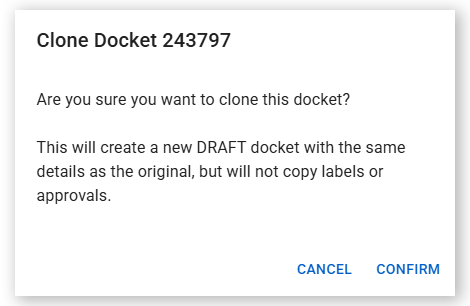
Click Clone Docket. The Clone Docket Confirmation dialog opens.
 Click or tap to expand image
 -
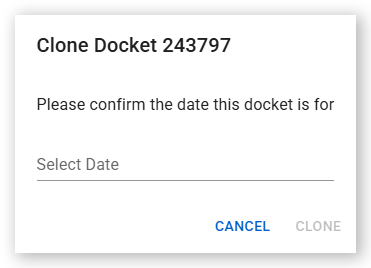
Click Confirm. The Docket Date dialog opens.
 Click or tap to expand image
 -
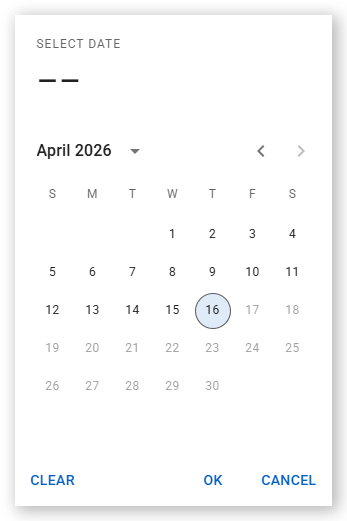
Click Select Date to open the calendar control. Select the docket date. You can choose any previous date, or today. The chosen date populates the Select Date field.
 Click or tap to expand image
 -
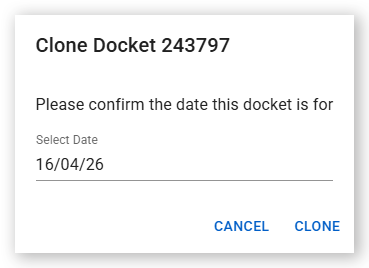
Click Clone. A copy of the selected source docket is created in a draft state, with the same details as the source docket but without any of its labels or approvals.
 Click or tap to expand image
 -
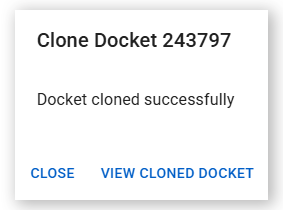
Click View Cloned Docket to open the new docket in the Docket Editor, or click Close to remain on the source docket. Use the cloned docket as normal.
 Click or tap to expand image
Clone a Docket in the SafeSite Mobile App
You can clone an existing docket in the SafeSite mobile app in one of the following ways:
- After Signing In - Clone a docket after signing in. This is the most common cloning scenario.
- From the Docket Editor - Open a docket and use Docket Actions to select Clone Docket.
- From the My Dockets list - Start the clone docket wizard and then select a docket from the list to clone.
All methods create a duplicate docket that you can edit and submit as required.
Clone a docket after signing in
If you are docket contractor, you will be asked to create a docket or clone an existing docket after you sign into the SafeSite app:
-
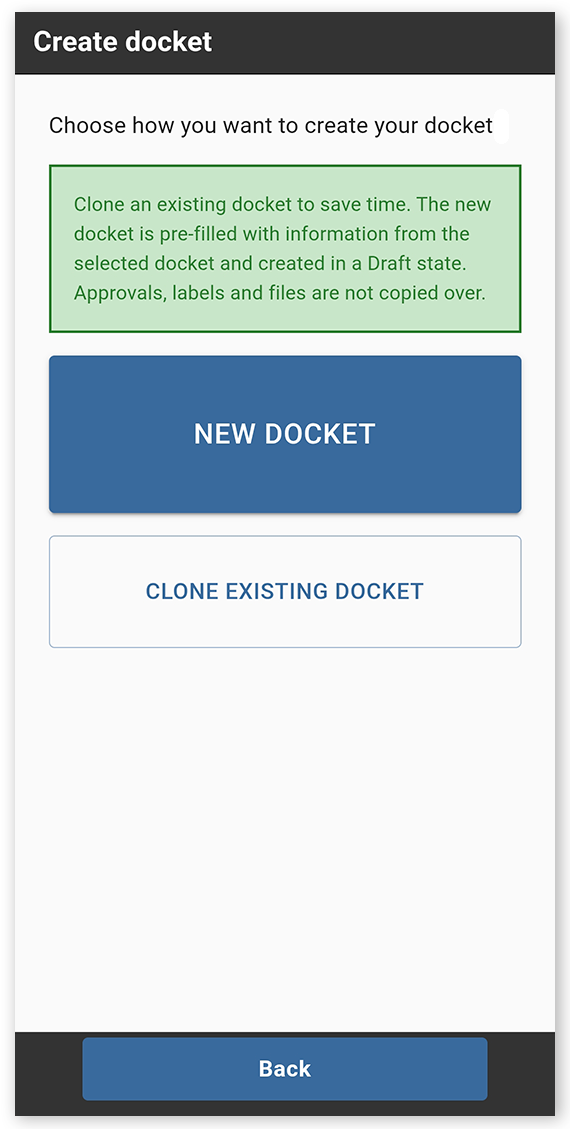
Sign in to the SafeSite mobile app and confirm that you are fit for duty. The Create Docket screen opens.
 Click or tap to expand image
 -
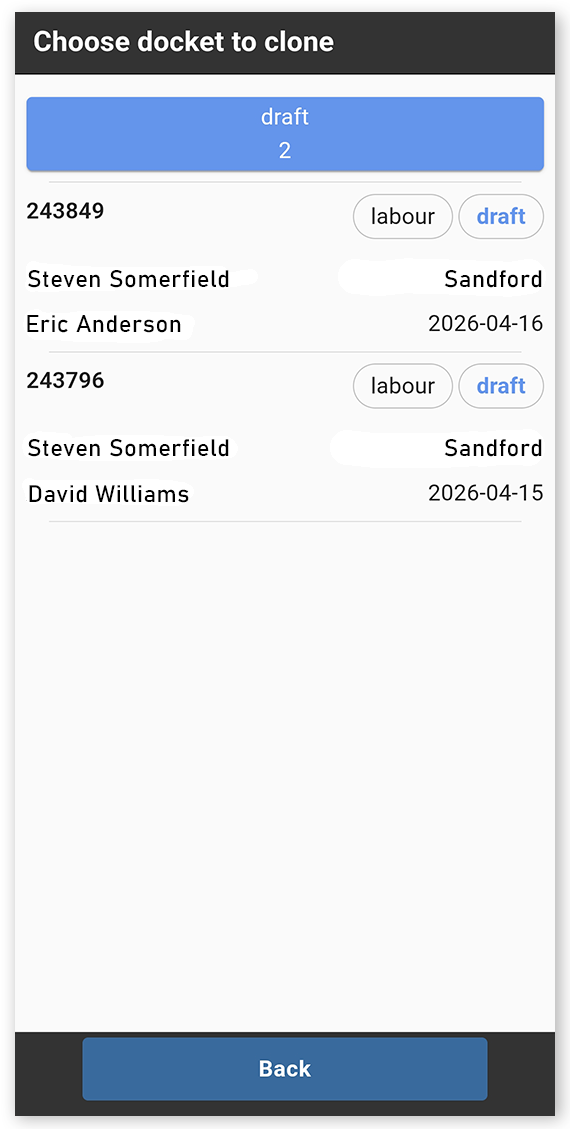
Tap Clone Existing Docket. The Docket list opens.
 Click or tap to expand image
 -
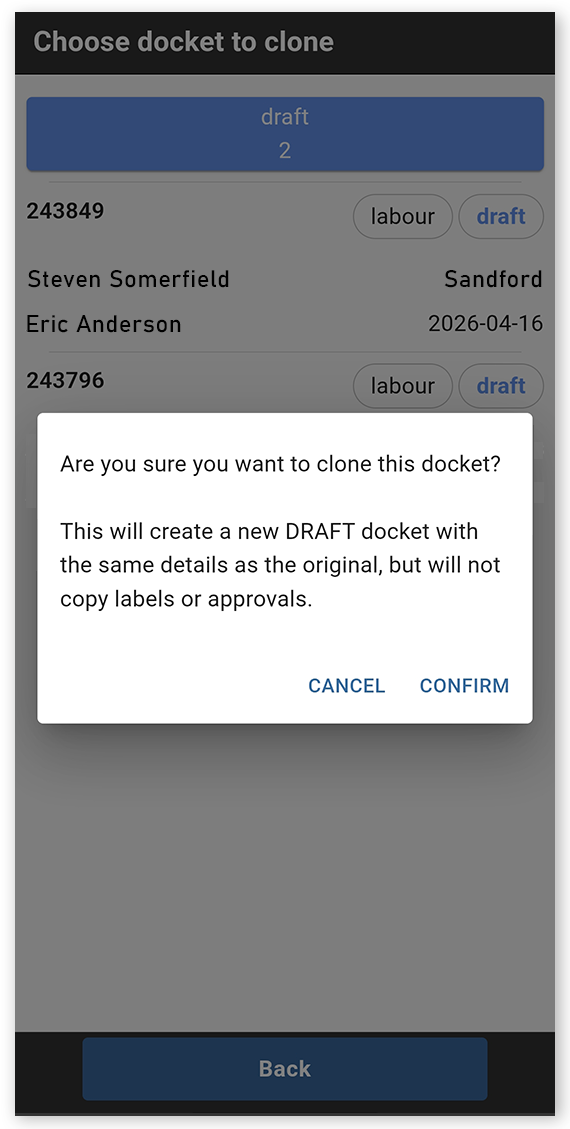
Select the docket you want to clone from the list. The Clone Docket Confirmation dialog opens.
 Click or tap to expand image
 -
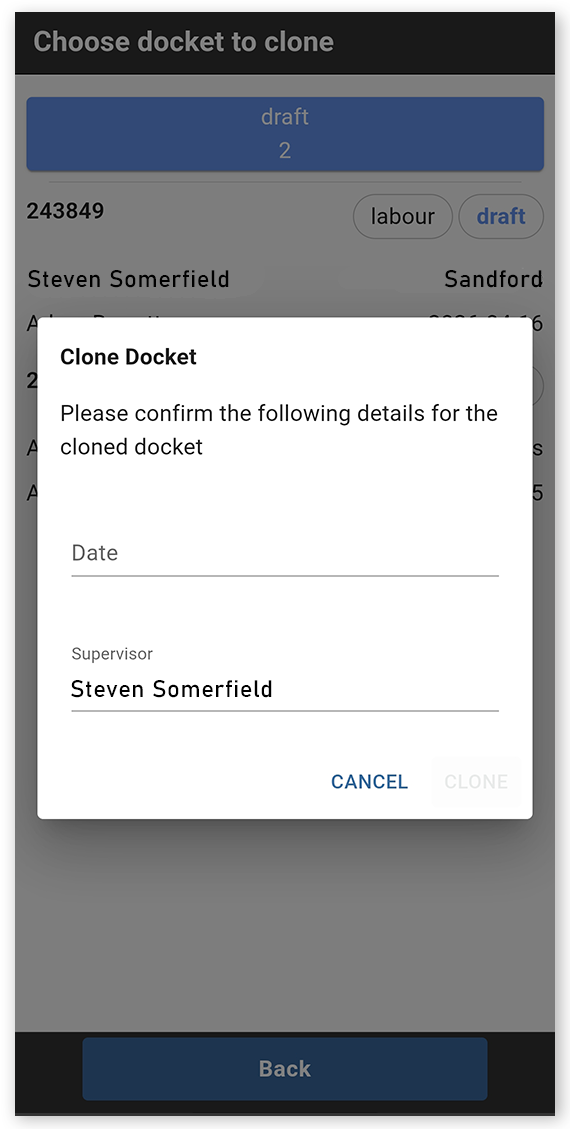
Tap Confirm. The Clone Docket dialog opens.
 Click or tap to expand image
 - Tap Date to open the calendar and select the date for the cloned docket. Tap the Supervisor field to add a Supervisor, or tap the Supervisor shown to change the assigned Supervisor, if required.
- Tap Clone to duplicate the docket and open the cloned docket in the Docket Editor.
The cloned docket is created in a Draft state and is pre‑populated with details from the original docket, but does not include labels, approvals, or file attachments (such as photos or spreadsheets).
Clone from the Docket Editor
To clone an existing docket from the Docket Editor in the SafeSite mobile app:
- Sign in to the SafeSite mobile app.
- Open My Dockets (Menu > My Dockets).
- Select the docket you want to clone to open it in the Docket Editor.
-
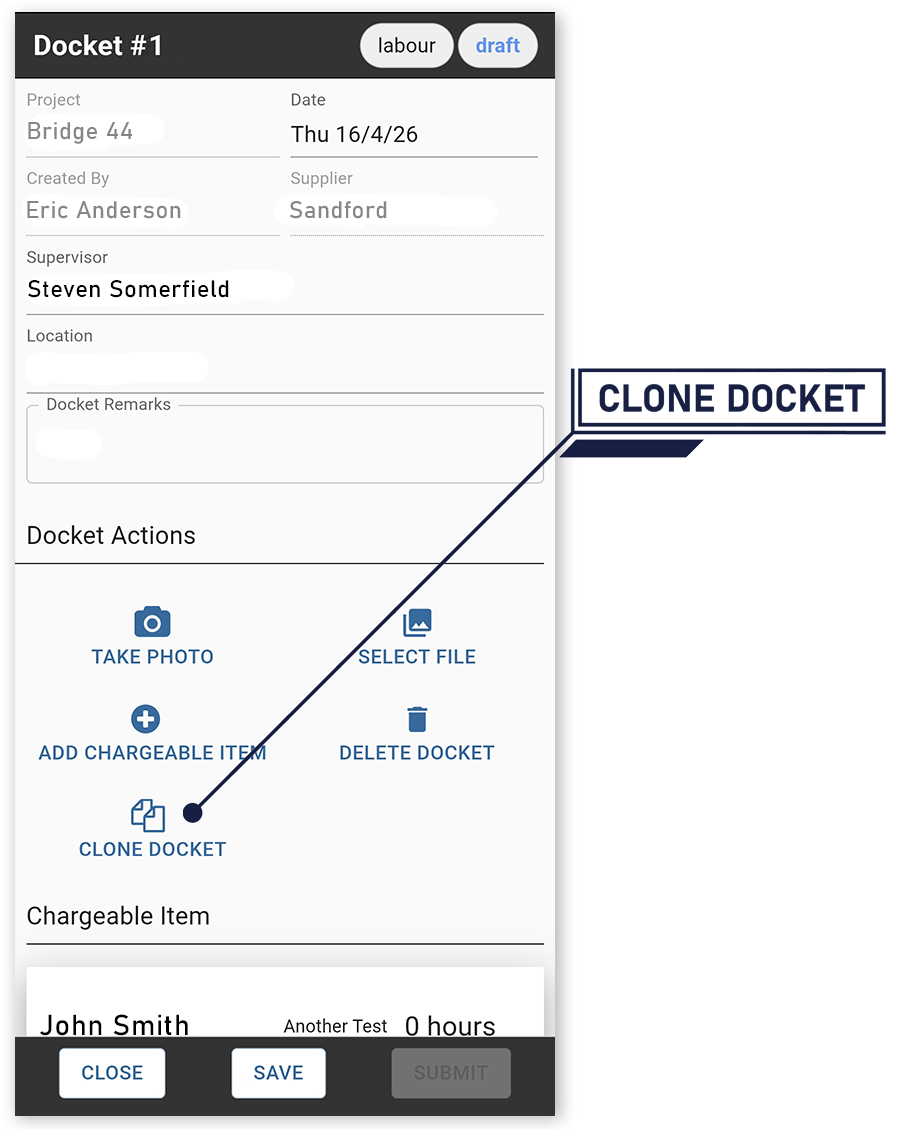
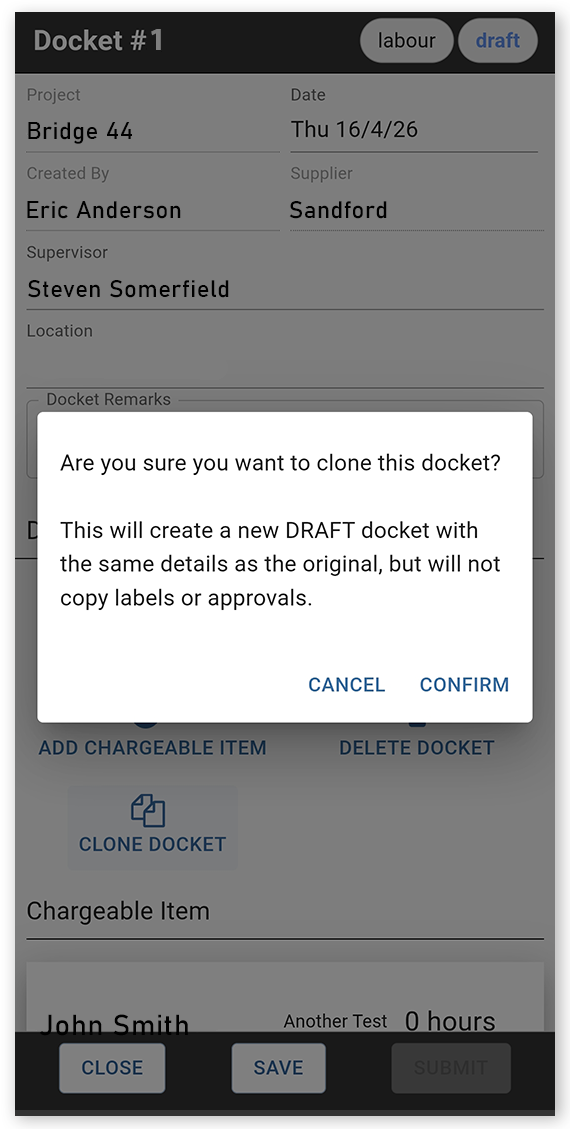
In the Docket Actions section, tap Clone Docket. A confirmation dialog opens, explaining that the cloned docket will be created in a Draft state without labels or approvals.
 Click or tap to expand image
 -
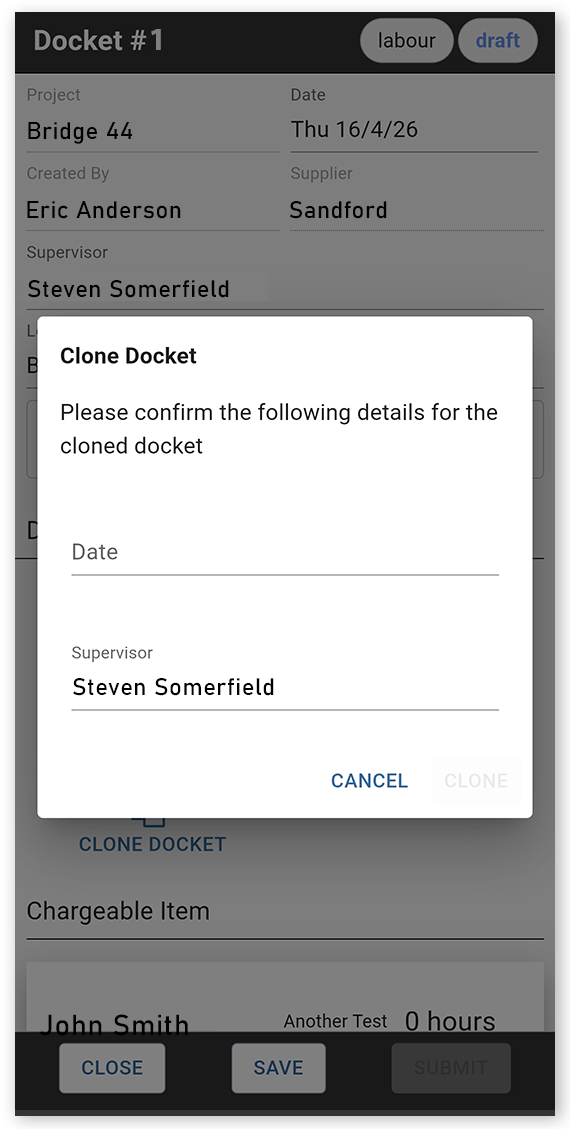
Tap Confirm to open the Clone Docket dialog.
 Click or tap to expand image
 -
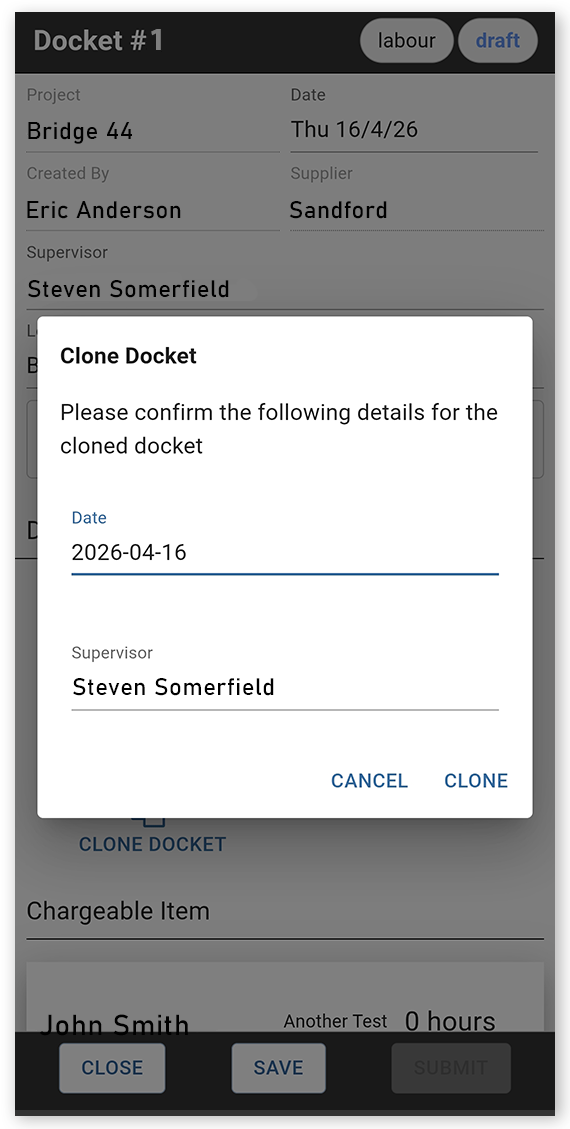
Tap Date to open the calendar and select the date for the cloned docket. Tap the Supervisor field to add a Supervisor, or tap the Supervisor shown to change the assigned Supervisor, if required.
 Click or tap to expand image
 -
Tap Clone to duplicate the docket and open the cloned docket in the Docket Editor.
 Click or tap to expand image
The cloned docket is created in a Draft state and is pre‑populated with details from the original docket, but does not include labels, approvals, or file attachments (such as photos or spreadsheets).
Clone from the My Dockets List
To clone an existing docket from the My Dockets List in the SafeSite mobile app, without opening the docket:
- Sign in to the SafeSite mobile app.
- Open My Dockets (Menu > My Dockets).
-
Tap Add Docket. The Create Docket screen opens.
Click or tap to expand image -
Tap Clone Existing Docket. The Docket list opens.
Click or tap to expand image -
Select the docket you want to clone from the list. The Clone Docket Confirmation dialog opens.
Click or tap to expand image -
Tap Confirm. The Clone Docket dialog opens.
Click or tap to expand image - Tap Date to open the calendar and select the date for the cloned docket. Tap the Supervisor field to add a Supervisor, or tap the Supervisor to change the assigned Supervisor, if required.
- Tap Clone to duplicate the docket and open the cloned docket in the Docket Editor.