
Manage SafeSite User Permissions
SafeSite user permissions control what each user can see and do within the SafeSite app. By assigning the appropriate permissions, administrators can manage how subcontractors, supervisors, and other users interact with key features such as dockets, timesheets, site data, and map tools.
This page outlines the available permissions, explains how to update them, and highlights important considerations to keep in mind when granting users access rights.
Note: For information about managing Virtual Superintendent user permissions, see the Manage Virtual Superintendent User Permissions help article.
In this article
Permissions
To access the Users page (Menu > Users) and manage SafeSite user permissions, you must have the following Virtual Superintendent permission:
- Admin Manager
Note: If you believe that you should have access to this page but you do not (for example, if your account was recently created and you are trying to create and manage user accounts for your organization), contact support@virtualsuper.com to request access.
Change SafeSite User Permissions
To change a SafeSite user's permissions:
- Sign in to Virtual Superintendent.
- Click Menu > Users. The Users page opens.
- Click SafeSite App Users in the top menu bar. A grid view opens, showing all SafeSite users in your project and their permissions.
- Locate the user account you want to edit. Use the Name filter in the top left corner to filter by user name or the Email field to filter by email address.
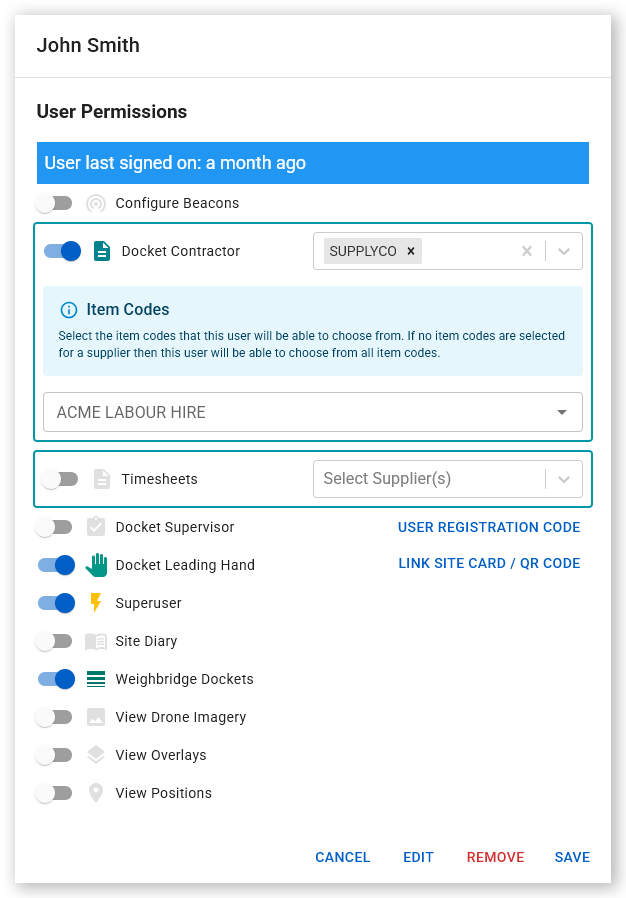
- Select the required SafeSite user account. The User Permissions dialog opens.
- Enable or disable permissions on the dialog using the toggles. When a permission is enabled, its toggle button turns blue.
- Click Save to update the user's permissions and close the dialog.
See the sections below for information about the different SafeSite user permissions available.
SafeSite User Permissions
The following permissions are available for SafeSite users:
| Permission | Capabilities |
| Configure Beacons | Allows the user to configure Bluetooth beacons used for project data collection. |
| Docket Contractor | Allows subcontractors to create and submit dockets. Administrators can restrict item codes available to the user. |
| Timesheets | Allows subcontractors to submit timesheets for completed work. Administrators can restrict item codes available to the user. |
| Docket Supervisor | Allows supervisors to accept, reject, and cost code assigned dockets. Supervisor Virtual Superintendent and SafeSite accounts are linked, allowing docket processing from either platform. Rejected dockets are returned to the docket creator for editing. |
| Docket Leading Hand | Allows users to review and cost code dockets but not perform final acceptance, which requires Docket Supervisor rights. |
| Superuser | Allows the user to onboard people and plant directly from the SafeSite app. |
| Site Diary | Allows the user to record site diary events. |
| Weighbridge Dockets | Allows the user to access the Weighbridge Dockets page, submit draft or rejected dockets, and withdraw submitted weighbridge dockets. |
| View Drone Imagery | Allows the user to view drone imagery on the project map. |
| View Overlays | Allows the user to view map line work overlays. |
| View Positions | Allows the user to view the locations of other users on the map. |
Permissions Notes
- SafeSite users can have either Docket Contractor or Timesheets permissions, not both.
- Users with Weighbridge Dockets permissions cannot edit docket details but can use this right to flag dockets for deletion.
Dockets on Behalf
The Dockets on Behalf permission allows a user to create Plant, Material and Labor dockets for any supplier in the project on the behalf of others.
This permission is used infrequently and hidden from the standard permission list. Only Virtual Superintendent support can enable or disable it.
You can identify users with this permission by filtering the Permissions column on the Users page.
Caution: The Dockets on Behalf permission grants significant power and should be used with care.