
The Messaging Page
Use the Messaging page to create and manage Site Notices, Messages, and Notifications. Head Contractors can use these tools to communicate with registered SafeSite users.
- Notifications are sent automatically when configured events occur. For example, you can notify users when a vehicle exceeds the site speed limit, a truck is overloaded, or a user fails a Fit for Work declaration.
- Site Notices provide ongoing information that remains available until it is archived, such as safety reminders, site changes, or upcoming events.
- Messages are one-off communications sent to an individual or selected group of users, such as asking someone to report to a location or reminding workers to complete a task.
In this article
Permissions
To access the Messaging page and send notices and messages to SafeSite mobile app users, you must have the following permissions:
- User Admin
Note: Subcontractor Administrators cannot access the Messaging page, even if they have the User Admin permission.
Notifications
Notifications alert users when specific events occur in a project. A notification is triggered when an event associated with a user, role, supplier, or plant is detected. Examples include:
- Break violations
- Site entries and exits
- GPS not being enabled
- Failed Fit for Work declarations during sign-on
- Failed plant checklists
- Speeding or overloaded vehicles
Notifications can be sent as:
- Push notifications to selected SafeSite users
- Email notifications to specified recipients
You can also choose to send a notification to the user who triggered the event.
All notifications are displayed on the Notifications tab, including details such as the event type, location, user, and the date and time the event occurred.
Notifications can be configured to monitor a wide range of events, from site-wide alerts (such as any user failing a Fit for Work declaration) to highly specific events, such as speeding by fuel trucks, activity from a particular supplier, or even site entry and exit events for an individual user.
Create a Notification
To create a notification:
- Sign in to Virtual Superintendent.
- Click Menu > Messaging. The Messaging page opens.
- Click the Notifications tab.
-
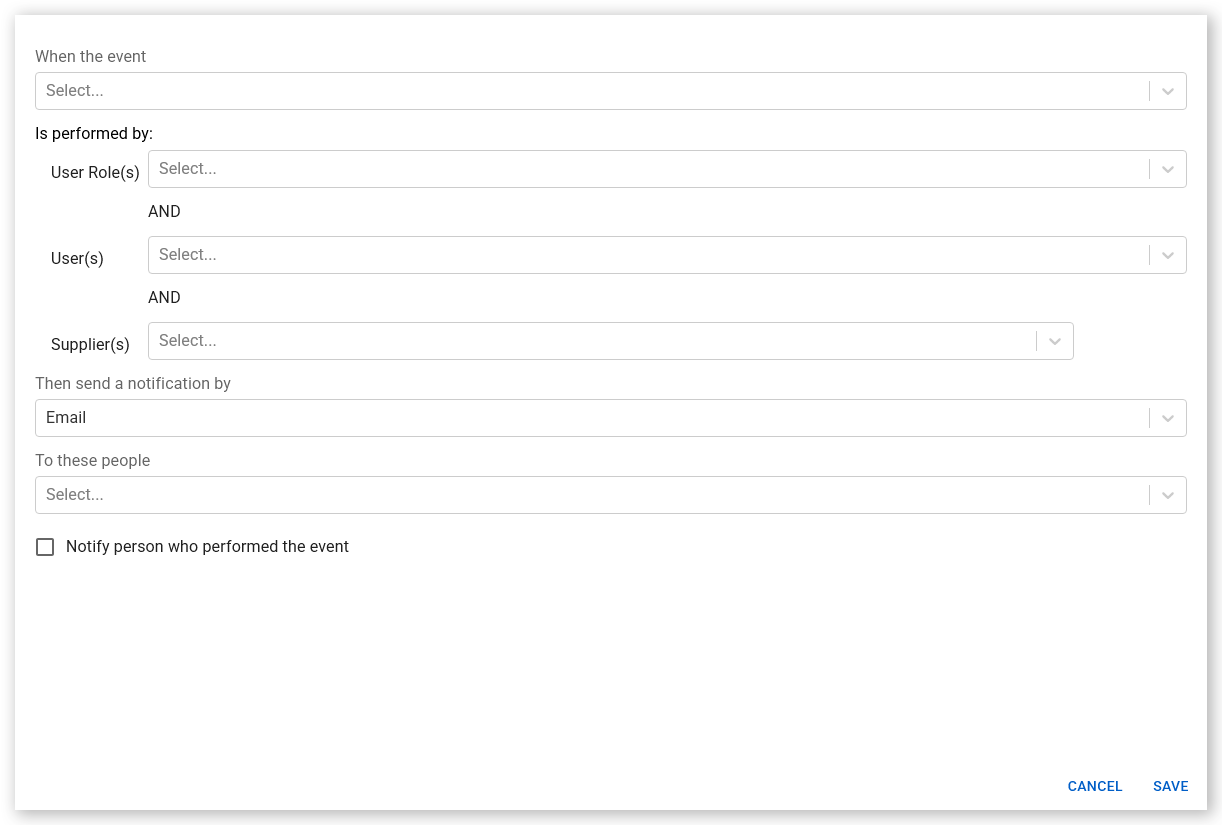
Click Create Notification. The Create Notification dialog opens.
 Click or tap to expand image
 - Select the event that triggers the notification.
- Select the required User Roles and/or Supplier filters. You can also type a user, role, or supplier name to filter the available results.
- Select how the notification is delivered from the Then send a notification by list. Choose Email or SafeSIte mobile app push notification.
- Select the recipients from the To these people list. You can also type a user's name to filter the available results.
- Check the Notify person who performed the event box if you want to person who triggered the event to also receive the notification.
- Click Save.
The notification is sent to the specified SafeSite users as a push notification, or to the specified users' email addresses, if the event sequence occurs.
Any historical notifications are also shown on the Notifications tab.
Site Notices
Site notices act as a project bulletin board. They remain visible to users until they are archived.
When you send a site notice:
- Users currently signed in to SafeSite receive it immediately.
- Users who are not signed in receive it the next time they sign in.
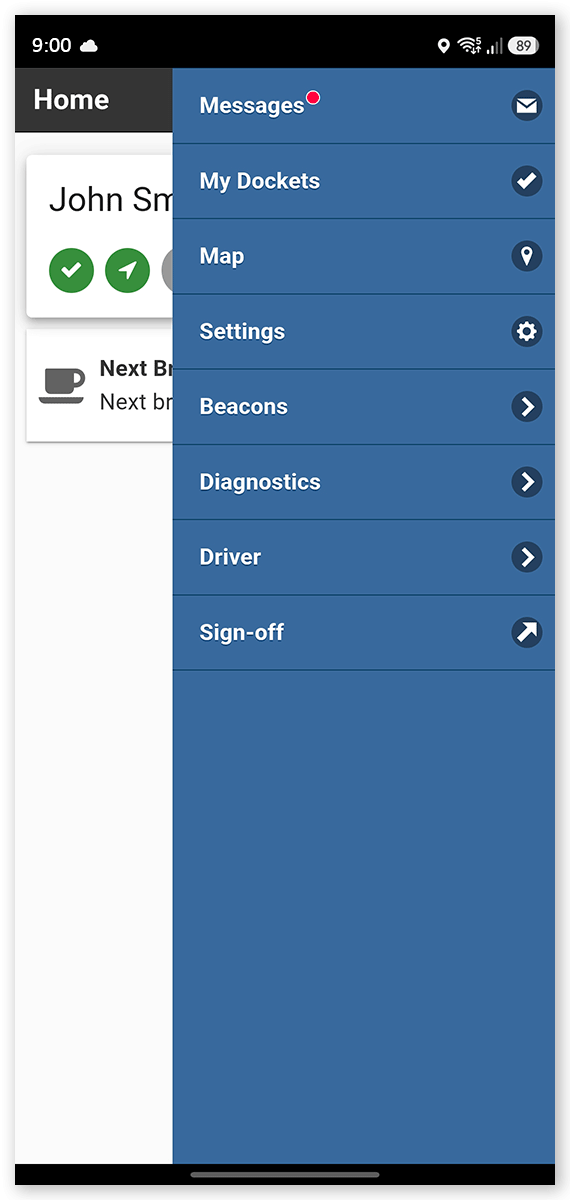
- Unread site notices display a red notification dot in SafeSite.
- Users who register after the site notice is created can still view it while it remains active.
Create a Site Notice
To create a site notice:
- Sign in to Virtual Superintendent.
- Click Menu > Messaging. The Messaging page opens.
- Click the Site Notices tab.
-
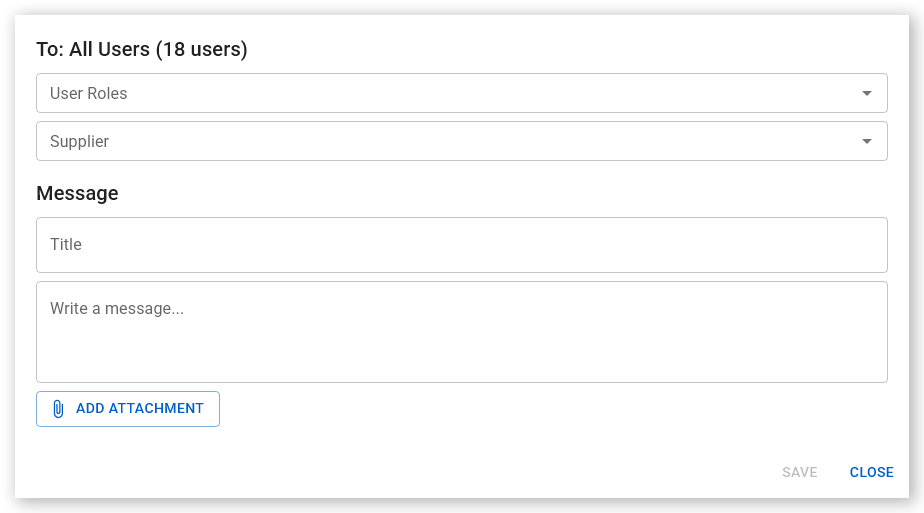
Click Create Site Notice. The Create Site Notice dialog opens.
 Click or tap to expand image
 - Select the required User Roles and/or Supplier filters.
- Enter a site notice title in the Title field.
- Enter the site notice text. If needed, you can also add attachments such as maps, images, or documents by clicking Add Attachment.
-
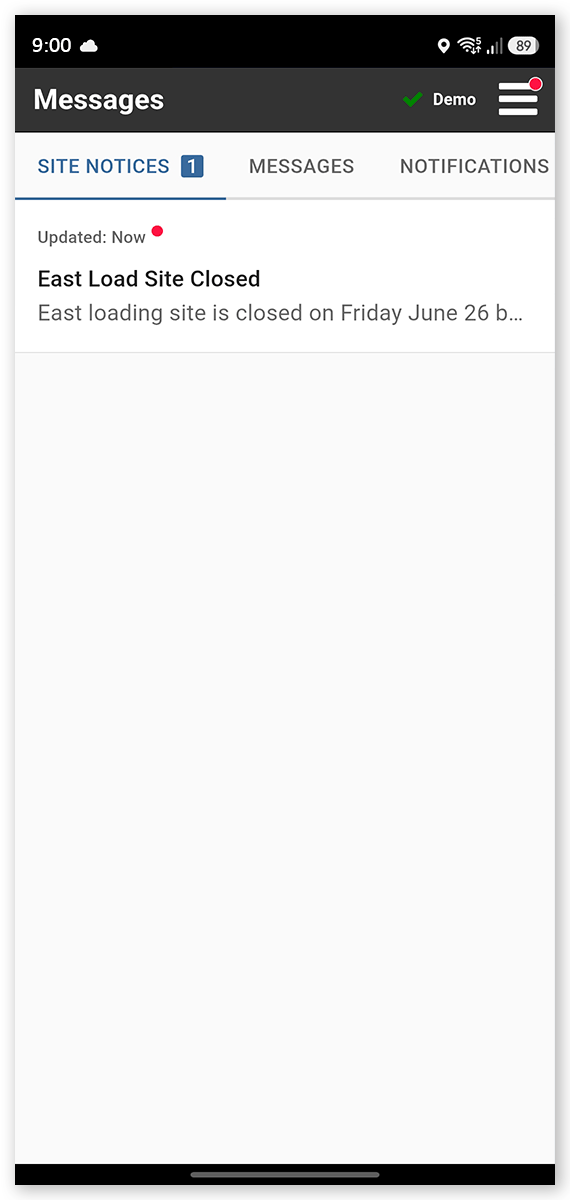
Click Save. The site notice is sent to all matching SafeSite users and added to the Site Notices tab.
 Click or tap to expand image
Archive a Site Notice
To archive a site notice:
- Sign in to Virtual Superintendent.
- Click Menu > Messaging. The Messaging page opens.
- Click the Site Notices tab.
- Locate the site notice you want to archive and hover your mouse over it. The Archive button appears.
- Click Archive.
The site notice is removed from the SafeSite Messages page and no longer appears in the active site notice list.
Note: Archived site notices remain available in Virtual Superintendent and can be displayed by toggling on the Show Archived option on the Site Notices tab.
Messages
Messages are intended for one-off communications with individual users, or groups of users in a specific role or who work for a specific supplier.
Unlike site notices:
- Messages cannot be archived.
- Messages remain available to recipients.
- Users who register after a message is sent cannot view that message.
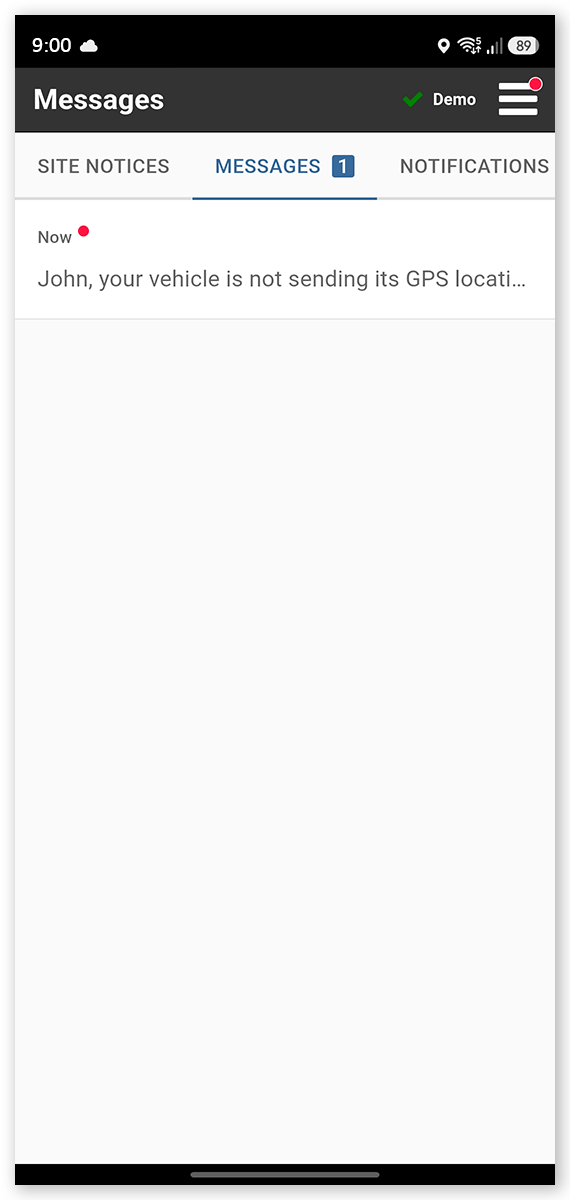
If a recipient is signed in to SafeSite, they receive the message immediately. If SafeSite is closed or running in the background, they receive a push notification that opens the message when tapped.
Send a Message
To send a Message:
- Sign in to Virtual Superintendent.
- Click Menu > Messaging. The Messaging page opens.
- Click the Messages tab.
-
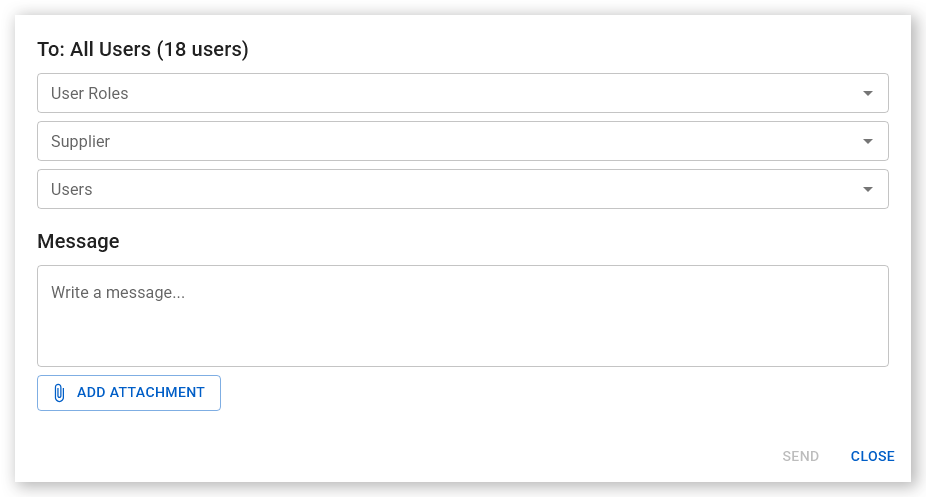
Click Send Message. The Send Message dialog opens.
 Click or tap to expand image
 - Select the required User Roles and/or Supplier filters, or search for individual users.
- Enter the message text into the Message field. If needed, you can also add attachments such as maps, images, or documents by clicking Add Attachment.
-
Click Send. The message is sent to the selected users.
 Click or tap to expand image