
Delete a SafeSite Account
If a SafeSite account is no longer needed (for example, if an employee leaves or changes role) the account can be removed from Virtual Superintendent.
In this article
Permissions
To access the Users page (Menu > Users) and remove SafeSite accounts, you must have the following permission:
- User Admin
Remove a SafeSite Account
To remove a SafeSite account:
- Sign in to Virtual Superintendent.
- Click Menu > Users. The Users page opens.
-
Click SafeSite App Users in the top menu bar. A grid view opens, showing all SafeSite users in your project and their permissions. If you have the Subcontractor Admin permission, only the SafeSite App Users tab is available.
 Click or tap to expand image
 -
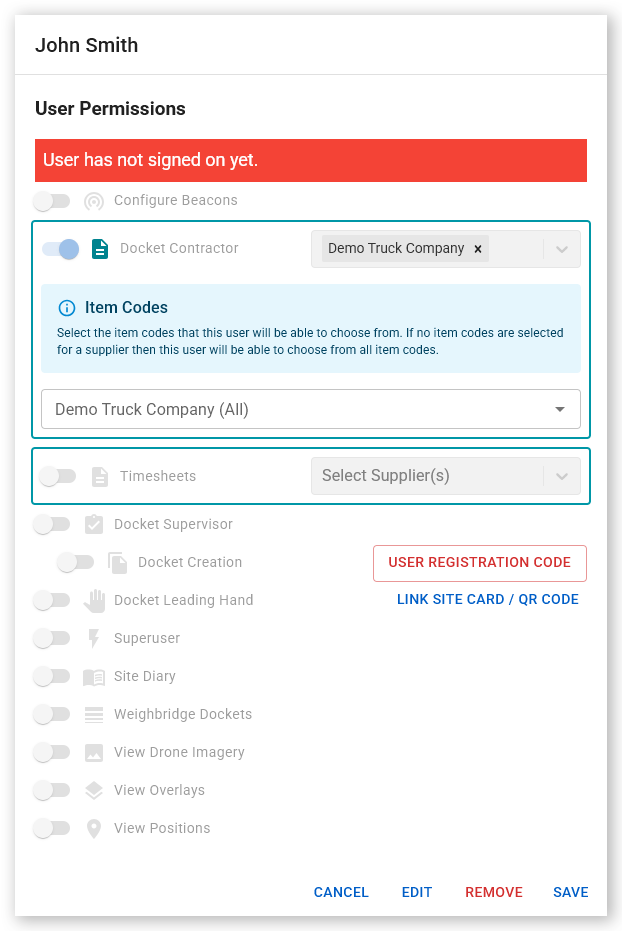
Locate the SafeSite account that you want to delete in the SafeSite users list and select it. Use the Name filter in the top left corner to filter by username or the Email field to filter by email address. The User Permissions dialog opens.
 Click or tap to expand image
 - Click Remove. The button changes to Confirm Remove User? and starts a three second countdown. When the countdown finishes, the button changes back to Remove.
- Click Confirm Remove User?. The account is removed and the dialog closes. The SafeSite account can no longer be used, and is removed from the SafeSite App Users grid.