
Archive and Unarchive Dockets
Archiving a docket removes it from standard docket views and search results but doesn't delete it. The data within the archived docket is retained and used by Virtual Superintendent for internal calculations and analytics.
Archiving dockets also improves system performance, especially when managing many dockets, because archived dockets no longer appear in dockets lists by default. This can significantly reduce page loading times.
You can archive and unarchive dockets at any time, either individually or in bulk.
Note: You can also delete and restore dockets. See the Delete and Restore Dockets help article for more information.
In this article
Permissions
To archive and unarchive dockets, you must have one of the following permissions:
- Dockets Admin
- Dockets Super User
Note: Dockets users without Dockets Admin or Dockets Super User permissions, including users with Subcontractor Admin rights, cannot archive or unarchive dockets, but they can view dockets archived by others by selecting Display Options > Show Archived on their respective Dockets pages.
View Archived Dockets
To see archived dockets on your dockets page:
- Sign in to Virtual Superintendent.
- Click Menu > Admin if you are Dockets Admin, or Menu > Super User if you are Dockets Super User. The Dockets page opens. You might be asked to choose a pre-filter setting before dockets are shown.
-
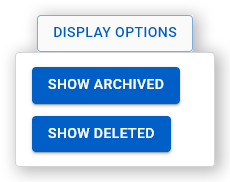
Click Display Options. A contextual menu opens.
 Click or tap to expand image
 - Click Show Archived. The Archived column filter updates to show only archived dockets.
Note: To restore the default docket view, click Display Options again and select Hide Archived.
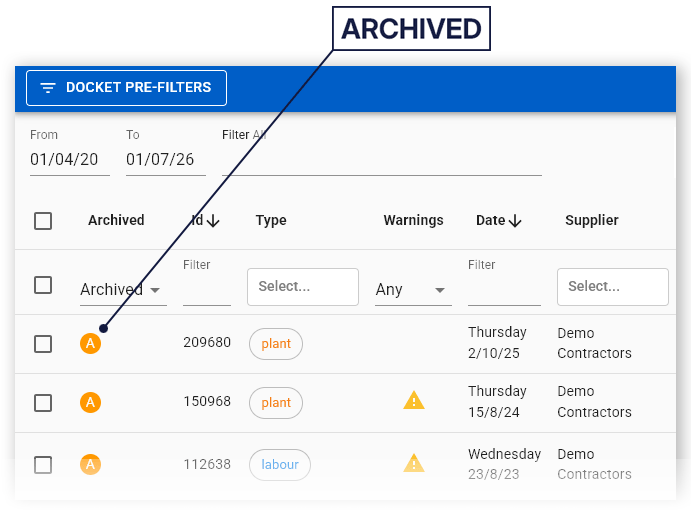
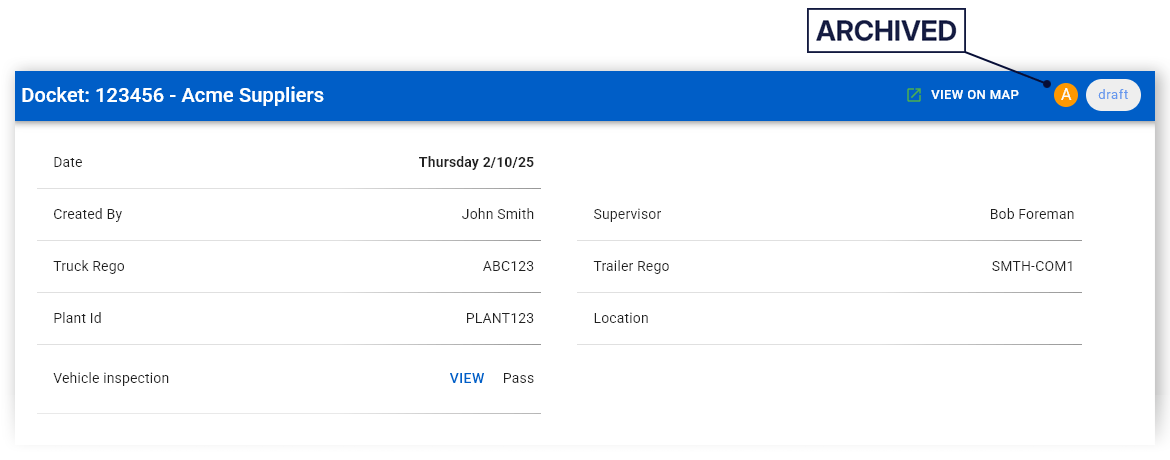
Archive Dockets
Archive individual dockets
To archive dockets individually:
- Sign in to Virtual Superintendent.
- Click Menu > Admin if you are Dockets Admin, or Menu > Super User if you are Dockets Super User. The Dockets page opens. You might be asked to choose a pre-filter setting before dockets are shown.
-
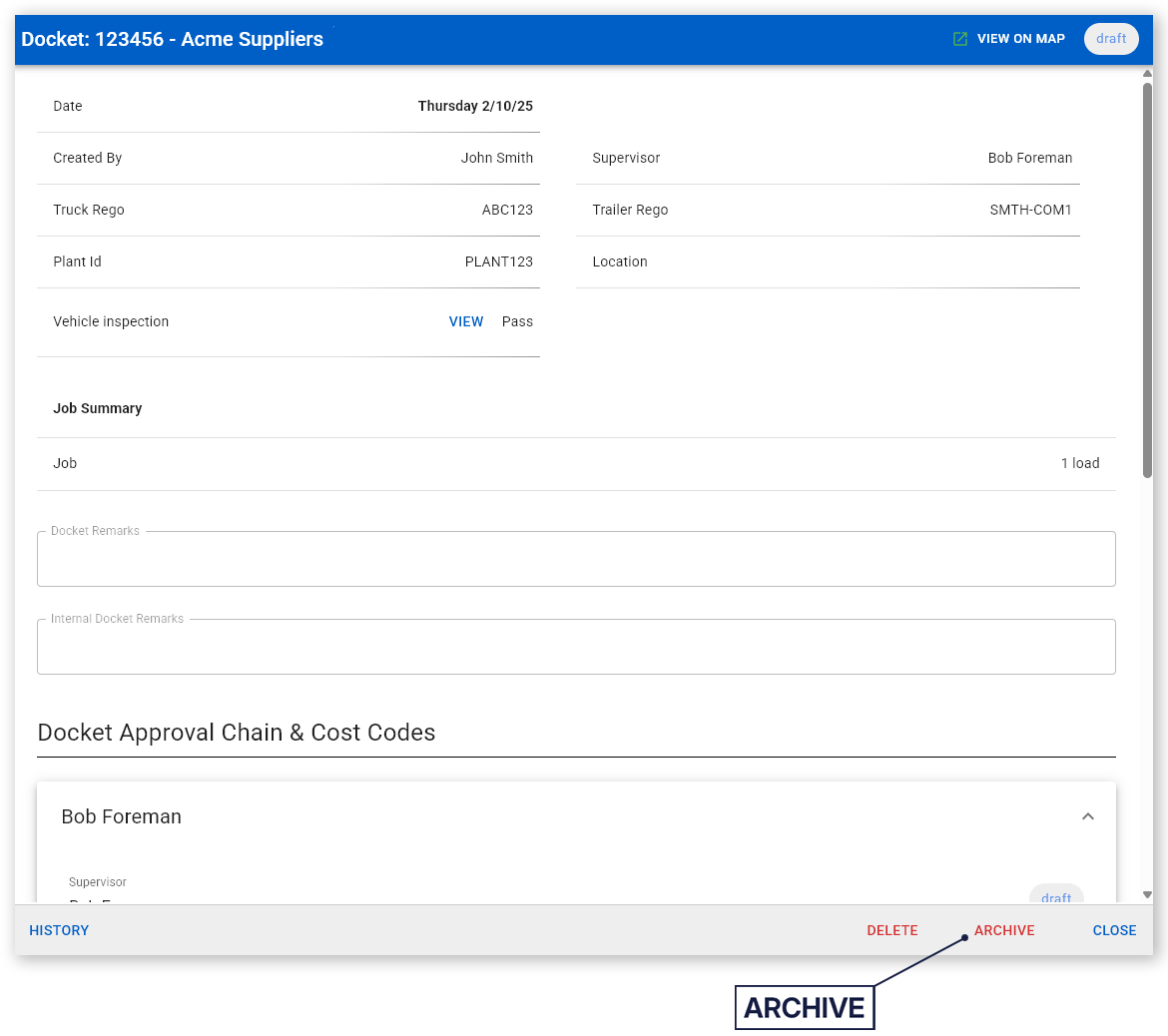
Locate and select the docket you want to archive. The Edit Docket dialog opens.
 Click or tap to expand image
 - Click Archive. The button changes to Confirm Archive? and starts a three second countdown. When the countdown finishes, the button changes back to Archive.
-
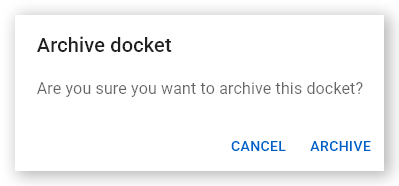
Click Confirm Archive?. The Archive Docket dialog opens.
 Click or tap to expand image
 - Click Archive. The Edit Docket dialog closes and the docket is archived and hidden in default docket views and searches.
Archive dockets in bulk
To archive several dockets in one action:
- Sign in to Virtual Superintendent.
- Click Menu > Admin if you are Dockets Admin, or Menu > Super User if you are Dockets Super User. The Dockets page opens. You might be asked to choose a pre-filter setting before dockets are shown.
- Select the checkbox beside every docket you want to archive.
-
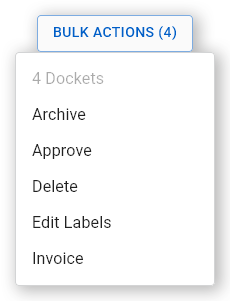
Click Bulk Actions. A contextual menu opens.
 Click or tap to expand image
 -
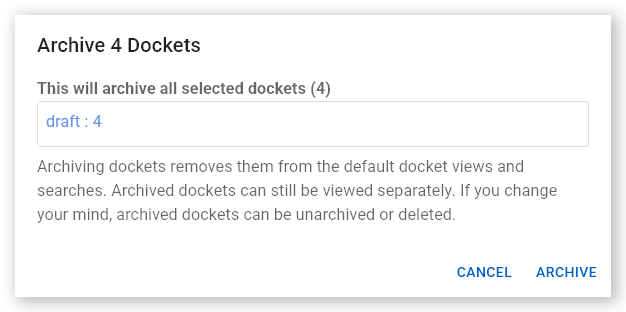
Click Archive. The Archive Dockets dialog opens, showing the total number of dockets that will be archived and their docket states (for example, two draft and eight reconciled).
 Click or tap to expand image
 -
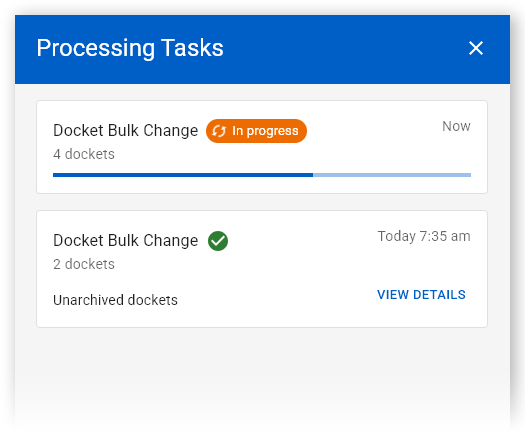
Click Archive. The Processing Tasks panel opens on the right side of the screen, and the dockets are archived and no longer visible in default docket views and searches. Depending on the number of dockets being archived, this process might take some time.
 Click or tap to expand image
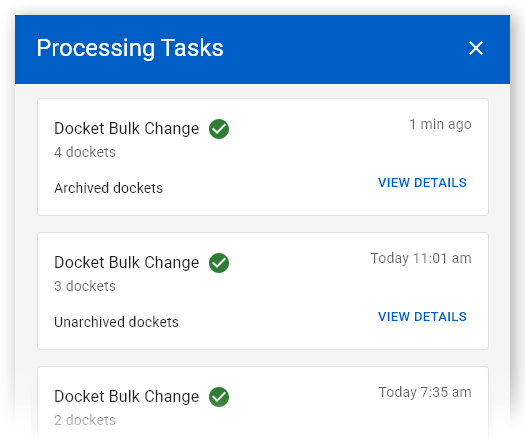
The Processing Tasks panel is used to indicate that a background process has started.
While background tasks are underway, you can leave the Dockets page and work in other areas of Virtual Superintendent. If you have closed the Processing Tasks panel, when the background task finishes a notification is shown on the Processing Tasks icon in the top bar.

Click the Processing Tasks icon to reopen the Processing Tasks panel and see a list of all historical tasks with a timestamp indicating when they were completed. Click View Details beside the archiving task to open a dialog showing the unique IDs of the dockets that were archived.
Unarchive Dockets
Unarchive individual archived dockets
To restore archived dockets individually:
- Sign in to Virtual Superintendent.
- Click Menu > Admin if you are Dockets Admin, or Menu > Super User if you are Dockets Super User. The Dockets page opens. You might be asked to choose a pre-filter setting before dockets are shown.
-
Click Display Options. A contextual menu opens.
Click or tap to expand image - Click Show Archived. The Archived column filter updates to show only archived dockets.
-
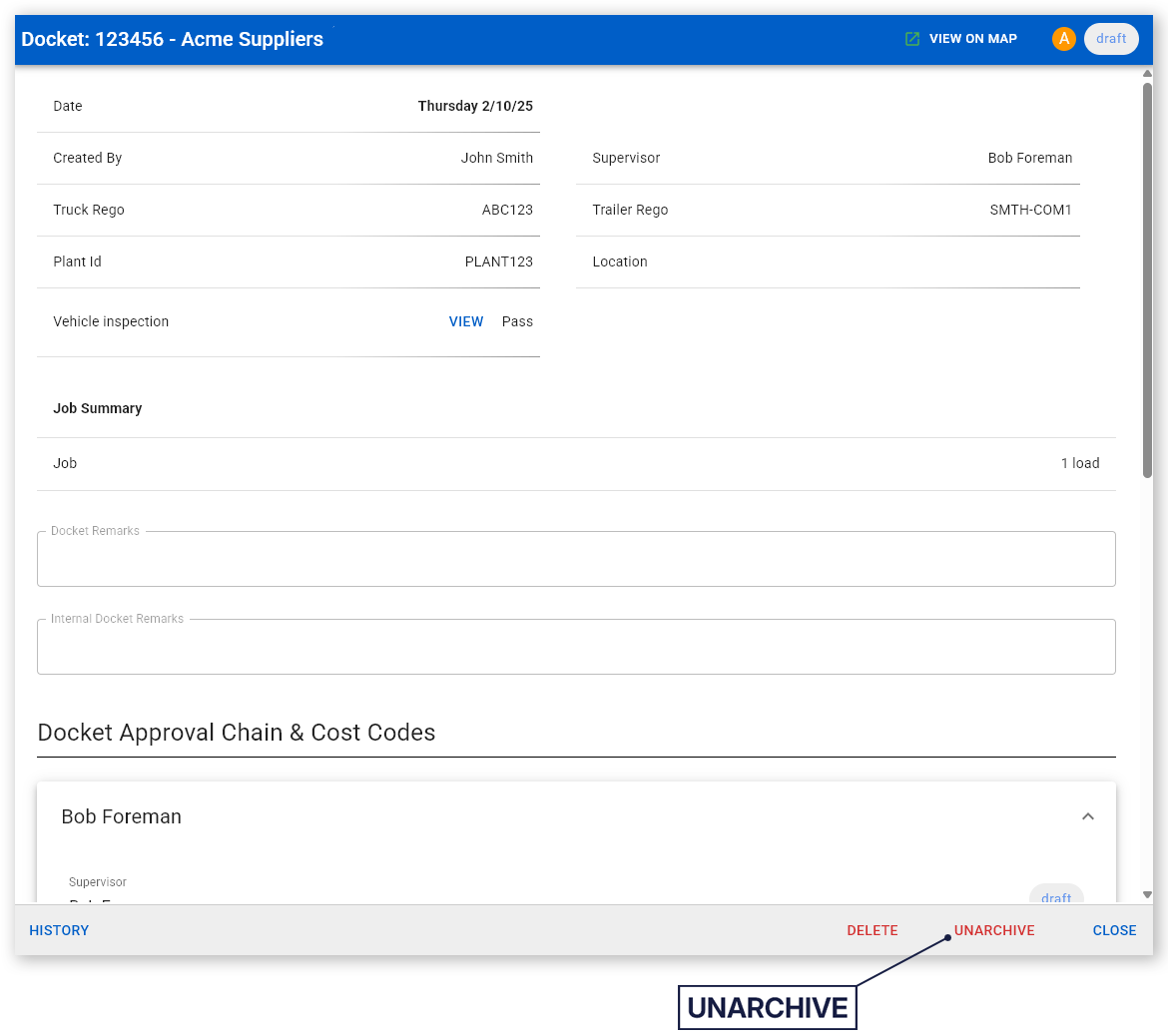
Select an archived docket that you want to restore. The Edit Docket dialog opens.
 Click or tap to expand image
 - Click Unarchive. The button changes to Confirm Unarchive? and starts a three second countdown. When the countdown finishes, the button changes back to Unarchive.
-
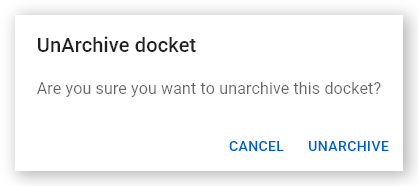
Click Confirm Unarchive?. The Unarchive Docket dialog opens.
 Click or tap to expand image
 - Click Unarchive. The Edit Docket dialog closes and the docket is unarchived and restored to default docket views and searches.
Unarchive dockets in bulk
To unarchive several dockets in one action:
- Sign in to Virtual Superintendent.
- Click Menu > Admin if you are Dockets Admin, or Menu > Super User if you are Dockets Super User. The Dockets page opens. You might be asked to choose a pre-filter setting before dockets are shown.
-
Click Display Options. A contextual menu opens.
Click or tap to expand image - Click Show Archived. The Archived column filter updates to show only archived dockets.
- Select the checkbox beside every docket you want to unarchive.
-
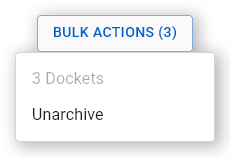
Click Bulk Actions. A contextual menu opens.
 Click or tap to expand image
 -
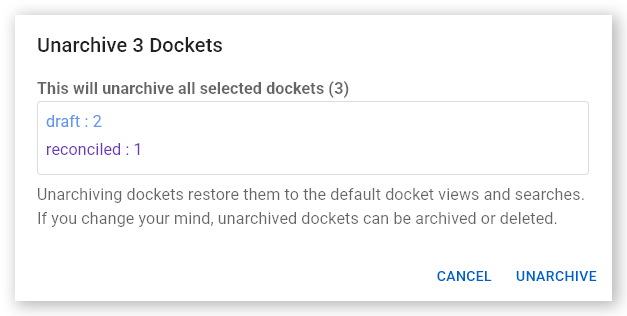
Click Unarchive. The Unarchive Dockets dialog opens, showing the total number of dockets that will be restored and their docket states (for example, one draft and five reconciled).
 Click or tap to expand image
 -
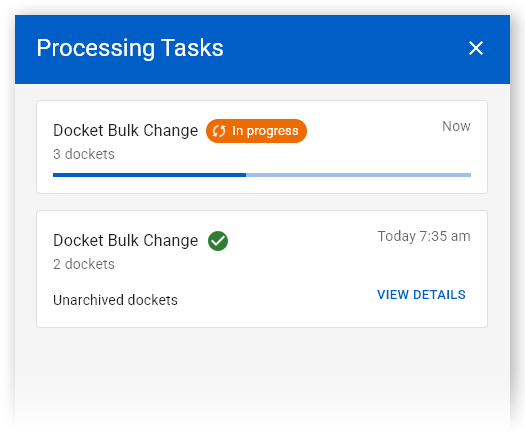
Click Unarchive. The Processing Tasks panel opens on the right side of the screen, and the dockets are unarchived and restored to default docket views and searches. Depending on the number of dockets being unarchived, this process might take some time.
 Click or tap to expand image
The Processing Tasks panel is used to indicate that a background process has started.
While background tasks are underway, you can leave the Dockets page and work in other areas of Virtual Superintendent. If you have closed the Processing Tasks panel, when the background task finishes a notification is shown on the Processing Tasks icon in the top bar.
Click the Processing Tasks icon to reopen the Processing Tasks panel and see a list of all historical tasks with a timestamp indicating when they were completed. Click View Details beside the unarchiving task to open a dialog showing the unique IDs of the dockets that were unarchived.
Video Guide
The following video demonstrates the docket archiving and unarchiving processes: