
Add Item Code Groups
Item code groups let you combine multiple item codes into a single selectable option that matches how a supplier contract is structured. These groups automatically apply rules such as overtime, shift rates, or allowances based on the details entered in a docket.
Subcontractors select an item code group when creating a docket in the SafeSite app. They do not see individual item codes within the group. Engineers and head contractor administrators manage and review the underlying item codes.
In this article
Note: Before creating an item code group, all required individual item codes must already exist for the supplier. Read Create an Item Code with a Sign-on Profile for detailed information about creating a new item code.
Permissions
To access the Dockets Setup page (Menu > Dockets Setup) where item code groups are create or edited, you must have one of the following permissions enabled:
- Dockets Super User
- Admin Manager
Create a New Item Code Group
To create a new item code group:
- Open the Dockets Setup page (Menu > Dockets Setup).
- Click the Item Codes tab.
- Click Add Group. The New Item Code Group dialog opens showing two tabs: Item Options and Rules.

Item Options Tab
Use the Item Options tab to specify general settings for the item code group.
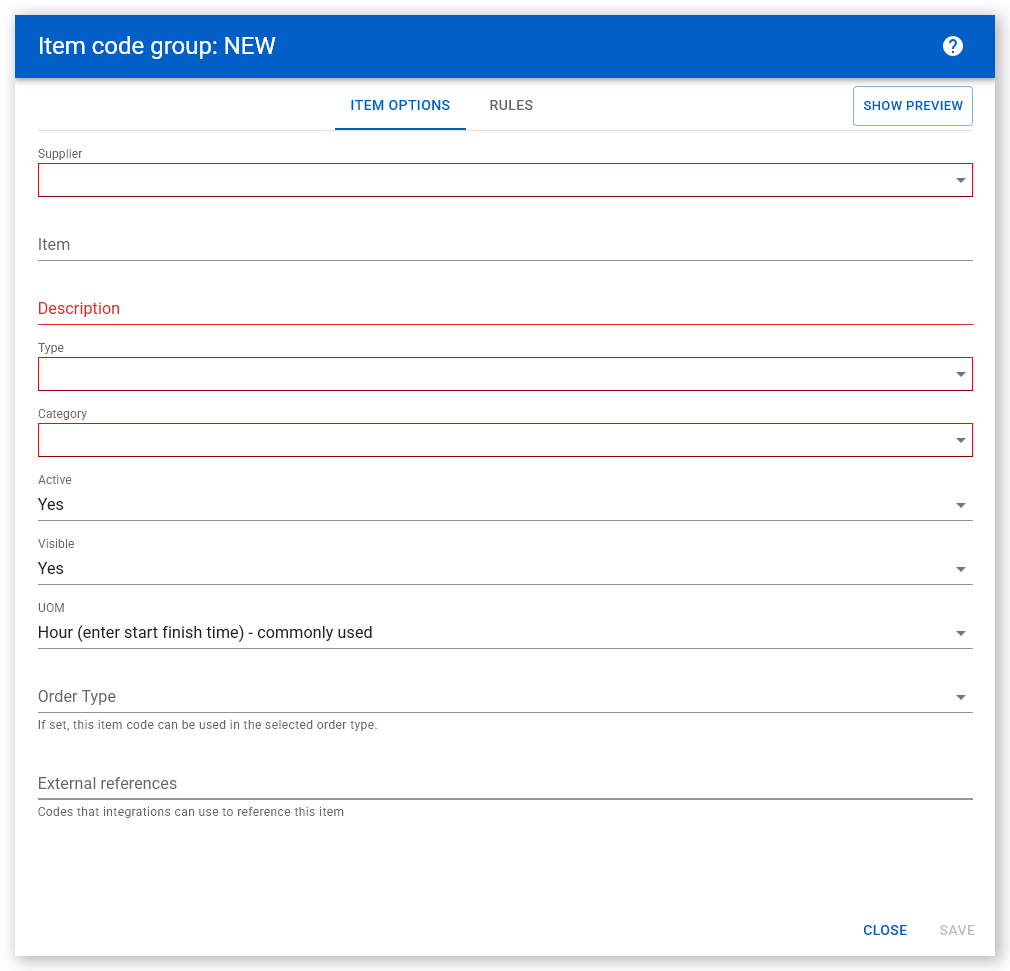
| Field | Description |
| Supplier | Select the supplier this item group applies to. |
| Item | The name of the item group. When used, this text is appended to the front of the group Description subcontractors see in SafeSite (as Item Name - Group Description). |
| Description | Enter a clear description of the item code group. This is what subcontractors see in SafeSite when selecting their chargeable item for the day. |
| Type | Select the group type that best matches the contract structure. Common types include Labor group, Plant group, Dry hire plant group. See the Types table below for a full list. |
| Category | Select the relevant category. |
| Active |
Controls whether the group can be used for generating dockets.
Use No if a group is no longer valid but you want to ensure old dockets can still be seen. |
| Visible |
Controls whether subcontractors can see the group in SafeSite.
No is typically only used to hide the individual item codes that make up a group. Individual items cannot be selected but they can be used within an item code group. |
| UOM (Unit of Measure) | Determines how rules are calculated for the group, as indicated in the top left corner of the Rules tab. Most labor and plant groups are hours-based. |
Types
There are eight Types to choose from:
| Type | Description | Common Usage |
| Labor group | Groups labor item codes to reflect a labor contract, including normal time, overtime, and double time rates based on hours worked. For example, CW1. | Frequent |
| Plant group | Groups plant item codes to reflect plant hire contracts, such as automatically adding travel time. For example, a 12 ton truck that automatically has 1 hour of travel time added. | Frequent |
| Dry hire plant group | Groups dry hire plant items together with related attachment items. | Frequent |
| Allowance group | Groups multiple allowance item codes, such as inclement weather allowances that vary by time of day. These are usually used within labor groups. | Infrequent |
| Attachment group | Groups multiple attachment items, such as GPS systems or specialized buckets. These are usually used within plant groups. | Infrequent |
| Material group | Groups material item codes, such as different aggregate mixes. | Infrequent |
| Quantity group | Groups quantity‑based item codes. | Infrequent |
| Other group | Used when the item code group does not fit any of the other available types. | Infrequent |
Rules Tab
After you complete the Item Options, use the Rules tab to define how item codes are combined and calculated when a docket is created.
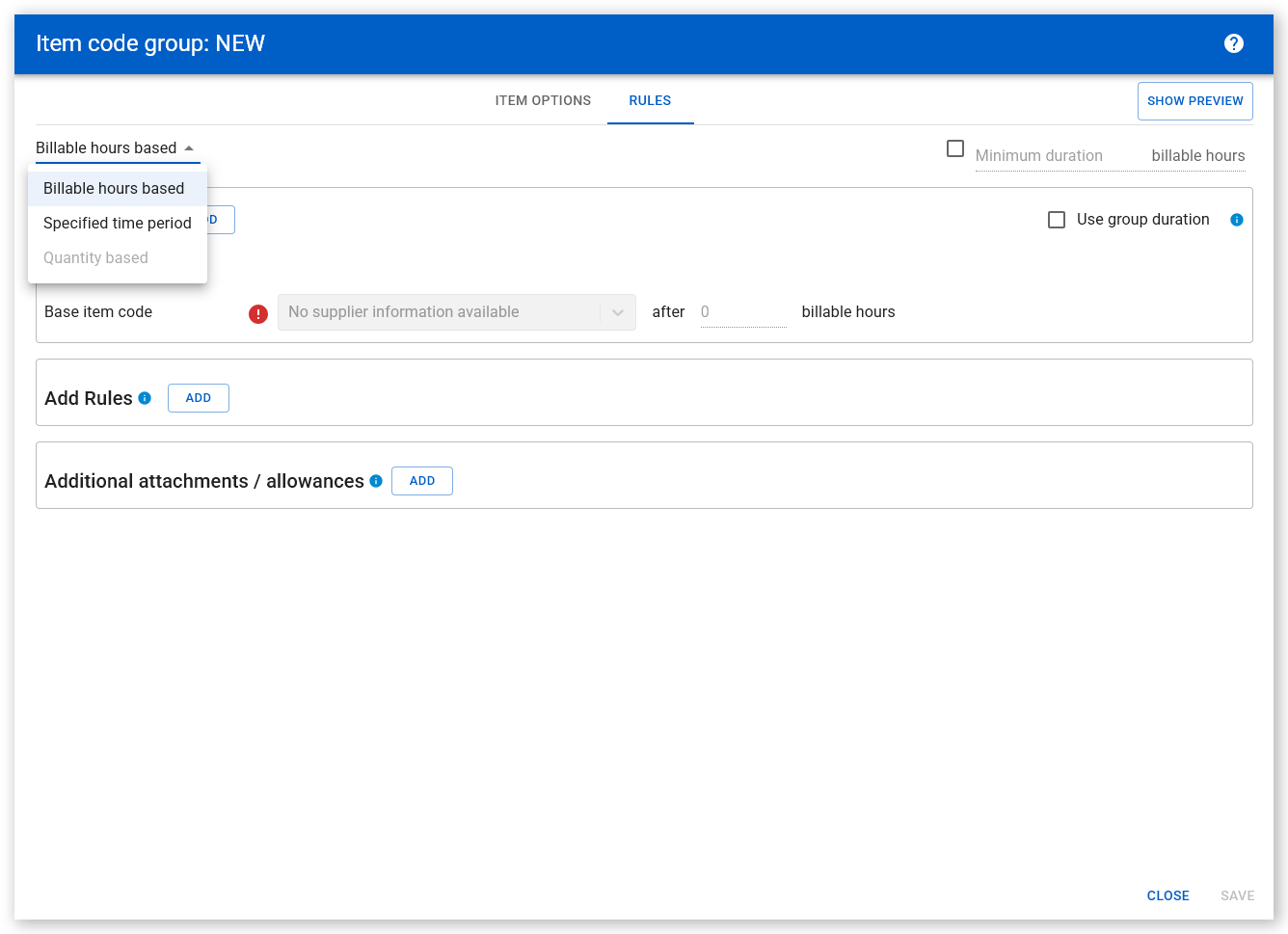
Rule behavior depends on the Unit of Measure (UOM) selected in the Item Options tab.
- If the UOM is set to Billable hours based or Specified time period, rules can be calculated using Billable hours or Specified time periods
- If the UOM is set to any value other than hours (for example, by weight), rules can only be quantity‑based.
Billable hours
Billable hours are calculated as the total hours worked minus breaks.
For example, after 8 billable hours are worked, the group can switch from a standard rate to an overtime rate.
Specified time periods
Specified time period rules apply item codes based on defined time ranges. Two options are available:
- Manual time range - You enter a specific time (for example, switch to a night shift rate after 6:00 PM).
- Predetermined shift times - You select a predefined shift. Virtual Superintendent automatically applies the correct rate based on the start and finish times entered in the docket and a configured ICS calendar. Predetermined shift times are enabled per project. Contact support to enable this feature. Read the Calendar Groups - Labor Groups with Predetermined Shift Times help article for more information.
Quantity-based rules
Quantity‑based rules apply when the UOM is not hours-based, such as daily, cubic meter, or tonne.
For example, if a plant group represents daily hire of one light tower and the docket quantity is set to 3, the docket applies charges for three light tower sets.

Important limitations for quantity‑based item code groups
- Only one base item code can be added in the rules section.
- Base item codes cannot be hour‑based.
- Allowances and attachments are available only for labor or plant groups.
Shift Rules and Add Rules
There are two rule types used to determine how groups are calculated:
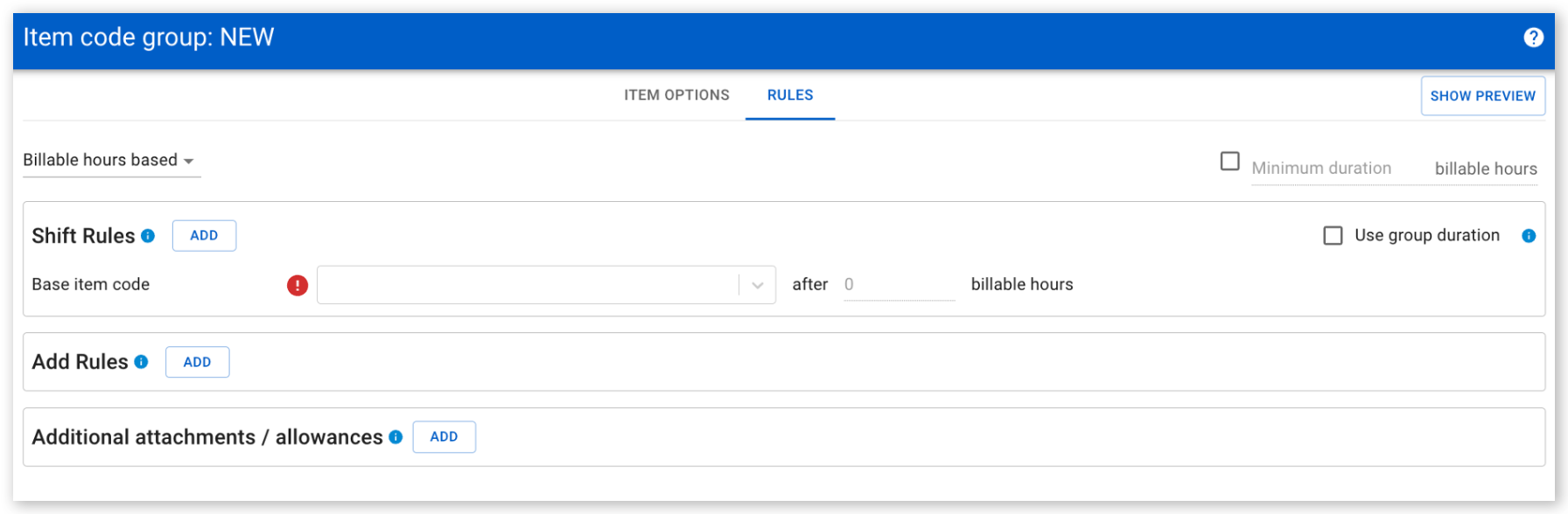
Shift Rules
Shift rules determine which item code (rate) applies based on the date and the start and finish times entered in the docket.
You define shift rules by:
- Selecting a base item code from the dropdown list
- Adding additional item codes by clicking Add
- Defining how and when each code applies
Defining how item codes are calculated differs between Billable hours based and Specified time period groups:
-
For Billable hours based groups, manually enter the billable hour ranges that determine which item code applies to the docket. Each range maps to a specific item code, such as standard time, overtime, or double time.
 Click or tap to expand image
 -
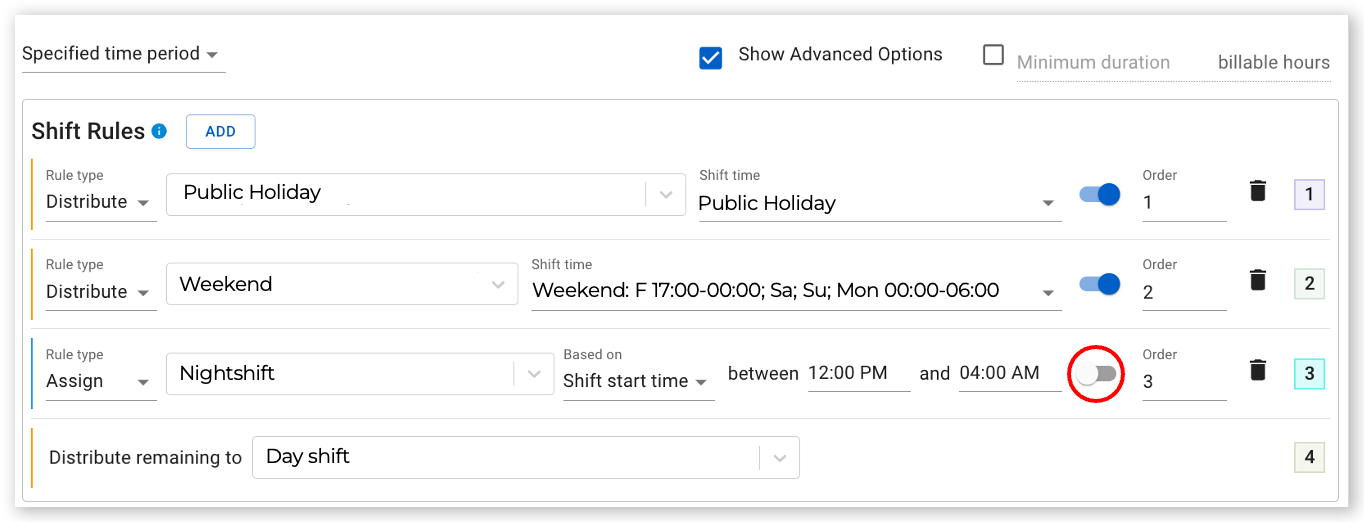
For Specified time period groups, you can define shift rules by either selecting a predefined shift time or by manually enter a shift time range. You can use a combination of predefined and manually entered shift times within the same group.
 Click or tap to expand image
Use group duration for billable hours groups
Billable hours–based groups can be used as subgroups within specified time period groups. In this case, you can enable Use group duration.
When Use group duration is enabled, billable hours start from the time the subgroup is applied to the docket, not from the docket start time.
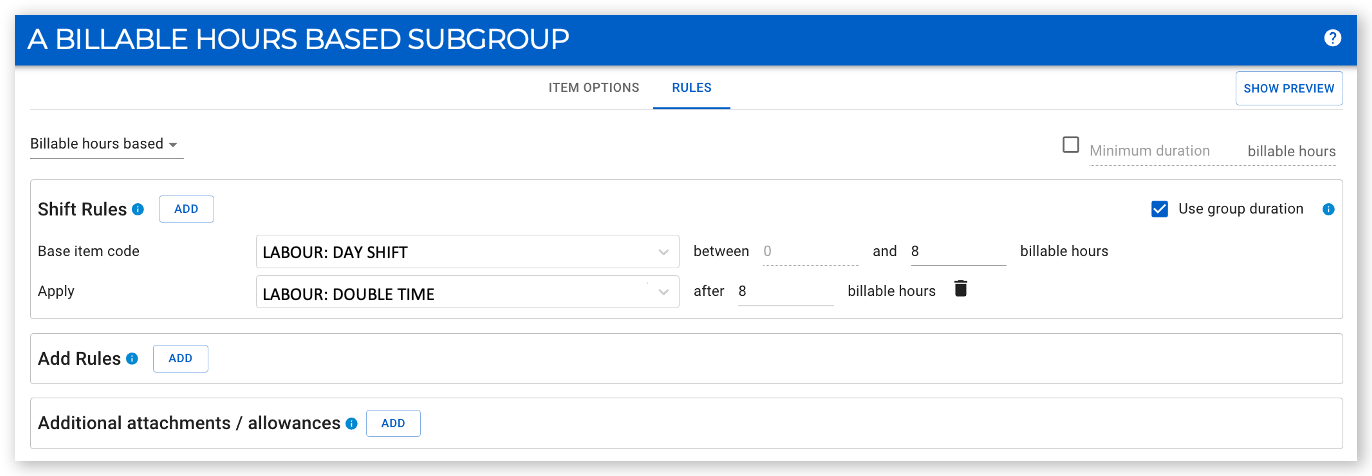
Note: This setting applies only when a billable hours–based group is used as a subgroup within a specified time period group.
Show advanced options and item preview
For Specified time period groups, you can enable Show advanced options. This setting lets you control the order in which Virtual Superintendent checks and applies item codes to the docket.
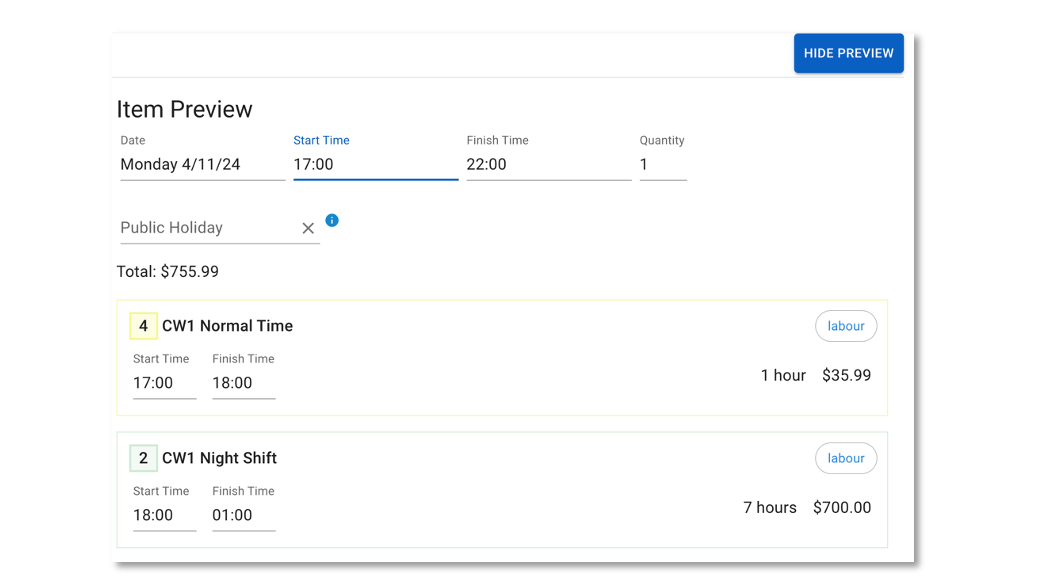
The Item preview calculator shows how the item code group will calculate based on the selected date and the start and finish times. You can review the calculation before saving the group.
Select Hide preview to close the item preview panel.

Rule types
The Rule type setting controls how much of a docket is assigned to each shift rule. You can select from the following options:
| Rule | Description |
| Distribute | Applies the item code only to the hours that fall within the defined shift time. |
| Assign | Applies the item code to the entire docket when the shift rule conditions are met. |
| Distribute remaining to | Applies any hours not already assigned by other rules to the base item code. |
Based on
When you manually enter a time range for a shift rule, use the Based on setting to define how Virtual Superintendent determines whether an item code applies to a docket.
You can select one of the following options:
| Based on | Description |
| Shift start time | Applies the item code if the docket start time falls within the time range. |
| Shift finish time | Applies the item code if the docket finish time falls within the time range. |
| Shift overlaps | Applies the item code if any part of the docket overlaps with the time range. |
| Majority of shift | Applies the item code if most of the docket duration falls within the time range. |
Each row in the Shift rules section is evaluated in order, from top to bottom. It can help to read each rule as a spoken list that describes how the item code is applied.
For example, using this labor group:

- Check 1: Distribute the public holiday item code on a public holiday.
- Check 2: Distribute the weekend item code on Friday between 17:00 and 00:00, on Saturday, on Sunday, on Monday between 00:00 and 06:00.
- Check 3: Assign all hours to the night shift item code when the shift start time is between 12:00 and 04:00.
- Check 4: Distribute any remaining hours to the day shift item code.
Virtual Superintendent processes the rules sequentially and stops once all hours in the docket have been allocated.
Minimum billable hours and minimum quantity
You can apply minimum billable values to an item code group to meet supplier contract requirements.
- For Billable hours based and Specified time period groups, you can set a minimum billable hours value.
- For quantity‑based groups, you can set a minimum quantity value.

These settings apply when a contract requires a minimum charge, regardless of the actual time or quantity recorded. For example, a subcontractor may be paid for a minimum of 6 billable hours per shift, even if they work fewer hours.
When a docket uses an item code group with minimum values, Virtual Superintendent applies the minimum billable hours or quantity when calculating item codes using the Shift rules and Add rules. Minimum values do not apply to additional attachments or allowances.
Virtual Superintendent also supports minimum values at multiple levels. You can set:
- A minimum value for the entire group
- Different minimum values for individual item codes within the group
For example, you can require a minimum of 4 hours for day shift and 8 hours for night shift. If a laborer starts during the day shift and finishes during the night shift, Virtual Superintendent ensures at least 8 hours are applied to the docket.
Ignore minimum billable hours
For billable hours and specified time period groups, hour‑based item codes in the Add Rules section include an Ignore minimum billable hours option when a minimum value is set for the group.
When Ignore minimum billable hours is enabled, the item code is calculated using the actual duration or quantity entered in the docket, rather than the minimum billable hours set for the group.
This allows specific add rules to bypass group‑level minimums when required by the contract.

Add Rules
Use the Add Rules area to define allowances and entitlements that apply in addition to Shift Rules. Add rules control when these items are applied and how they are calculated.
Add rules are typically used for one‑off allowances or entitlements that apply after a set time or over part of a shift.

Duration options
Duration represents the total billable hours calculated from the start and finish times entered in the docket. You can select from the following options:
| Option | Description |
| Hours | Applies a fixed number of hours for the item code. This value is independent of the hours recorded in the docket. |
| Same as group | Uses the docket start and finish times entered by the subcontractor to calculate duration and applies the cost multiplier to the full group duration. |
| Same as group, with limit | Uses the group duration but applies a maximum hour limit. |
| Remainder of group | Calculates duration from a specified number of billable hours (after x billable hours) onward until the end of the shift. |
| Remainder of group, with limit | Applies the rule after a specified number of billable hours (after x billable hours) and stops at a defined limit. For example, apply an allowance after 6 billable hours and stop after 8 billable hours. |
Quantity options
Quantity represents how many people or plant items the docket applies to. You can select from the following options:
| Option | Description |
| Quantity | Applies a fixed quantity per docket, regardless of the quantity entered by thre subcontractor. |
| Same as group | Uses the quantity value entered in the docket. For example, two people. |
| Same as group, with limit | Uses the docket quantity up to a specified limit (up to x billable hours) . |

Add rules with conditions
You can apply conditions to item codes in the Add Rules section of an item code group. When a condition is enabled, subcontractors must answer a Yes/No question in the SafeSite app when they submit a docket.
Based on the response, Virtual Superintendent either applies or excludes the item code. This is commonly used for conditional allowances.
For example, if a supplier contract requires a break allowance when workers do not take a break after a certain number of hours, you can configure this using rule conditions:
- Add a break allowance item code in the Add Rules section with a duration of 10 hours.
- Enable the Conditions toggle and set the question: Did you take a break between 8–10 hours?
- When the subcontractor submits a docket, and they have worked more than 10 hours, the question appears.
- If they select Yes, the allowance is not applied.
- If they select No, the allowance is applied to the docket.
This ensures allowances are applied accurately based on actual working conditions.
Adding Additional Attachments and Allowances
After you finish configuring Shift rules and Add rules, you can add optional attachments or allowances that subcontractors can manually select when creating a docket.
- Allowances typically apply to labor dockets.
- Attachments typically apply to plant dockets.
For example, in a labor item code group, a subcontractor can manually add an inclement weather allowance to the docket when required.
Note: If an attachment or allowance is set to Visible = Yes, subcontractors can also see and select it outside of the item code group.

Important notes
- Hour‑based attachments or allowances (UOM set to Hour) are not supported in this section. Add these as labor or plant chargeable items using Shift Rules or Add Rules instead.
- Attachments and allowances can be included in an item code group even if their visibility is set to No. This allows them to be available only through the group.
- If the item code group type does not support allowances, the Additional attachments/allowances section does not appear in the Rules tab.
Group Cloning
You can clone an item code group to create a duplicate with the same configuration. This saves time when you need multiple groups with similar Shift rules and Add rules.
For example, you can clone a CW1 Labor Group to create CW7, CW8, and CW9 labor groups with matching rules.
For detailed instructions, see the Item Code Group Cloning help article.
Example Item Code Groups
The following examples show common item code group configurations and how they calculate dockets:
- Specified time period group - Uses defined time ranges to apply different item codes based on when work is performed.
- Specified time period group with public holiday rules - Applies public holiday rates when the docket date matches a configured public holiday.
- Billable hours–based group - Applies item codes based on billable hour thresholds, such as standard time, overtime, and double time.
- Groups with subgroups - Uses nested item code groups to support complex contracts. This example demonstrates the Use group duration setting, where billable hours for a subgroup start from the time the subgroup is applied.
These examples help illustrate how different rule configurations affect docket calculations.
Example 1: Specified time period group
This example shows how a specified time period labor group calculates a docket using the Item preview calculator.
The item preview is based on the following inputs:
- The date entered is a Monday.
- The start time entered is 11:00.
Because the date and start time do not meet the conditions for public holiday, weekend, or night shift rules, all hours are distributed to the day shift item code.
You can use the item preview to confirm how rules apply before saving the item code group.

Example 2: Specified time period group with public holiday rules
This example shows how a specified time period labor group applies a public holiday rate using the Item preview calculator.
The item preview demonstrates how the public holiday item code is applied based on:
- The docket date
- The start and finish times entered
When the docket date matches a configured public holiday, Virtual Superintendent applies the public holiday rate according to the defined shift rules.
You can use the item preview to verify that public holiday rules apply correctly before saving the item code group.

Example 3: Billable hours–based group
This example shows how a billable hours–based labor group calculates a docket using the Item preview calculator.
The item preview demonstrates how item codes are applied based on:
- The docket date
- The start and finish times entered
As billable hour thresholds are reached, Virtual Superintendent applies the corresponding item codes (for example, standard time, overtime, and double time).

Example 4: Groups with subgroups (use group duration)
You can create item code groups that include subgroups (other item code groups) within the Shift rules section. This supports complex supplier agreements that require layered rule logic.
This example shows a specified time period group that contains a billable hours–based subgroup. To ensure correct calculations, the billable hours subgroup uses the Use group duration setting.
When Use group duration is enabled, Virtual Superintendent starts counting billable hours from the time the subgroup is applied to the docket, not from the docket start time.
In the item code group view, blue text indicates that the line item is a group rather than an individual item code.

Note: Blue text indicates that the line item is a group
For more information about creating groups with subgroups, contact support.