
Create a Site Event
Create new Site Events to record activities in the Site Diary. Site events capture important information such as work progress, site discussions, observations, weather impacts, safety incidents, and other project-related activities.
All site diary information is automatically synchronized with Virtual Superintendent, where it is available on the Events and Reports pages.
In this article
Create a New Site Event
To record a site event in the SafeSite app:
- Open the SafeSite app and sign in. Alternatively, tap View Dockets on the sign-on page to open the app without signing in.
-
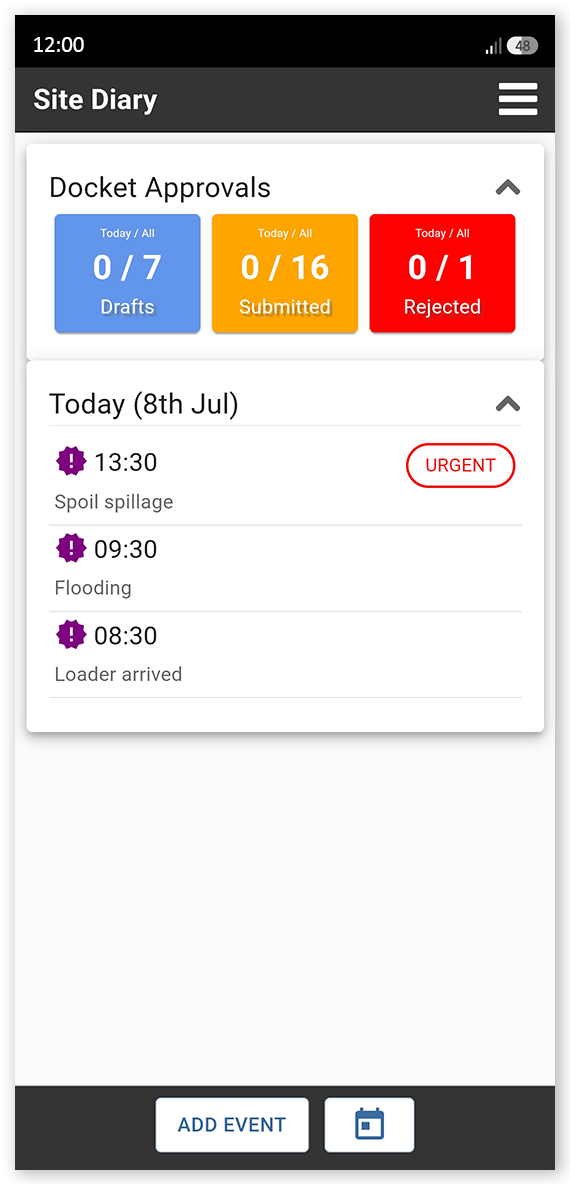
Tap Menu > Site Diary. The Site Diary screen opens.
 Click or tap to expand image
 -
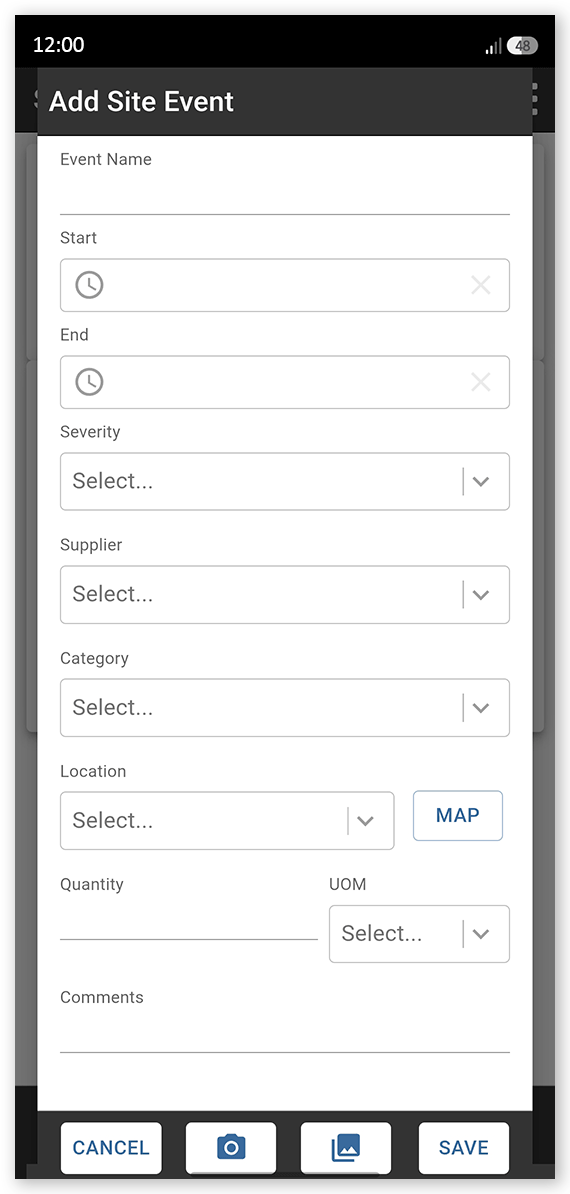
Tap Add Event. The Add Site Event screen opens.
 Click or tap to expand image
 - Enter the details of the event (these fields are described below).
- Tap the camera icon to take and attach a photo immediately, if needed.
- Tap the image icon to upload an image attachment from your device, if needed.
- Tap Save. The site event is saved to your diary.
Fields shown on this screen are:
| Field | Description |
| Event Name | An event name, for example, "Water Pooling". |
| Start | The time the event started. |
| End | The time the event ended. |
| Severity | The severity of the event. Low, Important, or Urgent. |
| Supplier | The supplier this event affected or was caused by, if any. |
| Category | The category of the event. Cost Impact, Delay, Deliveries, Environment, HR Issue, Incident, IR Issue, Progress, Quality, Safety, Subcontractor, Weather, Work Complete, or Work Planned. |
| Location | The location of the event (a map geometry, typically configured from, and visible as layers on, the Virtual Superintendent Maps page). If not listed, use the Map option to manually specify a location instead. |
| Map | Tap to open a map screen and then drag the red map marker icon to the event location and tap Save. Use when an event occurs at a location not already saved as a geometry. When used, the Location field is automatically set to Location Set Manually. |
| Quantity | Specify the quantity, if applicable. |
| UOM | Specify the Unit of Measure of the quantity, for example, m3, tons, load, day, minutes. |
| Comments | Freeform comments describing key details of the event. |
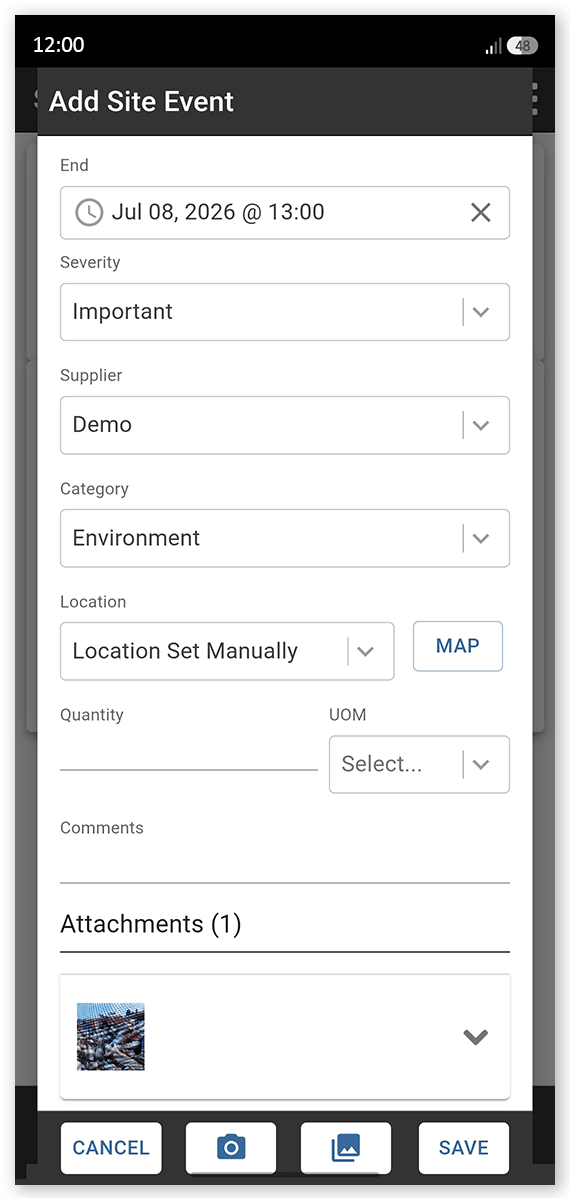
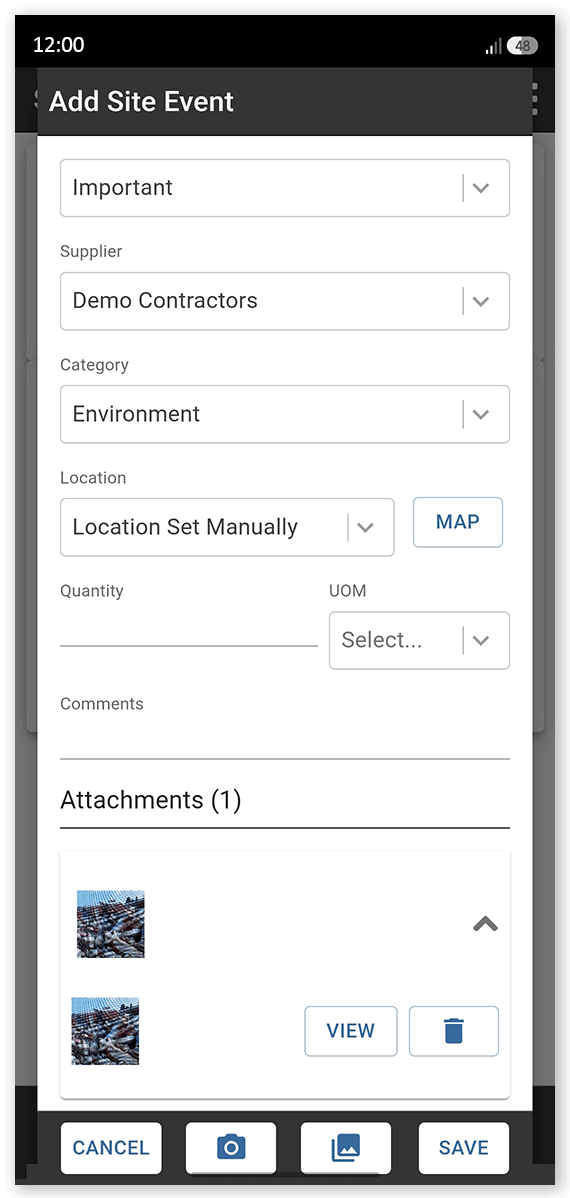
| Attachments | Shows a thumbnail of any images attached to the event report. Tap the section toggle to expand and to view and draw on the attached images (for example, to point out defects or mechanical issues that need attention). |
| Camera Icon | Opens your device camera to take a photo. |
| Image Icon | Opens your device camera roll. Select image files then tap the tick icon to attach. |
| Save | Saves the event details. |
Note: Events given a Severity rating of Urgent are highlighted in the Site Diary screen with an Urgent icon.
Draw on an Event Photo or Image
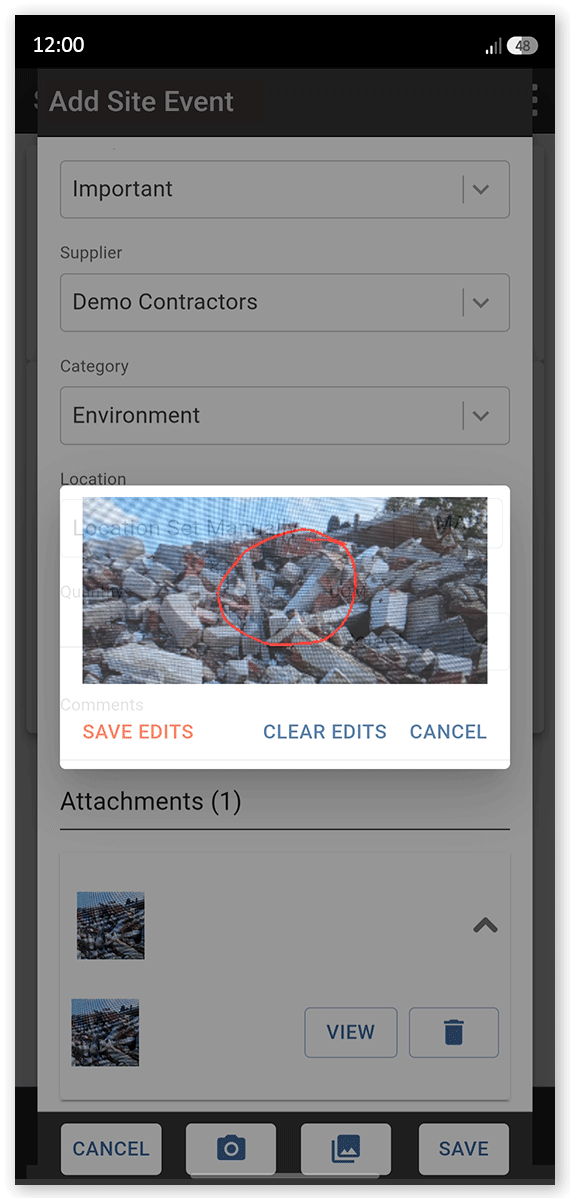
When a photo or image is attached to a site event, you can draw on the image using your device's touch screen to highlight specific areas of interest, concern or progress.
To draw on a photo or image attached to an event:
- Attach an image to the new site event.
-
Open the Attachments section at the bottom of the Add Site Event dialog.
 Click or tap to expand image
 -
Tap View beside an image. The image is opened in a pop-up dialog.
 Click or tap to expand image
 -
Draw on the image with your finger to highlight areas of interest.
 Click or tap to expand image
 - Tap Save Edits to save your image edits, or Clear Edits to clear them.
Edit a Site Event
To edit a site event:
- Open the SafeSite app and sign in. Alternatively, tap View Dockets on the sign-on page to open the app without signing in.
-
Tap Menu > Site Diary. The Site Diary screen opens.
Click or tap to expand image - Tap a site event from those listed. The Event Details screen opens.
- Tap Edit. The Edit Site Event screen opens.
- Edit the event details as needed.
- Tap Save. The site event is updated.
Cheatsheet
The image below visually demonstrates the steps described in this help article:
