
The Plant Status Page
The Plant Status page provides users with a live overview of all plant activity on a project. The page displays each machine's status in a grid view, making it easy to monitor plant availability and activity across the site.
You can group and sort the machine list to quickly find specific equipment. You can also choose to display provisionally onboarded machines and move offline machines to the bottom of the page.
In this article
Permissions
All users other than those with Subcontractor Admin permissions can access the Plant Status page (Menu > Plant Status).
Open and Use the Plant Status Page
To open the Plant Status page:
- Sign in to Virtual Superintendent.
- Click Menu > Plant Status. The Plant Status page opens.
The page displays a grid containing all machines currently assigned to the project, together with their status at the time indicated in the top-left corner of the page.
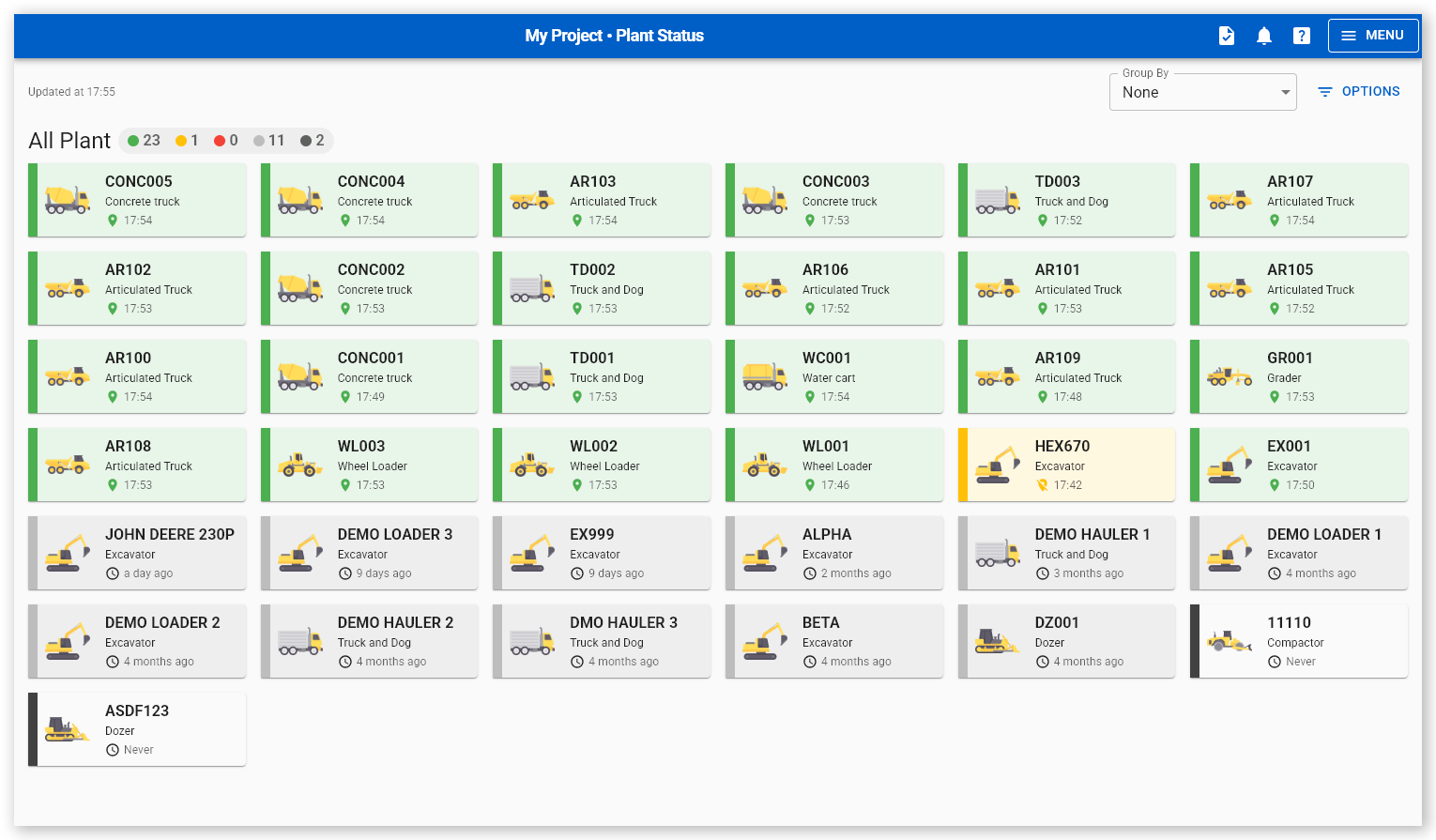
The plant equipment panels are color-coded, with color representing connection and position reporting status:
| Color | Equipment Status |
| Green | The plant equipment is online and reported its position within the last 10 minutes. |
| Orange | The plant equipment is online and reported its position between 10 and 30 minutes ago. |
| Red | The plant equipment is online and reported its position more than 30 minutes ago. |
| Grey | The plant equipment is offline. |
| Black | The plant equipment has never signed on (new equipment, for example). |
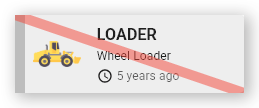
Plant equipment that is out of service is indicated by a red diagonal line:
Each machine panel shows:
- The Plant ID or Rego No.
- The equipment's Role (for example, "Concrete Truck" or "Excavator")
- A 2D graphical representation of the machine's role
- The time the machine's position was last received, or the number of days or months that have passed if this is greater than 24 hours
- The equipment's current reporting status (represented by the panel's background color)
Click a plant panel to open a details dialog.
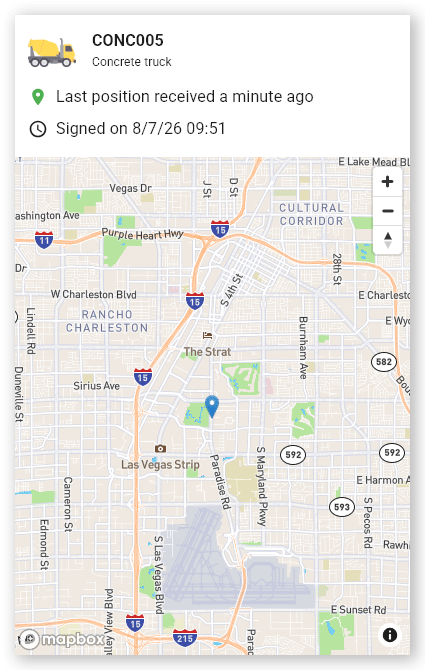
The dialog contains:
- The machine's Plant ID and Role and an image representing the role
- The time since the machine's last position was received
- The machine's last sign-on time
- A map centered on the machine's last reported location
Group and sort machines
You can organize the machine grid to make it easier to locate specific equipment using the Group By dropdown menu in the upper-right corner of the page.
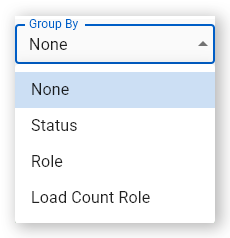
The following grouping options are available:
| Grouping | Description |
| None | Displays all machines in a single grid, ordered by last position report time. |
| Status | Groups machines by status (Online, Online and position reported 10+ minutes ago, Offline, or Never signed on). |
| Role | Groups machines alphabetically by their assigned role (for example, Compactor, Concrete Truck, Dozer, Excavator, Grader). |
| Load Count Role | Groups machines by their load count role (for example, Loader, Hauler, Placer). |
You can also sort the equipment shown on the page by clicking the Options button to open the Sorting dialog.
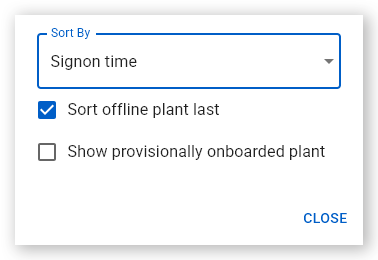
Use the Sorting dialog to:
- Sort the page by Sign-on time, Role, or Plant ID.
- Display offline machines at the bottom of the grid.
- Show or hide provisionally onboarded machines in the grid.