
Create and Manage Orderable Items
Orderable items let you create an order without knowing the exact chargeable item when you place the order. This is useful for concrete and other variable-pricing orders where the chargeable item depends on how the supplier fulfills the order.
In this article
Permissions
To access the Dockets Setup page (Menu > Dockets Setup) and create and manage orderable items, you must have one of the following permissions:
- Admin Manager
- Dockets Super User
What are Orderable Items?
An orderable item represents what you order, such as a concrete mix, rather than the specific item code used to charge for it. You can link multiple item codes to an orderable item and determine the applicable item code after the supplier fulfills the order.
Orderable items are particularly useful when delivery dockets are generated through integrations.
For example, you might order Concrete Mix A1, which can be charged at either a batch rate or network rate depending on supplier availability. After the supplier fulfills the order, the integration provides the delivery details so you can determine which chargeable item applies.
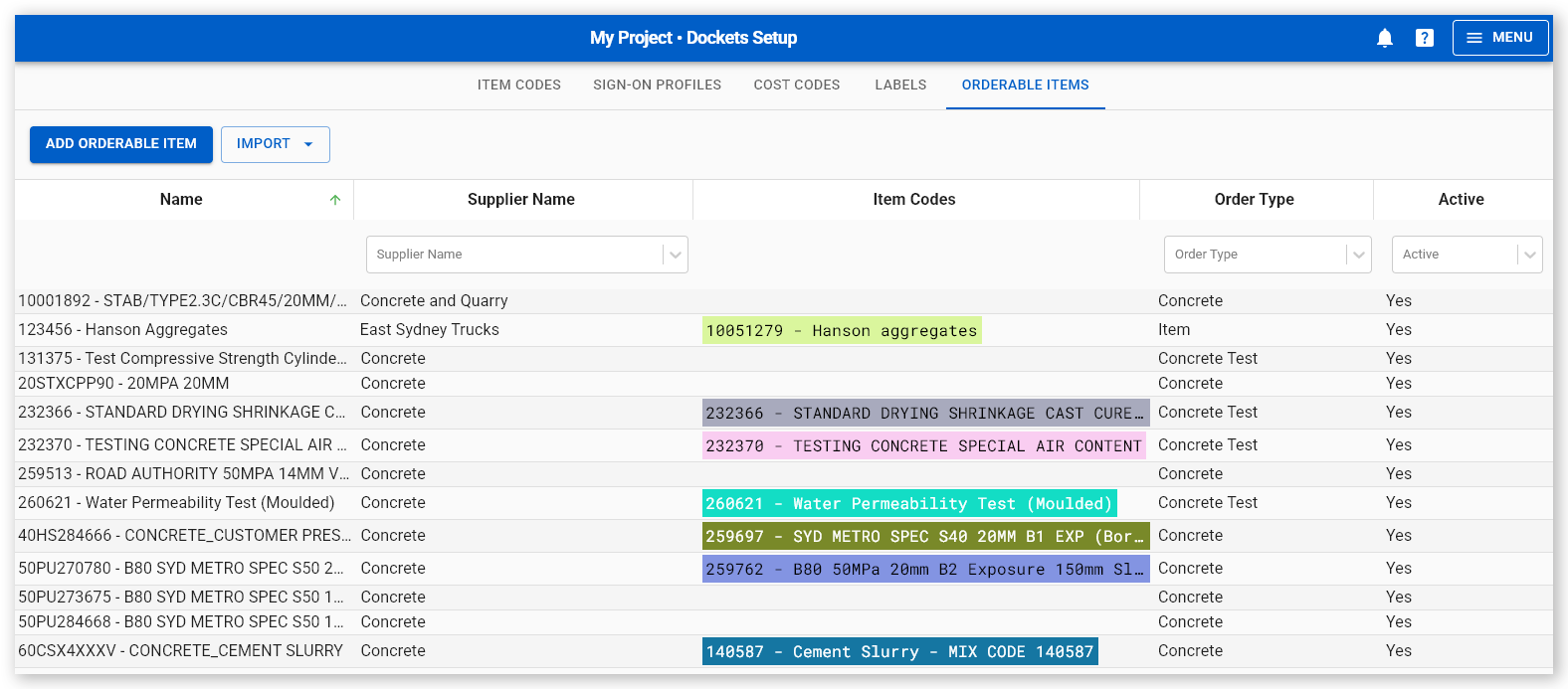
The Orderable Items tab displays existing orderable items in a table similar to other Virtual Superintendent reports.
You can:
- Resize or hide columns.
- Filter orderable items by Order Type or Supplier and whether they are Active or not.
- Select an orderable item to view its details.
Each orderable item has an ID, description, or both, and can be linked to one or more item codes.
Create an Orderable Item
to create an orderable item:
- Sign in to Virtual Superintendent.
- Click Menu > Dockets Setup. The Dockets Setup page opens.
-
Click the Orderable Items tab.
 Click or tap to expand image
 -
Click Add Orderable Item. The Create Orderable Item dialog opens.
 Click or tap to expand image
 -
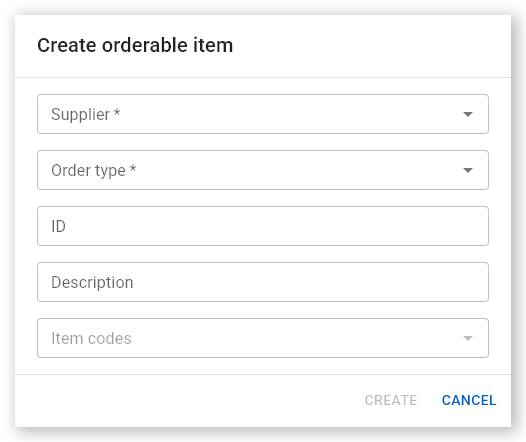
Complete the dialog fields (described below).
 Click or tap to expand image
 - Click Create. The new orderable item appears on the Orderable Items tab. Select the item to view its details.
Form fields
| Field | Description |
| Supplier | The supplier providing the orderable item. Once selected, the Item Codes list displays all chargeable items available from that supplier. Required. |
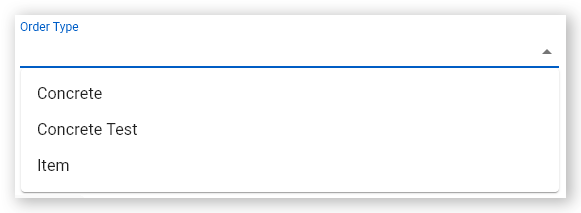
| Order Type | The order type. Select Concrete, Concrete Test, or Item. Required. |
| ID | The unique ID of the orderable item. Required if no Description is entered. |
| Description | A brief description of the orderable item. For example, "Concrete Cement Slurry." Required if no ID is entered. |
| Item Codes | Item codes to link to the orderable item. You can select multiple item codes. |
| Active | This checkbox is shown only when editing an orderable item, not creating one. If selected, the orderable item is Active and can be selected in orders. If not selected, the orderable item is Inactive and cannot be used. New orders are active by default. |
Note: Either ID or Description, or both, are required.
Make an Item Code Available for Ordering
You can also make an individual item code available for ordering without creating a separate orderable item.
To make an item code available, assign an order type to it:
- Sign in to Virtual Superintendent.
- Click Menu > Dockets Setup. The Dockets Setup page opens.
-
Click the Item Codes tab.
 Click or tap to expand image
 - Create a new item code or open an existing item code. The Edit Item Code dialog opens.
-
Select an Order Type. Concrete makes the item code available for concrete orders, Concrete Test makes the item code available for concrete test orders, and Item makes the item code available for general item orders.
 Click or tap to expand image
 - Click Save. The item code becomes available when a user creates an order for that supplier and selects the corresponding order type.
When you assign an order type to an item code:
- Users only see applicable items for the selected supplier.
- Supplier-specific pricing and charging rules remain associated with the item.
- Item codes appear only for their configured order type: Concrete, Concrete Test, or Item.
This simplifies selection by hiding unrelated items from other suppliers or order types.
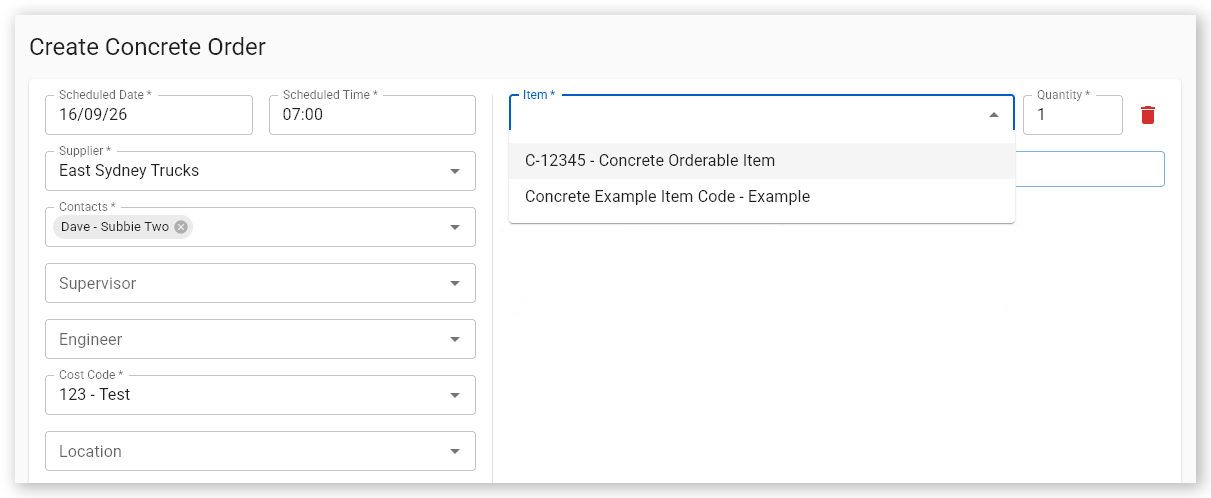
In the example above, the item code Concrete Example Item Code - Example was configured with an Order Type of Concrete for the East Sydney Trucks supplier, making it available as an orderable item in Concrete Orders created from the Orders pages (Menu > Orders > Create Order > Create Concrete Order) for East Sydney Trucks.