
Bulk Import SafeSite Users Using an Excel Spreadsheet
If you are a Head Contractor Administrator or Subcontractor Administrator and need to add multiple SafeSite users efficiently, you can use the bulk import feature to create users from an Excel spreadsheet.
This feature is useful when onboarding large crews, setting up new subcontractors, or creating users across multiple suppliers.
The bulk import process allows you to:
- Create multiple SafeSite users in a single import
- Automatically send SafeSite email invitations to new users
- Assign users to a supplier
- Apply permissions during import
Note: The user import feature is used to create new SafeSite users, not to edit existing users. If you import a file containing existing users, those users will not be updated. Instead, duplicate users may be created.
Permissions
To access the Users page (Menu > Users) and bulk import SafeSite users, you must have one of the following permission sets:
- Admin Manager and User Admin (Head Contractor Administrators)
- Subcontractor Admin and User Admin (Subcontractor Administrators)
Note: Assigning a user the Admin Manager or Subcontractor Admin permission automatically enables User Admin rights.
Download the Users Excel Template
To download the template file:
- Sign in to Virtual Superintendent.
- Click Menu > Users. The Users page opens.
-
Click the SafeSite App Users tab in the top menu bar. A grid view opens, displaying all SafeSite users in your project and their permissions.
 Click or tap to expand image
 -
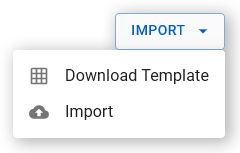
Click Import. A contextual menu opens.
 Click or tap to expand image
 - Click Download Template. The template downloads to your computer in .xlsx format using the file name format
vs_SafeSite Users Import Template_YYMMDD-HHMMSS. - Open the downloaded file and enter the details for each new SafeSite user (see the tables below for required and optional fields). Each row represents a single user. Once complete, save the file and upload it using the Import option.
Required Fields
| Field | Description | Validation Rules |
| First Name | First name of the new SafeSite user |
Required; must not be blank
|
| Last Name | Last name of the new SafeSite user |
Required; must not be blank
|
| Role | Employee role (select from the dropdown) |
Required; must be a valid role from the dropdown
|
| Supplier | Supplier the user belongs to |
Required; must match a valid supplier; Head Contractor Administrator users can select any supplier; Subcontractor Admin users must select their owner supplier; used when applying Docket Contractor or Timesheets Supervisor permissions
|
Optional Fields
| Field | Description | Validation Rules |
| Employee Number | Employee identifier |
Optional; free text
|
| Employee Group | Group the employee belongs to |
Optional; free text
|
| Used to send SafeSite invitations and for sign in |
Must be a valid email format; must be unique across users; required to send an invitation
|
|
| Phone | User's phone number |
Optional; should be entered as text; must be a valid phone number
|
| Driver Break Schedule | User's driver break schedule |
Must match a valid dropdown value; defaults to Standard Hours if not specified
|
| Item Codes | Comma-separated list of item codes applied to the supplier and timesheets |
Values must match existing item codes; accepted formats include item ID, description, or "ID - Description"
|
| Docket Contractor | Grant user permission to create and submit dockets for the specified Supplier |
Yes or No; can only be No or empty when a Timesheets Supervisor is specified
|
| Timesheets Supervisor |
Engineer to approve timesheets for this user
|
Must match an existing engineer user; if populated, enables Timesheets permission and sets the supervisor; if blank, Docket Contractor permission must be applied instead (set to Yes); when an engineer is selected, Docket Contractor must be empty or No. Not available for Subcontractor Admin users
|
| Docket Supervisor | Grant user this permission |
Yes or No; when Yes, Docket Leading Hand must be No or empty
|
| Docket Leading Hand | Grant user this permission |
Yes or No; when Yes, Docket Supervisor must be No or empty
|
| Superuser | Grant user this permission |
Yes or No
|
| Configure Beacons | Grant user this permission |
Yes or No
|
| Site Diary | Grant user this permission |
Yes or No
|
| Weighbridge Dockets | Grant user this permission |
Yes or No
|
| View Drone Imagery | Grant user this permission |
Yes or No
|
| View Overlays | Grant user this permission |
Yes or No
|
| View Positions | Grant user this permission |
Yes or No
|
The following permissions are mutually exclusive and only one can be assigned per user:
- Docket Contractor and Timesheets Supervisor
- Docket Supervisor and Docket Leading Hand
Only valid combinations of roles and permissions are allowed. Invalid combinations will result in an import error.
In the template:
- Required columns are highlighted in blue with column titles appended with (Req)
- Optional columns are highlighted in green
For more details on permissions, refer to the SafeSite and Virtual Superintendent Permissions help article.
For best results, we recommend that you:
- Download the Excel template each time you begin the import process. Virtual Superintendent may update the template at any time, and using the latest version helps prevent errors.
- Copy and paste data carefully to avoid formatting issues.
- Ensure phone numbers are entered as text to preserve their formatting (for example, leading zeros).
- Verify that all item codes match existing system values.
- Provide email addresses for all users to ensure invitation emails are sent successfully.
- Ensure email addresses are unique and valid before importing to avoid duplicate user errors.
- Check that all users are assigned to the correct supplier when importing as a Head Contractor Administrator.
- Start with a small test upload before importing large datasets.
- Save the template regularly to avoid losing changes.
Tip: If you are importing a large number of users, consider splitting the file into smaller batches to make troubleshooting easier if errors occur.
Import an Edited Excel Template
To import an edited Excel template file to create SafeSite users in bulk:
- Sign in to Virtual Superintendent.
- Click Menu > Users. The Users page opens.
-
Click the SafeSite App Users tab in the top menu bar. A grid view opens, displaying all SafeSite users in your project and their permissions.
Click or tap to expand image -
Click Import. A contextual menu opens.
Click or tap to expand image -
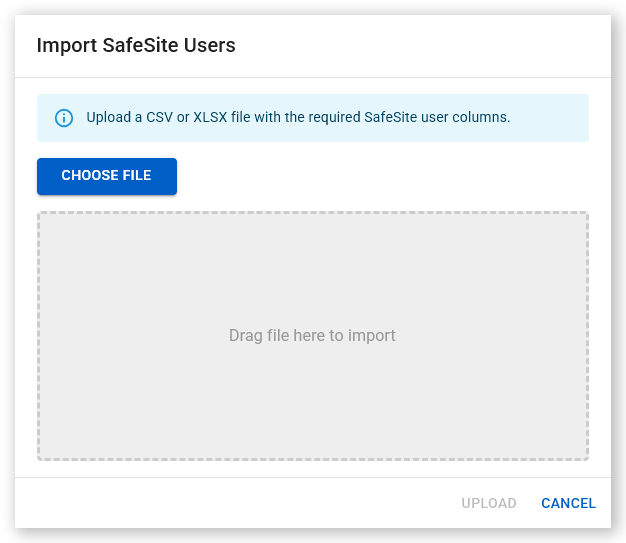
Click Import. The Import SafeSite Users dialog opens.
 Click or tap to expand image
 - Click Choose File to open your file explorer, navigate to the import file, and click Open. Alternatively, drag and drop the import file into the Drag file here to import area. Supported file formats are .xlsx and .csv.
-
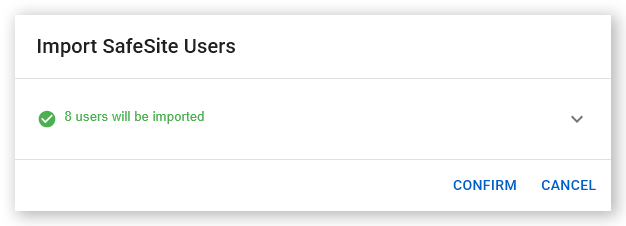
Click Upload. Virtual Superintendent uploads and validates the file. Click the downward arrow to preview the users to be created. If any rows fail validation, errors are shown under a yellow errors dropdown. Each error identifies the issue and the affected row. Correct the errors in your file and try again, or continue the import without the invalid rows.
 Click or tap to expand image
 -
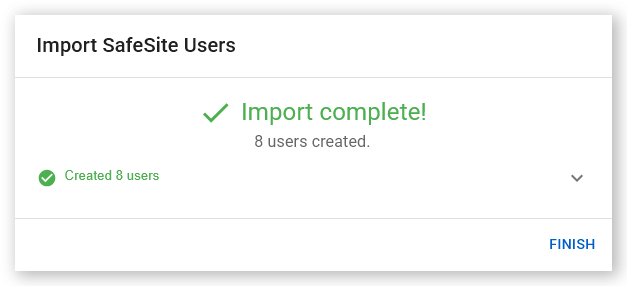
Click Confirm. New users are created for all valid rows. A summary displays the number of new users created.
 Click or tap to expand image
 - Click Finish. Your new SafeSite users are shown on the SafeSite App Users tab. If an email address was provided, new users automatically receive an email invitation containing a download link and a unique numeric registration code.
Note: Users must complete registration (set up their account and password) before they can access and use SafeSite.