
Manage Machine Service Status in SafeSite
The Service Status of a machine indicates whether it is currently In Service or Out of Service. Keeping this status up to date helps track machine availability and supports monitoring of minimum-hour requirements for dry hire equipment.
Note: Service status can be viewed and updated from both the Plant screen in the SafeSite app and the Plant page in Virtual Superintendent.
In this article
Permissions
To access the Plant page (Menu > Plant) in the SafeSite mobile app, you must have one of the following SafeSite permissions:
- Dockets Supervisor
- Superuser
Update Machine Status in SafeSite
To update the service status of a machine in the SafeSite app:
- Open the SafeSite app and sign in.
-
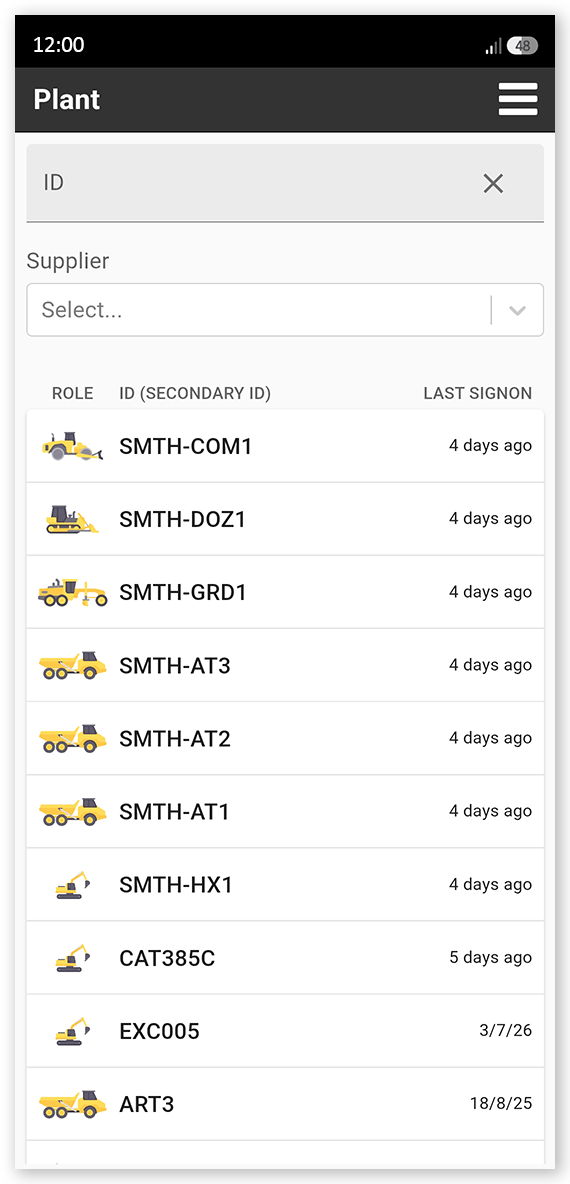
Tap Menu > Plant. The Plant screen opens.
 Click or tap to expand image
 - Locate the required machine. If needed, use the Supplier or ID filters to find it.
-
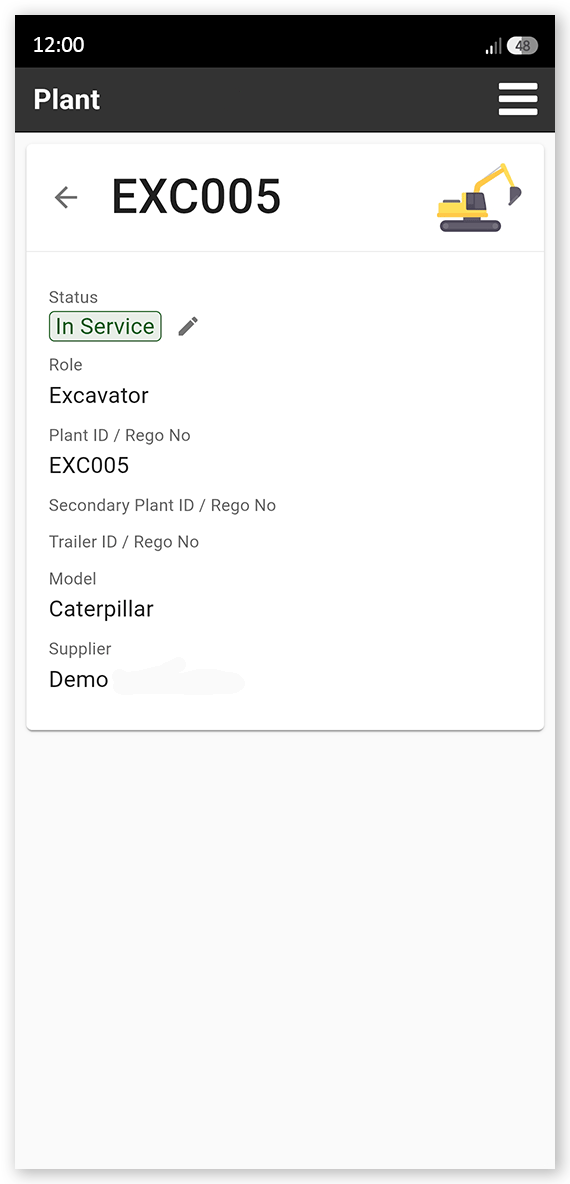
Tap the machine. The machine details screen opens.
 Click or tap to expand image
 -
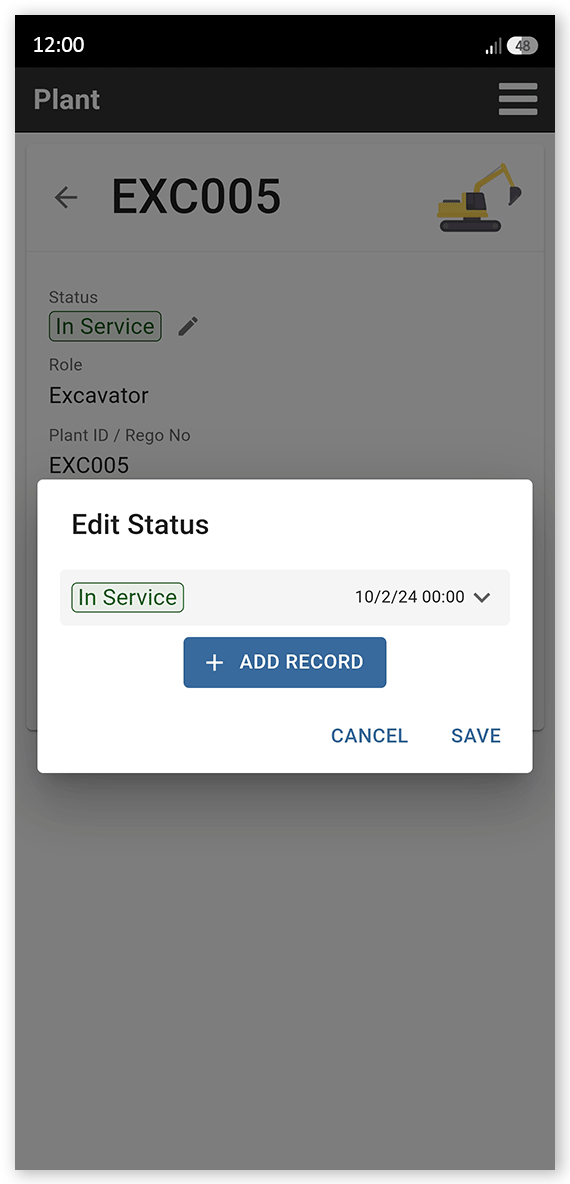
Tap the edit (pencil) icon beside Status. The Edit Status dialog opens.
 Click or tap to expand image
 -
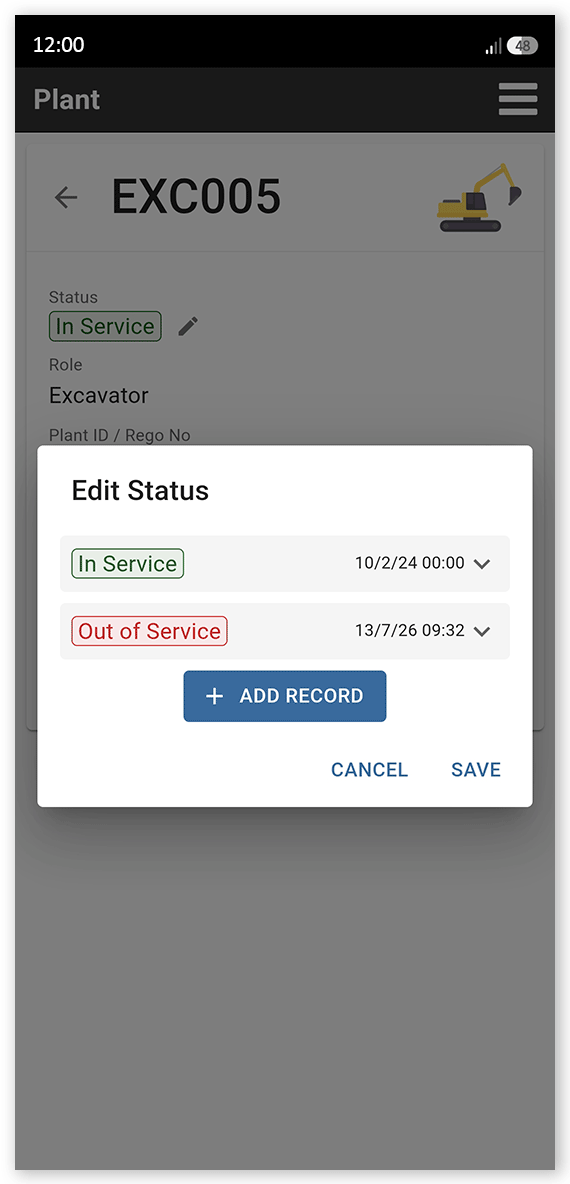
Tap Add Record. A new status record is added to the dialog, below any existing records. New records have a service status that is the opposite of the most recent existing record (for example, if the last status record is In Service, the newly added record defaults to Out of Service).
 Click or tap to expand image
 - Tap the new record to expand it. You can also toggle open any older record and tap Remove if you want to delete them.
-
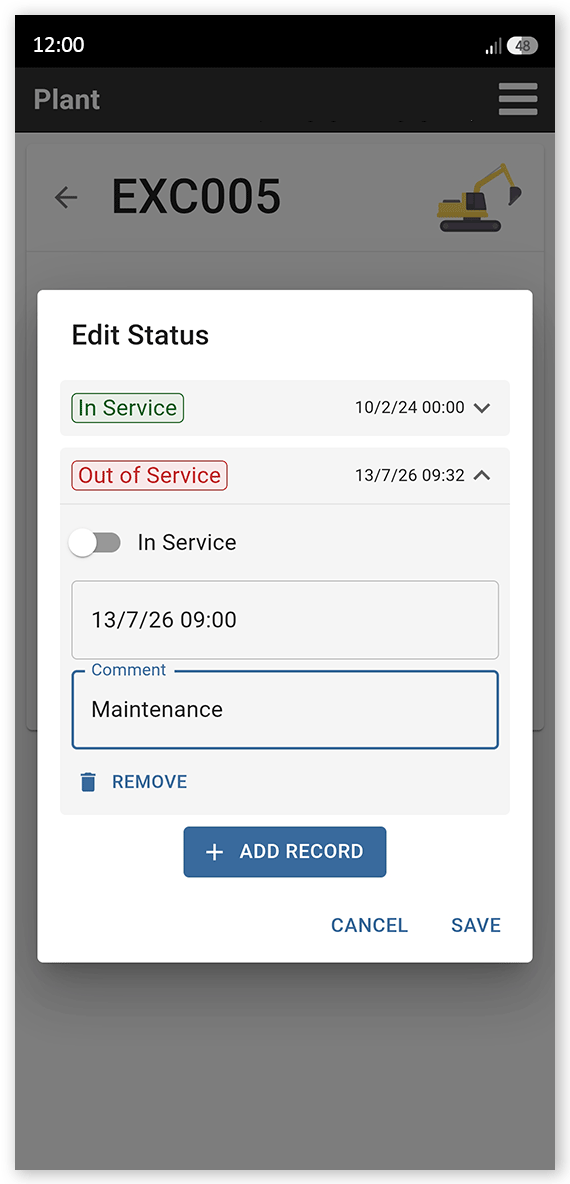
Toggle In Service on or off to set the machine's new service status (Off for Out of Service or On for In Service).
 Click or tap to expand image
 - Tap the Time field and use the calendar and time tabs to select the date and time of the status change, then click OK. You can set the current date and time to immediately change the machine's service status, or you can set a date and time in the future to schedule a future status change (if, for example, you want the machine to automatically update to a new status at the end of the day, first thing tomorrow, or at the end of the week or month).
- Tap the Comment field and enter a comment explaining the reason for the status change.
-
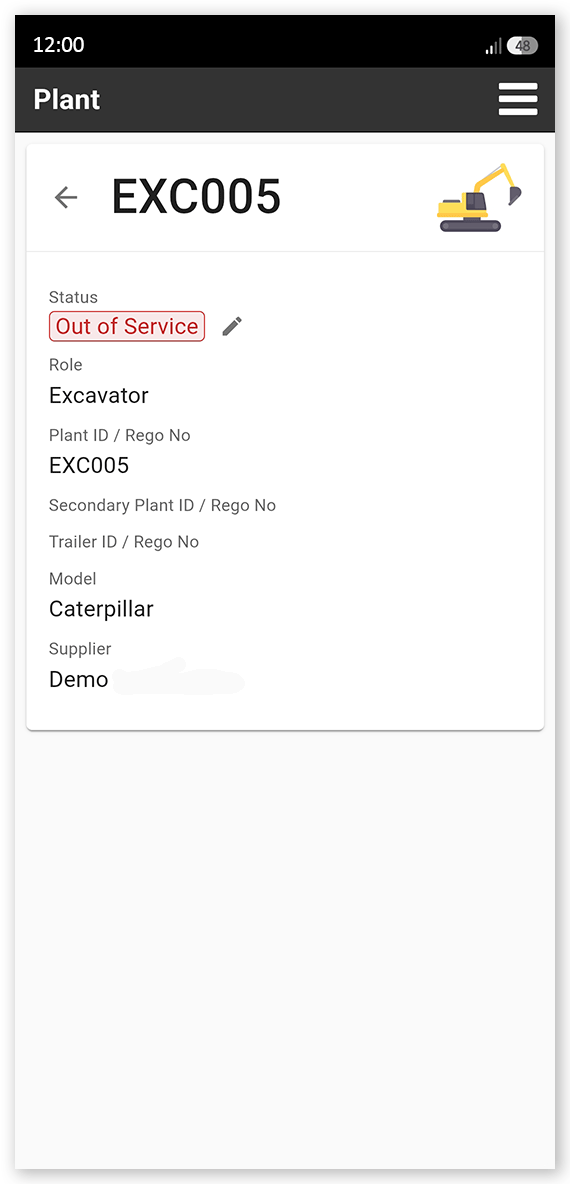
Tap Save. Depending on the time and date you selected, the new service status is displayed on the Plant screen in SafeSite and the Plant page in Virtual Superintendent either immediately or after the scheduled status change time passes.
 Click or tap to expand image
Note: Plant service status information is also available in dashboards and reports, allowing project staff and suppliers to monitor machine availability and utilization.