
Sign-on Profiles Explained
Sign-on profiles are used to control the sign-on process that SafeSite users must complete before starting work. They allow organizations to tailor sign-on questions for different worker types, vehicles, and equipment.
Sign-on profiles are assigned to item codes in Virtual Superintendent. When a user selects an item code in SafeSite, the associated sign-on profile determines their sign-on steps, including machinery checklists, plant identification requirements, driver-related features, GPS and tracking settings, and the landing page displayed after signing in.
Note: Not all projects use sign-on profiles. If sign-on profiles are not enabled for your project and you want to use them, contact Virtual Superintendent support at support@virtualsuper.com.
In this article
Permissions
To access the Dockets Setup page (Menu > Dockets Setup) and manage Item codes, sign-on profiles, cost codes and labels, you must have one of the following permissions:
- Dockets Super User
- User Admin
- Admin Manager
Default Sign-on Profiles
Each project includes a set of default sign-on profiles. There is one default profile for each item code type (Dry-hire Plant, Labour, Material, Other, and Plant). These default profiles represent the most common sign-on workflow for each item code type.
If any item code requires a unique customized workflow, you can create your own custom sign-on profile and use that instead.
Create a Sign-on Profile
To create a new sign-on profile:
- Sign in to Virtual Superintendent.
- Click Menu > Dockets Setup. The Dockets Setup page opens.
- Click the Sign-on Profiles tab.
- Click Add Sign-on Profile. The Add Sign-on Profile dialog opens.
- Enter a unique profile Name.
- Select the profile Type.
- Configure the settings on the Sign-on Control, Sign-on Plant Control, and Landing Page tabs (see the tables below):
- Click Save. The new sign-on profile is saved. After you create the new profile, you can assign it to one or more item codes.
Sign-on Control tab
The Sign-on Control tab defines the standard sign-on steps required for users of the selected item code.
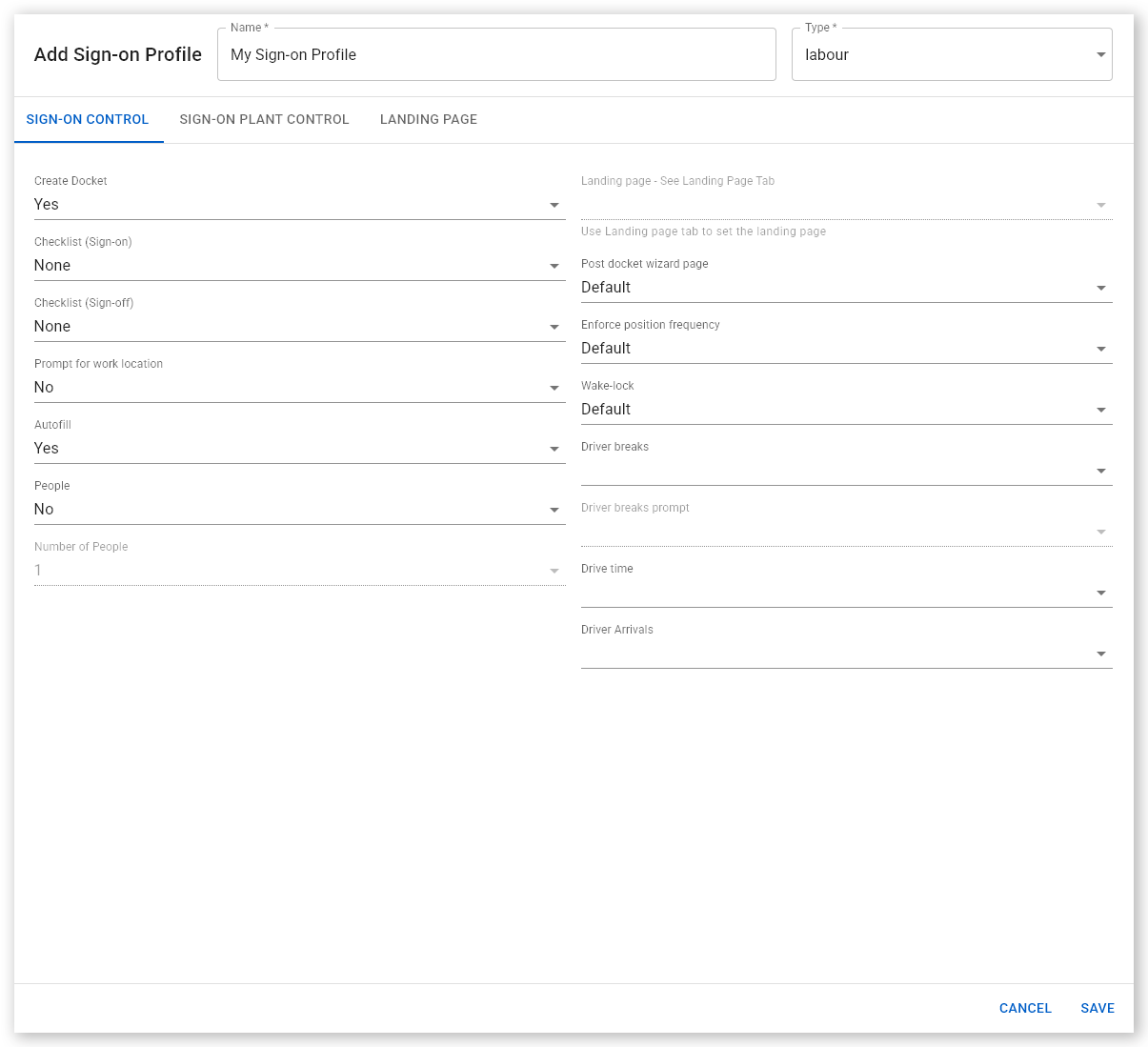
The fields on the Sign-on Control tab are:
| Field | Description |
| Name | Unique name of the sign-on profile. |
| Type | The sign-on profile type. Choose from Dry-hire Plant, Labour, Material, Other, and Plant. |
| Create Docket | Whether a docket is automatically created when the item code is selected. |
| Checklist (Sign-on) | The name of the Machine Checklist to be completed when signing in, and if any SMU reading is required. |
| Checklist (Sign-off) | The name of the Machine Checklist to be completed as part of the user's sign-off at the end of their shift. |
| Prompt for Work Location | Whether users are prompted to identify their work location. |
| Autofill | Whether SafeSite remembers the subcontractor's Plant ID and automatically enters it. |
| People | Whether the SafeSite user who selects the item code can assign other people to a docket (Labor item codes only). Set to Yes to enable the Number of People field. |
| Number of People | The maximum number of people that can be assigned to a labor docket. |
| Landing Page | Read-only. This value is set on the Landing Page tab. |
| Post Docket Wizard Page | The page the user is directed to after creating a docket in SafeSite. |
| Enforce Position Frequency | The frequency of GPS position reporting. Set to High to send a position report every 1-2 seconds, Set to Normal for position reporting only when the user is moving, Set to Off to disable position reporting. Defaults to Normal. |
| Wake-Lock | Whether the device screen remains on while the SafeSite app is running. |
| Driver Breaks | Whether breaks use standard rules or are manually recorded. Yes displays and records driver breaks according to Standard or Basic Fatigue Management break schedules for the driver. No requires the driver to record their own breaks. |
| Driver Breaks Prompt | Whether drivers are prompted to start and end breaks. When set to Yes, SafeSite prompts users to start and end breaks. When set to No, SafeSite does not display break prompts. |
| Drive Time | Whether estimated drive times to destinations are shown on the SafeSite Driver screen. |
| Driver Arrivals | Whether the driver is shown on the Virtual Superintendent Arrivals page (Menu > Arrivals). |
Sign-on Plant Control tab
The Sign-on Plant Control tab defines additional requirements for plant-related item codes, such as vehicle or equipment identification and driver settings.
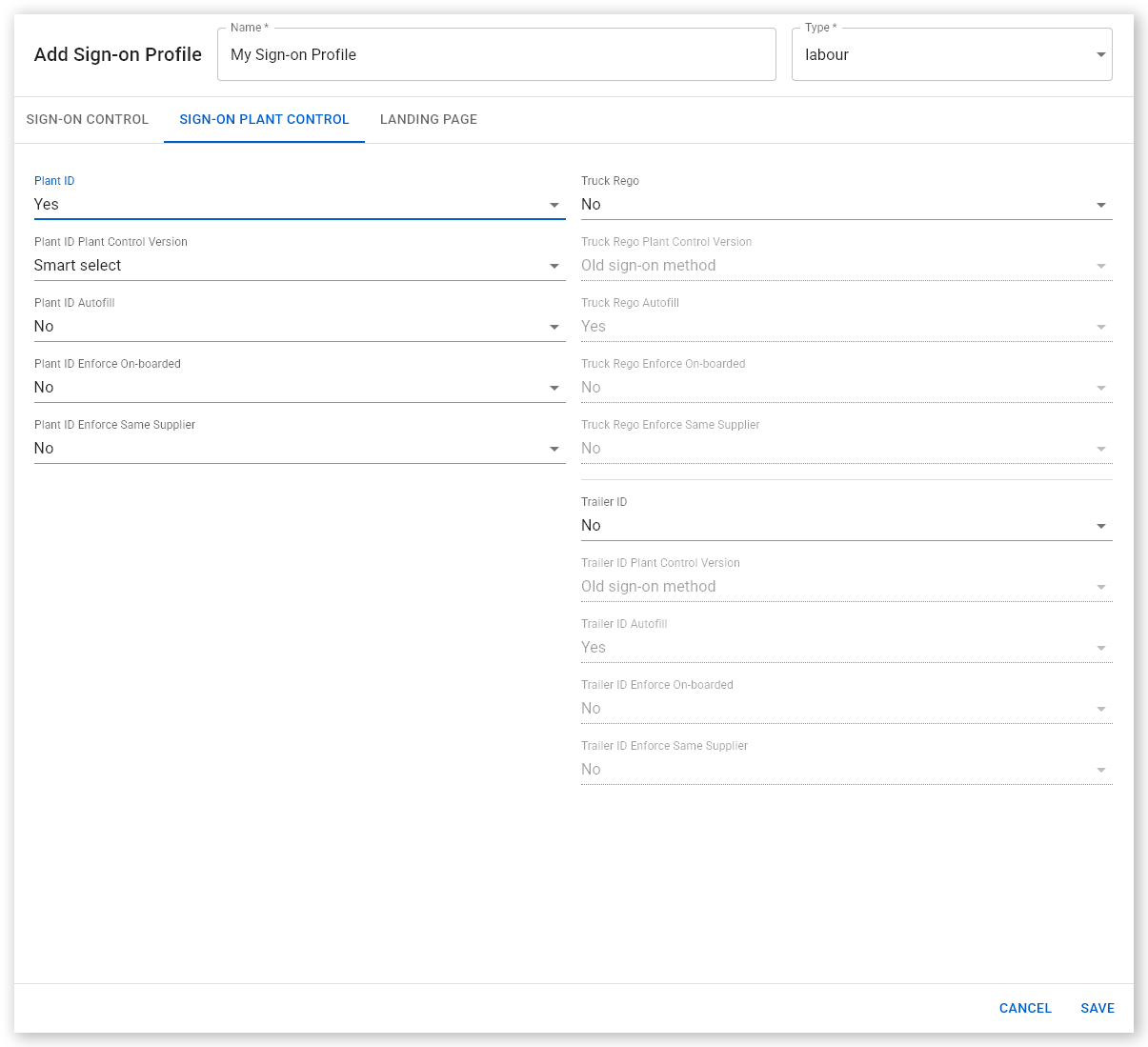
The fields on the Sign-on Plant Control tab are:
| Field | Description |
| Plant ID | Whether specifying equipment name (Plant ID) is required during SafeSite sign-on. |
| Plant ID Control Version | The plant ID control type used. Set to Smart Select to enable the Smart Select feature on the SafeSite Plant Identification screen. Select New Sign-on Method or Smart Select to enable the Plant ID Autofill, Plant ID Enforce On-boarded, and Plant ID Enforce Same Supplier fields. |
| Plant ID Autofill | Whether the Plant ID (machine name) is automatically completed based on previous selections. |
| Plant ID Enforce On-boarded | Whether the Plant equipment selected must be an onboarded machine. |
| Plant ID Enforce Same Supplier | Whether the Plant equipment selected must be from the same supplier as the SafeSite user. |
| Truck Rego | Whether a vehicle registration number must be entered. Set to Yes to enable the Truck Rego Plant Control Version field. |
| Truck Rego Plant Control Version | The truck rego control type used. Set to Smart Select to enable the Smart Select feature on the SafeSite Plant Identification screen. Select New Sign-on Method or Smart Select to enable the Truck Rego Autofill, Truck Rego Enforce On-boarded, and Truck Rego Enforce Same Supplier fields. |
| Truck Rego Autofill | Whether the registration number is automatically completed based on previous selections. |
| Truck Rego Enforce On-boarded | Whether the registration number entered must belong to an onboarded vehicle. |
| Truck Rego Enforce Same Supplier | Whether the registration number entered must be for a vehicle owned by the same supplier as the SafeSite user. |
| Trailer ID | Whether the Trailer ID of the equipment is required during SafeSite sign-on. Not required. |
| Trailer ID Plant Control Version | The truck rego control type used. Set to Smart Select to enable the Smart Select feature on the SafeSite Plant Identification screen. Select New Sign-on Method or Smart Select to enable the Trailer ID Autofill, Trailer ID Enforce On-boarded, and Trailer ID Enforce Same Supplier fields |
| Trailer ID Autofill | Whether the Trailer ID is automatically completed based on previous selections. |
| Trailer ID Enforce On-boarded | Whether the Trailer ID selected must be an onboarded machine. |
| Trailer ID Enforce Same Supplier | Whether the Trailer ID selected must be from the same supplier as the SafeSite user. |
Landing Page tab
The Landing Page tab determines which page opens after a user successfully signs in to the SafeSite app.
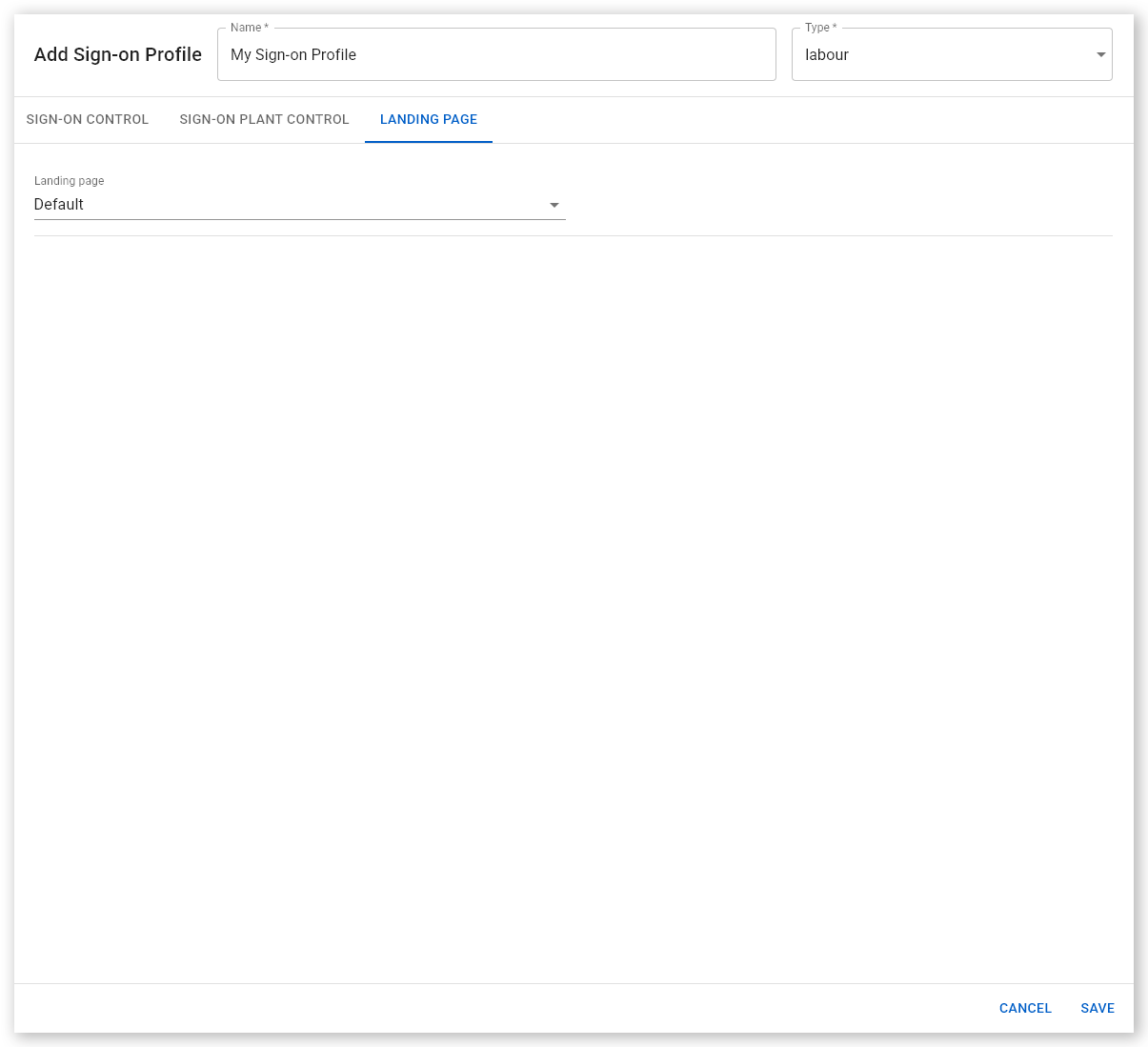
The fields on the Landing Page tab are:
| Field | Description |
| Landing Page | The page the SafeSite user is forwarded to after signing in. Select Default to forward the user to the default SafeSite screen for their role. Select Driver to forward the user to the Driver screen. Select Operator to forward the user to the Operator screen. |
Note: Additional settings are also available on the Landing Page tab, such as Dockets Today and Simple Time Sheet Card. Speak to Virtual Superintendent support at support@virtualsuper.com for more information about these options.
Assign a Sign-on Profile to an Item Code
To assign your new sign-on profile to an item code:
- Sign in to Virtual Superintendent.
- Click Menu > Dockets Setup. The Dockets Setup page opens.
- Click the Item Codes tab.
- Select an item code from the list. The Edit Item Code dialog opens.
- Open the Sign-on Profile dropdown menu and select your new sign-on profile.
- Click Save. The item code is updated to use the new sign-on profile.
Sign-on Profile Best Practices
When using sign-on profiles, we recommend that you use the Smart Select feature, that you configure driver breaks, and that you correctly configure your plant settings.
Use Smart Select
To enable Smart Select, set the Plant ID Plant Control Version to Smart Select.
Smart Select reduces the need for users to manually select items from lists when creating or reviewing dockets. Read the SafeSite Smart Select Feature and Plant Page Smart Select help articles for more information.
Configure driver breaks
The Driver Breaks and Driver Break Prompts settings control how drivers receive break reminders in the SafeSite app and should be used to ensure that required breaks are taken.
Drive Time allows the estimated drive time to the next location to be shown on the SafeSite Driver screen so drivers can plan their breaks. See the Driver Breaks in the SafeSite app help article for more information.
Note: To use these features, SafeSite users must enable location services on their device.
Configure plant identification
When configuring Sign-on Plant Control settings:
- If Plant ID is set to Yes, set Truck Rego and Trailer ID to No.
- If Plant ID is set to No, you can set Truck Rego and Trailer ID to Yes.