
Register New SafeSite Users
Subcontractor administrators and head contractors can help staff create new accounts for the SafeSite mobile app.
This guide explains the three different methods that can be used:
- Create individual SafeSite accounts. Create each user's account in Virtual Superintendent, then send the user a Registration Code by text message or email. The user doesn't need to enter their personal details during registration.
- Send a Supplier Registration Code. Send a generic Supplier Registration Code to users by text message or email. Each user enters their personal details during registration.
- Display a Supplier Registration QR Code. Display a Supplier Registration QR Code that users can scan (for example, as a poster in a site building). Users must install SafeSite before scanning the QR code and enter their personal details during registration.
Note: This help article describes the steps used to create new SafeSite accounts for both head contractors and subcontractor administrators. If you are a subcontractor administrator, you can also read the Register New SafeSIte Users as a Subcontractor Administrator quick start guide.
In this article
Permissions
To create new SafeSite accounts, and to edit the permissions of existing users, you must have the following permission:
- User Admin
In addition, you should have one of the following permissions:
- Subcontractor Admin
- Admin Manager
If you have Admin Manager permissions, you can access the Users page (Menu > Users) and create and manage SafeSIte accounts for any supplier.
If you have Subcontractor Admin permissions, you can access the Users page (Menu > Users) and create and manage SafeSIte accounts only for your own organization. You can also access the Register User page (Menu > Register Users) where you can send SafeSite registration invitations as text messages or emails, and print your supplier SafeSite registration QR code (to display as a poster in your site office, for example).
Note: Suppliers with Subcontractor Admin and User Admin permissions typically register their own staff, but both head contractors and subcontractor administrators can register new SafeSite users. This means that if a subcontractor arrives on site and is not yet registered, and the subcontractor administrator is unavailable, the head contractor can assist with their registration.
Method 1: Create SafeSite Accounts in Virtual Superintendent
You can create SafeSite accounts for your staff from the Users page (Menu > Users) in Virtual Superintendent. After the account has been created, you can then send the user their unique registration code by text message or email.
To create an account and send a registration code:
- Sign in to Virtual Superintendent.
- Click Menu > Users. The Users page opens.
-
Click SafeSite App Users in the top menu bar. A grid view opens, showing all SafeSite users in your project and their permissions. If you have the Subcontractor Admin permission, only the SafeSite App Users tab is available.
 Click or tap to expand image
 -
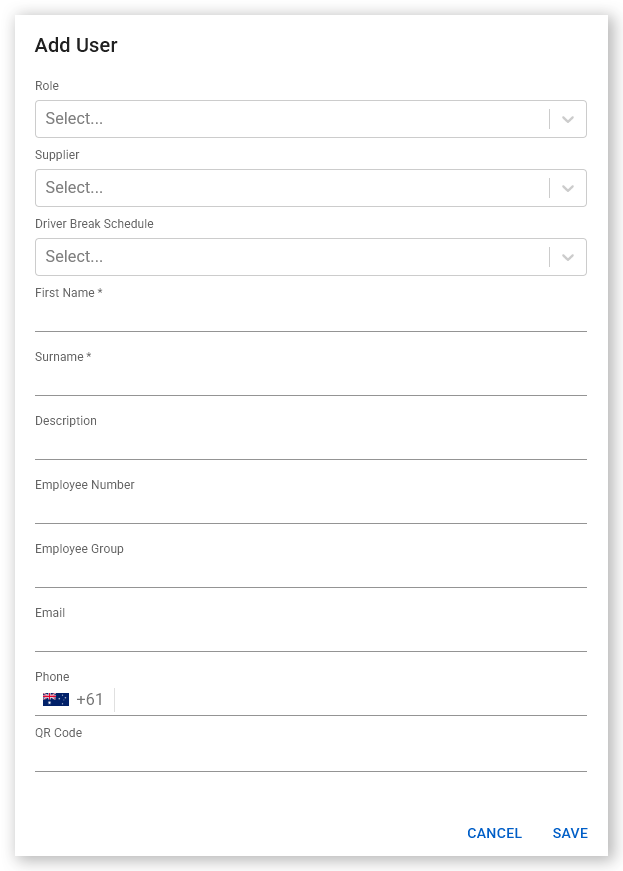
Click Add User. The Add User dialog opens.
 Click or tap to expand image
 -
Enter the user's details, including their email address and cell phone number. See the User fields section below for more information about these fields.
 Click or tap to expand image
 - Click Save. The user's details are saved and the Add User dialog closes.
-
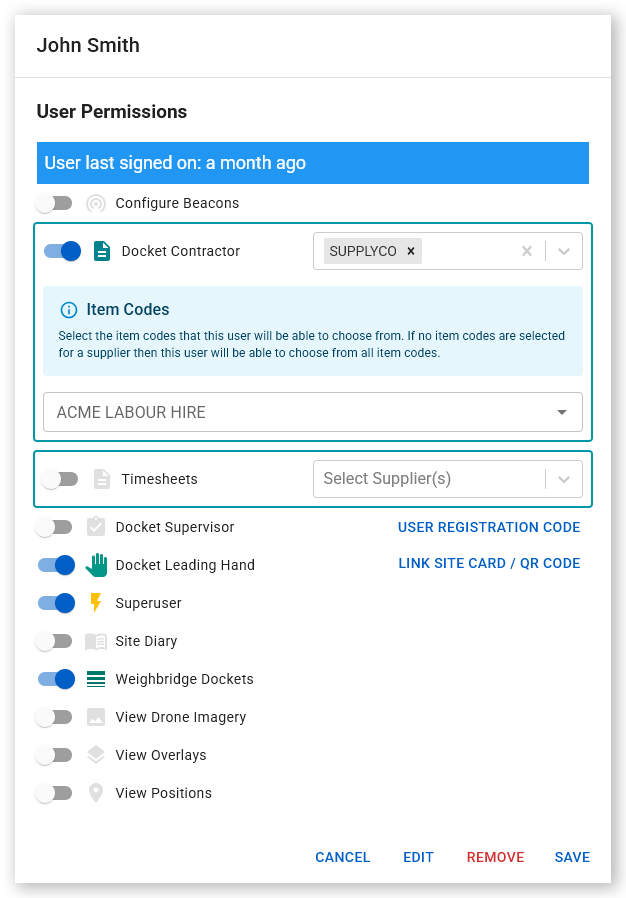
Locate the newly created account in the SafeSite users list and select it. Use the Name filter in the top left corner to filter by username or the Email field to filter by email address. The User Permissions dialog opens.
 Click or tap to expand image
 -
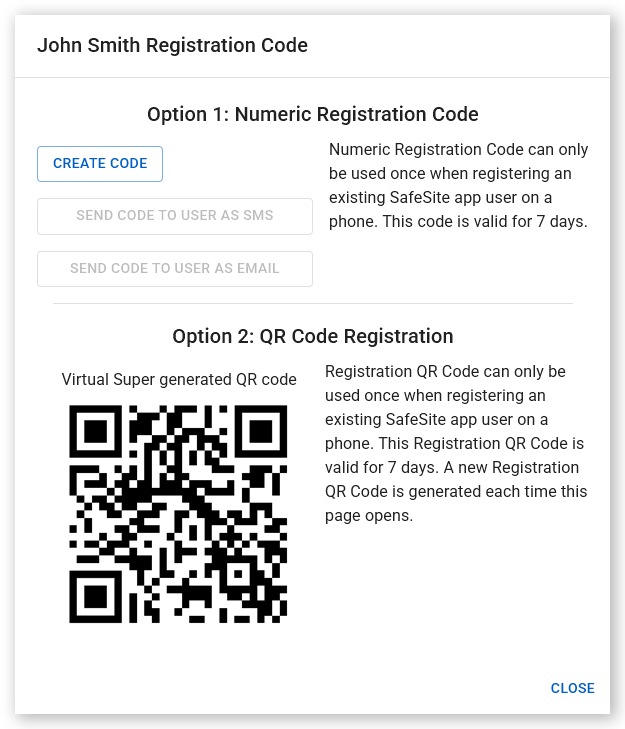
Click User Registration Code. The Registration Code dialog opens.
 Click or tap to expand image
 - Click Create Code. A unique numeric registration code is generated and displayed.
- Click Send Code to User as SMS or Send Code to User as Email. The user receives a text message or email with instructions for installing and registering SafeSite, together with their unique registration code. You can also click Copy Code to save the code to your clipboard and then manually store it or communicate it to your staff. Alternatively, take a screenshot of the QR code under the Option 2: QR Code Registration heading and print it or show it to the new SafeSite user to scan during registration.
Note: The registration code is valid for seven days and can only be used once.
User fields
The following fields are available when creating a new SafeSite account:
| Field | Description |
| Role | Role of the new user. For example, Gatekeeper, Laborer, Supervisor. |
| Supplier | The supplier the new user will be associated with in dockets. This field is not available to subcontractor administrators. |
| Driver Break Schedule | The break schedule that will be used for the user. Either Standard Hours or Basic Fatigue Management. See the Driver Breaks in the SafeSite App help article for more information. This field is not available to subcontractor administrators. |
| First Name | The user's first name. Required. |
| Surname | The user's last name. Required. |
| Description | A description of the user's role. |
| Employee Number | The user's unique employee number, if any. |
| Employee Group | The user's work group, if any. |
| The user's email address. If an email address is not provided, the option to email the user their registration code is not provided. | |
| Phone | The user's mobile phone number. If a mobile phone number is not provided, the option to send the user their registration code as a text message is not provided. |
| QR Code | Text to link the user to a custom QR code. For example, an email address, site card or employee number. The user can then use this external QR code to sign in. See the Link a QR Code to a SafeSite User help article for more information. |
Method 2: Send a Generic Supplier Registration Code
If you are a head contractor, use the Users page (Menu > Users) in Virtual Superintendent to generate a generic Supplier Registration Code.
If you are a subcontractor administrator, use the Register Users page (Menu > Register Users) instead.
You can then send the code to staff by text message or email. When a user enters the code, SafeSite prompts them to enter their personal details to complete registration.
Registration code as a head contractor
To send a Supplier Registration Code as a head contractor:
- Sign in to Virtual Superintendent.
- Click Menu > Users. The Users page opens.
-
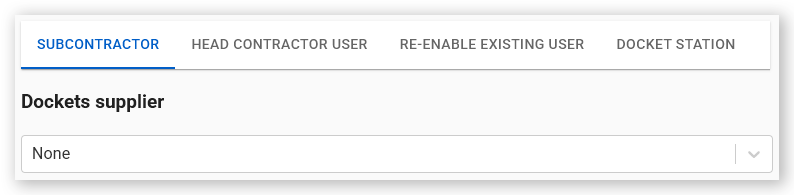
Click QR Codes in the top menu bar. The QR Codes page opens on the Subcontractors tab.
 Click or tap to expand image
 -
Open the Dockets Supplier dropdown and select your organization.
 Click or tap to expand image
 -
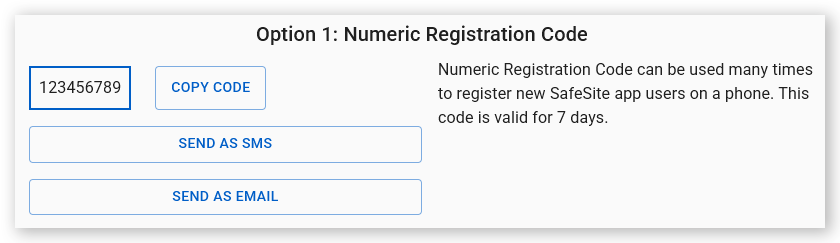
Click Create Code. A numeric code is generated.
 Click or tap to expand image
 - Click Send as SMS or Send as Email. The Please Enter Phone Numbers or Please Enter Emails dialog opens. You can also click Copy Code to save the code to your clipboard and then manually store it or communicate it to your staff.
- Enter the phone numbers or email addresses of the new SafeSIte account owners. You can paste multiple phone numbers or email addresses from another file. Separate each entry with a comma or space.
- Click Send Messages or Send Emails. Each user receives a text message or email with instructions for installing and registering SafeSite.
Note: The registration code is valid for seven days and can be used as many times as needed.
Registration code as a subcontractor administrator
To send a Supplier Registration Code as a subcontractor administrator:
- Sign in to Virtual Superintendent.
-
Click Menu > Register Users. The Register User page opens showing a numeric code.
Click or tap to expand image - Click Send as SMS or Send as Email. The Please Enter Phone Numbers or Please Enter Emails dialog opens. You can also click Copy Code to save the code to your clipboard and then manually store it or communicate it to your staff.
- Enter the phone numbers or email addresses of the new SafeSIte account owners. You can paste multiple phone numbers or email addresses from another file. Separate each entry with a comma or space.
- Click Send Messages or Send Emails. Each user receives a text message or email with instructions for installing and registering SafeSite.
Note: The registration code is valid for seven days and can be used as many times as needed.
Method 3: Print and Display a Supplier Registration QR Code
If you are a head contractor, use the Users page (Menu > Users) in Virtual Superintendent to generate a generic Supplier Registration Code and then display the code in your office (for example, as a poster on the wall) so new users can scan it and register a SafeSite account.
If you are a subcontractor administrator, use the Register Users page (Menu > Register Users) instead.
This method is useful when you want to help staff complete the registration process in person.
Create a registration QR code as a head contractor
To create and print a Supplier Registration QR Code as a head contractor:
- Sign in to Virtual Superintendent.
- Click Menu > Users. The Users page opens.
-
Click QR Codes in the top menu bar. The QR Codes page opens on the Subcontractors tab.
Click or tap to expand image -
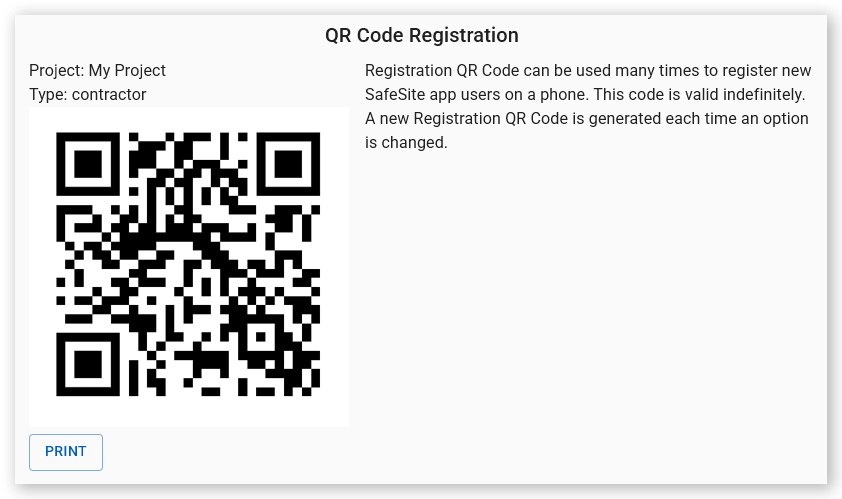
Open the Dockets Supplier dropdown and select the supplier's organization. A supplier QR code is generated under the QR Code Registration section of the page.
Click or tap to expand image -
Click Print to print the QR code, or take a screenshot of the QR code, and print the screenshot.
 Click or tap to expand image
 - Display the QR code in your office as a poster or sticker located where it can be easily seen by operators, or provide it to the supplier. New SafeSite users working for the selected supplier can scan it and then register a new account in SafeSite.
Generate a registration QR code as a subcontractor administrator
To create and print a Supplier Registration QR Code as a subcontractor administrator:
- Sign in to Virtual Superintendent.
- Click Menu > Register Users. The Register User page opens.
-
take a screenshot or a photo of the QR code, and then print the screenshot.
Click or tap to expand image - Display the QR code in your office. For example, as a poster or sticker located where it can be easily seen by your operators. New SafeSite users can scan it and then register a new account in SafeSite.
Note: Users must install SafeSite on their phones before scanning the QR code. During registration, SafeSite prompts users to scan the QR code and enter their personal details.