
Register a Device as a Docket Station
Configure SafeSite as a Docket Station to let registered SafeSite users create dockets on a shared phone or tablet instead of using their personal devices.
You can configure a Docket Station in one of two modes:
- Machine Mode: Use this mode to link the device to a specific machine for operators to create Simple Operator Timesheets. The device is typically installed in the machine.
- Kiosk Mode: Use this mode to set up a shared device, typically in a site office, where subcontractors can sign in and create dockets.
In this article
Permissions
To access the Users page (Menu > Users) and generate Docket Station QR codes, you must have the following Virtual Superintendent permissions:
- User Admin
- Admin Manager
Before You Begin
Before setting up a Machine Mode or Kiosk Mode Docket Station, you will need to:
- Install the SafeSite app on the phone or tablet that will be used on a machine, or available as a kiosk device in your site office.
- Create a SafeSite account for each subcontractor who needs to use the Docket Station.
- On-board the machine in Virtual Superintendent before configuring the Docket Station, if using Machine Mode.
- Link each user's independent QR code to their SafeSite account, If you want users to sign in by scanning their site cards.
For more information, see the following help articles:
- Bulk Import Plant Equipment Using an Excel Spreadsheet
- On-board and Manage Plant Equipment
- Register New SafeSite Users
- Link a QR Code to a SafeSite User
Configure a Machine Mode Docket Station
Use Machine Mode for a device that is linked to a specific machine and used for the Simple Operator Timesheets workflow. The device is typically installed in the machine and used by any operator using the machine on a shift.
Note: Machine Mode requires the appropriate Simple Operator Timesheets sign-on profile to be assigned to the relevant operator item code. See the Simple Operator Timesheets help article. To add a sign-off checklist to the Machine Mode workflow, contact the Virtual Superintendent support team at support@virtualsuper.com.
To configure a Machine Mode Docket Station:
- Sign in to Virtual Superintendent.
- Click Menu > Users. The Users page opens on the SafeSite App Users tab.
-
Click the QR Codes tab in the top menu bar.
 Click or tap to expand image
 -
Select the Docket Station sub-tab. The Docket Station configuration panel opens.
 Click or tap to expand image
 -
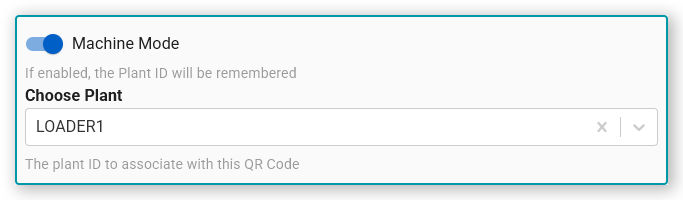
Enable the Machine Mode toggle.
 Click or tap to expand image
 - Open the Choose Plant dropdown menu and select the machine to link to the Docket Station. The machine you choose must already be on-boarded in Virtual Superintendent. When Machine Mode is enabled, the machine's plant role icon appears on the Docket Station sign-in screen.
-
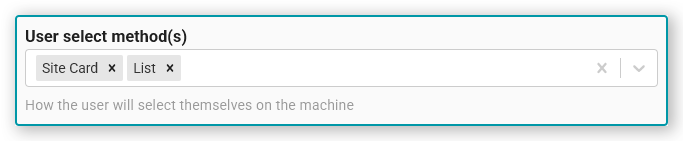
Open the User select method(s) dropdown and select how users sign in. Select List to let users select their name from a list of SafeSite users or User to require users to scan their linked QR code, such as a site card. Select both List and User to allow either sign-in method.
 Click or tap to expand image
 -
Type the text you want to be displayed on the Docket Station sign-in screen button, such as "Create Timesheet." into the Button text field.
 Click or tap to expand image
 -
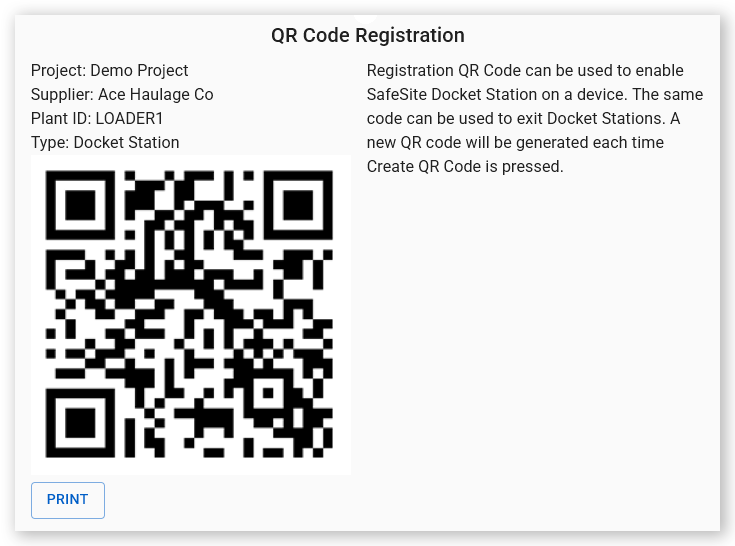
Click Create QR Code. Virtual Superintendent generates the QR code. Use this code to register a device with these settings by opening SafeSite, tapping Scan QR Code on the registration page, and scanning the QR code. You cannot use the Add Project Sign-on or Switch User QR scanning options on the SafeSite sign-on page to scan Docket Station QR registration codes.
 Click or tap to expand image
Important: Save a copy of the QR code to your computer by taking a screen shot of your screen or click Print to print a copy. You will need it if you want to exit Docket Station mode on the device later.
Configure a Kiosk Mode Docket Station
Use Kiosk Mode for a shared device where subcontractors can sign in and create dockets.
To configure a Kiosk Mode Docket Station:
- Sign in to Virtual Superintendent.
- Click Menu > Users. The Users page opens on the SafeSite App Users tab.
-
Click the QR Codes tab in the top menu bar.
Click or tap to expand image -
Select the Docket Station sub-tab. The Docket Station configuration panel opens.
Click or tap to expand image -
Check that the Machine Mode toggle is off.
 Click or tap to expand image
 -
Enable the Use Timer toggle if you want to limit users to five minutes to complete and submit a docket. When Use Timer is enabled, a countdown appears in SafeSite. If the user doesn't submit their docket within five minutes, SafeSite signs them out.
 Click or tap to expand image
 -
Open the User select method(s) dropdown and select how users sign in. Select List to let users select their name from a list of SafeSite users or User to require users to scan their linked QR code, such as a site card. Select both to allow either sign-in method.
Click or tap to expand image -
Type the text you want to be displayed on the Docket Station sign-in screen button, such as "Create Docket." into the Button text field.
 Click or tap to expand image
 -
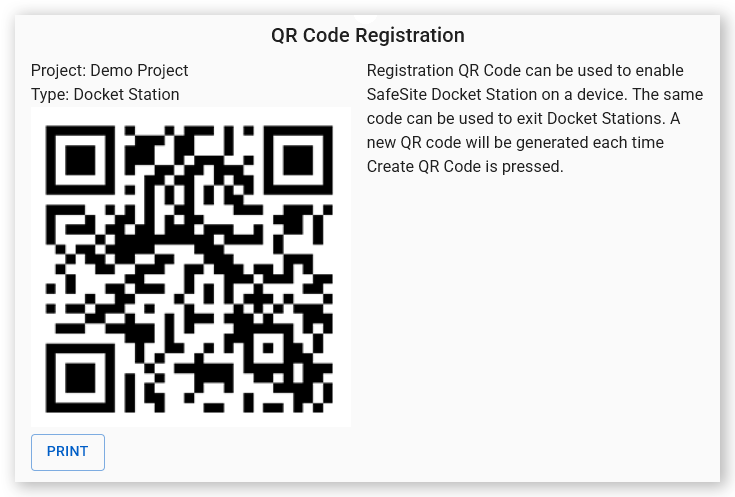
Click Create QR Code. Virtual Superintendent generates the QR code. Use this code to register a device with these settings by opening SafeSite, tapping Scan QR Code on the registration page, and scanning the QR code. You cannot use the Add Project Sign-on or Switch User QR scanning options on the SafeSite sign-on page to scan Docket Station QR registration codes.
 Click or tap to expand image
Important: Save a copy of the QR code to your computer by taking a screen shot of your screen or click Print to print a copy. You will need it if you want to exit Docket Station mode on the device later.
Control the Docket Workflow
Use sign-on profiles to control the steps users complete when creating dockets from either type of Docket Station. Then assign the appropriate sign-on profile to the relevant item codes in Virtual Superintendent. See the Sign-on Profiles Explained help article for more information.
Note: Machine Mode is designed for the Simple Operator Timesheets workflow and requires the appropriate Operator Timesheets sign-on profile.
Exit Docket Station Mode
Use the QR code you saved when registering the device to exit Docket Station mode without uninstalling SafeSite.
To exit Docket Station mode:
-
From the Docket Station home screen, tap Exit.
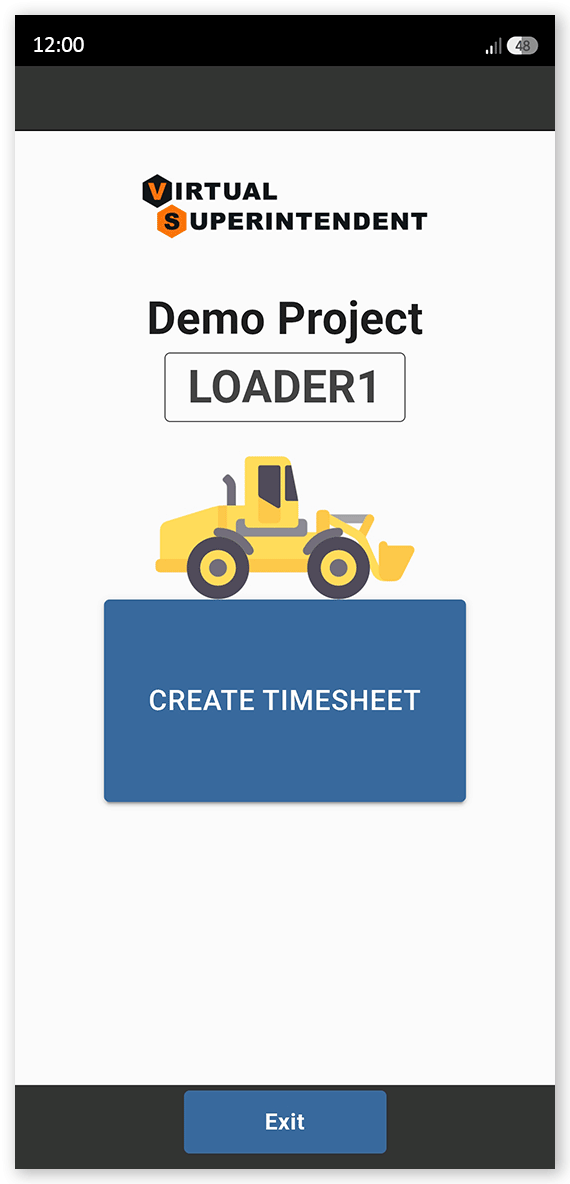 Click or tap to expand image
 -
Tap Scan QR Code.
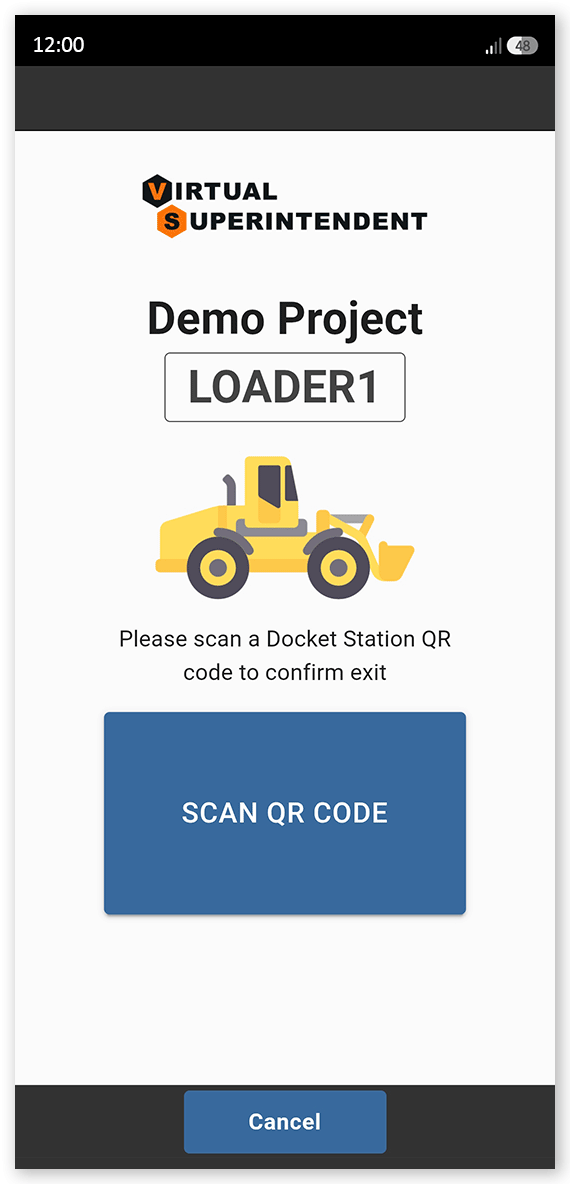 Click or tap to expand image
 - Scan the saved Docket Station registration QR code. SafeSite exits Docket Station mode and loads the registration page.
Alternatively, if you lose your QR code, simply uninstall SafeSite from the device to remove the Docket Station configuration.