
Getting Started in Virtual Superintendent
In this article
Step 1. Set Up Your Project
To get started, contact support@virtualsuper.com to request a new project setup.
You will need to provide the following information:
- The email addresses of your Virtual Superintendent administrators. These users manage system access, permissions, and user setup. Ideally, they should be comfortable with technology and able to support other users on site.
- A contact for site mapping and boundaries. This may be your GIS analyst, or a surveyor or site contact who can define the physical project boundary.
-
If your organization will be using electronic dockets:
- Email addresses of engineers who will approve dockets
- Email addresses of admin staff who will manage submissions
- At least one Dockets Super User. This person will be given advanced permissions for approvals, item codes, and system control
- A list of suppliers (spreadsheet upload recommended for large lists)
- A list of cost codes in spreadsheet format
These details allow the system to be configured correctly for your project.
Step 2. Sign Into Virtual Superintendent
Once your project has been configured by customer support, you will receive an account invitation email and then, once your administrator account is registered, you can sign into the Virtual Superintendent web application.
To access it, navigate to https://www.myvirtualsuper.com/login and sign in.
Note: We strongly recommend using the Google Chrome browser to ensure full functionality. Other browsers may not support all features.
Step 3. Invite Virtual Superintendent Users
Now you are ready to invite other people in your organization to use Virtual Superintendent:
- Users must be invited by an administrator
- A login is created using their email address
As part of your invitation, you can also specify the new user's Virtual Superintendent permissions, based on the work they will be doing (site engineers, supervisors, dockets contractors, or various administrators). These permissions determine what pages they can see in Virtual Superintendent and what actions they can perform.
Once you have created an account, the new users can then accept your invitation.
Note: If someone forgets their password, they can use the Forgot Password? option on the login page to reset it and choose a new password.
Step 4. Register SafeSite Users
Next, you should create SafeSite accounts for anyone in your organization who will need to create, submit or manage dockets.
You can create an account invitation that sends the user an email of text message with a QR code or a unique registration number that they can use to register, or you can manually provide a printed QR code or registration number.
Registration can be managed in two ways:
- A Virtual Superintendent administrator user generates QR codes from the system (typically used in the site office)
- SafeSite Super User (typically a supervisor or foreman) generates QR codes on site for field users
This allows new users to register or existing users to re-register on a different device. Like Virtual Superintendent accounts, SafeSite users can be assigned specific permissions that determine what screens they can see in the SafeSIte app and what actions they can perform.
Note: If a subcontractor arrives onsite without a SafeSIte account, users with supervisor permissions can quickly register the subcontractor from their own app by generating a registration QR code. See the Register a SafeSite User in the Field help article for details. This process can also be used to reregister a device if a subcontractor loses their phone, buys a new phone, or has uninstalled the app.
Step 5. Install the SafeSite Mobile App
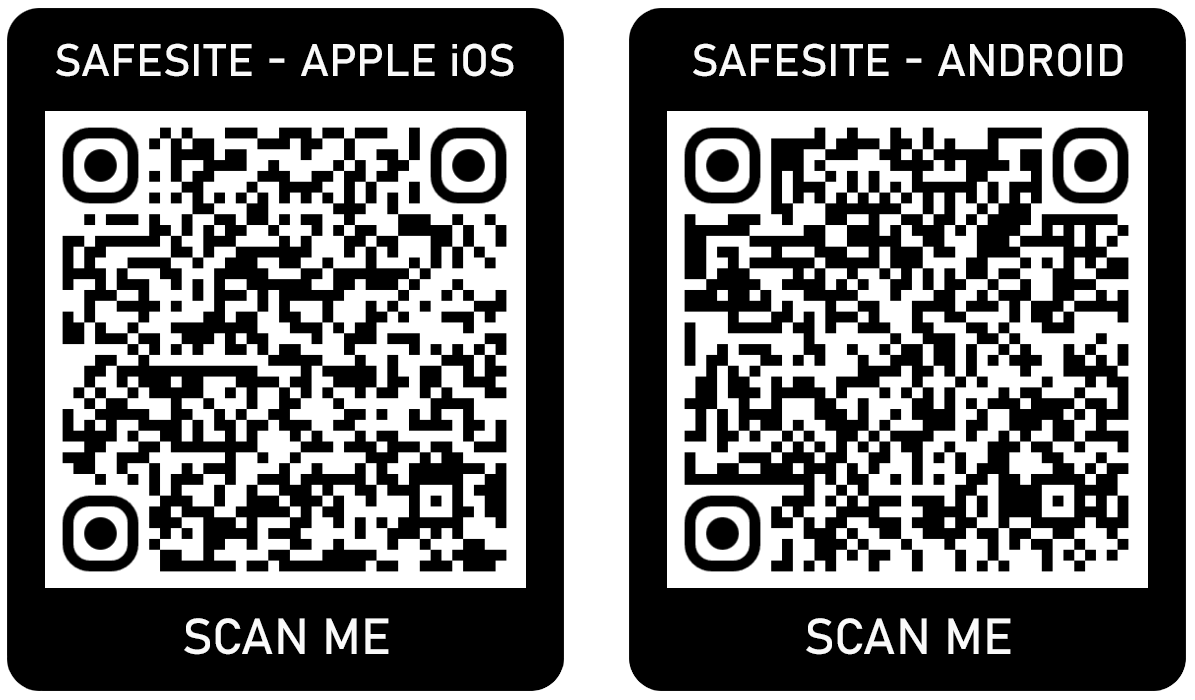
Your onsite staff should now install the SafeSite mobile app. This app is used to capture data and record their work.
The SafeSite app allows users to:
- Submit plant and labor dockets
- Track material movements
- Record their fit‑for‑work declarations
- Complete daily sign-on and sign-off processes
Read the Install and Register the SafeSite App help article.
Step 6. Use the SafeSite Mobile App
Every working day, SafeSite users should open the app and complete their sign-on process, which includes:
- Answering Fit for Work questions to confirm that they are well rested, free from the influence of alcohol and drugs, and in a fit state to complete a work shift.
- Completing a Machine Checklist that verifies that they have inspected their plant equipment and confirmed it is in order and safe to operate on site, or identified issues that need attention. This checklist is typically only required for machine operators.
If a user answers No to any safety question, a notification can be sent to their supervisor.
At the end of their shifts, SafeSite users complete a sign-off process and their activities for the day are automatically updated in Virtual Superintendent.
See the Quick Start Guides section for instructions for truck drivers, machine operators, loaders, and site diary users.
What Virtual Superintendent Does
Virtual Superintendent provides a complete view of your project by combining:
- Docket management (cost tracking and approvals)
- Production tracking (material movement, plant activity)
- Safety workflows (Fit for Work, Machine Checklist, Overload, Overspeed and general compliance monitoring)
Data is available in real time through:
- Dashboards
- Reports
- Map-based visualizations
- Notifications and emails
This allows teams in both the office and the field to monitor progress and make informed decisions.
Next Steps
To continue setting up and onboarding:
- Review your Chain of Responsibility obligations
- Install and register the SafeSite app
- Invite and configure Virtual Superintendent users
- Upload suppliers and cost codes
- Begin using electronic dockets
Additional users, suppliers, and cost codes can be added at any time. Training is also available for administrators and key users. For assistance, contact support@virtualsuper.com.