
What's New in Virtual Superintendent
To learn about the latest features and improvements in Virtual Superintendent and the SafeSite mobile app, see the release notes below.
To learn about our older releases, see the Software Release Archive.
Recent software releases
- October 2026: Order Hold and Release, Manual Load and Disposal Event Recording, and Docket Improvements
- September 2026: New Plant Roles, SafeSite Field Removal, and Platform Improvements
- September 2026: Reporting, Bulk Upload, and Mobile Experience Improvements
- September 2026: New Plant Roles, SafeSite Field Removal, and Platform Improvements
- August 2026: Docket Filtering, Bulk Attachment Downloads, Permissions, and Geometry Updates
- August 2026: Dry Hire Attachments, Dockets, Orders, and SafeSite Updates
- July 2026: New Tractor Roles, Item Code Import Enhancements, and Reliability Improvements
- June 2026: Subcontractor Dockets Pre-Filter, Orders Map Filtering, Quantities Drill-Down, and Performance Improvements
- May 2026: Bulk SafeSite User Import, Quantity Hours Tagging, and Tagging Enhancements
- May 2026: Clone Docket Submission Windows, Additional Geofence Purposes, Engineer Quantities and Approval Locking, New Advanced Reporting Values, Tagging Updates, and Bug Fixes
- April 2026: Download Orders as PDF, New Map Layers Page, Updated Speed Zone Data, and Integration and Filtering Improvements
- April 2026: Clone Dockets, Custom Map Terrain Layers, Mandatory Order Change Reasons, Item Field for Item Code Groups, and Integration UI Improvements
- April 2026: Download Orders as PDF, New Map Layers Page, Updated Speed Zone Data, and Integration and Filtering Improvements
- March 2026: Crew Dockets, New Order States, Subcontractor Order Admin Permissions, Price Reference Field & Bug Fixes
- January 2026: Order Improvements and New Advanced Reporting Tables
Order Hold and Release, Manual Load and Disposal Event Recording, and Docket Improvements (October 2026)
This release introduces a new Order Hold and Release workflow for Item Orders and Spoil Transport Orders, manual load and disposal event recording in SafeSite, and improvements to column filter visibility, Item Code Groups, reporting, integrations, and day-to-day usability.
Other updates include improved Item Code Group validation and previews, better handling of cost code quantity errors, more reliable spoil report exports, improved auto sign-on and integration processing, and several user experience improvements across SafeSite and Virtual Superintendent.
See below for what's new.
Added a new Hold and Release process for Item and Spoil Transport Orders
Virtual Superintendent users with the Order Admin permission can now place Item Orders and Spoil Transport Orders on temporary hold from the Orders page (Menu > Orders), then submit a release request to resume an order from a supplier.
This allows orders to be paused if operational changes or site conditions require a delay, while still providing clear visibility of order status.
This new workflow adds new Hold Order and Request Order Release actions for order administrators, and Hold Requested, On Hold, and Release Requested status indicators in the Orders page, together with acknowledgment actions for suppliers.
Orders remain in their normal Accepted or Amended state while the hold status is managed separately. A complete history of hold requests, acknowledgments, releases, comments, and cancellations is retained for auditing and review.
Key improvements include:
- Visible hold status indicators in order lists and order details.
- New Hold Order, Request Order Release, Cancel Hold Request and Cancel Release Request actions for order administrators.
- New Acknowledge Hold and Acknowledge Release actions for order suppliers.
- Dedicated email notifications for hold and release events.
- Hold history and status changes recorded in View Changes.
- New filtering options for held orders and orders awaiting supplier acknowledgment (All, Hold Requested, On Hold, and Release Requested options).
- Protection against order updates and acceptance while an order is on hold.
This feature applies only to Item Orders and Spoil Transport Orders. Concrete Orders and Concrete Test Orders are excluded from the new hold and release workflow.
Added manual load and disposal event recording in SafeSite
Drivers can now record Manual Load and Manual Disposal events directly from the SafeSite Driver screen when enabled on sign-on profiles using the new Manual load and disposal option and correctly configured Load Count - Hauler plant equipment.
These loading and disposal events are used in load count calculations and shown in Load Count reports and on the Events page (Menu > Events), providing a reliable tracking and measurement option for projects where automatic detection is not available.
For information about setting up and using this feature, read the Manually Record Loads and Disposals in SafeSite help article.
Added warnings when docket groups use inactive Item Codes
Added new banner warnings and orange warning icons when adding or editing Item Code Groups (Menu > Dockets Setup> Add Group > Rules or after selecting a group to edit) to identify docket groups using inactive Item Codes.
Inactive Item Codes referenced within group rules or extras are also clearly marked with an orange warning indicator and a “This item code is inactive” label.
Added tooltips for clipped Plant ID names on the Users page
Added tooltips to the Plant ID column on the Users page (Menu > Users > SafeSite App Users) to fully display values if they would otherwise be truncated.
Previously, long Plant IDs were clipped with an ellipsis (...) to prevent them from overlapping neighboring columns making it difficult to view the complete Plant ID.
Plant IDs that fit within the column continue to display normally without a tooltip.
Improved the visibility of filter dropdown menus
Fixed an issue where filter dropdown menus could be cropped or hidden when a table contained only a small number of rows after selecting a filter option.
Previously, selecting a filter value on pages such as Dockets Setup, Suppliers, and Dockets could reduce the table to only a few rows (when a small number of items matched the filter value). When the filter menu was then reopened, dropdown options could be clipped by the table boundary or browser viewport.
With this update, filter dropdown menus now render above the table rather than within the table container and dropdown menus automatically reposition to remain visible within the browser viewport.
Fixed a cost code quantities validation fault
Fixed an issue where reopened dockets containing invalid values in the Quantity Completed fields in both Virtual Superintendent and SafeSite could show a validation error, without clearly identifying the field that required attention.
With this update, invalid values (such as negative numbers) are automatically highlighted in red when a docket is reopened. The validation indicator is displayed immediately and cleared once the invalid value is corrected.
Improved Item Code Group shift rule previews for calendar integrations
Fixed an issue where Item Code Group shift rule previews (Menu > Dockets Setup> Add Group > Rules > Item Preview) could use the wrong calendar when configuring shift rules.
Previously, incorrect preview results could be shown until the Item Code Group was saved. After saving, the preview would display correctly.
With this update, shift rule previews now use the correct calendar association immediately, even before the Item Code Group has been saved.
Removed the Company name from geofence push and email notifications
Removed the Company name from geofence entry and exit push and email notifications. These notifications have been updated to replace company name with the Supplier Name associated with the user's sign-on.
Fixed a report download fault
Fixed an issue where large Spoil Report XLSX exports could fail to download due to processing timeouts.
Previously, exporting large spoil datasets directly from the browser could exceed processing limits, causing the export to fail before the file was generated.
Spoil Report XLSX exports are now processed as a background task.
Once the export is complete, the file can be downloaded from the Processing Tasks panel.
Fixed an Item Code Group line item bug and improved minimum duration calculations
Fixed a fault that could stop Item Code Groups (Menu > Dockets Setup > Add Group) from generating docket line items or applying minimum hours correctly.
This could occur when an item code group contained a blank value for an Add rule (Menu > Dockets Setup > Add Group > Rules), or when a night shift with a minimum duration included a break after midnight.
All Add rules now require a valid value, and breaks after midnight are handled correctly when calculating minimum shift durations.
Improved auto sign-on handling after replacing tracking devices
Fixed an issue where auto sign-on could create false historical sign-ons after a machine’s tracking device was replaced.
Previously, when a new tracking device was assigned to a plant, the auto sign-on process could scan the plant's entire historical position history if no previous sign-ons existed for the new device. In some cases, this caused delayed sign-on processing and the creation of incorrect historical sign-on records based on old position data.
With this update, auto sign-on now considers only recent positions relevant to the current tracking device and position history prior to the device creation date, plant onboarding date, or the user's last sign-off is ignored.
Added the option to combine Traffio people and vehicles into a single resource
Added a new CombinePeopleAndVehicles configuration option for Traffio integrations that allows people and their assigned vehicles to be combined into a single resource before dockets are created.
When enabled, the integration matches each person to their assigned vehicle and combines the resource names. For example, a resource such as Traffic Controller assigned to a Truck can be imported as Traffic Controller Truck. The vehicle is then included as part of the person's resource rather than creating a separate vehicle chargeable item.
This enhancement is useful for projects where a person and vehicle are billed at a single rate, reducing duplicate docket items.
When disabled, the integration continues to operate as before, with people, vehicles, and equipment processed as separate resources.
Reporting, Bulk Upload, and Mobile Experience Improvements (September 2026)
This release includes improvements to reporting reliability, data accuracy, and user experience across Virtual Superintendent and SafeSite.
Updates include cleaner pulse report emails, more reliable cost code bulk uploads, improved geometry supervisor selection behavior, a fix for viewing docket photos on iOS devices, and enhanced date and time consistency in plant reporting.
Other changes include fixes to user details editing in SafeSIte, improved plant movement calculations, and a correction to item code group creation.
See below for what's new.
Improved pulse emailed reports
Fixed an issue that caused failed pulse reports to display broken image placeholders in emails when a report image could not be generated.
Pulse emails now automatically exclude image attachments when a report fails to load or times out.
Improved cost code bulk upload reliability
Corrected an issue in Virtual Superintendent where cost code bulk uploads could fail with a server error when a cost code contained duplicate location names in the Locations field.
Bulk cost code uploads now automatically remove duplicate locations from a cost code before saving.
Improved polygon field selection behavior
Resolved an issue where the Location Supervisors field on map polygon geometries could appear blank after saving, even though a supervisor assignment had been successfully applied.
Improved stop and move event accuracy for Digital Matter devices
Resolved an issue where Digital Matter Bolt and Dart 3G devices could generate incorrect stop and move events after device power was switched off.
Previously, when a device stopped reporting because power was removed, Virtual Superintendent could incorrectly create move events even though the machine remained stationary. This could result in inaccurate stop durations and movement history.
With this update, move events are only created when the device reports ignition: true, ensuring movement is recorded only when the machine is powered and operating.
Improved date and time consistency in plant reports
Resolved inconsistencies in advanced hourly plant reports where date and time values could be displayed in different time zones.
Hourly plant report timestamps have been updated to use timezone-aware values, ensuring date and time fields align correctly, and the hourly reporting date now reflects the local date for the hour being reported.
Improved plant movement calculations
Improved plant activity calculations to generate move and stop periods at the beginning and end of a machine's day based on sign-on and sign-off activity.
Previously, the period between machine sign-on and the first recorded stop or move event, and the period between the last recorded stop or move event and sign-off, could be missing from activity records. With this update, these boundary periods are automatically generated and maintained.
Fixed docket photo viewing on iOS devices
Resolved an issue that could stop docket photos from opening in SafeSite on iOS devices, even though photo thumbnails were displayed correctly.
Photo delivery settings have been updated to correct a caching fault, and users can now reliably open and view images attached to dockets.
Fixed an issue when editing user details in SafeSite
Fixed an issue in the SafeSite app where users could not update or clear their contact details from the My Details panel of the Settings screen (Menu > Settings > My Details).
In some cases, phone numbers and email addresses could revert to previous values while being edited, fields could prevent characters from being entered, or details could be restored after being deleted.
Users can now successfully add, update, clear, and save phone numbers and email addresses.
Fixed a form validation issue when creating new item code groups
Resolved an issue that stopped users from creating a new item code group if they clicked into the Item field and left it blank before saving.
New item code groups can now be created without an Item value, even if the Item field was selected and left empty, replicating the form’s behavior when editing a group. Blank Item values are no longer sent during group creation, stopping the save request from failing.
New Plant Roles, SafeSite Field Removal, and Platform Improvements (September 2026)
This release introduces several new plant roles, simplifies SafeSite user management by removing the Company field, and improves Docket and Item Code usability.
Key updates include preserving Item Code edits when updating prices, restoring project and supplier-specific break durations correctly, keeping Dockets page navigation controls visible, and correcting docket re-approval behavior.
Other updates include fixing login issues for users without project permissions, and improving Processing Tasks error reporting.
See below for what's new.
Added seven new plant roles
Added seven new plant equipment roles to support rail, tunnelling, and general maintenance projects:
- Rail Trolley
- Hi-Rail Elevating Work Platform (EWP)
- Elevating Work Platform (EWP)
- Service Truck
- Water Pump
- Generator
- Power Pack
These new roles behave consistently with existing plant equipment types and are available for selection when creating or managing plant assets.
Included in this update:
- New 3D models for all new plant types on Virtual Superintendent maps when viewing at maximum zoom levels.
- New 2D map icons in Virtual Superintendent and SafeSite for low zoom levels and throughout relevant user interface fields.
- Updated existing icons and 3D models for the Utility Tractor and Quad Tractor roles.
Removed the Company field for SafeSite users
Removed the Company field from SafeSite user details. Previously, this field was displayed in several areas and was frequently misunderstood or inconsistently populated.
The Company field has been removed from the SafeSite self-registration and new user details forms, the SafeSite Settings screen (Menu > Settings > My Details), from all Virtual Superintendent Users page interfaces (Menu > Users > SafeSite App Users > Add User and Menu > Users > SafeSite App Users > Edit User), and from bulk user import templates.
Note: Company values that are used to represent supplier information in other areas, such as certain plant, driver, and map-related views, remain unchanged.
Improved the usability of the Dockets page
Improved the usability of Virtual Superintendent Dockets pages (for example, Menu > Dockets and Menu > Engineer) by keeping the table footer controls visible while working with large docket lists.
Previously, users viewing large numbers of dockets needed to scroll to the very bottom of the page to access the horizontal scrollbar and pagination controls, then scroll back up to continue reviewing docket information.
Fixed a sign-in issue for users with no project permissions
Fixed an issue that could cause repeated page redirects after signing into Virtual Superintendent if a user was assigned to a project but had no project-specific permissions set.
With this update, Virtual Superintendent waits for user permissions to finish loading before determining the default landing page.
Fixed a cosmetic issue when showing long Plant IDs
Fixed a user interface issue on the SafeSite App Users tab of the Users page (Menu > Users) that allowed long Plant IDs to extend beyond the Plant ID column and overlap adjacent information, making the table difficult to read.
With this update, long Plant IDs are now clipped to fit within the Plant ID column, and table rows maintain a consistent layout and height.
Fixed a bug when updating Item Code prices
Fixed an issue that could cause unsaved Item Code changes to be lost when updating pricing.
Previously, if a user edited one or more Item Code fields and then opened the Edit Item Prices dialog to add or update a price, saving the price change would immediately revert any other unsaved Item Code edits back to their original values.
Unsaved Item Code field changes are now preserved when a price is added or updated and users can modify Item Code details and pricing within the same editing session without losing their work.
Improved Item Code import handling for sign-on profiles
Fixed an issue where importing Item Codes could result in incorrect sign-on profile assignments when an Item Code type was changed.
Previously, if an Item Code was updated via spreadsheet import and the Sign-On Profile field was left blank, the Item Code could retain an incompatible profile from its previous type or end up without a required profile.
With this update, Item Code imports now apply the correct default sign-on profile for the selected Item Code type when no profile is specified.
Fixed a break duration issue after disabled breaks were restored
Fixed an issue in Virtual Superintendent and SafeSite where disabled breaks were restored using system default durations instead of the configured project or supplier defaults.
Previously, if a supplier or project had custom default break durations configured, users could create a docket with the correct break values, but if a break was toggled off and then back on again, the duration would revert to the system defaults, resulting in custom break configurations being lost during docket editing.
With this update, re-enabled breaks now restore the correct default duration from the configured docket template.
Corrected the removal of re-approved dockets from the Dockets list
Fixed an issue where re-approving an already approved docket could cause the docket to disappear from Dockets pages until the page was refreshed or reopened, even though it still matched the active filters.
Fixed a docket rejection bug for users with multiple roles
Fixed an issue that could occur when a user had both Dockets Supervisor and Dockets Engineer permissions and was assigned as the supervisor for multiple approvals on the same docket.
Previously, in certain edge cases, users could encounter errors when rejecting dockets. When this occurred, only one approval was updated to Rejected while the remaining approvals were left unchanged.
With this update, dockets with multiple approvals can now be rejected correctly when the acting user has both Dockets Supervisor and Dockets Engineer permissions and all applicable approvals are updated consistently during the rejection process.
Improved the reliability of report emails
Fixed a timeout issue that could cause scheduled Metabase pulse emails to be delivered without a report screenshot and instead display an error message indicating that the report could not be generated.
With this update, Initial page load timeouts are correctly identified, and report generation retry attempts triggered.
Fixed a Processing Tasks panel issue showing row numbers
Fixed an issue where the Processing Tasks panel could display incorrect row numbers for integrations import errors when a CSV file contained blank rows.
Previously, CSV processing removed empty rows before calculating row numbers. As a result, validation errors shown in Processing Tasks could reference the wrong row number, making it difficult to identify and correct issues in the source file. This was identified in Weighbridge pipelines and could also affect other CSV-based integrations.
The Processing Tasks panel now reports row numbers that correctly match the original CSV file, improving import file troubleshooting.
Docket Filtering, Bulk Attachment Downloads, Permissions, and Geometry Updates (August 2026)
This release improves performance, permissions, and data accuracy across Virtual Superintendent and SafeSite.
Key updates include faster docket loading, bulk downloads of concrete delivery PDF attachments, more reliable map and geometry processing, improved user and order visibility controls, and stronger date validation for reports and integrations.
Several fixes also improve rejected docket resubmissions, plant event calculations, CSV compatibility, and SafeSite loading behavior.
See below for what’s new.
Added a new weighbridge option to the docket pre-filter
Added an Exclude Weighbridge Dockets filter option to the Dockets page pre-filter.
This new checkbox option is enabled by default and prevents weighbridge dockets from loading, significantly reducing page loading times in large projects using weighbridge dockets.
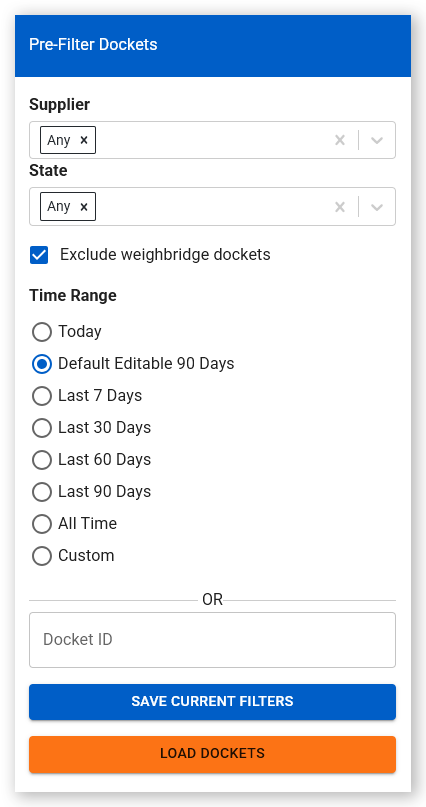
Users can manually clear the checkbox to include weighbridge dockets again. The setting does not affect the Off-Site Spoil tab, and dockets without a source value remain visible.
Added bulk downloading of Concrete Delivery PDF attachments
Users can now select multiple concrete deliveries and download their PDF attachments as a single ZIP file by selecting the new Download Delivery PDFs option from the Export menu in Dockets pages (for example, Menu > Super User).
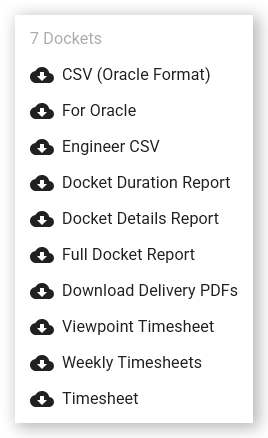
The download is prepared in the background and appears in the Processing Tasks panel when complete.
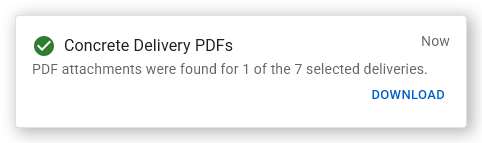
Deliveries without PDF attachments, or non-concrete deliveries, are skipped and a message indicates how many of the selected deliveries contain PDFs attachments.
Downloads are limited to 100 concrete deliveries at a time.
Removed a Subcontractor Admin permission dependency
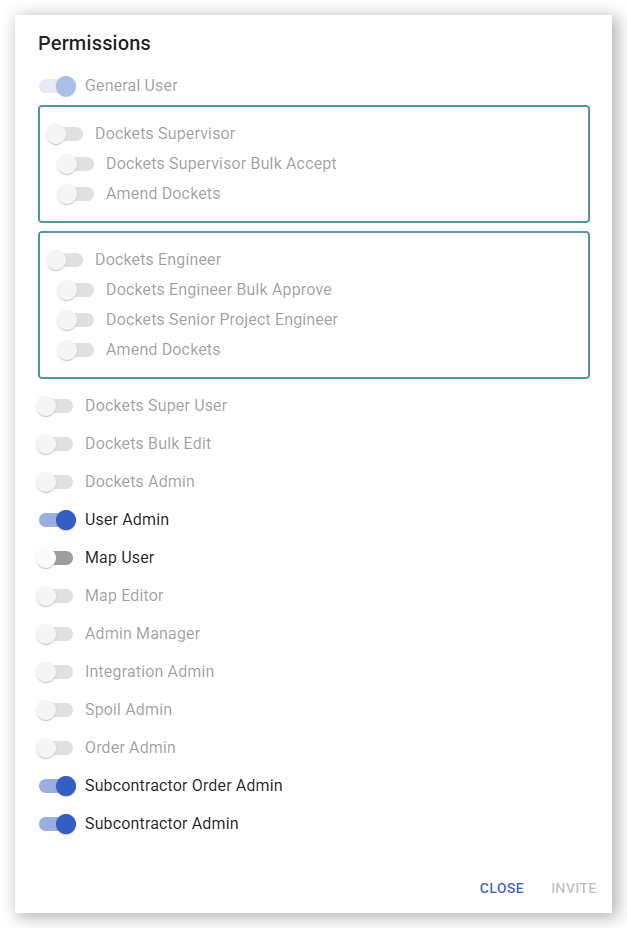
When inviting or editing a Virtual Superintendent user from the Users page (Menu > Users > Virtual Superintendent Users), enabling the Subcontractor Admin permission no longer also automatically enables the User Admin permission for the user.
This change reduces the risk of accidentally granting permissions. Administrators can still manually select the User Admin permission separately, if required.
Existing User Admin permission assignments remain unchanged.
Improved Concrete order and Concrete Test order visibility
Concrete order suppliers can now view their linked concrete test orders, even when the test order was placed by a different supplier. Test order suppliers can continue to view their parent concrete order.
Access remains securely isolated:
- Concrete order suppliers can see all linked test orders.
- Concrete Test order suppliers can see only their own test order and suppliers cannot access unrelated orders belonging to other suppliers.
Administrators, engineers, and supervisors continue to have the same visibility as before.
Improved geometry name validation
Geometry names are now validated while users enter them, rather than after the Save Changes button is pressed.
Users receive immediate feedback for missing, invalid, or duplicate names and the Save Changes button remains disabled until validation has completed successfully.
Improved map geometry update reliability
When saving changes to map geometries, Virtual Superintendent now processes all changes (additions, edits, and deletions) together. If one change cannot be saved, none of the changes are applied.
Users can correct the problem and select Save Changes again without losing their pending additions, edits, or deletions. This prevents some updates from being saved while others remain unsaved.
Improved geometry date validation
Added validation to map geometry date fields to prevent an Active to date from being earlier than the Active from date.
When this occurs, an error is shown below the Active to field and the geometry cannot be saved. Selecting the same date or a later date clears the error and enables saving.
Improved drone map layer processing
Improved the reliability of large GeoTIFF and DEM map tile uploads.
File processing is now retried automatically when initial processing encounters a temporary failure, and processing tasks provide clearer progress and failure reporting in the Processing Tasks panel.
Reduced unnecessary plant information requests
Fixed an issue in Virtual Superintendent that caused the Plant page (Menu > Plant) to request plant details every second while the item of plant equipment was being edited.
Plant details are now loaded only once when equipment is first selected.
Fixed split docket resubmission percentages
Fixed an issue where resubmitting a rejected split docket could incorrectly reset one approval to 100% while retaining the other split percentage. This could cause the total percentage to exceed 100% and prevent the docket from being processed.
Rejected split dockets now retain their existing approval percentages when resubmitted. This applies to two-way and multi-way splits, while single-approval dockets continue to use a 100% approval.
Fixed incorrect CSV character encoding
Fixed an issue where report files generated in CSV format could format UTF-8 characters incorrectly in Excel spreadsheets.
Characters such as long dashes are now interpreted correctly instead of appearing as corrupted text.
Improved My Dockets screen loading in SafeSite
Fixed an issue in SafeSite that caused a No dockets message to appear briefly while dockets were still loading on the My Dockets screen.
The My Dockets screen now displays a loading indicator until the docket data is available, then shows the appropriate list or empty-state message.
Fixed a rejected docket resubmission bug
Fixed an issue in SafeSite where resubmitting a rejected docket could remove the original approval’s cost code and reset its percentage to 100%.
Cost codes and approval percentages are now retained when rejected dockets are resubmitted, including dockets with multiple approvals.
Updated West Australian weather station coverage
Replaced the retired RosedaleTurretField weather station with the Paraburdoo station, restoring accurate weather data for projects in the surrounding area of Western Australia.
Weather displays on the map when data is available for a location within 25 km of the project boundary and rain radar is inactive.
Fixed Stop/Move period calculations
Fixed an issue where plant equipment stops and movements occurring in the same second could be paired incorrectly. This could create overlapping periods, inflate movement durations, and hide brief stop or move events.
Improved the wording of docket pipeline date validation messages
Docket Pipeline previews now provide clearer and more useful CSV date validation errors.
When a CSV date value does not match the configured pipeline date format, the preview now displays a detailed validation error that identifies the affected row, mapped field, invalid value, expected format, and time zone.
The preview API returns a 400 Bad Request with CSV_FAILED_PIPELINE_VALIDATION and includes the individual validation messages in its details array.
Administrators can correct the CSV and preview it again. Previous validation errors are cleared automatically once the file passes validation.
Improved CSV date validation in integrations
Fixed an issue where CSV dates could be accepted even when their format did not match the integration configuration. These values could previously be saved with an incorrect year or incorrectly swapped day and month.
Date validation is now strict, so a value must match the configured format before it is saved. Invalid dates are rejected and reported on the Processing Tasks panel and in email notifications.
This affects Weighbridge CSV, Delivery Order, and Docket Pipeline integrations.
Dry Hire Attachments, Dockets, Orders, and SafeSite Updates (August 2026)
This release includes a range of improvements to Dockets, Orders, Maps, SafeSite, Item Codes, Integrations, and Notifications.
Updates include support for attachments on dry hire plant items, improved reliability of automatic docket reminder emails, project time zone-based Item Preview calculations, more reliable SafeSite sign-off, improved delivery order validation, mandatory Scheduled Time values for Concrete Test Orders, and fixes to map layer display ordering and geometry naming.
See below for what’s new.
Fixed support for attachments on dry hire plant items
Corrected an issue where dockets with dry hire plant items did not include an option to add attachments, despite similar functionality being available for other plant types.
Previously, when a docket contained dry hire equipment, the Add Allowance / Attachment button was not available on dockets in Virtual Superintendent, and the Add Attachment button was not available in SafeSite.
This has been corrected and attachment functionality for dry hire equipment is now consistent with other supported plant items.
Scheduled Time now required for Concrete Test Orders
The Scheduled Time field is now mandatory when creating or updating Concrete Test Orders from the Orders page (Menu > Orders). A time value must be provided before a Concrete Test Order can be saved or submitted.
This change applies only to Concrete Test Orders. There is no change to the Scheduled Time requirements for Item Orders or Spoil Transport Orders.
Existing Concrete Test Orders that were created before this change without a scheduled time will require a Scheduled Time to be entered if they are edited and saved.
Item Preview calculations now use the project time zone
Fixed an issue where Item Preview calculations shown for Item Codes and Item Code Groups (accessed from the Dockets Setup page, Menu > Dockets Setup) could produce different results depending on the time zone configured on a user's computer.
Previously, the Item Preview could use the local PC time zone when displaying default start and finish times and when evaluating rules such as public holidays, weekends, and night shift rates. This could result in the same item code configuration producing different preview results for users in different locations.
Item Preview calculations are now based on the project time zone rather than the user's local PC time zone.
Improved 16-hour automatic SafeSite sign-off
Improved the SafeSite sign-off process for users automatically signed off after being signed on for more than 16 hours.
Previously, the sign-off process appeared to start but then returned the user to the status screen, stopping sign-off from completing.
This update stops users being redirected to the status screen.
Improved outstanding docket reminder emails for Supervisors and Engineers
Improved the reliability of automatic reminder emails sent to Supervisors and Engineers about outstanding dockets awaiting action.
Previously, some users were not consistently receiving daily reminder emails.
With this update, daily reminder emails are sent more reliably to Supervisors with outstanding dockets awaiting Acceptance and Engineers with outstanding dockets awaiting Approval.
Dockets belonging to finished or deleted projects, and deleted dockets, are no longer included in reminder emails. Archived dockets continue to be included in reminder emails.
Map layer display order now respected
Fixed an issue where WMTS, satellite, and other map layers could be displayed above vector and imported map layers on maps (for example, on the Maps page), even when their configured Display Order indicated they should appear underneath.
With this update, custom map layers now consistently respect their configured Display Order hierarchy values.
Note: User and position tracking layers continue to display above other map layers to ensure critical live location information remains visible.
Improved geometry name validation
Improved geometry name validation to stop the creation of duplicate or blank geometry names.
Previously, users could create geometries with duplicate names or names consisting only of white space. This could cause confusion in the user interface and create issues for features that rely on unique geometry names.
With this update, geometry names must be unique within a project and cannot be blank or contain only white space. Geometry name comparisons are now also case-insensitive, stopping names such as "Name A" and "NAME A" from being treated as different geometries.
As part of the update, any existing geometries with duplicate names will be automatically renamed by appending a number. For example, if two geometries are named "North Bridge", they will be renamed "North Bridge" and "North Bridge (1)".
Improved delivery order pipeline validation
Fixed an issue where Delivery Order CSV imports could show warnings for fields that were not configured or required by the pipeline.
Previously, the Processing Tasks panel could report warnings for fields that were not being used by the integration.
Validation has been improved so that only configured fields are checked during import.
New Tractor Roles, Item Code Import Enhancements, and Reliability Improvements (July 2026)
This release introduces new Utility Tractor and Quad Tractor plant roles in Virtual Superintendent, including new map icons and 3D models, and adds a new Order Type column to the Item Code Import Template, allowing administrators to manage item code order types in bulk.
The update also improves order validation when changing suppliers on cloned orders, strengthens docket approval error handling, and resolves several docket-related issues, including label selection, label retention during bulk edits, and duplicate travel allowances.
Additional enhancements improve SafeSite user creation, Spoil Report import reliability, geofence duration calculations, pipeline import validation and error reporting, row number accuracy in import errors, and handling of invalid dates during Delivery Pipeline imports.
See below for what’s new.
Added two new tractor roles to Virtual Superintendent
Added two new plant equipment roles to Virtual Superintendent:
- Utility Tractor
- Quad Tractor
These new roles behave consistently with existing machine types and are available for selection when creating or managing plant assets.
Included in this update:
- New 3D models for both tractor types on Virtual Superintendent maps when viewing at maximum zoom levels.
- New 2D tractor map icons in Virtual Superintendent and SafeSite for low zoom levels and throughout relevant user interface fields.
Added a new Order Type column for Item Code imports
Added a new Order Type column to the Item Code Import Template, allowing administrators to set or update an item code's order type in bulk rather than editing each item code individually.
- The new Order Type column is included in both blank templates and templates populated with existing item codes.
- Supported values are Concrete, Concrete Test, and Item.
- Existing Order Type values are automatically populated when downloading a template with existing item codes.
- Imports can now create, update, or remove an item code's Order Type.
- Leaving the Order Type cell blank during import clears the existing Order Type from that item code.
Improved validation when changing suppliers in cloned orders
Fixed an issue where a cloned order could retain items from the original supplier after the supplier was changed. In some cases, this allowed orders to contain items belonging to a different supplier.
When changing the supplier on a cloned order:
- Item orders now clear all existing items.
- Spoil transport orders now clear assigned plant and truck information.
- Validation now prevents orders from being submitted without at least one line item.
- Order validation has been improved to ensure items are associated with the correct supplier.
Improved docket approval error handling
Fixed an issue that could stop Engineers and Super Users from approving dockets. In affected cases, selecting Approve caused the update to fail.
This fix also improves validation of approval errors, making it easier to identify and resolve configuration issues that could prevent a docket from being approved.
Improved label selection on dockets
Fixed an issue where labels on dockets could not be selected after scrolling through a long label list.
Previously, if the label list contained enough entries to require scrolling, labels below the initial visible area could not be selected. This could also occur when the browser window was resized and the list became scrollable.
The label selector has been updated so labels can be selected regardless of their position in the list.
Corrected removal of docket labels during bulk edits
Fixed an issue where docket labels could be removed when using the Bulk Edit feature to edit docket details.
In affected cases, labels added through integrations or the docket labels API could be cleared after a bulk edit operation was saved. This occurred because the docket revision did not correctly retain label information.
This update ensures that:
- Existing docket labels are preserved when performing bulk edits.
- Label changes made through the labels API are correctly stored in the docket revision history.
- Integration-applied labels remain attached to dockets after updates.
Fixed SafeSite users not being created when including a description
Fixed an issue that stopped new SafeSite users from being created when the Description field was populated. In affected cases, the user creation failed with a validation error even though the description could be added successfully after the user was created.
SafeSite users can now be created with the Description field populated.
Corrected duplicate travel allowances in item code groups
Fixed an issue where some dockets could receive duplicate travel allowance line items when an item code group was applied.
The issue occurred when a break variation incorrectly had the same item code assigned as the working time variation. In certain scenarios, such as using Bulk Edit to replace item codes, break variations could be treated as additional instances of the item code group, causing travel allowances to be applied more than once.
This update:
- Prevents Bulk Edit item code changes from applying item codes to break variations.
- Excludes break variations from item code group splitting logic.
- Prevents duplicate travel allowances and other duplicated item code group line items from being generated.
Improved spoil report Import reliability
Corrected an issue where Spoil Report spreadsheet imports could fail without displaying a meaningful error message when the file contained date-formatted cells in non-imported columns.
Improvements include:
- Added project time zone support during spreadsheet import processing to correctly handle date values.
- Improved Excel import validation to recognize expected column data types from the import template.
- Improved handling of date-formatted cells in columns that are not intended to contain dates.
- Prevented extra columns from causing unexpected import failures.
- Replaced generic import failure messages with clearer validation messages to help identify issues such as invalid suppliers and cost codes.
Improved geofence duration calculations
Fixed an issue that could cause geofence duration calculations to overstate the length of time plant equipment remained inside a geofence.
In some cases, equipment could enter and exit a geofence within the same second. Previous calculation logic could incorrectly pair these entry events with later exit events, causing the reported duration within the geofence to be significantly longer than the actual duration.
The duration calculation has been updated to pair geofence entry and exit events in their correct chronological order, improving the accuracy of report and dashboard metrics based on geofence durations.
Improved pipeline error row numbering
Fixed an issue where validation errors in Dockets, Delivery Order, and Weighbridge pipeline imports could reference the wrong row number.
This occurred in certain CSV files that contained characters before the header row. In these situations, the import process could incorrectly count a single row as multiple rows, causing error and warning messages to reference the wrong line number.
Importing logic has been improved to more accurately identify header rows and determine where data begins.
Improved pipeline validation and error reporting
Added validation and error reporting for Weighbridge CSV pipeline imports when files contain missing or invalid required data.
Previously, some CSV validation failures stopped records being created but did not generate entries in the Processing Tasks panel or send notification emails to integration administrators.
With this update:
- Missing or invalid required fields are now reported in the Processing Tasks panel.
- Validation errors are included in email notifications sent to integration administrators.
- Invalid rows are skipped while processing continues for remaining valid rows.
- Missing header mappings prevent the file from being processed and generate a validation error.
This release also adds validation of required fields that were previously missing and improves error messaging by standardizing validation messages and making them clearer and easier to understand.
Improved pipeline handling of invalid dates
Fixed an issue where Delivery Pipeline imports could create orders with invalid planned start dates when the source CSV contained incorrectly formatted dates.
Previously, certain invalid or partial date values could be accepted during processing and saved as invalid database dates. This could result in delivery orders being created with unusable planned start times.
With this update:
- Invalid date values are identified before records are created.
- Rows containing invalid date values are skipped instead of creating orders with invalid dates.
- Validation warnings are generated to help identify the affected records.
Subcontractor Dockets Pre-Filter, Orders Map Filtering, Quantities Drill-Down, and Performance Improvements (June 2026)
This release adds subcontractor docket pre-filtering, order-based filtering of plant equipment on the map, and a new drill-down totals view in Quantities reports to improve cost visibility.
In addition, this release includes more reliable Sign-On Profile saving, improved handling of cost codes in Orders, enhanced Quantities report performance, and clearer, more accurate integration validation and error messaging.
See below for what’s new.
Added subcontractor dockets pre-filtering
Added support for the Dockets Pre‑Filter feature for subcontractors to improve performance when working with large numbers of dockets.
When enabled, subcontractors must apply filters (such as date ranges) before dockets are loaded on the Dockets page (Menu > Dockets), preventing all dockets from loading by default and improving page load times.
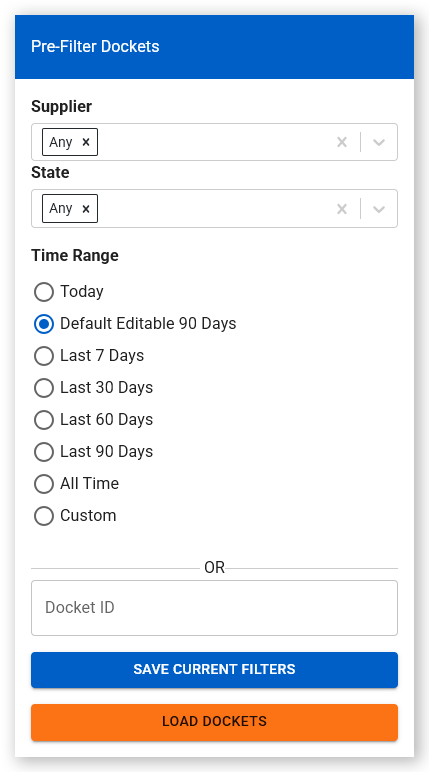
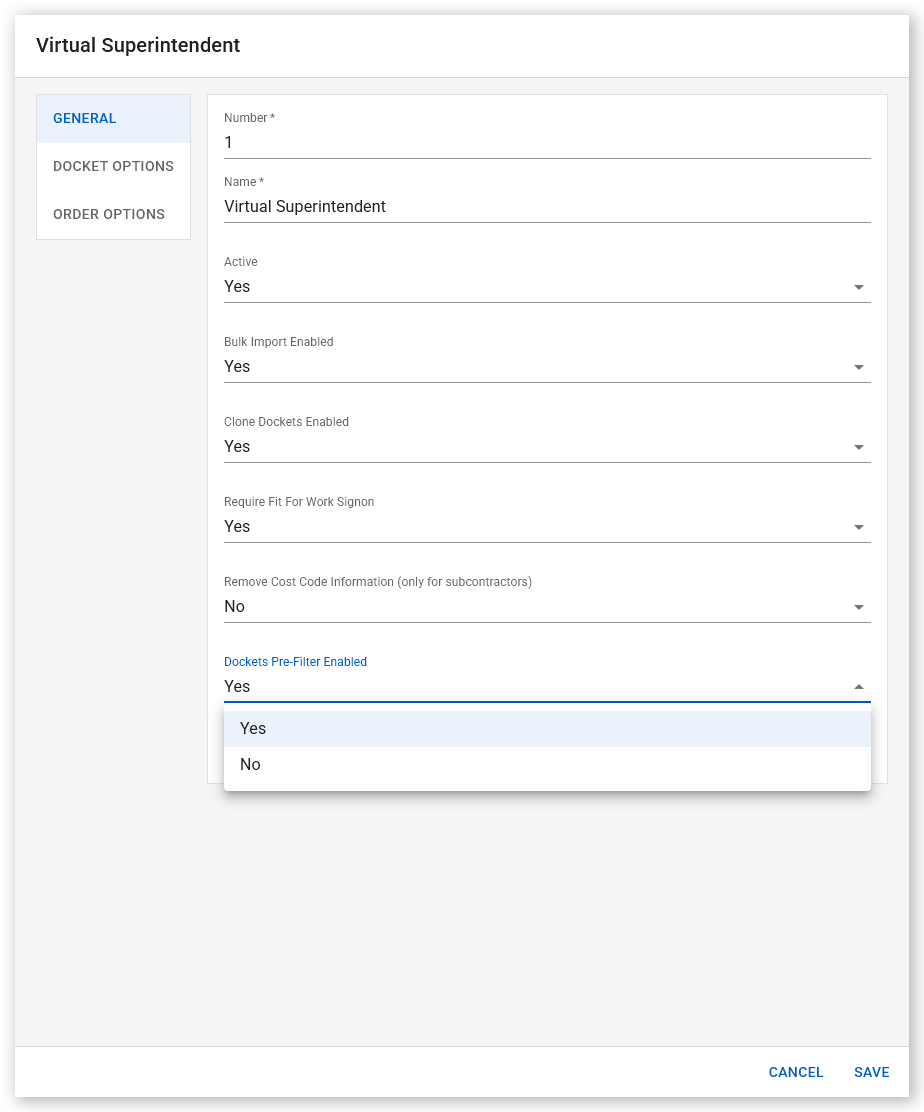
The feature can be enabled per supplier from the Suppliers page (Menu > Suppliers) by setting Dockets Pre‑Filter Enabled to Yes on the General tab.
Once enabled, the filter panel is shown when the Dockets page (Menu > Dockets) opens and can be reopened at any time by clicking Docket Pre-Filters in the upper-left corner of the Dockets page.

Added map filtering of plant equipment based on order assignment
Added the ability to filter plant equipment shown on the Maps page by active order.
This includes trucks and plant equipment directly assigned to spoil and item orders, as well as trucks linked through deliveries for concrete orders.
As part of this update:
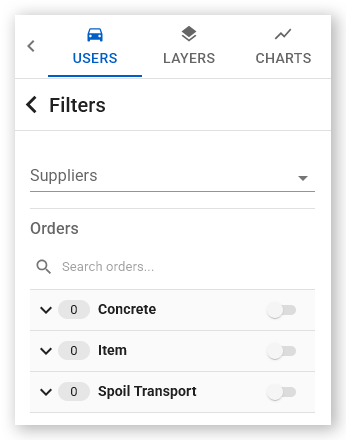
- A new Orders option is available on the Maps page filter (Maps > Click the Users, Layers and Charts panel in the top-left corner of the page to expand > Users > Filters > Orders), where orders are grouped by type (Concrete, Item, and Spoil Transport). Only active orders in an Accepted or Amended state with a delivery date of today (based on project time), are shown. Selecting an order updates the map to display only the relevant trucks or equipment.
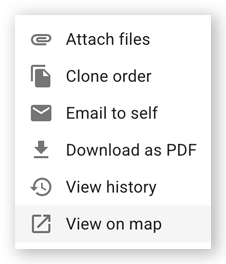
- Orders in an Accepted or Amended state on the Orders page now include a View on map menu option (available from the three-dot menu). This opens the Maps page with the selected order pre-applied as a filter.
Added a new costs breakdown for quantities reports
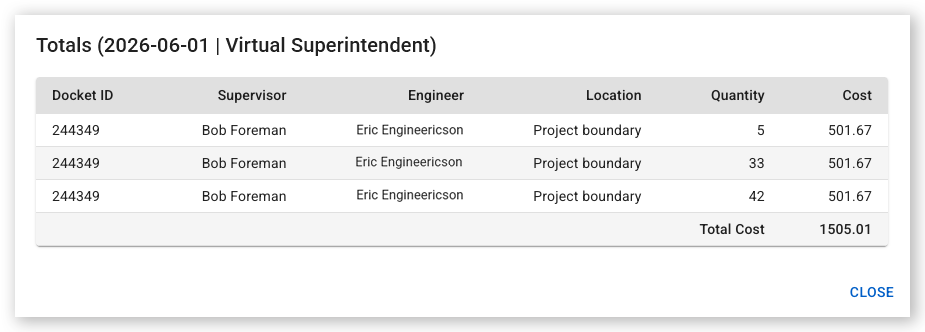
Added a new Totals breakdown dialog to the Quantities report (Menu > All Reports > Create New Report > Quantities).
Users can now click any populated cell in a row to drill into the underlying data for that date and cost code.
The dialog displays:
- The selected date and cost code
- A detailed line-by-line breakdown of the underlying costs, including Docket ID, Supervisor, Engineer, Location, Quantity, and Cost
- The total aggregated cost for the selected row
Sign-on profiles not saving
Fixed an issue that could stop Sign On Profiles saving.
Previously, when editing a sign on profile and then clicking the Save button the action could fail, causing the dialog to permanently remain in a loading state and forcing the user to close the dialog.
The underlying validation issues have been resolved, and improved error messaging has been added to provide clearer feedback when saving changes.
Order cost code filter bug
Fixed an issue where inactive cost codes were displayed in the Cost Code selection list when creating or editing a Concrete Order.
Only active cost codes are now available for selection.
Quantity report issues and improvements
Corrected several issues in Quantities reports relating to performance, stability, and sorting behavior when working with large datasets.
Previously:
- The report could crash when sorting columns
- Sorting certain columns (such as Cost Captured) could cause errors messages to be shown
- Report performance degraded significantly when large numbers of cost codes and columns were loaded
To correct these issues:
- Sorting is now limited to the Date column as other columns contain calculated or complex data that cannot be reliably sorted
- The report now limits cost codes to a maximum of 8 and horizontal columns to a maximum of 70
Users can select which cost codes to display using the Manage Columns option and the report now remembers the columns selected in the previous session.
Processing Tasks sidebar Improvements
Resolved two cosmetic issues in the integrations Processing Tasks sidebar:
- Long file names (containing more than 50 characters) in the View Details panel now wrap correctly, ensuring the full CSV file name is visible
- The Show More Tasks button now loads both system-generated and user-generated tasks beyond the previous seven days, with up to 25 additional items per load and no date limit
Integration pipeline validation improvements
Resolved an issue where pipeline tasks were always reported as successful in the Processing Tasks sidebar, even when they failed.
Validation errors on the panel now more accurately reflect the outcome of pipeline operation:
- Failed when there is a fatal error such as an integration configuration error or required values missing, completely stopping orders from being created
- Completed with warnings when import files are missing data, or contain invalid data, but orders with missing values were still created. The errors and the error rows are displayed in the sidebar in yellow text.
Error notifications are also more accurate and easier to understand.
Delivery order pipeline validation improvements
Added validation for delivery order pipeline imports. Previously, emailed CSV imports could fail silently when required values were missing or data formats were incorrect, with no errors shown in the Processing Tasks panel or sent via email notifications.
With this update, files that are missing required values or contain incorrectly formatted data now trigger validation errors.
Dockets pipeline email alias UI improvements
Improved the integrations UI when creating new dockets pipelines. The wizard information and confirmation panels now display the full email alias that will be used for the integration, including the domain, rather than just the prefix.
For example, an alias of “my-docket-integration” is now shown as “my-docket-integration@integrations.myvirtualsuper.com”.
This update also introduces stricter validation rules. Email aliases can now contain only letters and single hyphens. Double hyphens are not allowed, and hyphens cannot appear at the beginning or end of an alias.
Bulk SafeSite User Import, Quantity Hours Tagging, and Tagging Enhancements (May 2026)
This release introduces bulk SafeSite user import via spreadsheet and expands tagging capabilities (in limited rollout) to support capturing hours against quantities for improved cost tracking.
See below for what’s new.
Added bulk importing of SafeSite users
A new bulk upload feature allows administrators to import and create multiple SafeSite users from Excel template files.
- SafeSIte users can be uploaded in bulk and automatically receive email invitations to register
- Supports both head contractor administrators and subcontractor administrators, with users assigned per supplier. Subcontractor administrator imports are limited to their owner supplier
- Applies SafeSIte permissions during import
This tool is used to add new SafeSite users. It cannot be used to edit existing users.
To access the Users page and use the bulk SafeSite user import feature, Admin Manager and User Admin or Subcontractor Admin and User Admin permissions are required.
For more information, refer to the Bulk Upload SafeSite Users Using an Excel Spreadsheet help article.
Tagging Features (Upcoming)
The tagging features described below have not yet been broadly released but are planned for wider availability soon.
Added quantity tagging to capture hours against quantities
Quantity tagging now supports capturing hours against individual quantity entries on dockets, allowing more accurate tracking of cost per item across dockets.
- Hours can now be recorded per quantity at the docket level (Dockets > Select Docket > Docket Approval Chain & Cost Codes > Add Quantity). Users can enter hours in the new Hours field for each cost code quantity. By default, the total hours across all quantities must match the total chargeable hours on the docket, unless Unlock Hours is enabled.
- A new Unlock Hours option allows users to override this behavior and manually adjust quantity hours. In Virtual Superintendent, go to Dockets > Select Docket > Docket Approval Chain & Cost Codes, then click Unlock Hours to adjust hours without a capped maximum. In SafeSite, edit the docket, scroll to Docket Approval Chain & Cost Codes, and tap Unlock Hours to adjust hours without a capped maximum.
- A new Capture Quantity Hours setting on cost codes controls whether hours capture is enabled (Dockets Setup > Cost Codes > Select Cost Code > Open the new Capture Quantity Hours dropdown and select Yes).
When this feature is enabled:
- Total docket hours are automatically assigned to the first quantity entry by default. Users can then manually distribute hours across additional quantities.
- For split approval dockets, hours are automatically pro-rated based on the percentage assigned to each split.
Note: The quantity hours tagging feature requires tagging to be enabled. This feature must be enabled by Virtual Superintendent support and is not yet broadly available.
Clone Docket Submission Windows, Additional Geofence Purposes, Engineer Quantities and Approval Locking, New Advanced Reporting Values, Tagging Updates, and Bug Fixes (May 2026)
This release introduces several enhancements across SafeSite and Virtual Superintendent, including improved control over docket workflows, new geofence configuration options, and expanded reporting capabilities. Key updates include submission window support for cloned dockets, improved handling of engineer approvals on split dockets, and more accurate order filtering.
The release also adds new features for tags and hierarchies (in limited rollout), enhances integrations and pipeline behavior, and includes a range of bug fixes to improve system accuracy and usability across dockets, orders, checklists, and integrations.
See below for what’s new.
Dockets cloned in SafeSite now respect submission windows
Docket cloning now respects submission windows for late dockets. Submission windows define the maximum number of hours or days after which late dockets can no longer be submitted by standard SafeSite users. Once the configured window expires, the docket must be submitted by a Super User or Admin.
When cloning a docket in SafeSite with submission windows enabled, the date of any cloned docket must fall within the configured submission window. Users are shown the earliest allowable date, and dates outside the window (including future dates) cannot be selected.
Like conventionally generated dockets, cloned dockets cannot be submitted once their submission window has expired. These rules apply only to SafeSite and do not affect dockets cloned in HQ.
Added two new geofence purposes for earthworks
Two new geofence purposes have been added to better support earthworks workflows:
- Water Source (Standpipe) - intended for onsite watercart operations such as load counting for dust control.
- Treatment Zone - intended for material treatment areas, including lime mixing and similar activities.
These new purposes can be selected by default when creating or editing a geofence from the Purpose dropdown on the Add new polygon dialog when creating a geofence from the Maps page.
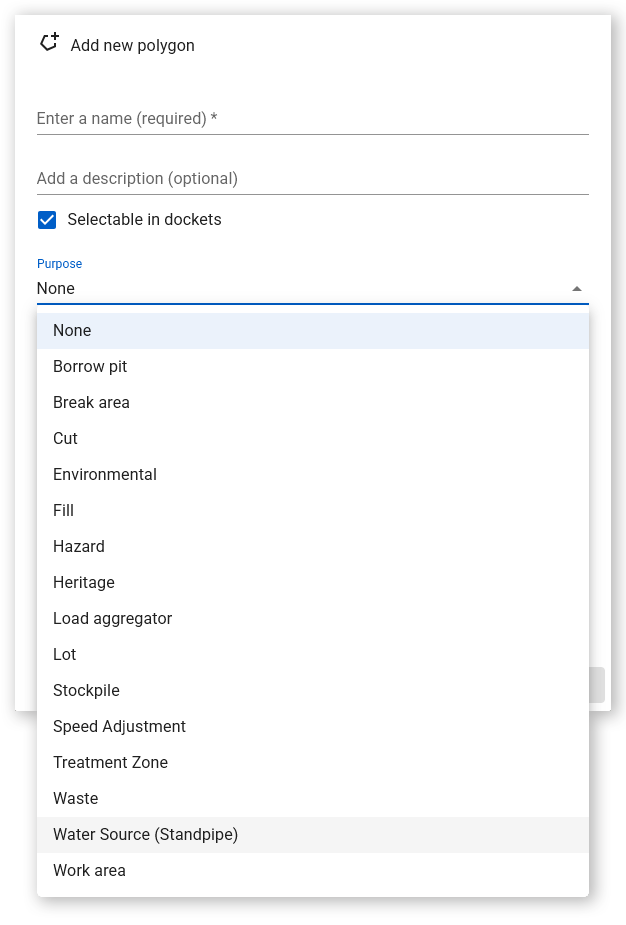
Geofences created with these new purposes behave consistently with existing purpose types, including grouping in the map sidebar and allowing visibility to be toggled by purpose. Creating a geofence requires Map Editor permissions.
Locking split docket cost code quantities and percentage approvals for engineers
Engineer approvals on split dockets in HQ have been updated to prevent approved quantities or percentages from being changed without the assigned engineer's knowledge.
When a docket is split between multiple engineers:
- Once an engineer approves their split, their approved quantities and percentages are locked.
- If another engineer makes changes that affect an already approved split, the impacted split is automatically reverted to Accepted, requiring re‑approval by the original engineer.
- Engineers can no longer modify splits assigned to other engineers once approved.
This ensures engineers are always aware of and explicitly approve any changes that affect their nominated costs, preventing unintended adjustments during split approvals.
Updated speed zones for Victoria, Australia
Speed Zones are spatial data used to identify the lowest speed limit and permitted direction of travel on Australian public roads. Australian federal agencies update this data regularly and publish it for public use.
This update ensures that the latest Speed Zone data (published April 2026) is used in the Virtual Superintendent when creating speeding event alerts for equipment using public roads in Victoria.
Added Price Reference and Item to advanced reporting
Added support for the new Price Reference entry on item codes and the Item ID code group name to the advanced reporting system.
These values are in the Docket Items table and can now be used when generating Metabase reports.
Upcoming orders filter now respects project time zone
Fixed an issue where the Upcoming orders filter on the Orders page (Menu > Orders, under the left Scheduled filter section) was incorrectly using UTC instead of the project's configured time zone. Previously, depending on the time of day:
- Some orders scheduled for today could be missing from the Upcoming filter.
- Some orders from the previous day could appear as upcoming and remain editable, even though they were in the past.
The Upcoming filter now evaluates order dates and times using the project time zone to ensure that all of today's upcoming orders are consistently included and that past orders no longer appear as upcoming or allow date/time edits due to time zone offsets.
Required docket field mappings can no longer be removed in integrations
Fixed an issue that allowed required docket field mappings (Date, Item Code, Quantity, Supervisor) to be cleared on the Docket Field Mapping page using the remove (×) icon, permanently deleting the mapping row.
Required field mappings can no longer be deleted. Clicking the remove icon now clears the selected CSV field without deleting the row, ensuring required mappings remain enforced and can be correctly reconfigured. This prevents invalid pipeline configurations and the accidental loss of required mappings during setup or editing.
Improved handling of supervisors in pipeline dockets
Supervisor handling has been improved in docket pipeline integrations when the source CSV does not include a supervisor.
- If a Supervisor is specified on the delivery order, that supervisor is now applied to the generated docket.
- If the delivery order has no supervisor (or no valid delivery order is found), the pipeline automatically falls back to the default Supervisor (Foreman) configured in the integration.
The integration setup now displays an alert when a delivery order value will override a mapped or default field, making precedence rules clearer.
Fixed an issue when cloning approved dockets in HQ
Fixed an issue that could cause the incorrect display of line items in the place of chargeable items when cloning approved dockets in HQ.
Fixed a fault displaying checklists on dockets
Fixed an issue that could cause checklists to display incorrectly when both sign‑on and sign‑off checklists were used on the same simple timesheet docket. This issue could cause duplicate checklists to be shown on the Today's Checklists page in SafeSite and checklists to be entirely missing in Virtual Superintendent.
Tagging and Hierarchy Features (Upcoming)
The tagging and hierarchy features described below have not yet been broadly released but are planned for wider availability soon.
The new Virtual Superintendent tagging system allows Tag Administrators to create simple text-based tags and assign them to supported entities, including:
- SafeSite and Virtual Superintendent users
- Map geometries
- Plant equipment
- Load count cycles
- Quantities
Tags can be used with a global filter to identify, group, and analyze entities in various locations across the platform (for example, on the Maps and Plant pages).
Tags can also be organized into multi-level hierarchies, enabling more structured classification and detailed breakdowns. Access to tags available for filtering can also be controlled on a per-user basis.
To learn more about enabling these tagging and hierarchy features for your project, please contact customer support.
HQ: Quantity tagging with tag hierarchies
A new quantity tagging with tagging hierarchies feature has been introduced to allow projects to define and use hierarchical tag structures to accurately attribute quantities recorded on dockets.
Key capabilities of the tag hierarchy system include:
- Creating, editing, and managing tag hierarchies from a dedicated Hierarchies admin page (accessed from the Tags page, Menu > Tags).
- Importing hierarchies from CSV for faster setup.
- Associating one or more hierarchies with cost codes.
- Adding multiple quantities to a docket cost code and tagging each quantity using values from an assigned hierarchy.
- Capturing hierarchical quantity data for improved breakdown, reporting, and approval accuracy.
Hierarchies are configurable per project and must be explicitly enabled before use. This enhancement provides more structured quantity tracking without impacting existing docket, cost code, or import workflows.
Note: The quantity tagging feature requires tagging to be enabled. This feature must be enabled by Virtual Superintendent support and is not yet broadly available. Projects without tagging or hierarchies configured continue to behave as before.
SafeSIte: Hierarchy-based quantity input
The SafeSite app now supports hierarchy-based quantity input, enabling quantities recorded on dockets to use tagged quantities and hierarchies configured in HQ.
For cost codes with hierarchies assigned:
- Users can select a quantity type from the configured hierarchy.
- Users must enter the actual quantity value, displayed alongside the relevant unit of measure (UoM).
- Multiple quantities can be recorded against a single docket cost code.
- Entered quantities are visible to Supervisors when reviewing and accepting dockets in SafeSIte.
Note: The hierarchy feature requires tagging to be enabled. This feature must be enabled by Virtual Superintendent support and is not yet broadly available. Projects without tagging or hierarchies configured continue to behave as before.
HQ: Global filter enhancements for tags and restricted users
A new global tag filtering system is now available for customers using tags. This filter is used to identify entities that have been assigned specific tags (for example, polygons on the Maps page (Menu > Maps) or users who have been assigned specific tags).
When the global filter is activated (by clicking the globe icon in the top menu bar and then specifying filter conditions), only entities with the required tag filter rules are shown in the interface.
Users can also be restricted to see only tags they have permission to access. This option is enabled by activating the Restrict View to User Tags option on the Virtual Superintendent permissions dialog. Tags that the user can see when this feature is enabled are shown at the top of the permissions dialog.
Note: The global filter feature requires tagging to be enabled. This feature must be enabled by Virtual Superintendent support and is not yet broadly available. Projects without tagging or hierarchies configured continue to behave as before.
HQ: Tagged order locations and improved location filtering
A new managed Orders tag group is now available for locations. This group is automatically added to the Tags page (Menu > Tags) when enabled for a project and cannot be edited or removed by users. The tags in this group control which locations are available within the Orders workflow.
The Orders group includes the following tags:
- Concrete
- Concrete Test
- Item
- Spoil - Load Site
- Spoil - Dump Site
Geofence locations can be assigned these tags to determine where they can be used in orders. When creating or editing an order, available locations are filtered based on the selected order type:
- Only relevant, tagged locations can be selected when creating orders.
- Spoil transport orders now separate load and disposal site selection (selectable from the Load Site and Disposal Sites dropdowns when creating a spoil transport order).
- For Disposal Sites dropdown selection, if the selected supplier has specific disposal sites configured, only locations that are both linked to that supplier and tagged with Spoil - Dump Site are available for selection.
The Orders page (Menu > Orders) location filter has also been improved to support filtering by tagged locations. For example:
- Selecting a Concrete Type from the Orders page filter shows only locations tagged with Concrete.
- Selecting All shows all locations except those tagged Spoil - Dump Site, which cannot be used as an order location.
This feature can be enabled for projects by Virtual Superintendent support.
Note: The managed Orders tag group feature requires tagging to be enabled. This feature must be enabled by Virtual Superintendent support and is not yet broadly available.
Clone Dockets, Custom Map Terrain Layers, Mandatory Order Change Reasons, Item Field for Item Code Groups, and Integration UI Improvements (April 2026)
This release adds a new Clone Dockets feature in Virtual Superintendent and the SafeSite app, support for importing custom map terrain layers, a new mandatory Order change reason dropdown list, a new Item field for Item Code Groups, and fixes several cosmetic and validation issues in the Integrations page. See below for what’s new.
Added the new Clone Dockets feature
Both Virtual Superintendent and the SafeSite mobile app allow you to duplicate existing dockets.
In Virtual Superintendent, Dockets Super User and Subcontractor Admin users can clone dockets.
In the SafeSite mobile app, docket cloning is available to Docket Contractor users who belong to a supplier with cloning enabled.
You can duplicate existing dockets:
- From the Super User Dockets page (for Dockets Super User accounts) and the Dockets page (for Subcontractor Admin users) in Virtual Superintendent
- When creating a docket in the SafeSite app (for example, after signing on or from the My Dockets list)
- From the Docket Actions menu when viewing a docket in the SafeSIte app
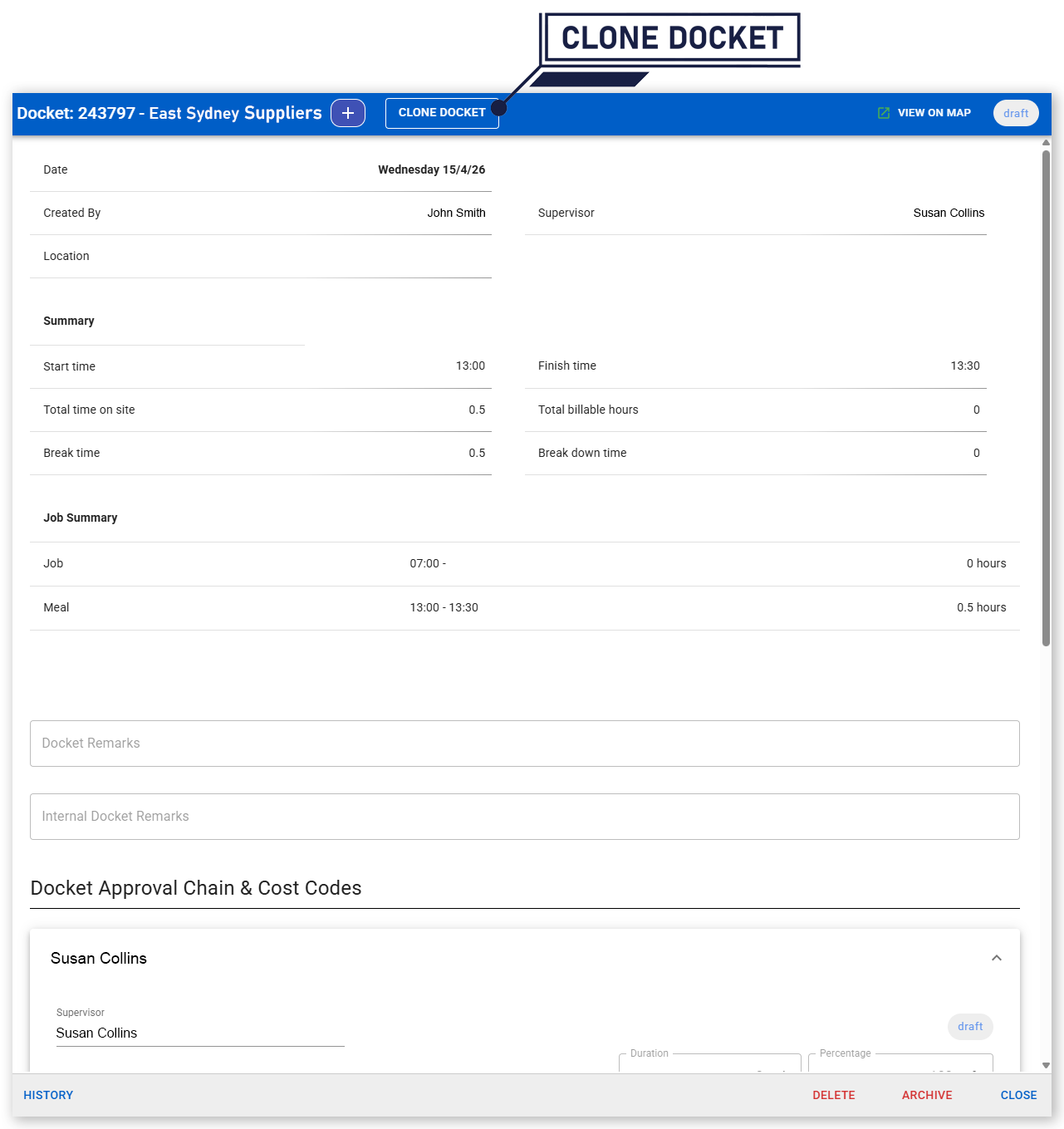
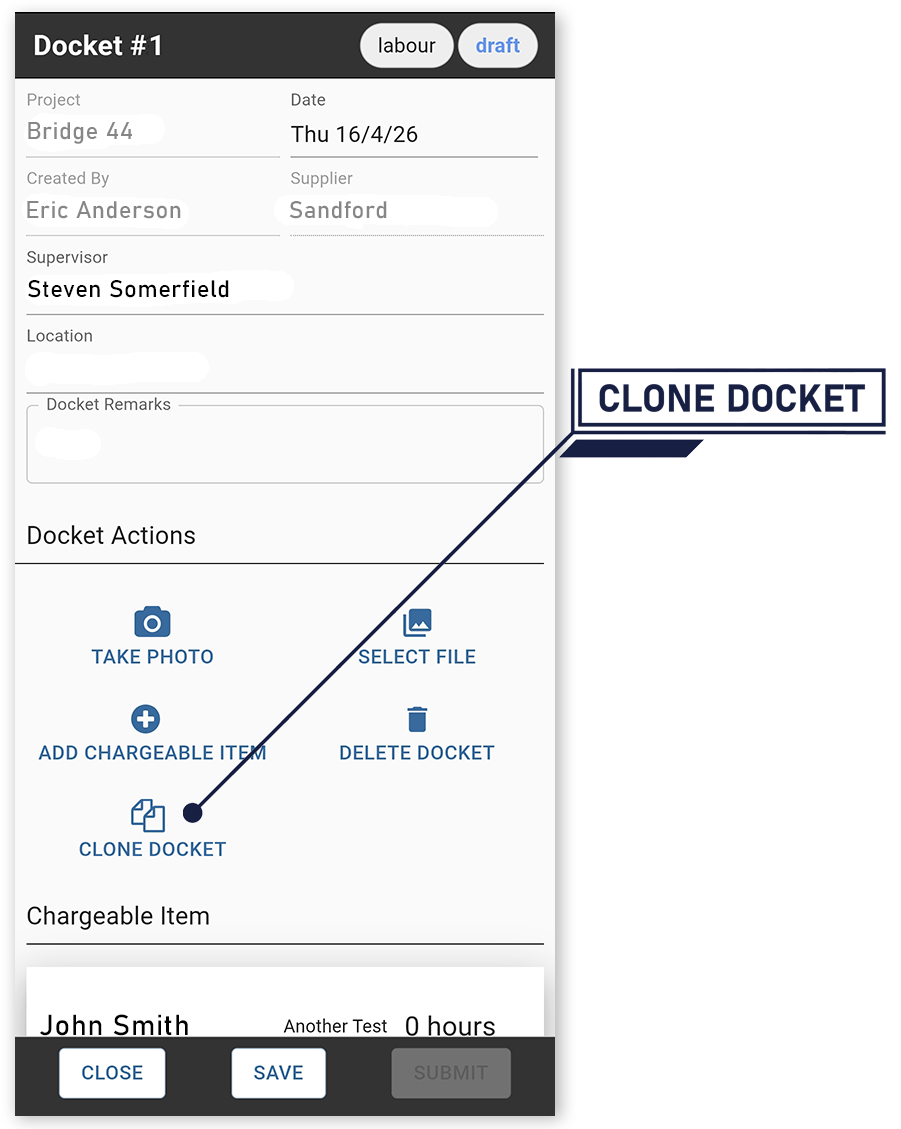
When a docket is cloned, the new docket is pre‑populated with information from the source docket. The duplicated docket:
- Requires you to select a docket date during the cloning process
- Requires you to assign a Supervisor during the cloning process (when using SafeSIte, not HQ)
- Includes all attachments and allowances from the source docket
- Removes all file attachments (such as photos or spreadsheets), labels, and approval details from the source docket
- Is automatically created in a Draft state
Once created, the cloned docket can be edited and submitted like any other docket, subject to your account's user permissions.
Note that Weighbridge and delivery dockets cannot be cloned.
See the Cloning Dockets help center article for more information.
Added support for custom terrain layers on maps
You can now import custom map terrain layers from the Map Layers page (Menu > Map Layers).
Terrain layers display land elevation and topographical contours, making it easier to visualize a site when viewing the Maps page (Menu > Maps) with the map's 3D view enabled.
Terrain layers can be imported into Virtual Superintendent as Digital Elevation Model (DEM) data in GeoTIFF format (as .tif or .tiff files) with a maximum file size of 5 GB.
The View Overlays permission is required to view imported terrain layers in the SafeSite app.
The Map Editor permission is required to access and manage terrain layers on the Map Layers page in Virtual Superintendent.
For more information about importing map tiles, see the Using the Map Layers Page help center article.
Require a change reason when updating orders
You can now require a change reason be specified when updating an order from the Orders page (Menu > Orders). This improves analytics visibility when tracking order changes.
When this feature is enabled in HQ Admin, editing an order and selecting Update displays a mandatory Reason for change dropdown on the confirmation dialog. The available change reasons are configured in HQ Admin. A new free‑form Notes field is also available on the dialog for additional information.
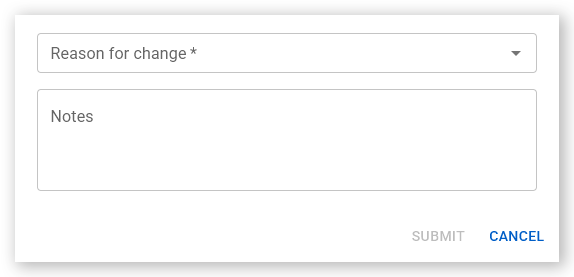
If no change reasons are configured, only the Notes field is shown.
Added a new Item field to item code groups
This release adds a new optional Item field to the Item Code Group dialog when creating (Add Group) or editing existing Item Code Groups from the Dockets Setup page (Menu > Dockets Setup).
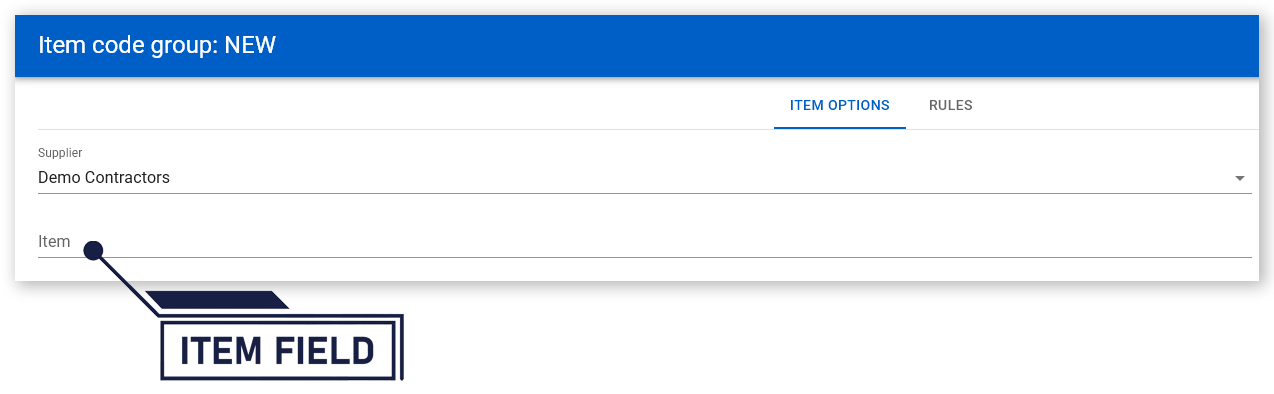
When an Item name is specified, item code groups display as [Item Name] – [Group Description] on:
- Dockets pages (for users other than subcontractors)
- The Orderable Items page
- The SafeSite User Permissions dialog
- Item code selection in orderable items
If no Item name is specified, item code groups display only their group description.
Add crew to existing crew dockets
You can now add crew chargeable items to an existing crew docket in SafeSite. This makes it easier to update existing crew assignments without creating a new docket.
When you tap Add chargeable item from the action menu in a crew docket, the docket wizard opens and you are prompted to select a docket type (crew) and then one person to add to the docket. Repeat as needed to add more than one new crew member.
Updated display of crew dockets in SafeSite
Item Code Descriptions for each crew member are now always shown in crew dockets, even when the Supervisor or Leading Hand that created the docket does not have access to the Item Codes themselves.
Previously, only the Item Code ID was shown.
Fixed various Integrations UI issues
Several issues in the Integrations interface have been fixed and improved, including:
- Updated warning messages to use Supervisor instead of Foreman when a Supervisor is not correctly mapped.
- Updated the integration confirmation page to display the actual supplier's name instead of the placeholder text “A supplier”.
- Updated Item Code Keys and Cost Code Keys to display user‑friendly field names (Item, Description, Cost Code, Name) instead of internal configuration names.
Download Orders as PDF, New Map Layers Page, Updated Speed Zone Data, and Integration and Filtering Improvements (April 2026)
- A new Download as PDF option to the Orders page action menu.
- The new Map Layers page, used for importing and managing custom map layers.
- Default item codes and late docket submission windows for SafeSite users.
- The latest Speed Zone data for speed alerts in Australia.
- An issue when using Date range filtering.
- An integrations permissions issue.
Added a new Download as PDF option to the Orders page
- Open the Orders page (Menu > Orders).
- Select an order from the list.
- Open the Actions menu (three vertical dots) in the top-right corner of the screen.
- Click Download as PDF.
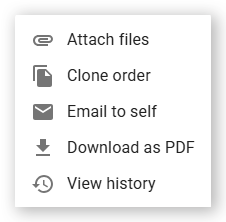
- Order number
- Order type
- Order status
- Scheduled date
- Order details
- Order number
- Current date
- Attachments, sub-orders, and deliveries are not included in the PDF.
- Long orders are automatically split across multiple pages.
- Layout and formatting have been optimized for readability.
Added a new Map Layers page
- Open the Map Layers page (Menu > Map Layers).
- Click UPLOAD MAP. The UPLOAD MAP dialog opens.
- Click CHOOSE FILE. Your file explorer opens.
- Navigate to an .mbtiles, .tif, or .tiff format file on your computer.
- Select the map file then click Open. The file explorer closes.
- Click UPLOAD on the UPLOAD MAP dialog. The file is imported and processed.
- Layer Name - The name of the imported map layer.
- Layer type - The type of map layer (for example, drone, satellite, linework, or terrain).
- Display order - The order of the layer in the map layers list.
- Processing state - The processing state of the uploaded map layer.
- Default Toggle State - Whether the map layer is enabled by default on the Virtual Superintendent Maps screen. True or False.
- SafeSite Default Toggle State - Whether the map layer is enabled by default on the SafeSite app Maps screen. True or False.
- Deleted At - The deletion status of the map file. Not Deleted or Deleted.
- Open the Maps page (Menu > Maps).
- Open the Users, Layers and Charts panel in the top-left corner of the page.
- Click the Layers tab.
- Open the Base Layers section.
- Enable the imported layer using the toggles. The default visibility of each layer is determined by the Default Toggle State setting on the Map Layers page.
Added the ability to set a default item code for SafeSite users
- Open the Users page (Menu > Users).
- Select a SafeSite app user from the list. The User Permissions dialog opens.
- In the Docket Contractor section, open the bottom dropdown menu and select more than one item code.
- Click outside the dropdown list to close it. The selected item codes are added to the User Permissions dialog box.
- Click the outlined gray chevron icon on the item code you want to set as the default. The chevron changes from outlined to filled gray.
- Click Save. Your configuration is saved and the User Permissions dialog closes.
- Selecting a different item code updates the default
- Selecting the default item code again removes its default status
Added late docket submission windows
Updated the Speed Zones used for the Australian states of Victoria and New South Wales
Updated integration behavior
Fixed a date range filtering bug
Fixed a docket validation issue
Crew Dockets, New Order States, Subcontractor Order Admin Permissions, Price Reference Field & Bug Fixes (March 2026)
Crew dockets for leading hands and supervisors
- You can select only users assigned to the same supplier.
- Each selected user appears as a separate line item in the docket.
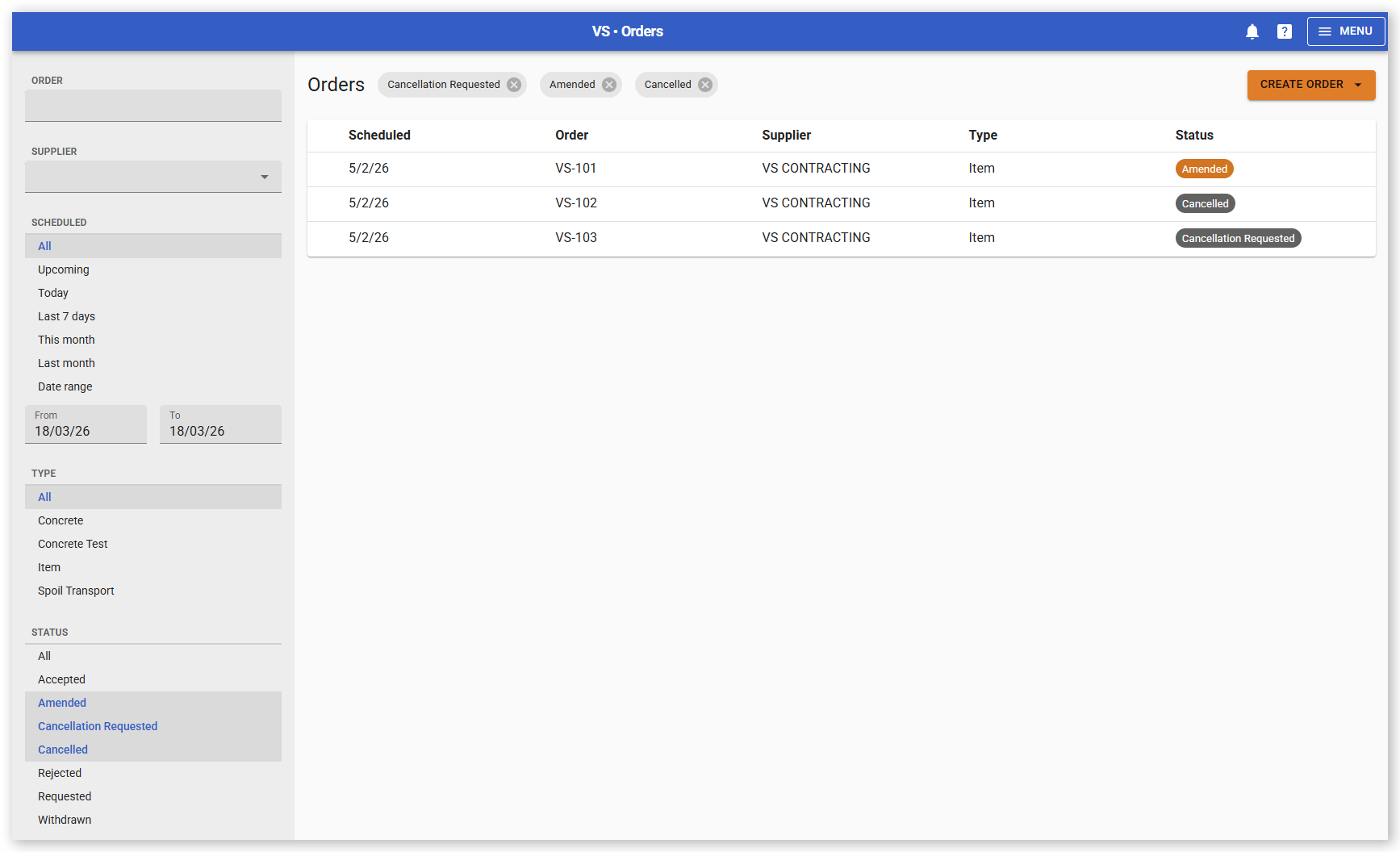
New supplier order states
- Amended
- Cancel Requested
- Cancelled
New Subcontractor Order Admin permissions
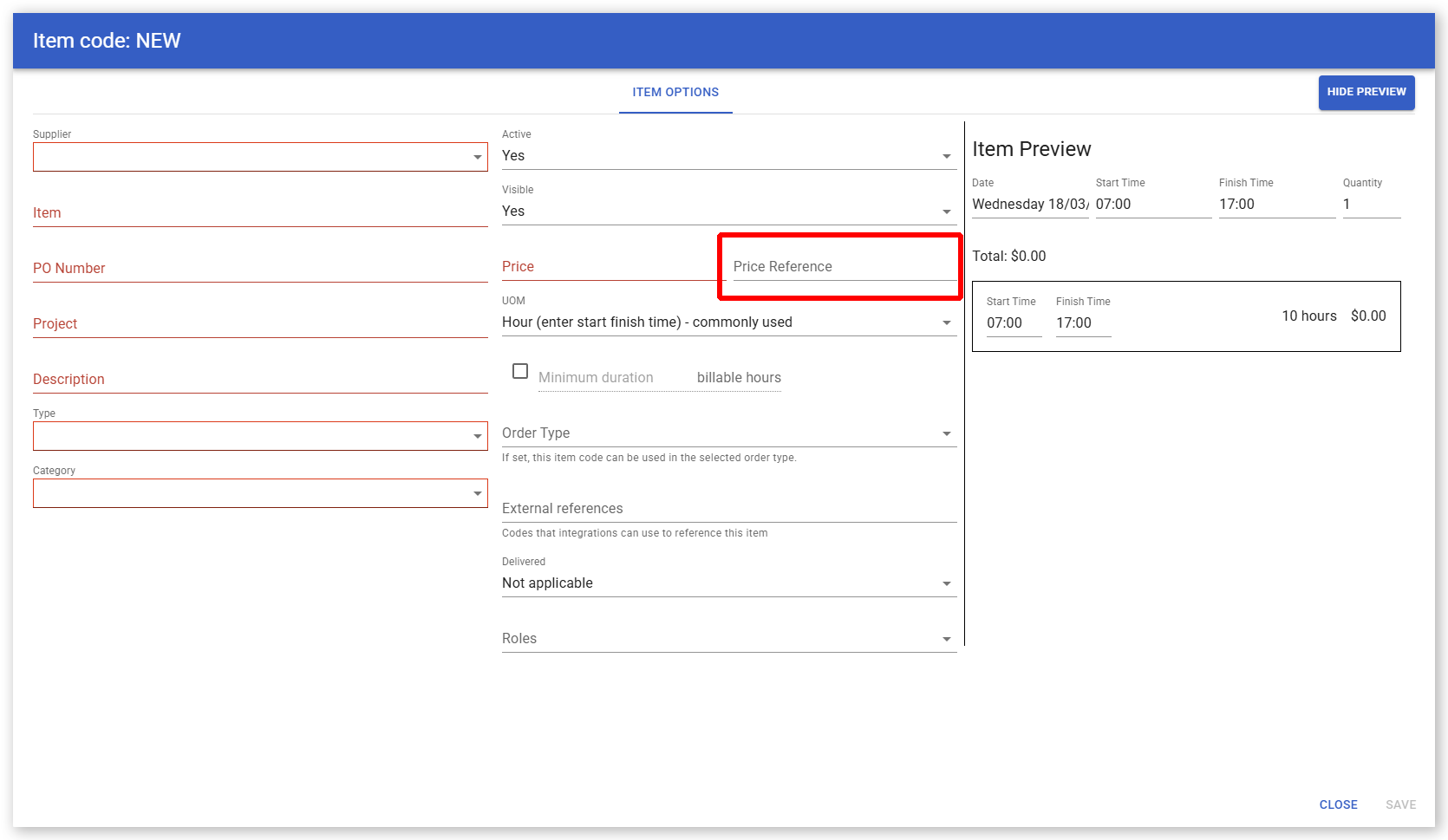
New Price Reference field for item codes
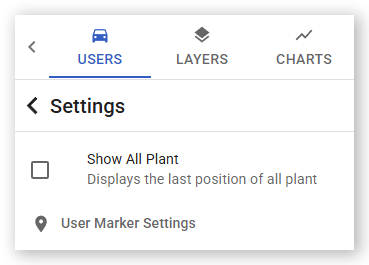
Show All Plant checkbox persistence
Fixed a validation issue when accepting split dockets
Fixed table row formatting and pagination display
Order Improvements and New Advanced Reporting Tables (January 2026)
Virtual Super Orders - Updates and Improvements:
Scheduled Time Required for Concrete Orders

Item Codes set to Not Visible
Status Resets when Order Updated
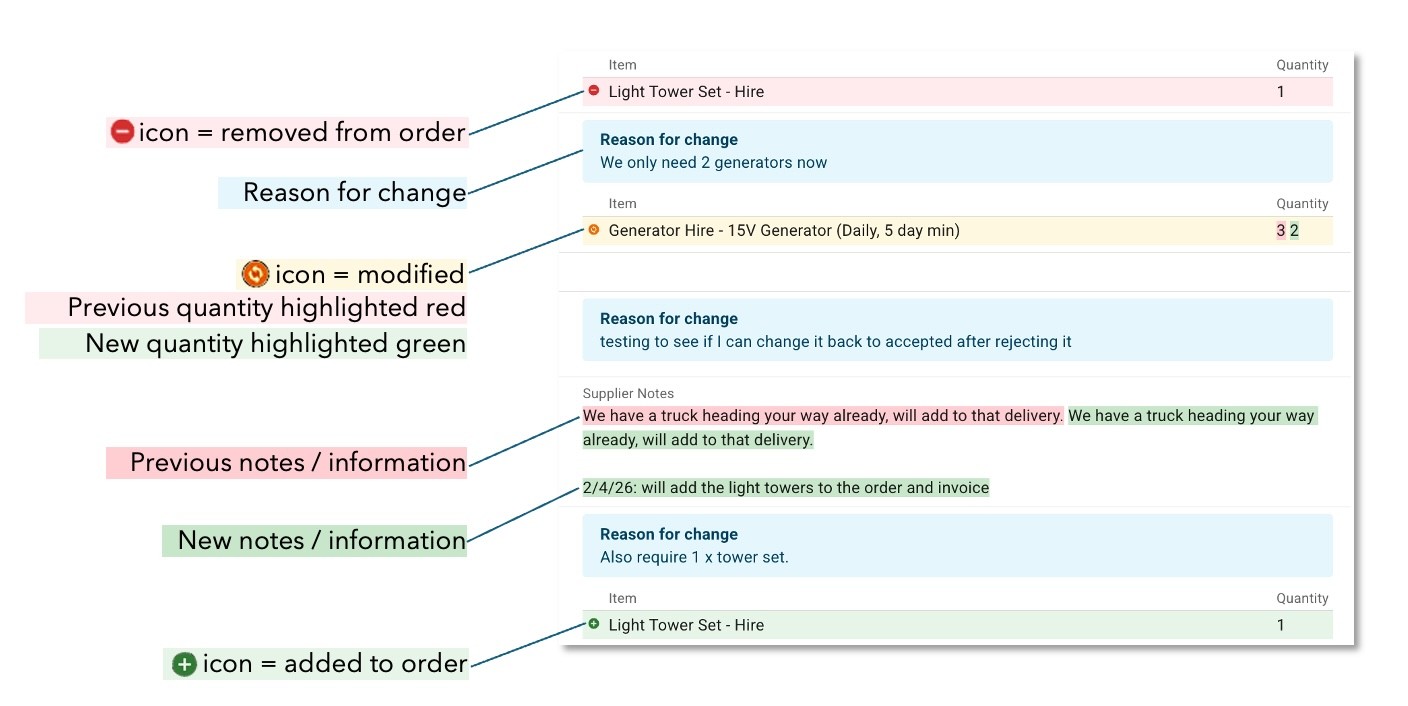
Active / Inactive Orderable Items
Match Spoil Transport Orders to Material Movements
- Project
- Supplier
- Plant
- Movement time
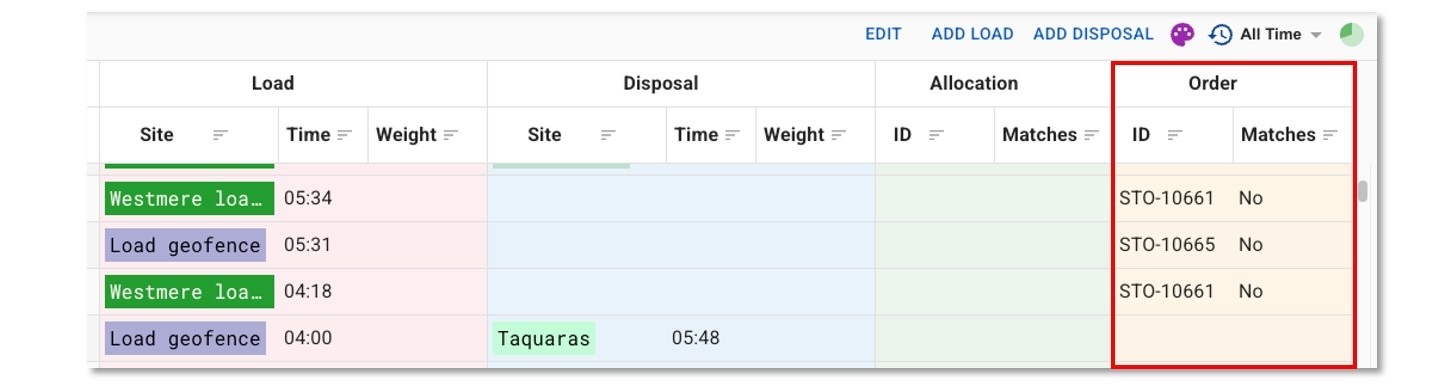
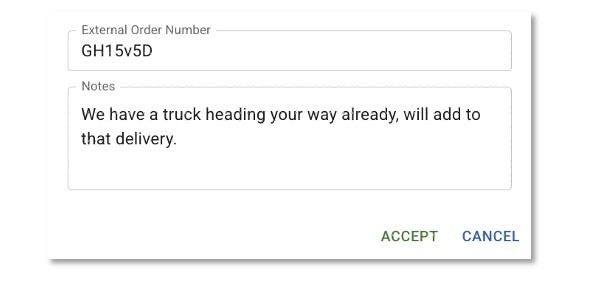
Supplier External Order Numbers & Notes
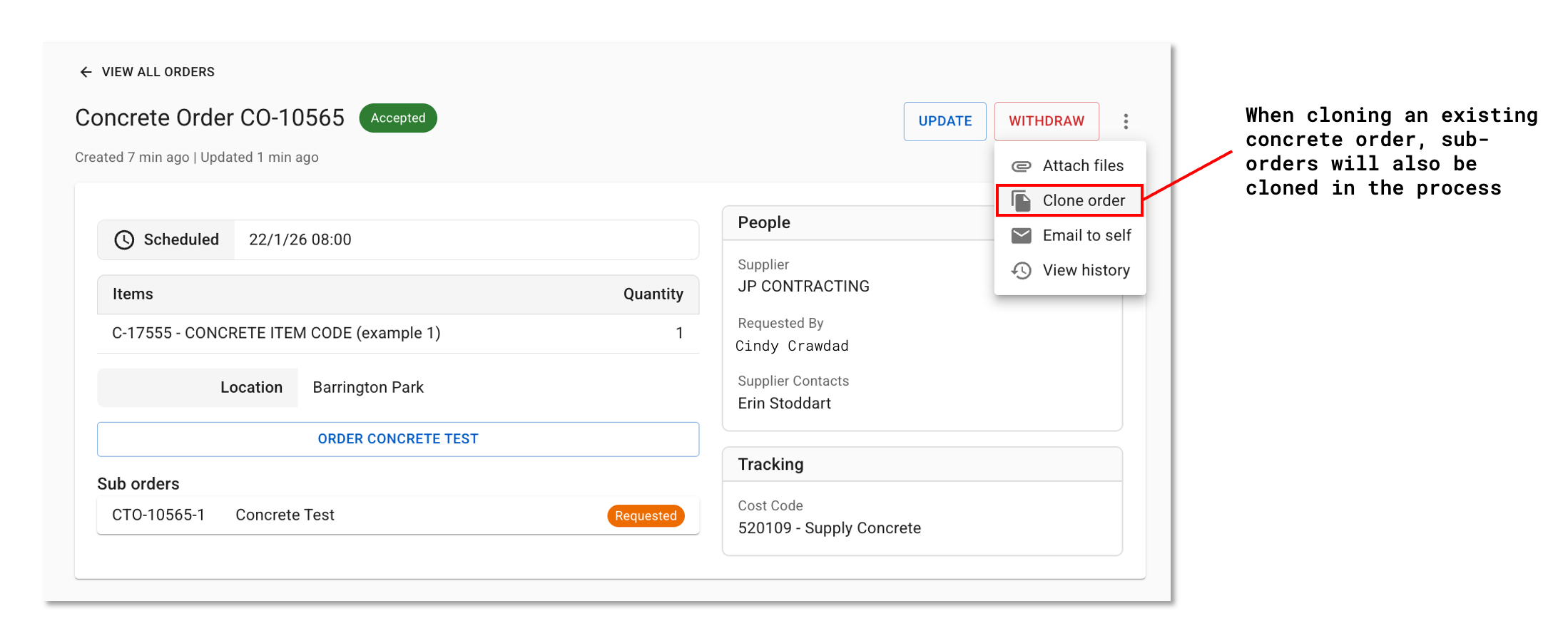
Clone Orders with Sub-orders
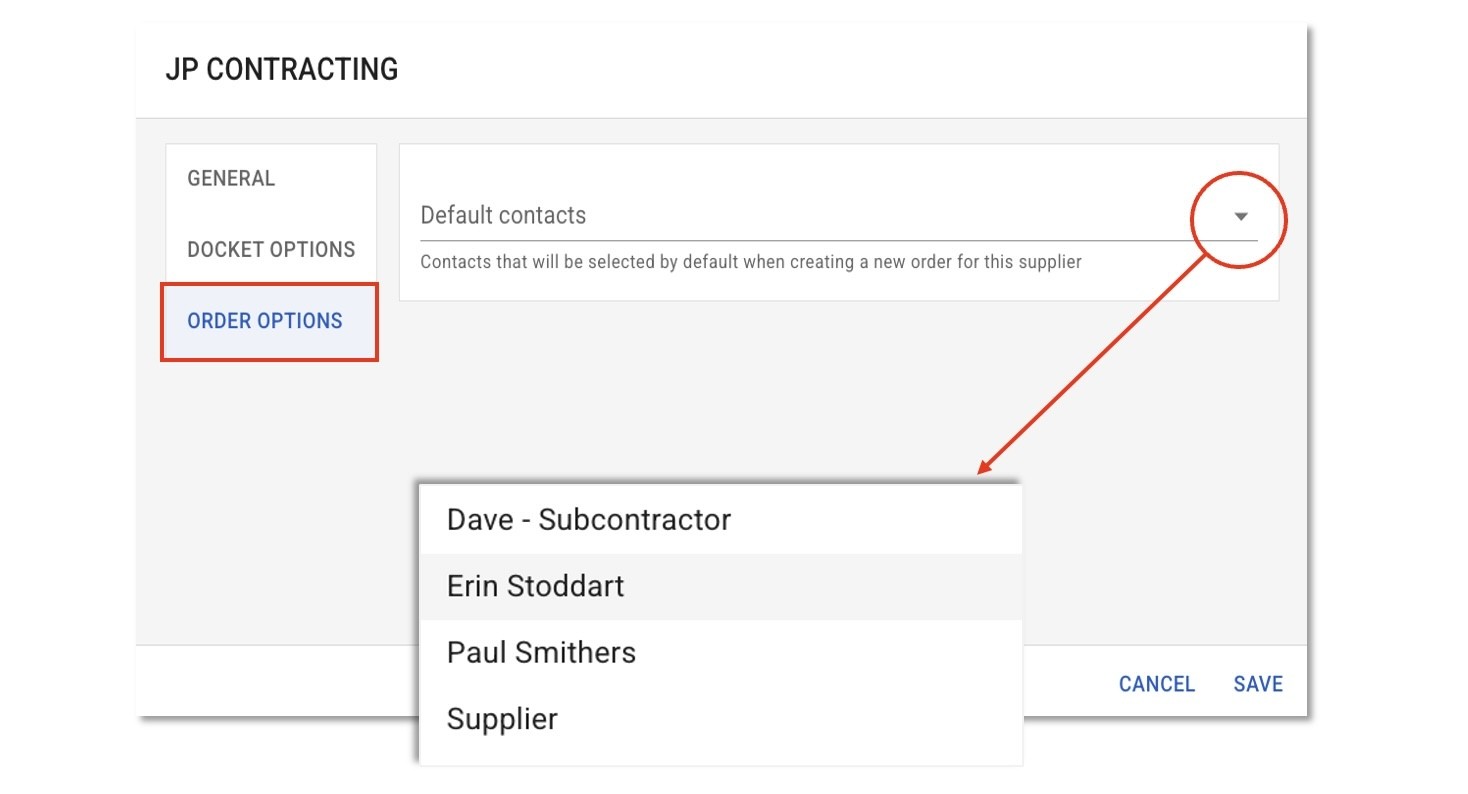
Default Supplier Contacts
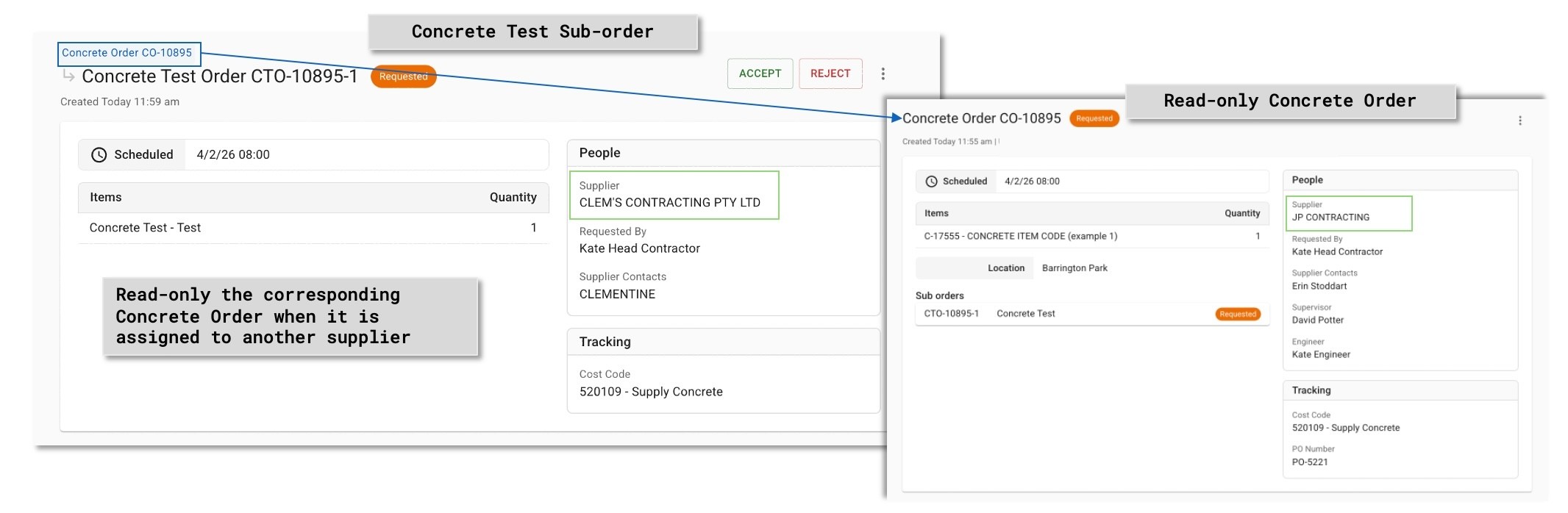
Sub-Orders - View Original Concrete Order
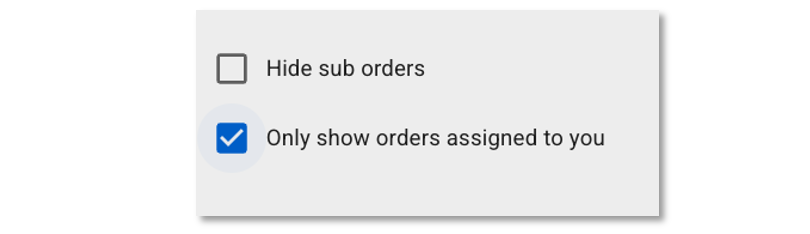
Filter - Only Show Orders Assigned to you
Advanced Reporting Tables:
The Plant Table now contains additional columns: External Device ID and External Device Type. These columns provide external tracking information, including the type of external device and its ID.
Docket Items - Additional Columns