
Software Releases Archive
To learn about older features and improvements in Virtual Superintendent and the SafeSite mobile app, see the release notes archive below.
Our most recent releases are described in What's New in Virtual Superintendent.
Older software releases
- December 2025: New Virtual Superintendent Orders Page
- November 2025: New Advanced Reporting Tables
- November 2025: New Advanced Reporting Tables, Activities Improvements, Dockets Report Additions, and More
- November 2025: MetroMaps Imagery, Multiple ICS Calendars, New Plant Models
- October 2025: Dockets Bulk Edit Workflow, New Plant Roles
- September 2025: Allocations and More
- August 2025: Allocations Enhancements, Dockets Search Filter, Item Code Mapping Fields and More
- July 2025: Simple Operator Timesheets and Allocation Enhancements, Plant Utilization Pop-up
- June 2025: Machine Mode Docket Stations, Improved Maps on Devices, Delete a Cost Code Owner
- May 2025: Group Cloning, Plant Status Page, Site Diary Photo Download
- May 2025: New Operator Timesheets Feature, Load Site Overload Notifications
- April 2025: Integrations Page, Weighbridge Operation Changes, Restrict Disposal Sites per Supplier and More
- April 2025: Cost Code Information, Photo of Axle Weights for Drivers, Docket Calculations
- March 2025: Precast Departures, Remove Cost Code Information
New Virtual Superintendent Orders Page (December 2025)
Virtual Superintendent Orders Page
The new Virtual Superintendent (VS) Orders Page allows authorized users to create, send, and track orders directly with suppliers, all from a single location.
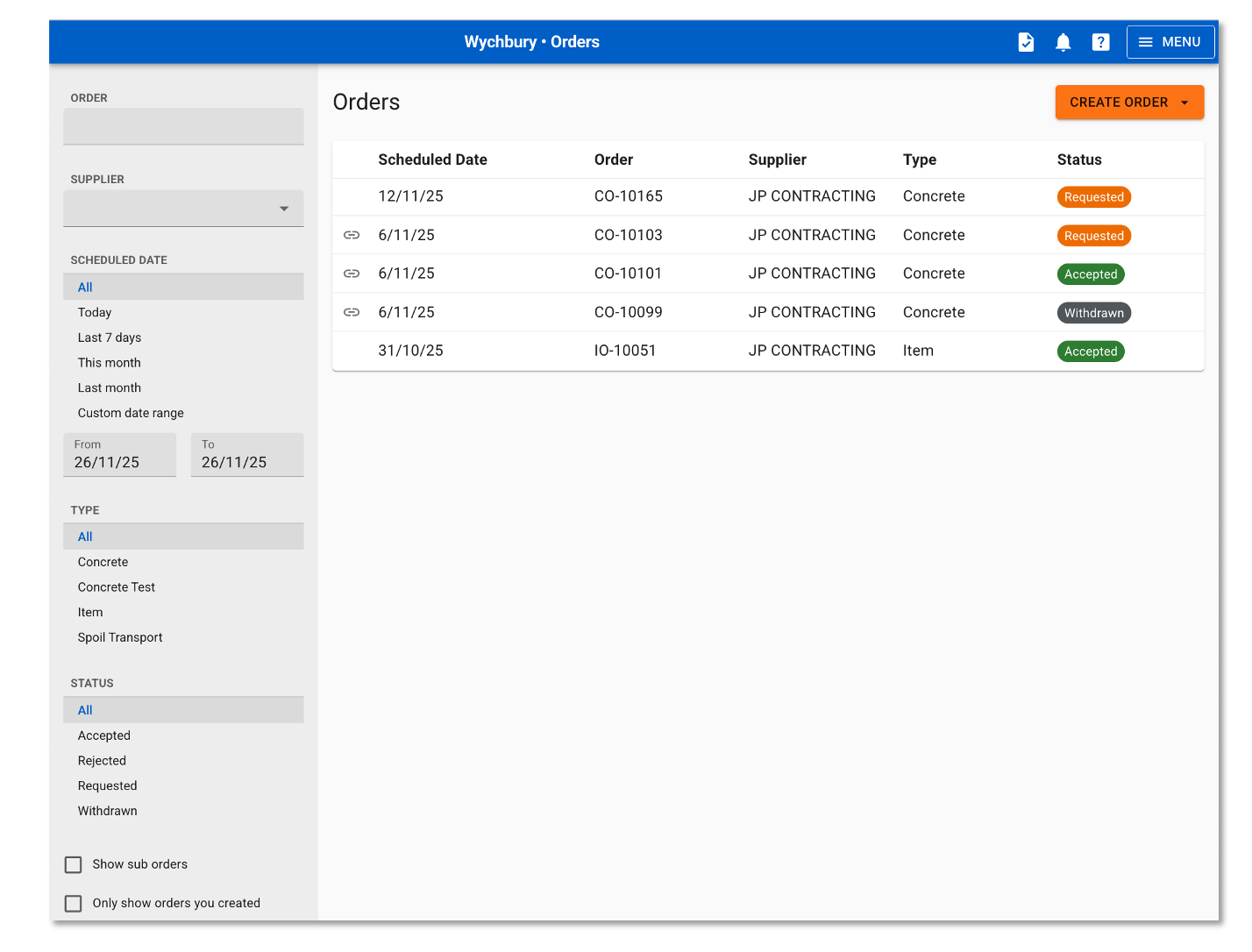
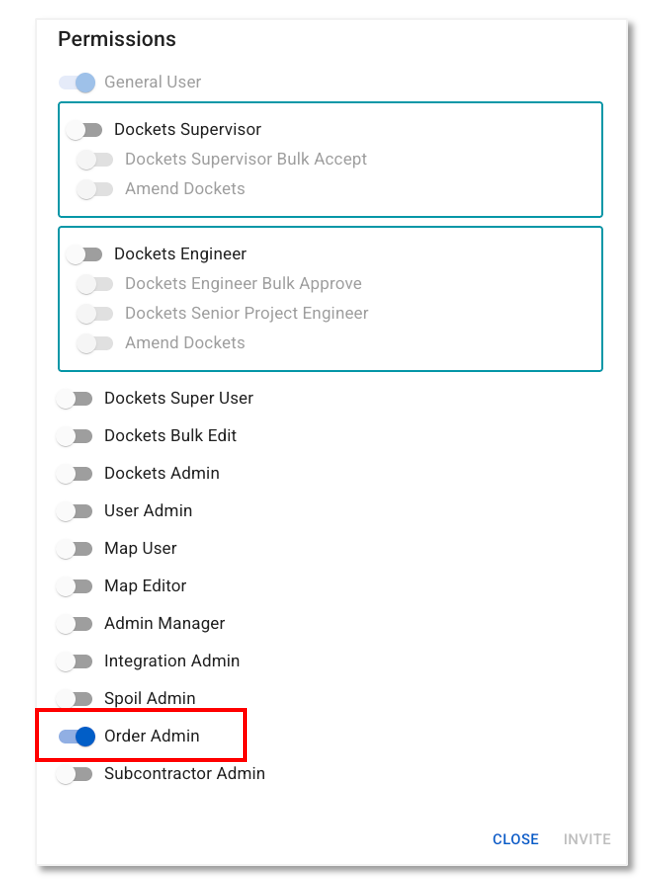
Access to the Orders Page requires the new Order Admin permission, which must be enabled for the project user.
Suppliers can accept or reject orders through their VS Supplier Portal, providing clear visibility of order status for both project teams and suppliers.
This support article outlines how this feature works and how to use it effectively.
Orderable Items and Item Codes as Orderable Items
To better support concrete and variable-pricing orders, the VS now uses Orderable Items. Orderable Items let you place an order without needing to know the exact chargeable item at the time the order is created.
Item Codes can now be configured as orderable items by assigning them an Order Type. This allows the system to automatically filter available Item Codes based on the selected Supplier and Order Type when creating an order.
Orderable items are configured on a new Orderable Items tab on the Dockets Setup page. To access this tab, a user requires the Dockets Super User or Admin Manager permission enabled.
This support article provides step-by-step guidance on configuring and using Orderable Items and Item Codes as orderable items.
New Advanced Reporting Table - Orders
There is a new Orders Advanced Reporting table which displays all orders created for your project.
New Advanced Reporting Tables (November 2025)
Advanced Reporting – New Tables
Several new tables have been added for customers using Advanced Reporting, increasing the depth and flexibility of project insights.
Newly available data includes:
- Daily Plant Period Data: View an itemised breakdown of the Daily Plant Data table, demonstrating operating, idle, ignition and breaks for each signed-on machine.
- Docket Files: View docket file attachments, such as spreadsheets or photos.
- The Events Table now contains Stop / Move information. This information can also be viewed from the Virtual Super Events Page.
- Site Diary: View site diary events.
- Suppliers: View supplier details.
These additions allow for more comprehensive dashboards and custom reporting across operations and compliance.
New Advanced Reporting Tables, Activities Improvements, Dockets Report Additions, and More (November 2025)
Advanced Reporting – New Tables
Additional tables have been added for customers using Advanced Reporting:
- VS Users - View who has access to the Virtual Super for your project and what permissions they have.
- Docket Items: View the Item codes / Item Code Groups contained in dockets.
Show all Material Types
All project materials from all active weighbridge controls will now display in the following scenarios:
- Editing a spoil report
- Creating / editing an allocation
- Creating / editing a spoil transport order
- Creating / editing a weighbridge item code
Example:
When editing a spoil report, all materials from all active weighbridge controls will display in the list:
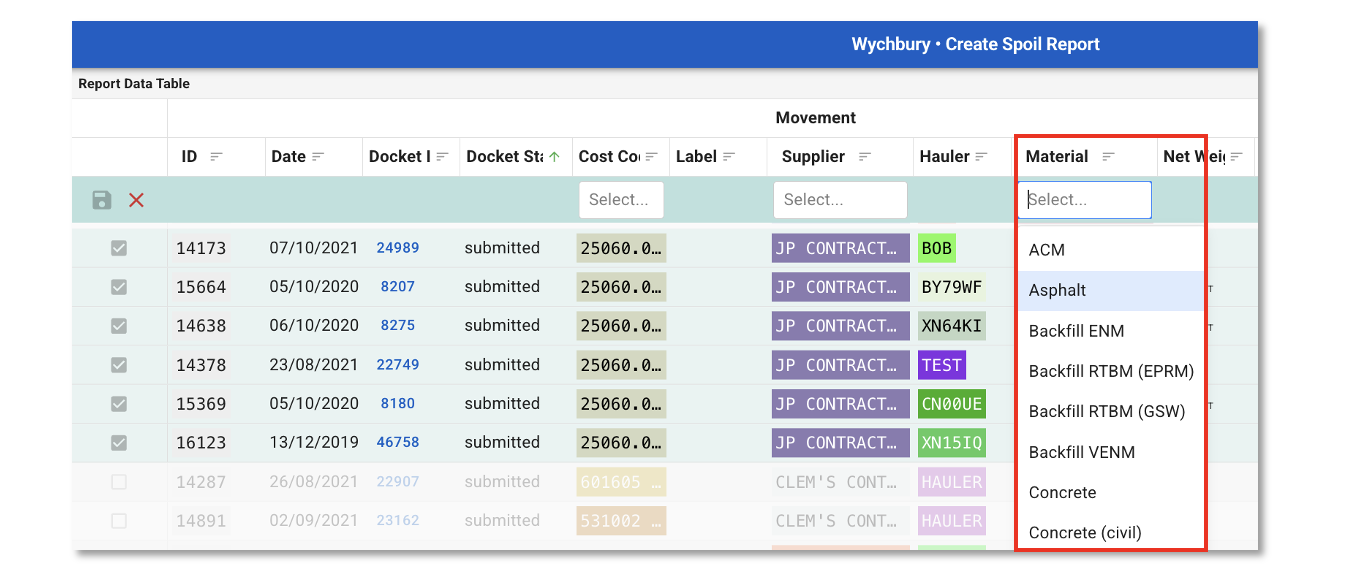
Note: This does not effect the creation of weighbridge dockets; materials listed in dockets are restricted to those relevant to the selected item code.
Docket Activities - Improvements
We have made some improvements which allow for a more accurate handling of Docket Activities.
1. Activities with Minimum Duration Values Set:
If a docket contains multiple activities with different minimum durations, the system now applies the minimum duration from the last activity.
2. Activities with Allowances:
If an activity with an allowance appears multiple times in a docket, the allowance is now calculated on the combined duration of the activity instead of viewing each activity separately.
New Plant Role
Projects can now select a Road Train from SafeSite and the Virtual Super plant list.
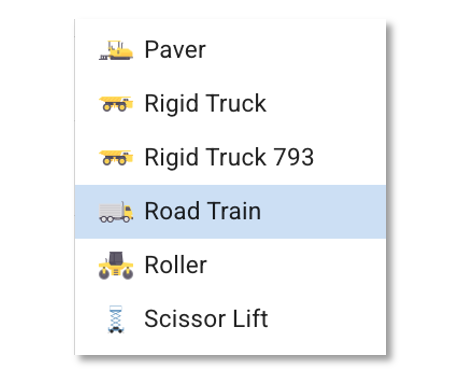
Note: A Road Train icon will be released at a later date but, for now, this plant role is available with a truck icon.
Item Codes - BPA Number Renamed to PO Number
The BPA field in Item Code details has been renamed PO Number.
This has been changed in the following areas:
- Item code details
- Item code template
- Docket details export
- Full docket reports export
Cost Code Location Warning
When importing dockets using the Virtual Super template, a user will be alerted if the location in the template does not match a cost code location.
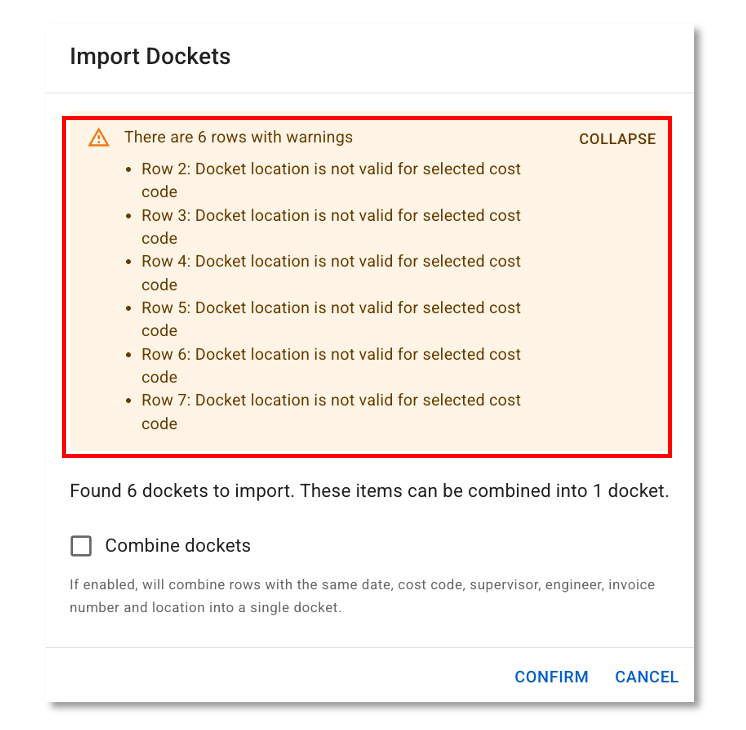
Note: These warnings will not prevent the import.
Dockets Report - Additions
For projects who have the Dockets Report enabled, additional information will now display in the report.
- Docket Warnings Column: Docket warnings will now appear in the report for all dockets created from today onwards. For existing or historical dockets, warnings will only display if the docket is updated in any way (e.g., changing the docket state or adding new data).
- Cost Column: The total cost of a docket will now display in a new Cost Column in Dockets Reports.
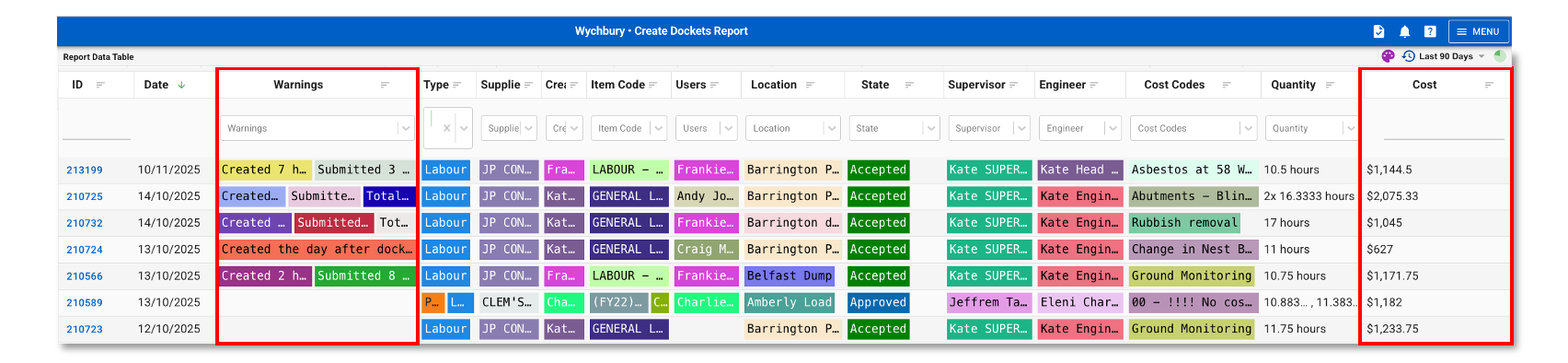
Email support if you would like to learn more about Docket Reports.
MetroMaps Imagery, Multiple ICS Calendars, New Plant Models (November 2025)
MetroMaps Imagery Integration
Projects can now upload MetroMaps imagery via the Virtual Super Integrations Page.
Users with the Integration Admin permission can paste a MetroMap URL when adding a new integration. Once saved, the imagery loads automatically and becomes visible on the project map if the Base Layers are toggled on.
This streamlines the process of maintaining up-to-date aerial and map layers across active projects.
Please see our support article for user instructions.
Support Multiple ICS Calendars
The Virtual Super can now store and apply multiple ICS calendar files for a single project, enabling teams to manage differing union RDOs or regional public holiday schedules.
Virtual Superintendent support will continue to upload the calendars on behalf of users.
Cost Code Location Warning
When an engineer is cost coding a docket, the Virtual Super now checks the docket’s location against the cost code’s default location (where one exists). If they don’t match, a warning shows above the cost code field to alert the engineer to the mismatch.
During bulk editing, the mismatches are summarized in the Warnings Panel, including the affected docket number(s).
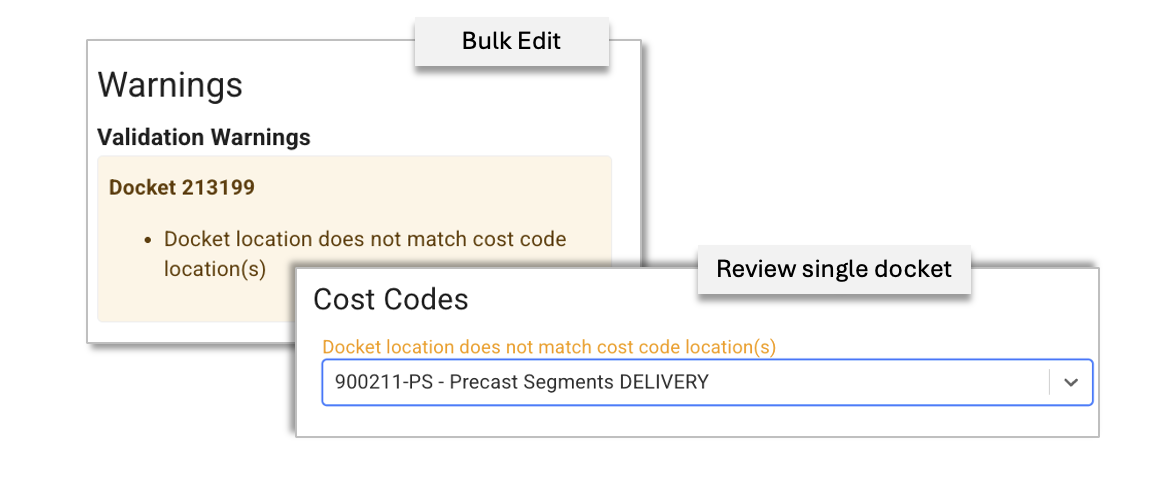
Note: Not all cost codes have a default location; the check only applies when one is set.
New Plant Models
The following plant models are now available for selection in the Virtual Super and SafeSite.
- Forklift
- Lightning Tower
- Scissor Lift
- Telehandler

Dockets Bulk Edit Workflow, New Plant Roles (October 2025)
Bulk Edit Dockets
The Bulk Edit Dockets workflow has been updated to allow authorized users to edit multiple dockets from a single bulk editing dialog. Users with the new Dockets Bulk Edit permission access the bulk editing dialog from the Bulk Actions menu.
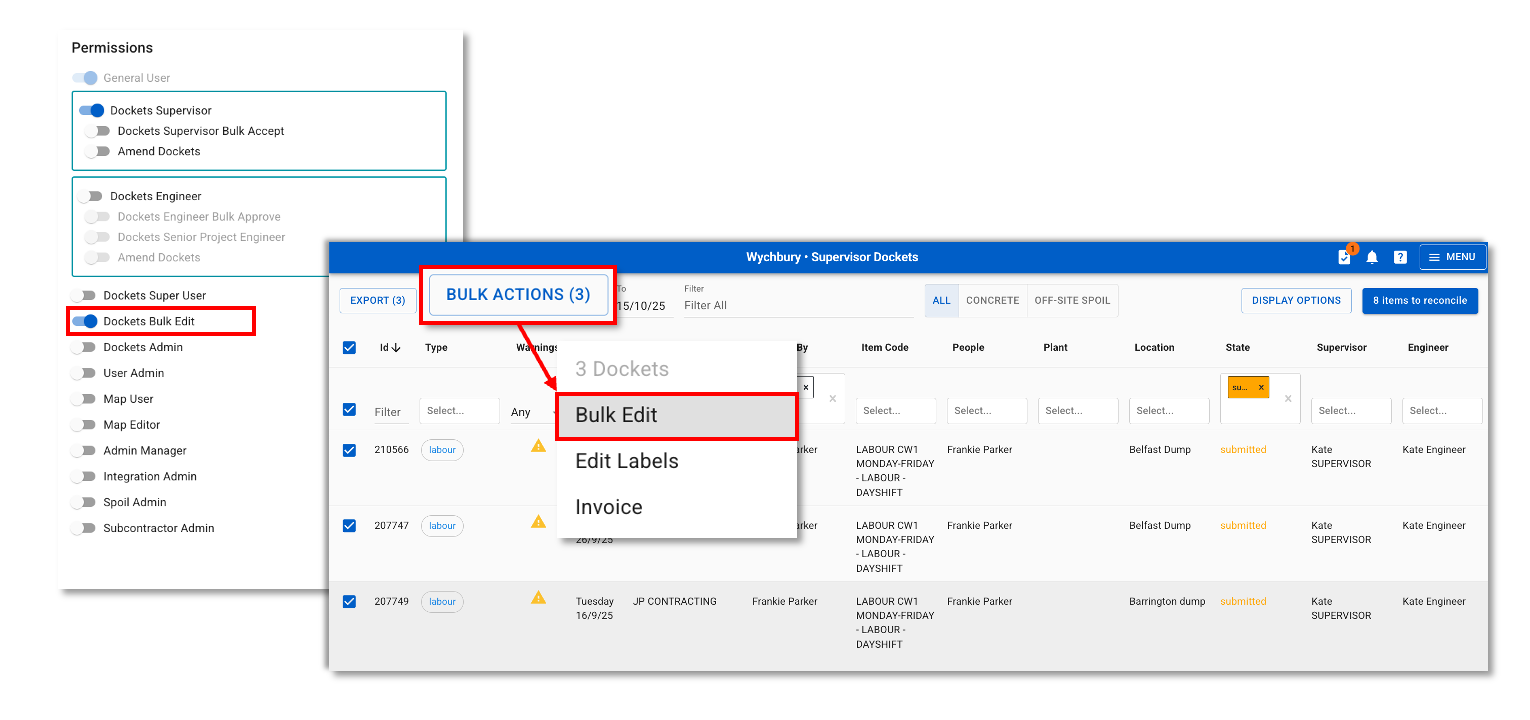
IMPORTANT: Users who could previously access the bulk edit workflow (Super Users, or users with the Bulk Accept / Bulk Approve permission) will automatically have the Dockets Bulk Edit permission enabled. New users will need to have it manually enabled by their Virtual Superintendent project admin. The previous bulk edit workflow will be retired and replaced with the enhanced workflow at some point in the future.
This support article provides user instructions.
New Plant Roles
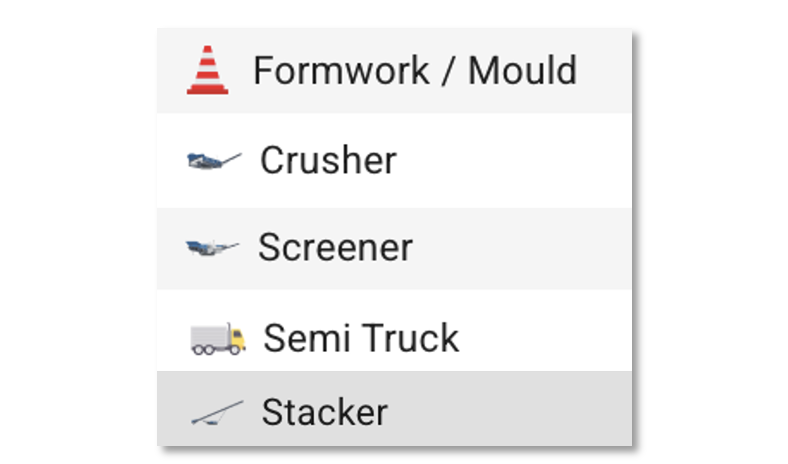
The following Plant Roles are now available in the Virtual Super and SafeSite:
- Formwork / Mould
- Crusher
- Screener
- Semi Truck
- Stacker
Allocations and More (September 2025)
We have made a series of improvements to the Allocations workflow, as outlined below.
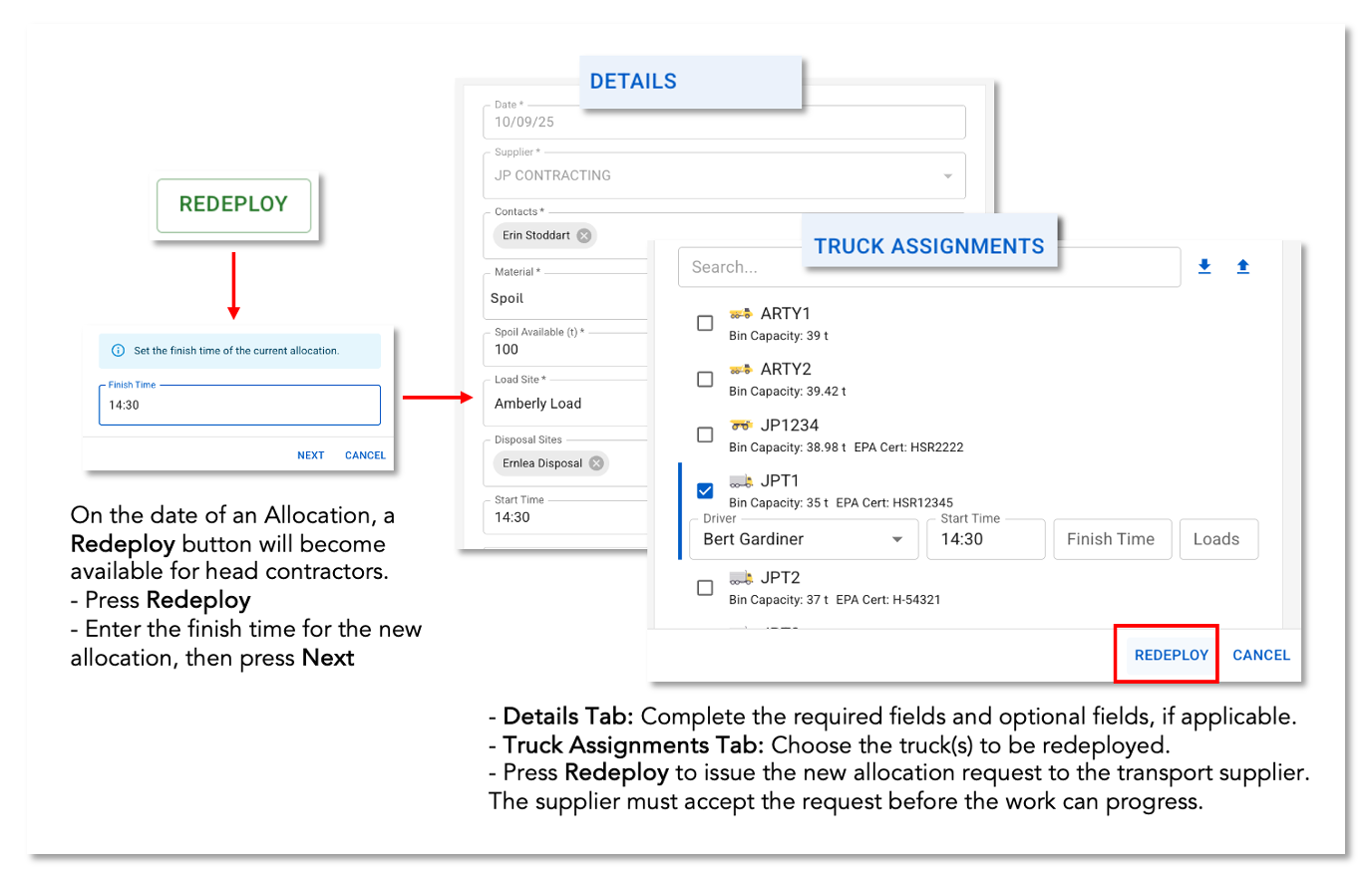
Head Contractor Re-deploys Trucks to Separate Allocation
On the scheduled allocation date, a head contractor spoil admin will see a Redeploy button in an allocation summary on the Allocations Page. Pressing this allows them to create a new, parallel allocation request and redeploy some of the trucks which are already on site without interrupting work on the original request.
The new request must be accepted by the transport supplier before the work can be commenced.
Employee Number in Truck Assignment Template
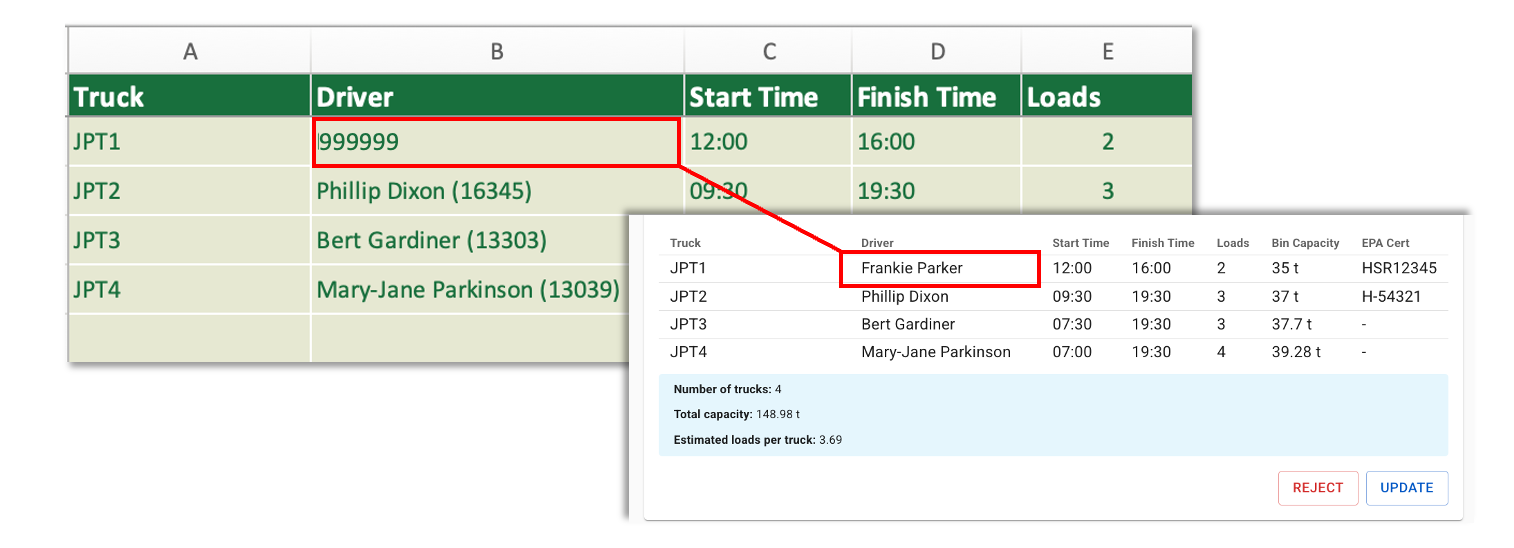
When a driver has an Employee Number saved in their SafeSite user details, both the spoil admin and the transport supplier admin can use this number in the Truck Assignment Template instead of relying on the driver’s name. This avoids issues caused by drivers creating SafeSite profiles with nicknames, and ensures a more accurate and consistent method of assigning drivers.
Expand Allocation History
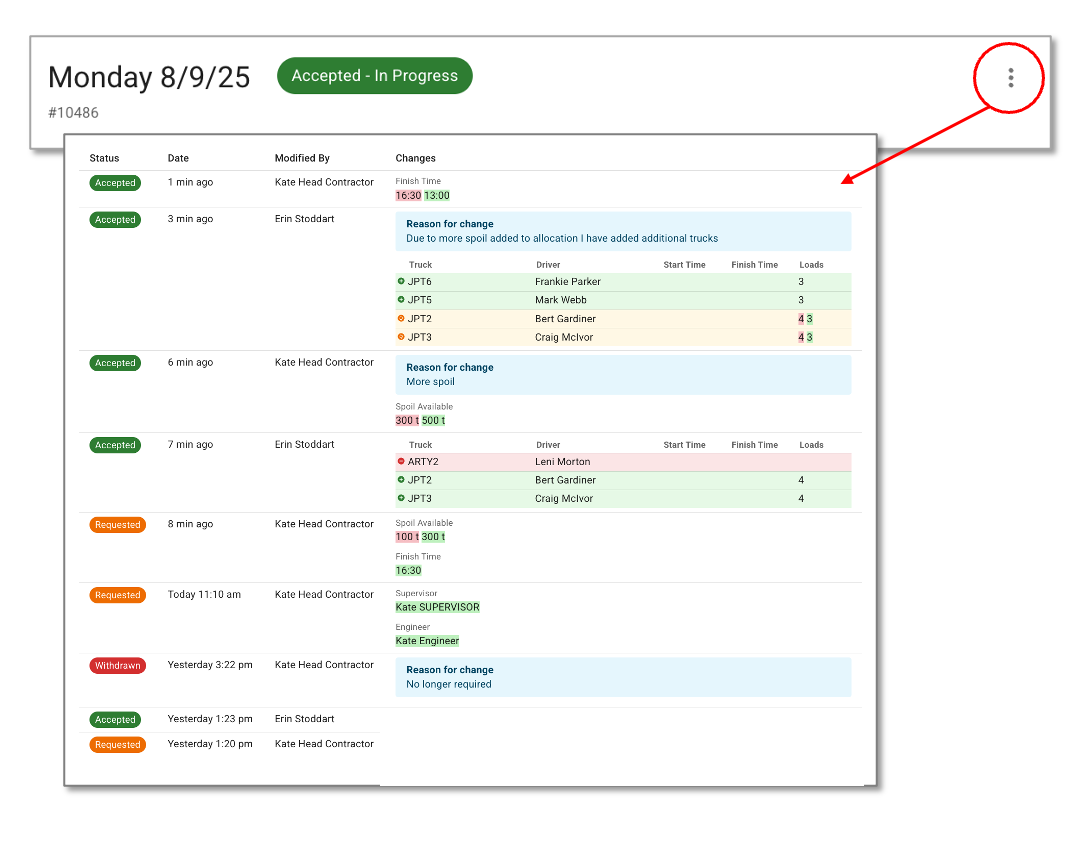
Allocation History will now show more details, including fields that have been modified, trucks that have been added / removed, and any comments relating to changes.
The Allocations support content has been split into two separate articles to keep the information easy to follow. Please refer to Allocations – Head Contractors or Allocations – Transport Suppliers for the guide that applies to you.
Advanced Reporting
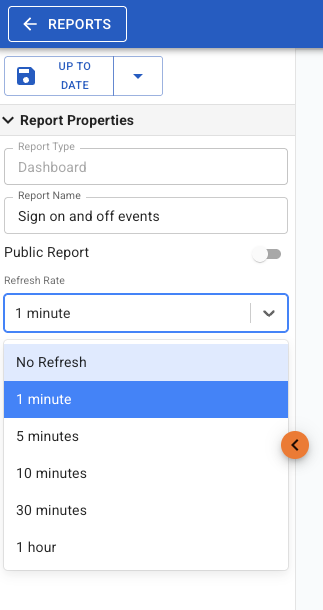
Projects using the Advanced Reporting feature can now set the refresh rate for reports that they have generated from dashboards. The refresh rates are selectable in the Report Properties settings in the side panel.
Include Disposal Site Photos in Spoil Report Export
In addition to the Load site photos, the Spoil Report export now contains any Weighbridge Disposal photos.
Integration Pipeline - Support Cost Code Locations
Integrations now support sourcing a location from the cost code if a location has been assigned to the cost code.
Allocations Enhancements, Dockets Search Filter, Item Code Mapping Fields and more (August 2025)
1. Additional Fields in Allocations
For head contractors (the requester), allocations now include the following optional fields:
- Start time: Set the time for trucks to arrive.
- Finish time: Specify the end-of-day cutoff (e.g., setting Finish to 21:00 for a 9:00 pm cutoff).
- Contract Type - Hourly rate vs. Tonnage rate: Defined based on the agreement with the transport supplier.
- Supervisor contact number: If a contact number is loaded against the supervisor in Virtual Super, it will display in the allocation form only.
Additionally, head contractors requiring custom allocation fields can contact the Virtual Superintendent support team.
For transport suppliers, allocations now have the following additional fields:
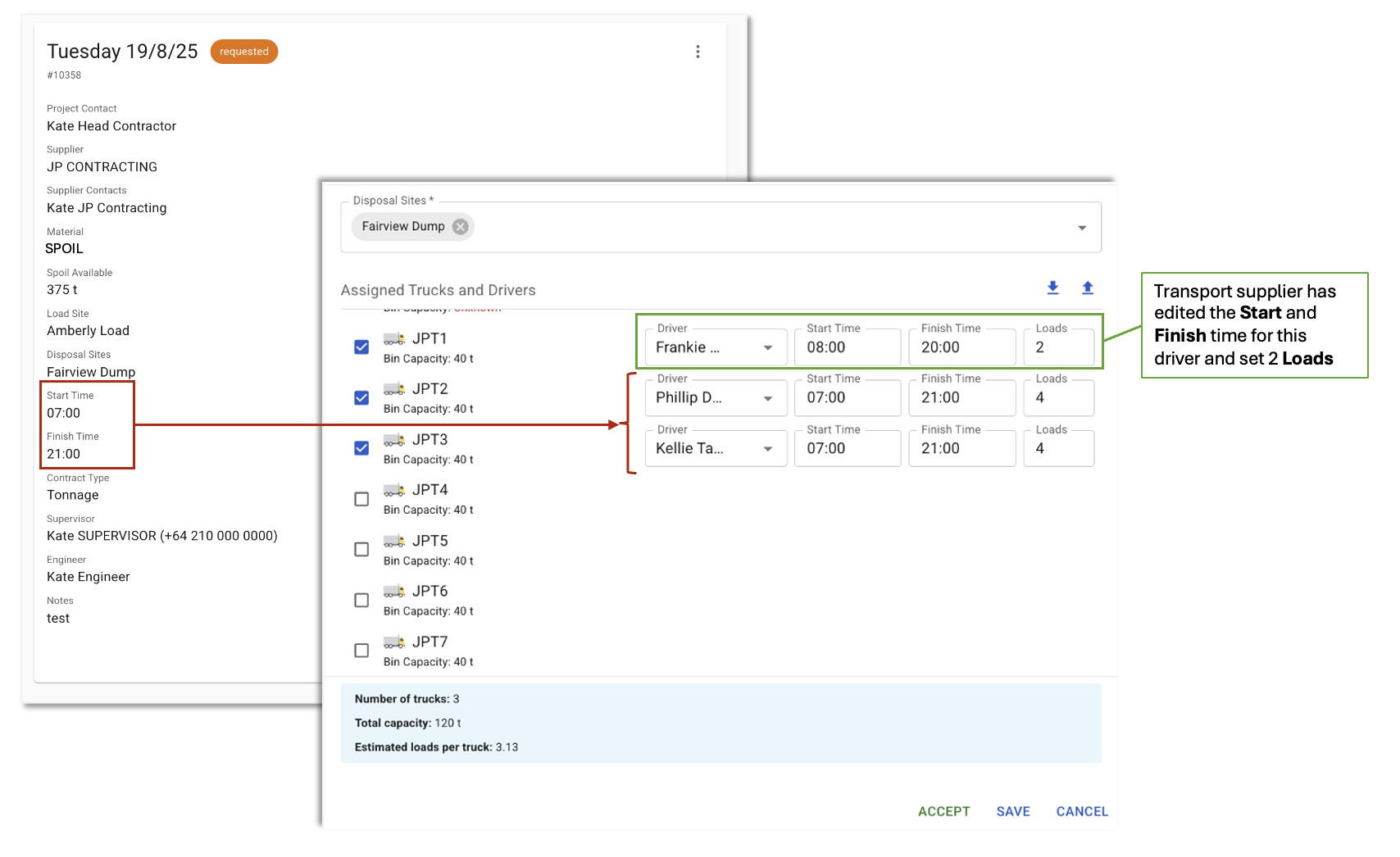
- Start time / Finish time (per driver): The transport supplier can edit the start and finish times for individual drivers, provided the times fall within the timeframe set by the requester. The values entered will override the values entered by the head contractor in the request.
- Loads: The transport supplier can specify the number of loads for each driver.
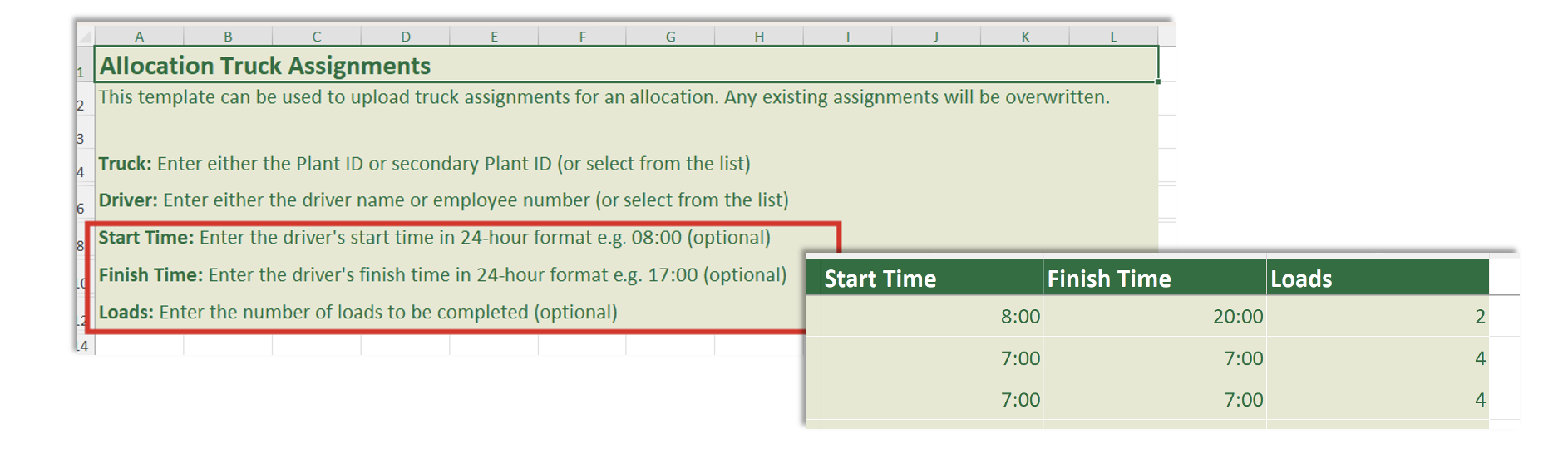
Note: Entering values for the Start / Finish times and assigning Loads can be completed manually using the drop menus or via the Truck Assignment Template.
MANUALLY EDIT START / FINISH TIMES AND ASSIGN LOADS PER TRUCK/DRIVER:
BULK EDIT START / FINISH TIMES AND ASSIGN LOADS PER TRUCK/DRIVER:
All new fields will be displayed in allocation communication emails.
2. Link Allocation in Spoil Report
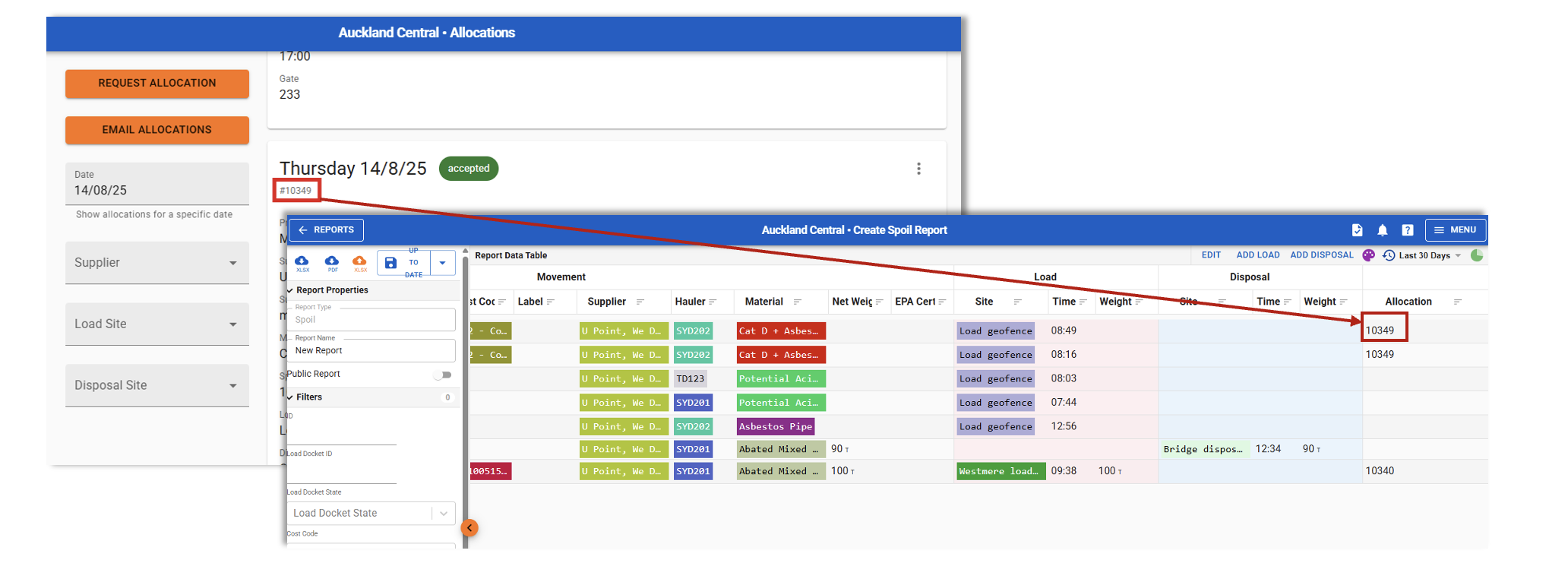
An allocation can now be linked to a spoil movement if the following data matches:
- Date
- Time (if set)
- Truck
If there are overlapping allocations, then the following data needs to also match in order for the allocation to be linked to the spoil movement:
- Load Site
- Material
- Disposal site
Allocation requests are now assigned a unique number, which will appear in a Spoil Report’s Allocation column if the allocation is linked to a spoil movement.
Search Filter on Dockets Page
Virtual Superintendent users can now filter and search for dockets on the Dockets pages using keywords from Docket Item Remarks, Docket Remarks, and (for head contractors only) Internal Item / Docket Remarks..
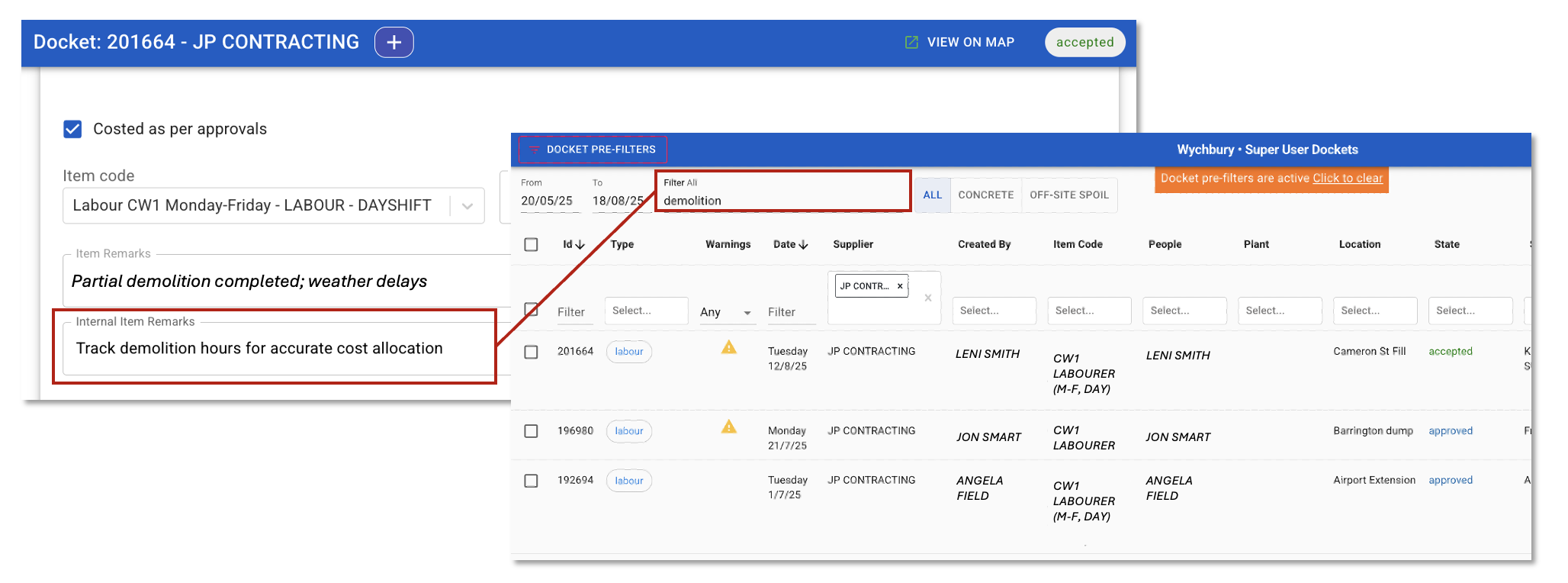
Head contractor admins can search for keywords found in:
- Docket Remarks
- Item Remarks
- Internal Item Remarks
- Internal Docket Remarks
Subcontractor admins can search for keywords found in:
- Docket Remarks
- Item Remarks
Item Codes - Roles and Delivered Mapping Fields
Item codes in the Virtual Super can now be assigned specific Roles and Delivery details. This enhancement more clearly defines how each item code maps to a delivery or pickup type, as well as the type of truck used for transport. With this mapping in place, different costs can be accurately associated with each item code. This enhancement is most applicable to aggregate deliveries.
Delivered: Yes / No / Not applicable.
Roles: Assign role(s) from the list, e.g., Truck or Truck and Dog.
Please contact support@virtualsuper.com to discuss this for your project, as the Virtual Superintendent support team need to configure your project settings.
Operator Timesheets: End Shift Summary
We’ve introduced an End Shift Summary to the Simple Operator Timesheets workflow. This summary displays the total elapsed hours worked, which represents all hours on site, including breaks (breaks are not deducted).
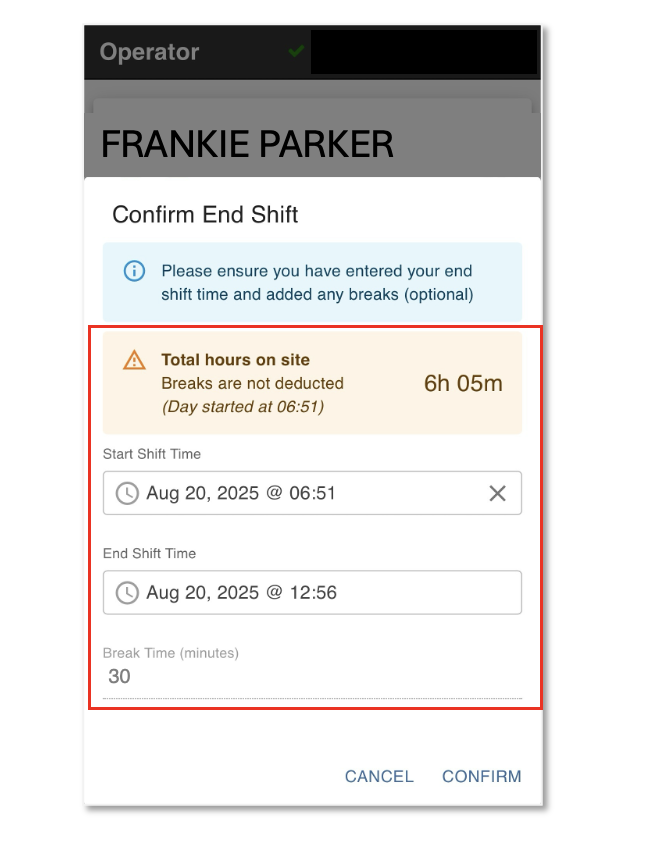
When an operator completes their timesheet and selects End Shift, the summary will appear on the Confirm End Shift page.
- If it is the operator’s first timesheet of the day, they can manually adjust both the Start and Finish times.
- If it is a resumed timesheet, only the Finish time can be adjusted. In this case, the Start time shown will be the time that they first signed on for the day.
This feature is particularly valuable if an operator forgets to sign on at the beginning of their shift, as it allows them to adjust the start time to accurately reflect their total hours on site.
Simple Operator Timesheets and Allocation Enhancements, Plant Utilization Pop-up (July 2025)
Simple Operator Timesheets - Enhancements
The following enhancements have been made to the Simple Operator Timesheets feature:
- Ability for an operator to resume an existing timesheet.
- Ability for an operator to enter remarks in their timesheet.
Resume an Existing Timesheet:
Operators can now resume an existing timesheet when they sign on to multiple machines throughout their shift, allowing a single docket to be created on the Dockets page of the Virtual Super.
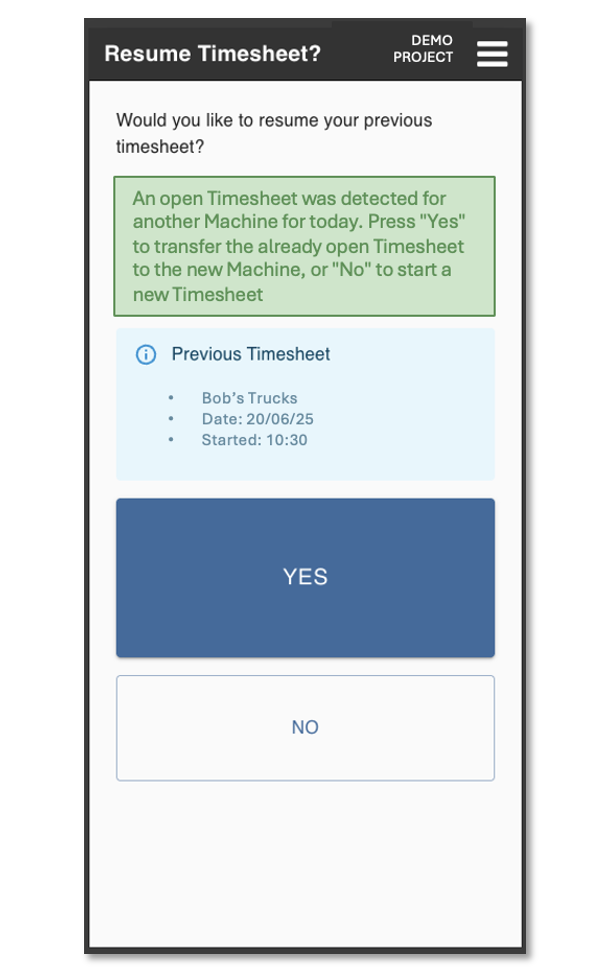
When an operator signs on at the start of their shift, a Draft docket is created. The status changes to Submitted when they sign off. If the operator switches machines and resumes their timesheet, the docket reverts to Draft and is submitted again when they sign off.
Enter Remarks:
Operators can now use the new ADD NOTE button to enter remarks about the work completed. These remarks will appear in the Docket Remarks field of the docket.
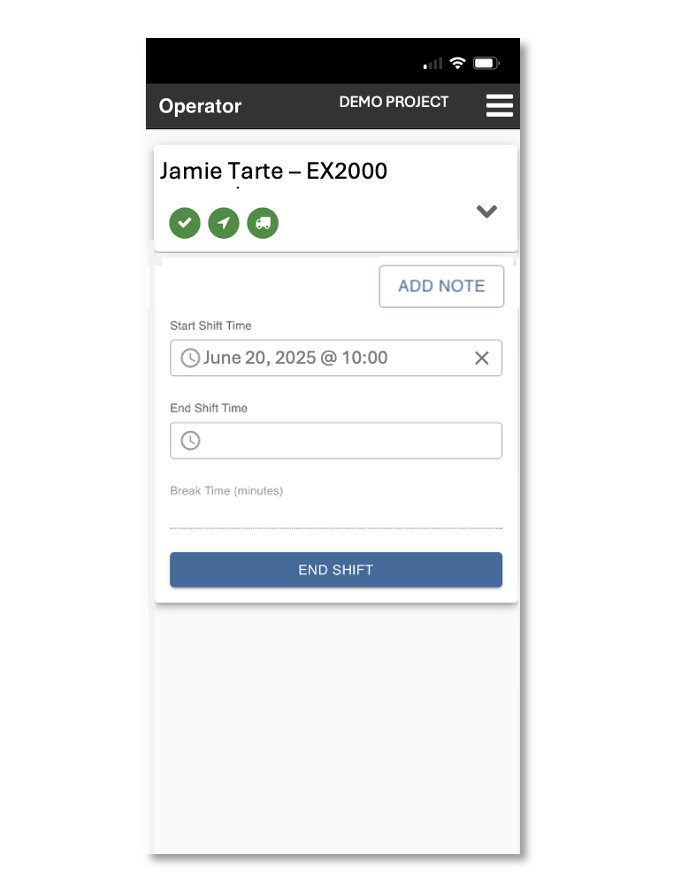
The following support article explains the Simple Operator Timesheets feature in detail.
Plant Utilization Pop-up
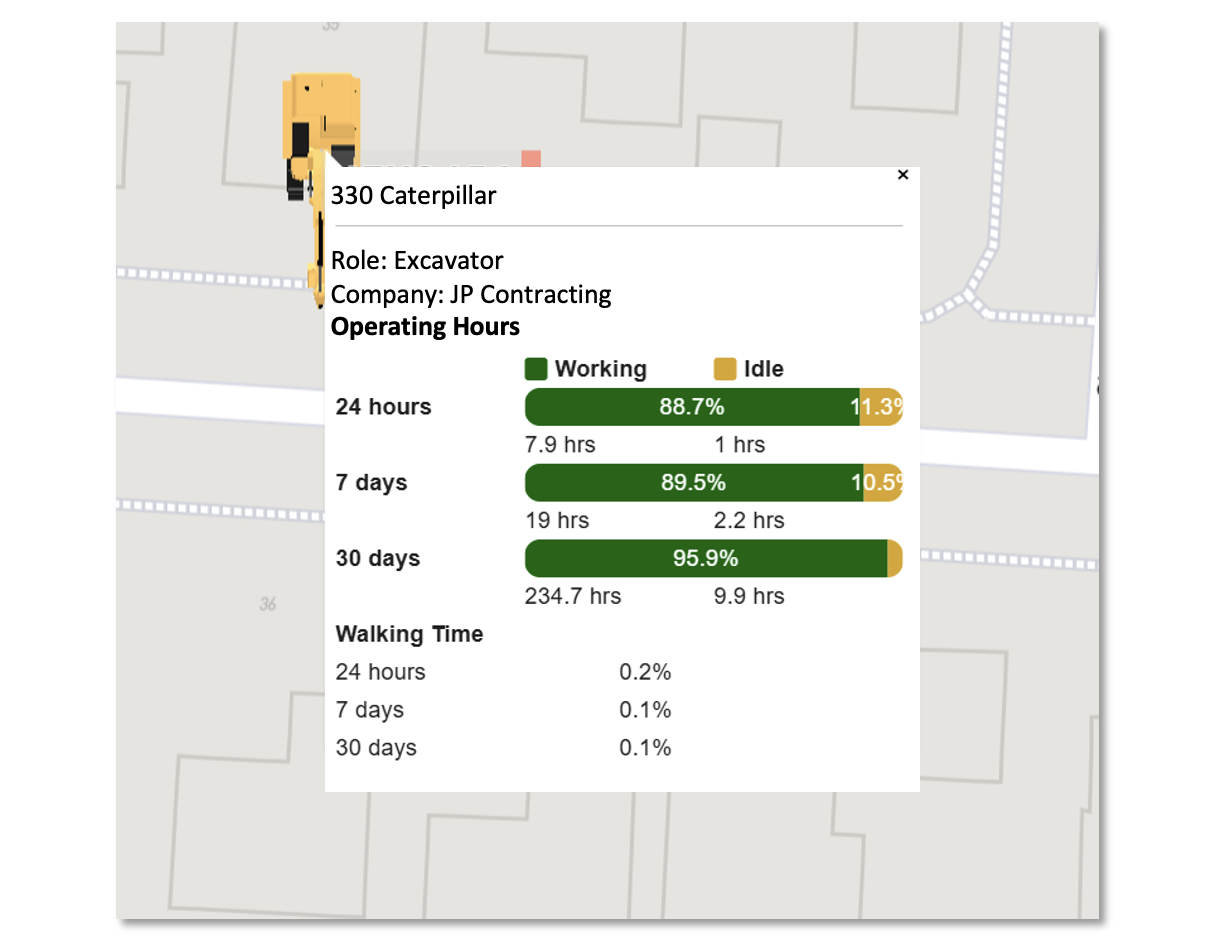
When a Virtual Super user views plant on the Maps Page, they can now access additional plant utilization data in the plant details pop-up. By clicking on a machine, the pop-up will display the following utilization metrics:
- Working vs Idle time over the past 24 hours
- Working vs Idle time over the past 7 days
- Working vs Idle time over the past 30 days
Additionally, for excavators, the Walking Time is calculated as a percentage for each of these periods.
Allocations - Allocate Trucks and Drivers in Bulk
When a transport supplier receives an allocation request, they can now allocate trucks and drivers in bulk using a downloadable Excel template. This enables quick and efficient assignment of multiple trucks and drivers for larger allocation requests.
This portion of our support article provides user guidance.
Machine Mode Docket Stations, Improved Maps on Devices, Delete a Cost Code Owner (June 2025)
Docket Station - Machine Mode
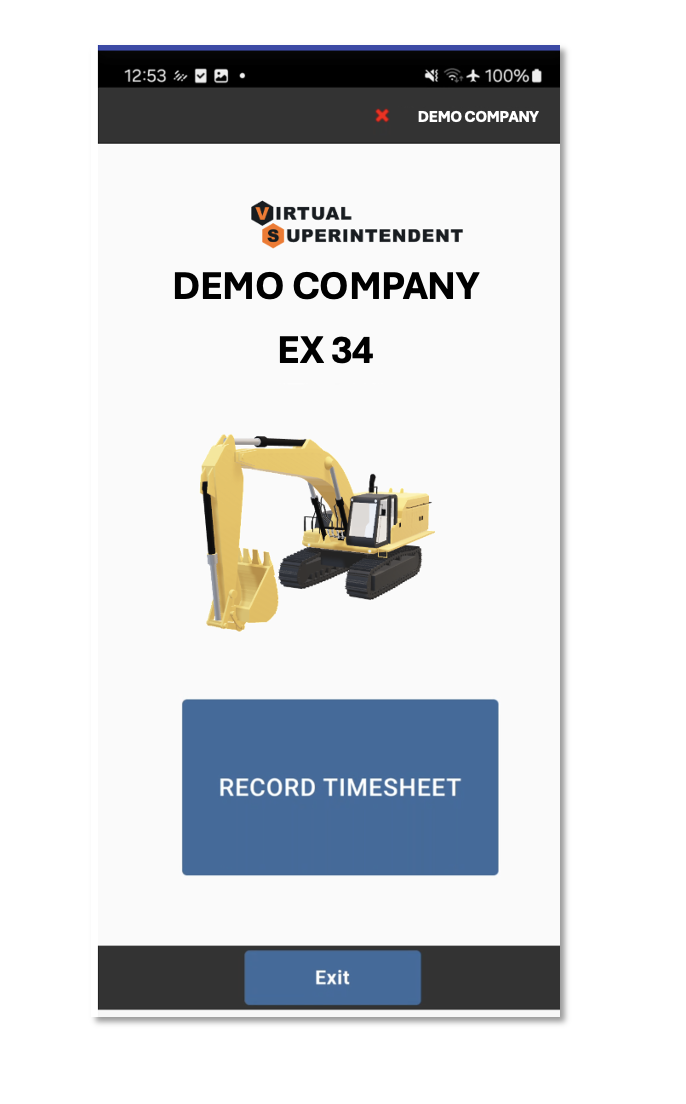
SafeSite Docket Stations can now be configured to run in an additional mode — Machine Mode — allowing a shared device to be mounted and assigned to a specific machine. This mode offers a simplified SafeSite experience, making it easier for operators to create timesheets or dockets.
In Machine Mode:
- A device is registered as in Machine Mode and linked to a specific machine. The device is installed in that machine.
- Head contractor admins define the steps the operator will take to generate a docket with sign-on profiles. For example - simple operator timesheets or electronic dockets.
- Operators will complete their timesheet / dockets on the shared device.
- Any machine issues reported as part of their machine checks are automatically forwarded to the maintenance team for review.
- When finishing their shift, operators enter their finish time, which signs them off SafeSite and automatically submits a docket to their supervisor.
- Wen in Machine Mode a plant icon will display on the SafeSite sign-in page.
This support article explains the two SafeSite Docket Station modes - Machine Mode and Kiosk Mode, and details how to set this up for your project.
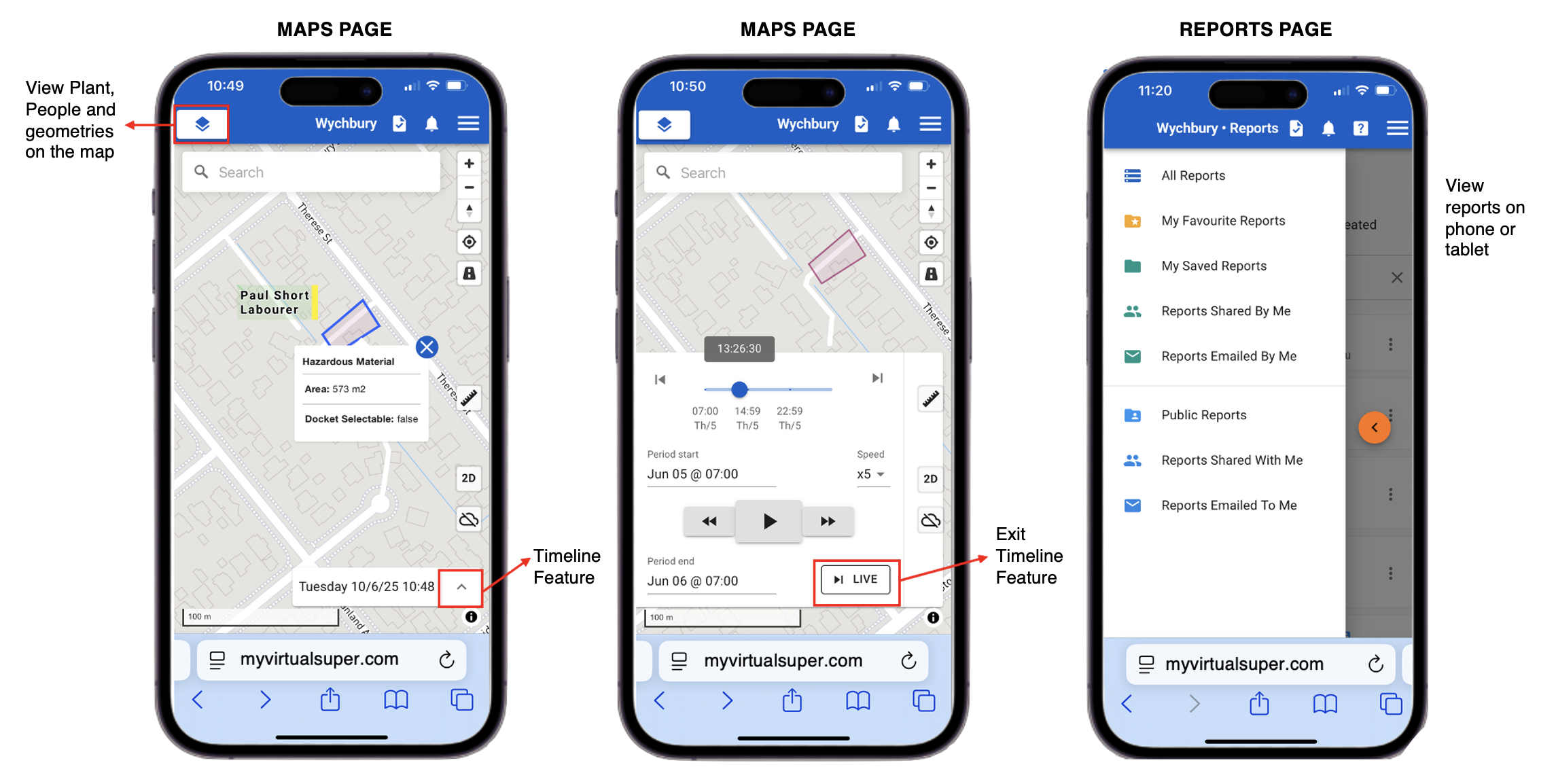
Improved Mobile and Tablet Experience for Maps & Reports
The Virtual Super Maps page is now more responsive on phones and tablets:
The login and project selection pages have been optimized for various screen sizes
- A larger sidebar menu makes it easier to toggle Users (plant and people) and Layers on or off.
- The Timeline feature is now accessible on mobile, so you can play back critical site data on the go
Viewing Reports on your phone or tablet has had the following improvements:
- The reports toolbar has been resized to allow the user to clearly select and view reports.
Improved Cost Code Owner Error Message
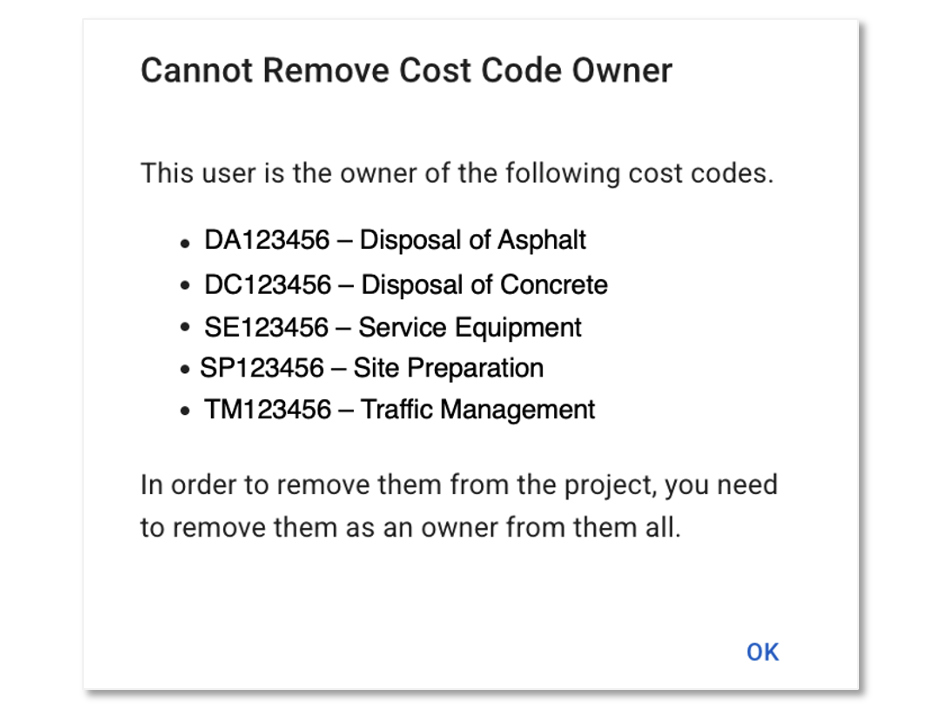
When you try to remove a Virtual Superintendent user who owns cost codes:
- The error message now lists the specific cost code(s) they own.
- This helps you quickly identify and remove them as the owner of those cost codes — a required step before deleting the user from the project.
Group Cloning, Plant Status Page, Site Diary Photo Download (May 2025)
Group Cloning Feature
The new Group Cloning Feature in the Virtual Super enables head contractor admins to quickly and efficiently create new item code groups by duplicating existing ones.
This is particularly useful when setting up groups for the same supplier, where contractual rules are consistent. For projects using standardized supplier contracts, this feature significantly streamlines and simplifies the group setup process.
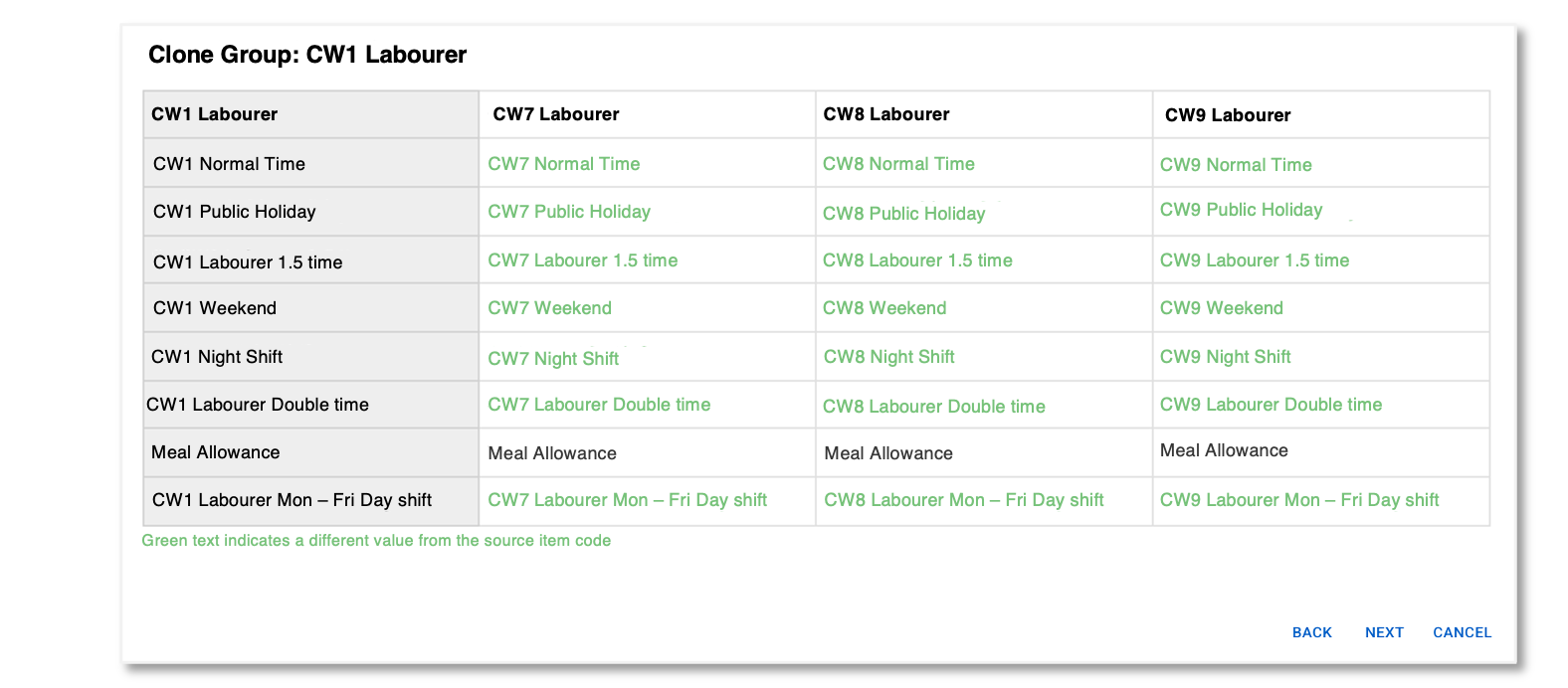
The following support article provides user instructions.
Plant Status Page
The new Virtual Super Plant Status page displays a grid view of machine statuses, giving head contractor admins an overview of all plant activity on their project.
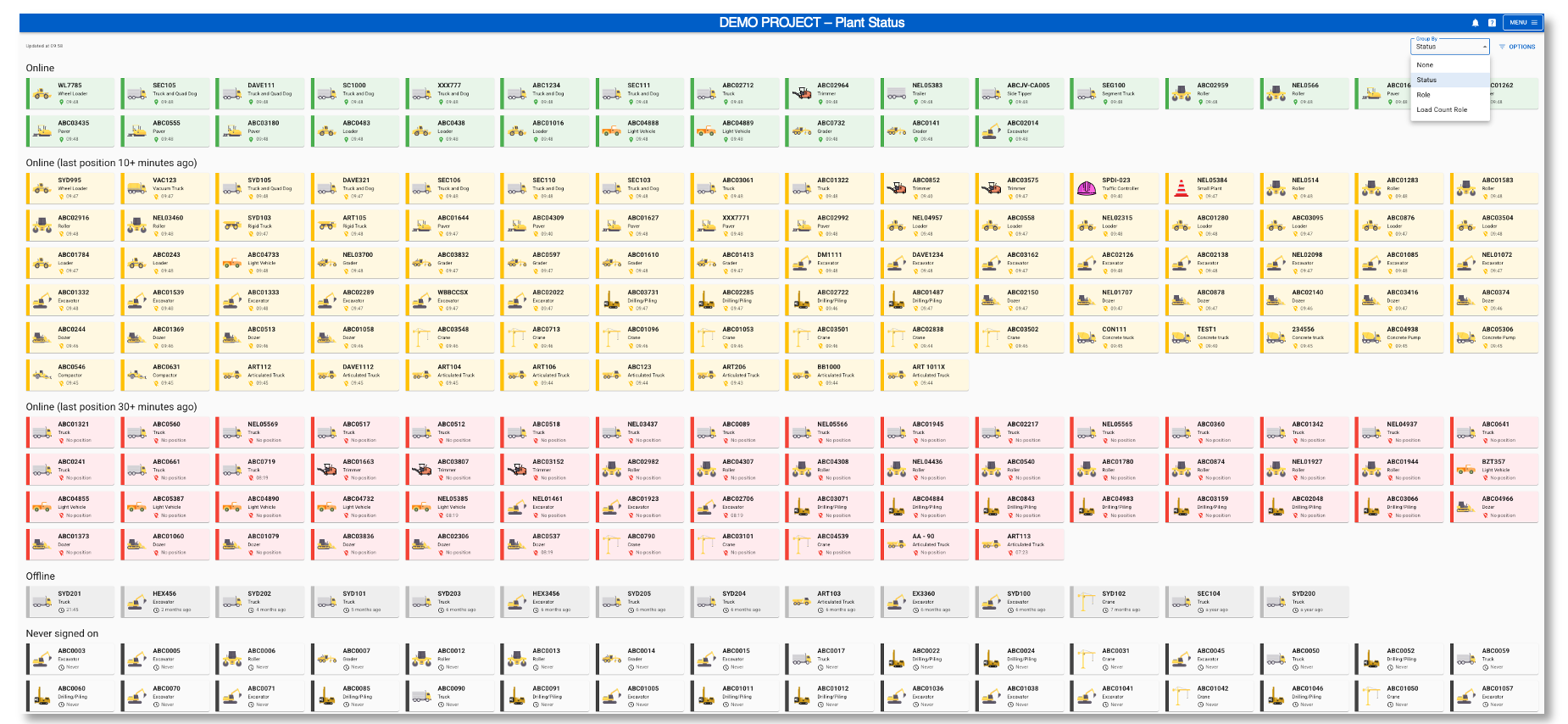
See this support article for more details.
Site Diary Photo Download
Photos attached to Site Diary events can now be downloaded directly from a Site Event Report.
The head contractor user can filter the report to show the relevant data, then click the Photos icon. A zip file will be generated containing one folder per supervisor per day, and will be available in their computer’s downloads folder.

Operator Timesheet - End Shift Machine Check
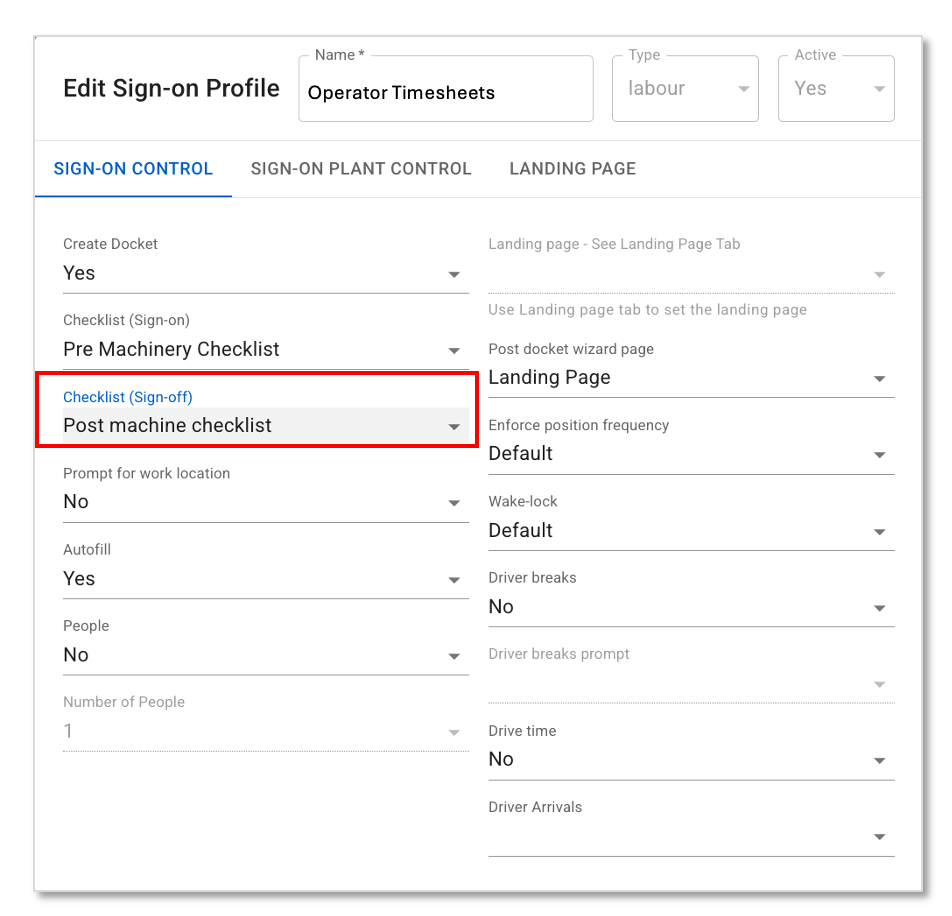
The operator timesheet setup can now also include an end of shift machine checklist which is to be completed when the operator clicks end shift.
The Virtual Superintendent support team will work with project admins to create a custom sign-off specific checklist, which is then controlled with a new Checklist (Sign-off) Yes/No field in the assigned Sign-on Profiles.
New Operator Timesheets Feature, Load Site Overload Notifications (May 2025)
SafeSite Operator Timesheets Feature
The new SafeSite Operator Timesheets feature allows operators to quickly create a single labor docket. Operators simply sign-in to the SafeSite app and follow a straightforward workflow. Once completed, a labor docket is automatically generated in the project’s Virtual Super Dockets page with key information pre-filled.
Operator Timesheets Workflow:
- Sign-in to SafeSite
- Complete Fit for Work questions (optional)
- Select machine
- Complete Machine checklist (optional)
- Start time is automatically populated based on sign-in time (can be manually adjusted)
- Any breaks are selected or manually entered (in 15 minute increments)
- Click End Shift - once confirmed, the operator is automatically signed out and a labour docket is generated in the Virtual Super.
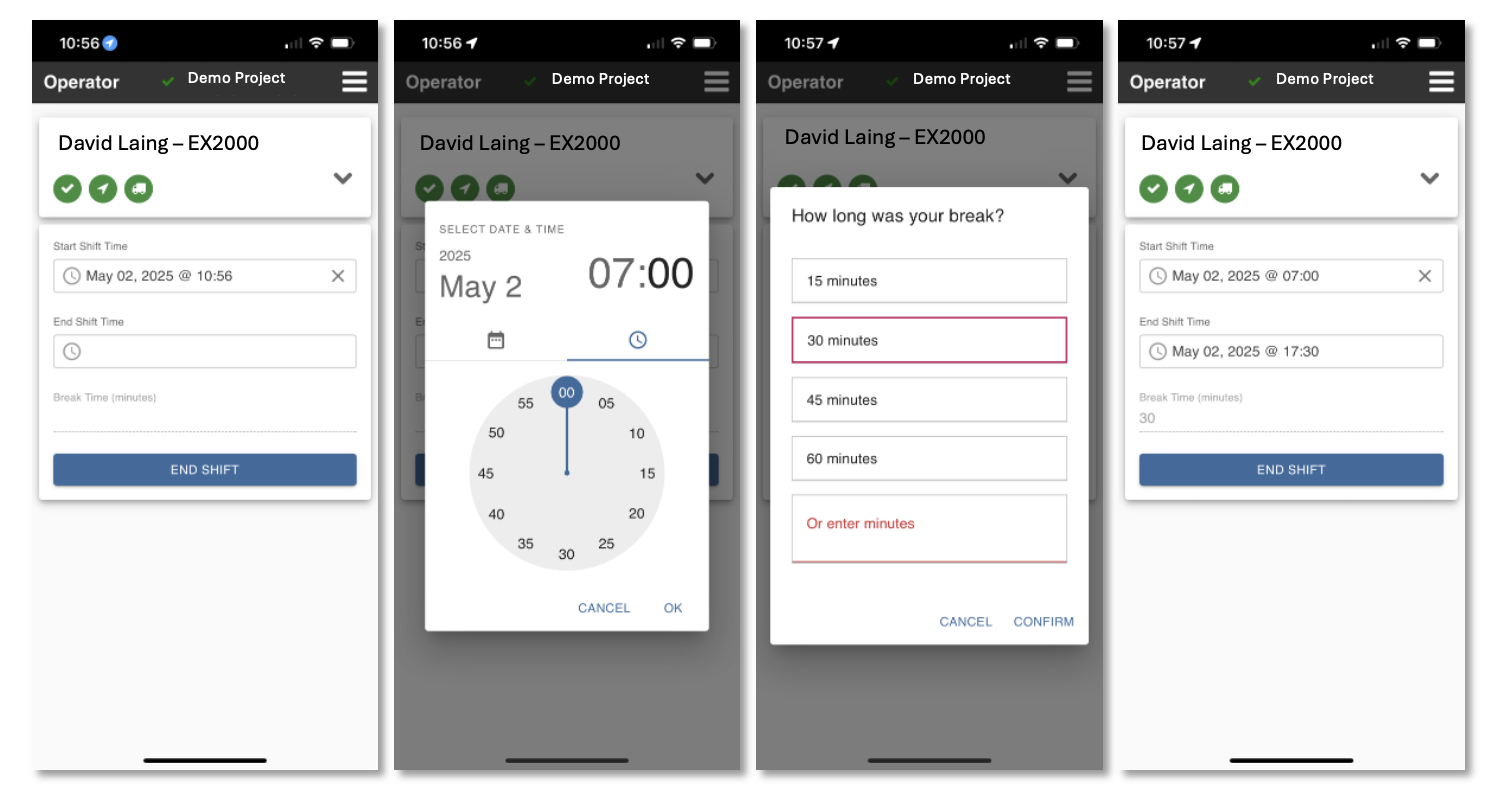
The Operator Timesheets feature must be configured and enabled for your project. Please contact Virtual Superintendent support at support@virtualsuper.com to discuss in more detail.
Note: This feature is only available to operators working a single dayshift.
See this support article for user instructions.
Load Site Overload Notifications
Overload notifications can now be linked to a specific load site. Head contractors who only want to receive notifications about issues at the load sites they are responsible for, can enter the relevant load site in the Occurs in this area field.
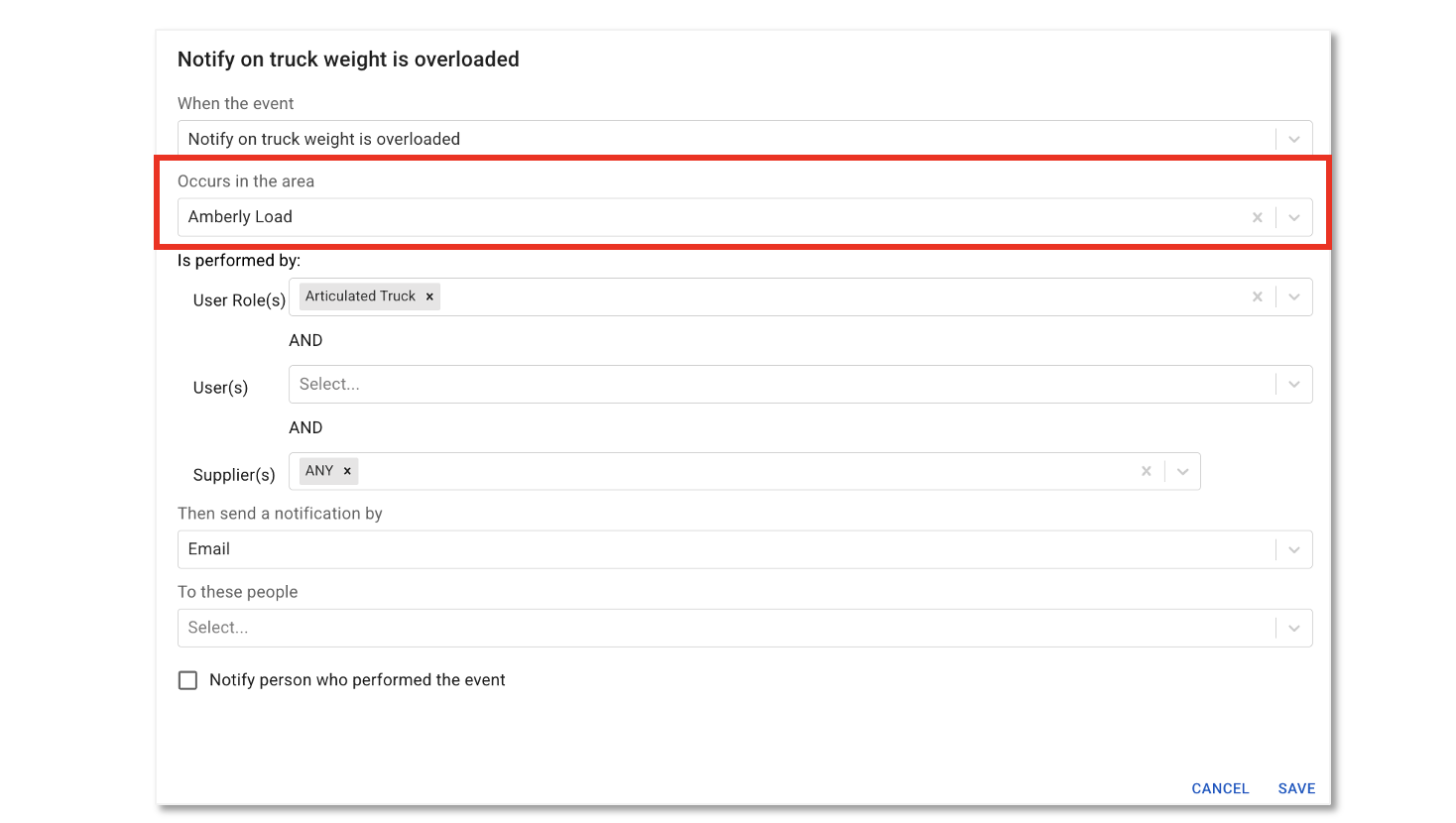
When a load site is set, notifications will only be triggered if the event occurs at the selected load location.
This feature is primarily used for the following events:
- Combined axle weights are overload
- Truck weight is overloaded
- Exit from site without axle weights
Integrations Page, Weighbridge Operation Changes, Restrict Disposal Sites per Supplier and More (April 2025)
Integrations Page
We’ve introduced a new feature that gives head contractors an additional way to upload imagery to their Virtual Super Maps page.
The Integrations Page within the Virtual Superintendent now allows projects to independently overlay Web Map Tile Service (WMTS) files directly onto the map. This eliminates the need to download large imagery files, saving both time and computer storage.
To access the Integrations page, a head contractor must have the Integration Admin permission enabled.
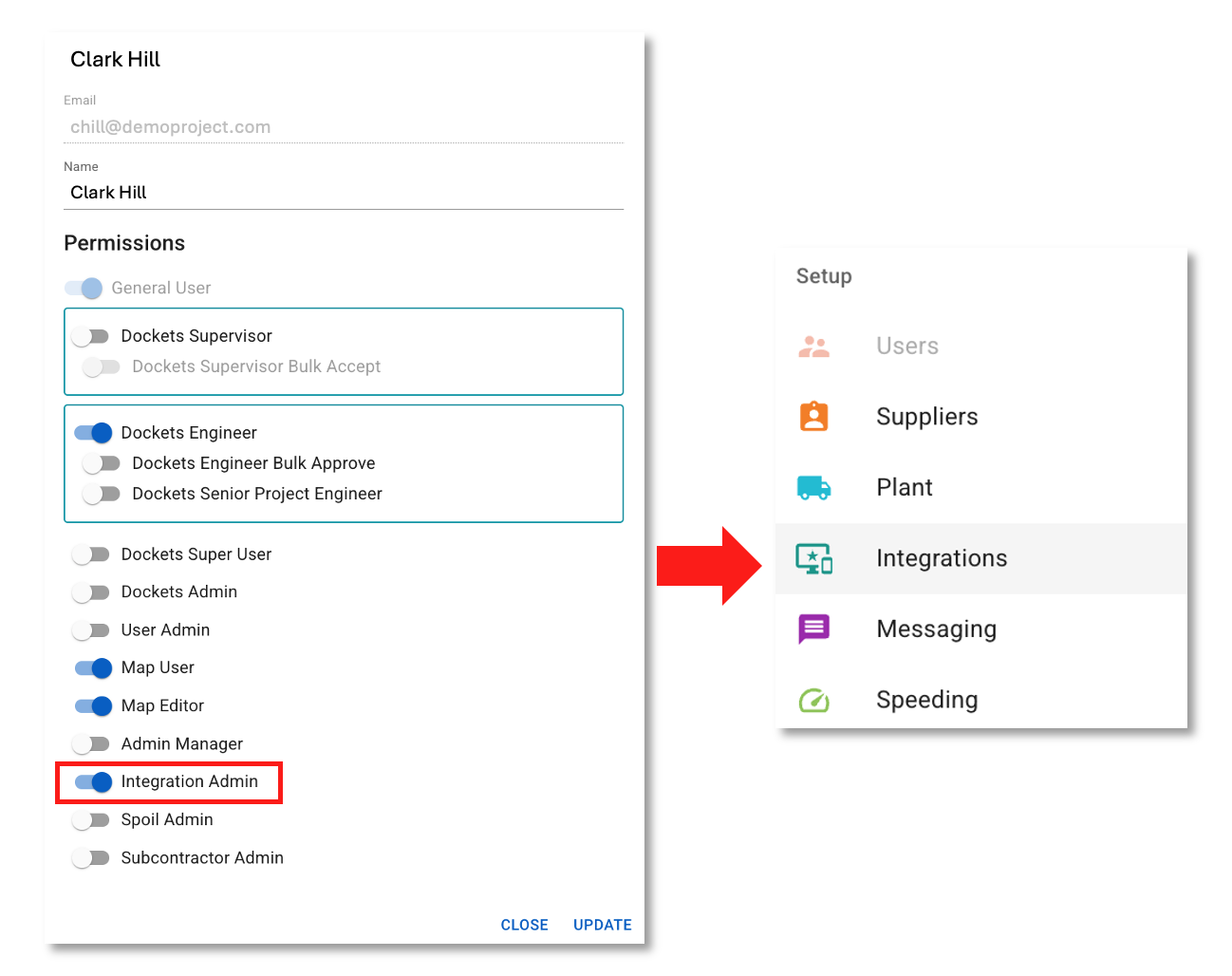
From the Integrations page, the user will be able to add third party WMTS layers on the map.
Once uploaded, the imagery will display on the Maps Page as the default base layer.
The following support article provides user instructions and further details.
Drivers: SafeSite warning for Axle Weight Overload
If drivers manually enter gross axle weights which is more that the Total Allowable Weight (TAW) for the truck, they will see the following warning:
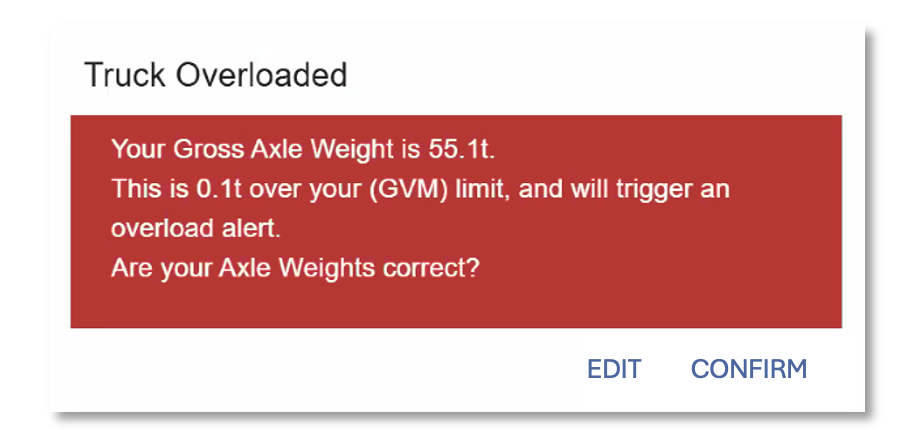
The driver can press Edit to change the axle weights entered or Confirm to continue.
If they press confirm, a Truck overloaded and/or Axles Overloaded event will display on the Virtual Super Issues Page.
If the truck has PBS or SPECTS allowances, this will be stated in the warning message.
Multiple Photos for Axle Weights
Drivers can now add multiple photos of their axle weights from their in-cab displays at the load and disposal sites. These photos can be viewed in Dockets in SafeSite and in the Virtual Super.
Weighbridge Dockets: Support Axle Weights as a Net Weight source
Head Contractors overseeing a Weighbridge operation can now speak with Virtual Superintendent support to edit the hierarchy allowing Axle Weights to be used as a source for Net Weights in Virtual Weighbridge (VWB) Dockets.
When configured this way, VWB Dockets can have complete weight information when drivers do not enter disposal data.
Note: The Virtual Super deducts the Tare weight from the Gross weight in order to calculate the Net Weight. If no Tare weight is configured for the truck, no Net weight will be displayed.
Restrict Available Disposal Sites on a per Supplier basis
Head contractors can now restrict the list of available disposal sites for drivers creating virtual weighbridge dockets, based on the supplier they have signed-on to.
This feature is for weighbridge projects therefore the this is only available to Suppliers with the Weighbridge - Hauler setting enabled (set to Yes).
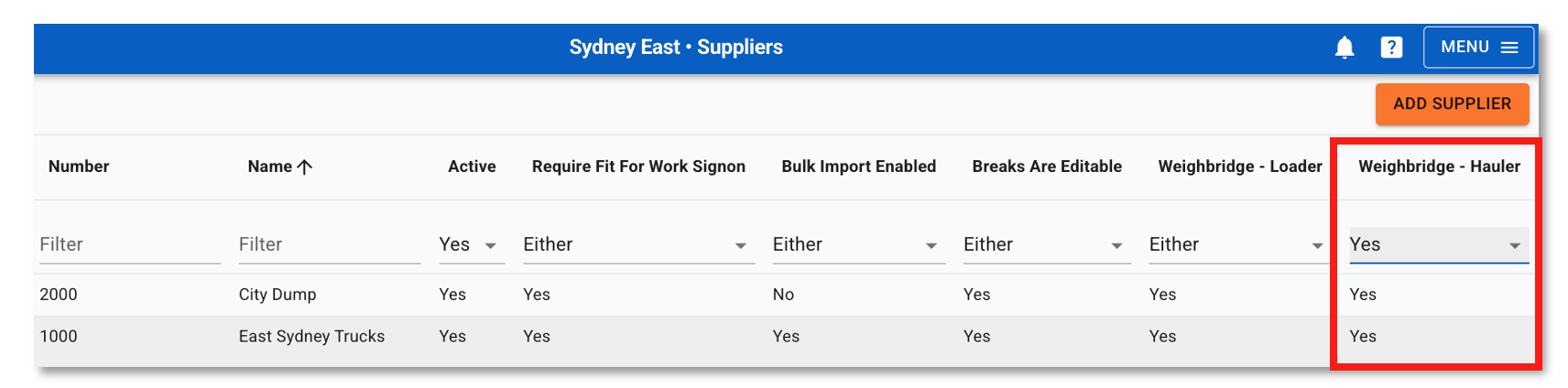
To restrict the list:
Supplier page > Open the relevant Supplier > Dockets Options Tab > Disposal Sites field - use the drop menu to select the disposal sites > Press Save.
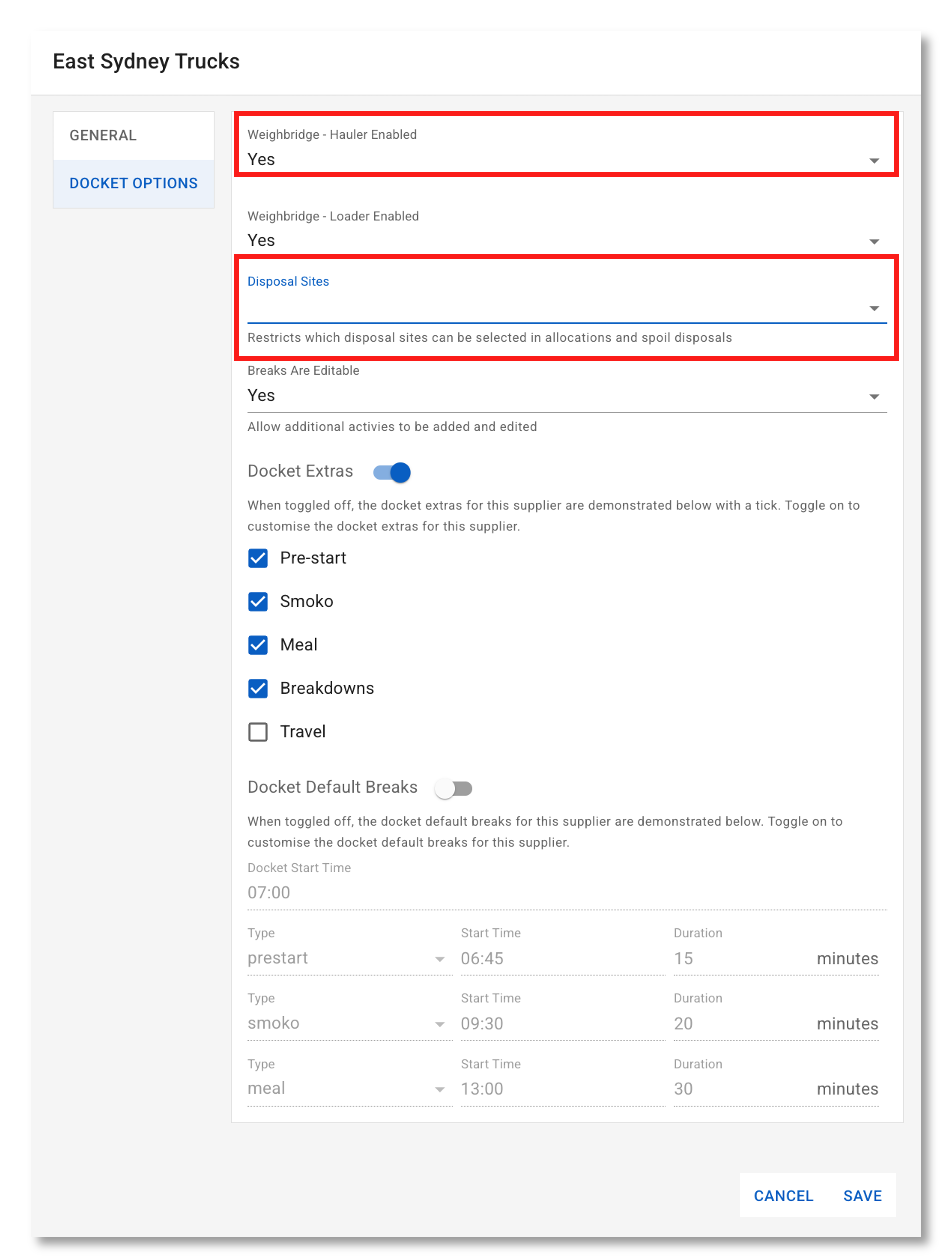
Additionally:
When disposal sites are set for a Supplier, there will be fewer options available to select in Allocation Requests and when Drivers are entering disposal sites in SafeSite.
Delete a Virtual Super Cost Code Owner
Deleting a Virtual Superintendent Engineer or Senior Project Engineer who is assigned as a cost code owner will now trigger a warning message and prevent the deletion until they have been removed as an owner.
The warning message will include a list of the cost codes for which the user is currently an owner.
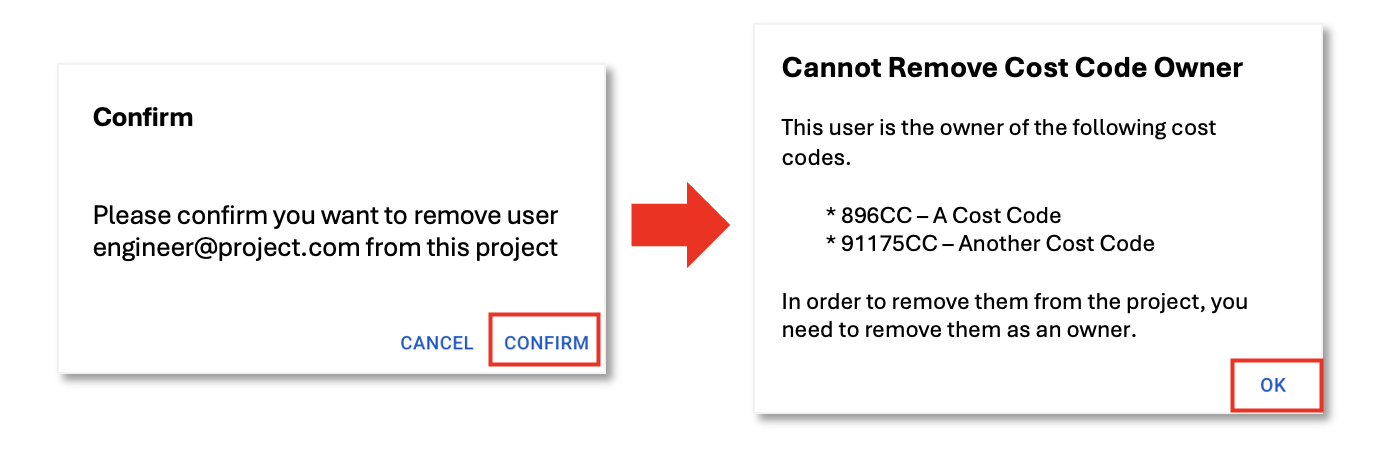
The cost codes can be edited manually, or in bulk via the Excel template.
Once removed as a cost code owner, the user can be deleted from your project.
Note: If the user is also a cost code stakeholder, the system will automatically remove them from the cost code when they are deleted from the project.
Archive a geofence linked to a cost code
If a cost code has a location (geofence) tied to it, you will not be able to archive the geofence until the link is removed.
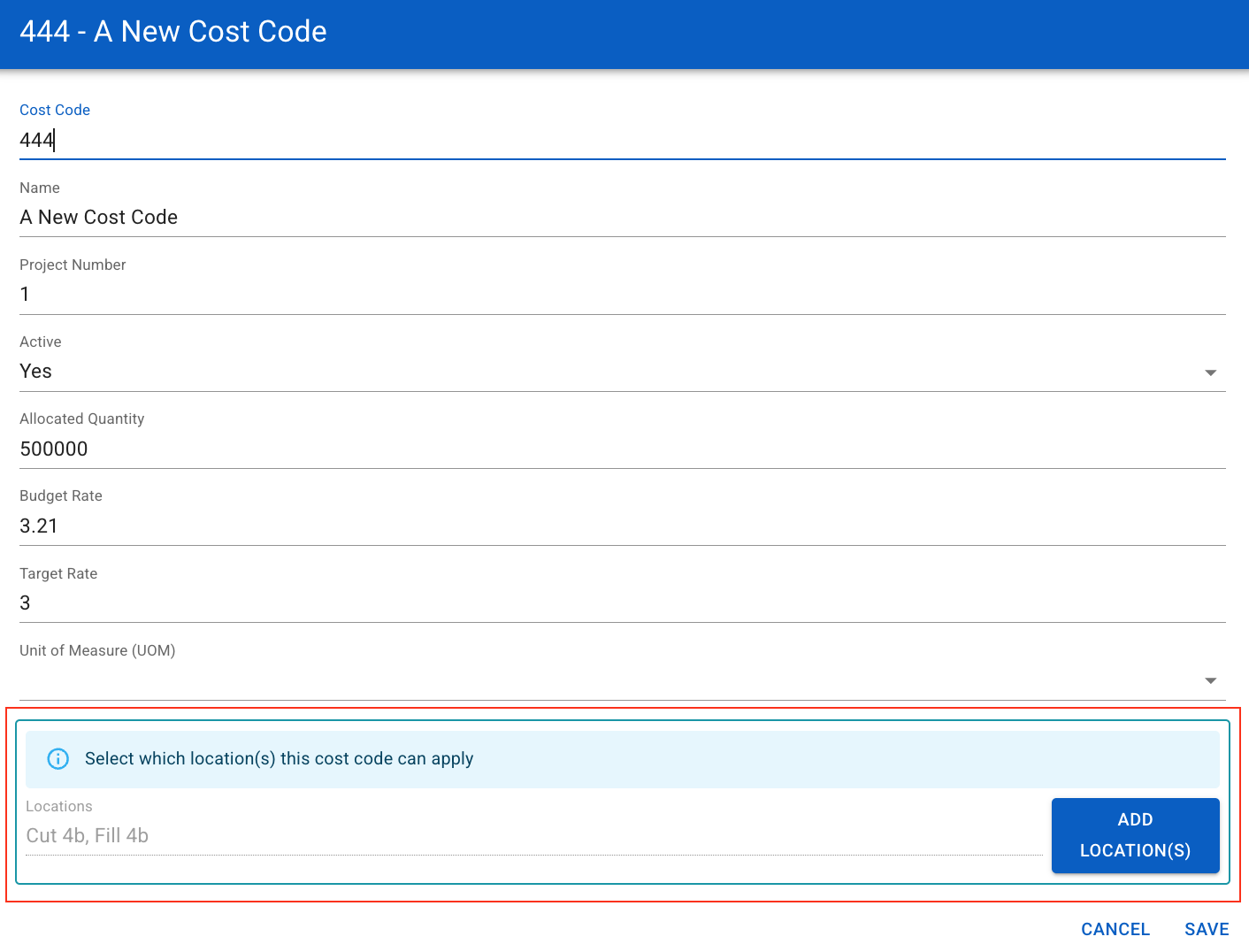
Cost Code Information, Photo of Axle Weights for Drivers, Docket Calculations (April 2025)
Cost Codes - Additional Information
The following optional information can now be loaded against cost codes in the Virtual Super:
- Allocated Quantity: Enter the total quantity value for the UOM for this job
- Budget Rate: Enter the bid rate to complete the work
- Target Rate: Enter the target rate to complete the work
- Unit of Measure (UOM): Select the unit by which this cost code is measured by
- Locations: Tie this cost code to one or more docket selectable locations.
The following 2 articles provide user instructions for manually creating a cost code or bulk creating cost codes via Excel template.
SafeSite: Enforce Axle Weight Photo for Drivers
Head contractors can now enforce drivers to take a photo of their axle weights by making this part of the weighbridge docket creation. When enabled, a driver will not be able to progress through the weighbridge docket without attaching a screenshot of their in-cab axle weights. They also have the option to enter comments with each image.
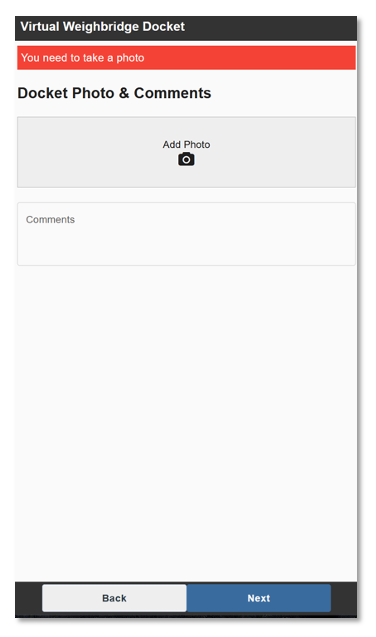
Once attached, photos will be viewed in the file attachments portion of the weighbridge docket with a Weighbridge Load Photo label. Any comments made by the driver will display in the Docket Remarks.
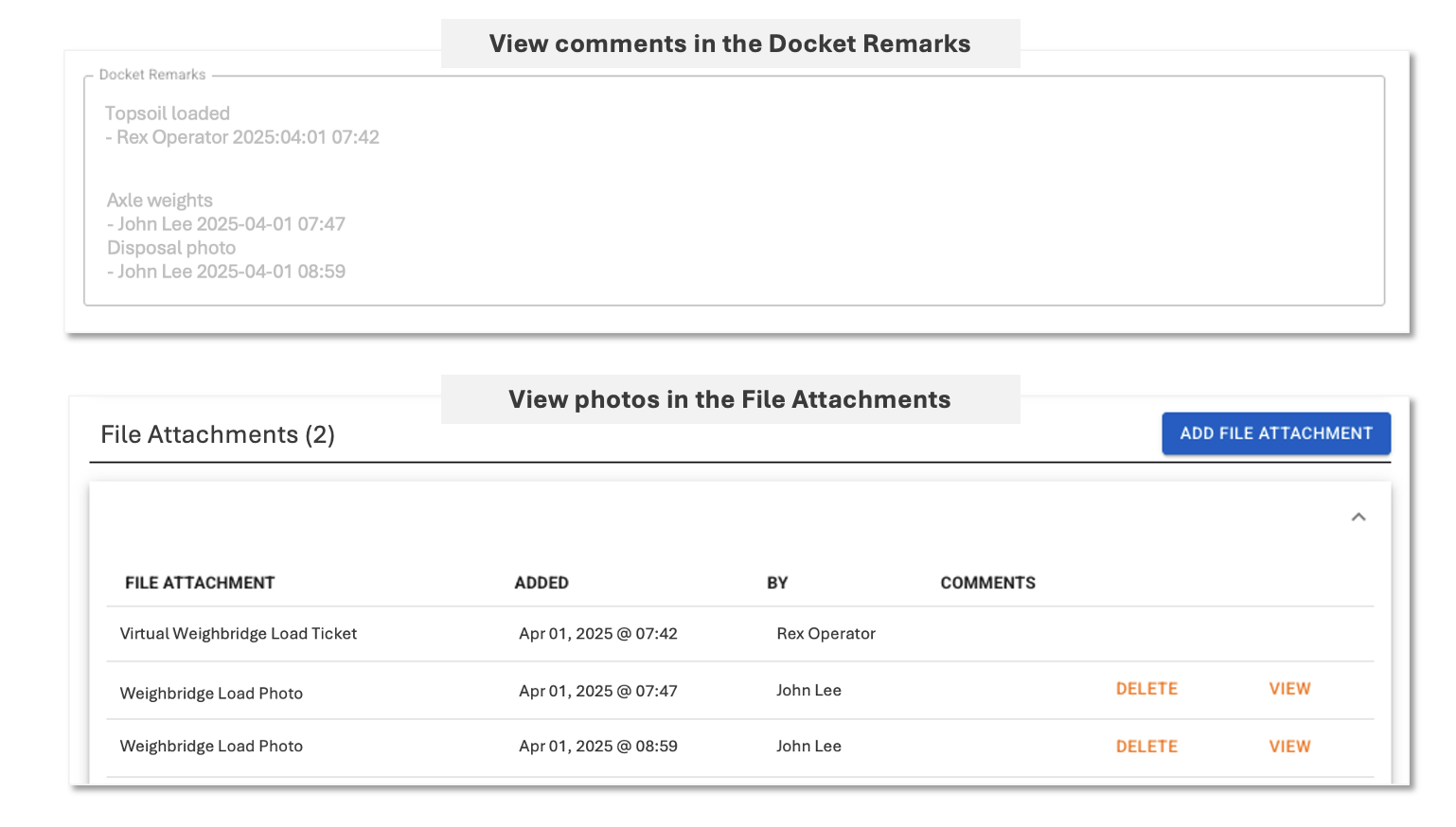
This capability is enabled by the Virtual Superintendent support team, contact us on support@virtualsuper.com for more information.
Docket Calculations
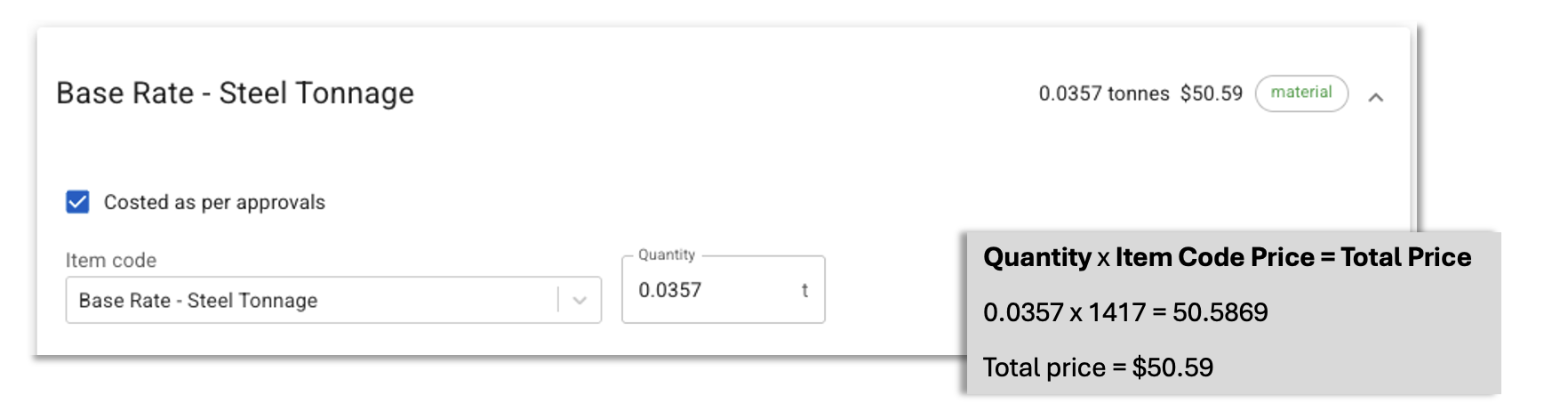
When calculating the price of an item code by a quantity, the Virtual Super will use the whole quantity value rather than truncating it to 2 decimal places.
For example:
A material delivery for 0.0357t of steel which is priced at $1417 p/t.
In the docket, the Virtual Super will use the entire quantity value (0.0357) when calculating the total price:
0.0357 x 1417 = 50.5869
The total price will be rounded to 2 decimal places, therefore, the total price = $50.58
Item Code Price 6 decimal places
The price for item codes can now be entered to 6 decimal places.
Precast Departures, Remove Cost Code Information (March 2025)
Departures for Precast Trucks
The Arrivals Page can now be configured (via integrations) to display precast departures. Once configured, the precast departures tab(s) will display trucks departing a specified delivery site.
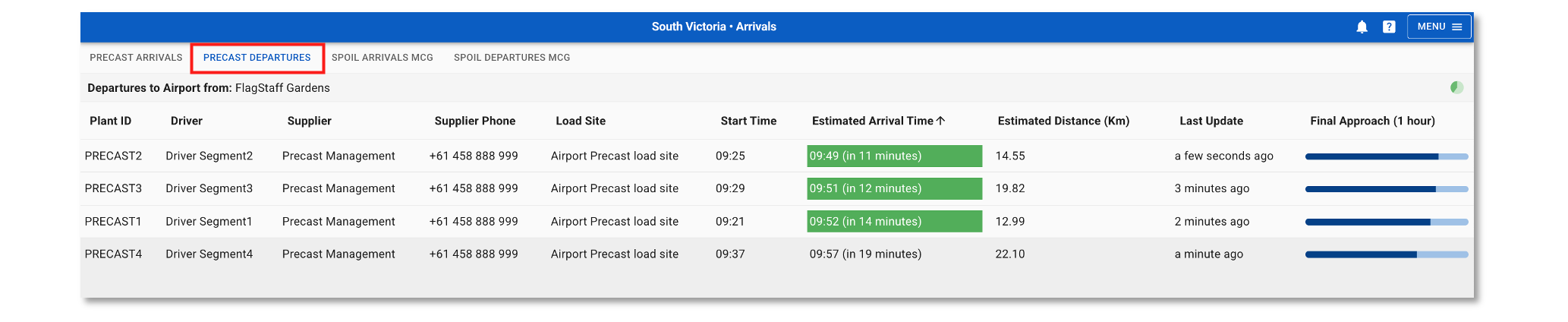
The following support article provides information and user instructions on the Virtual Super Arrivals Page. If you are interested in discussing this for your earthworks project, please contact us at support@virtualsuper.com.
Remove Cost Code Information for Suppliers
A new Remove Cost Code Information control determines whether cost code details are shown to suppliers (subcontractors) when reviewing dockets in SafeSite or the Virtual Super, or when generating export files in the Virtual Super.
Head contractors can now manually remove cost code information on a per supplier basis in either the Add Supplier or Edit Supplier dialog.
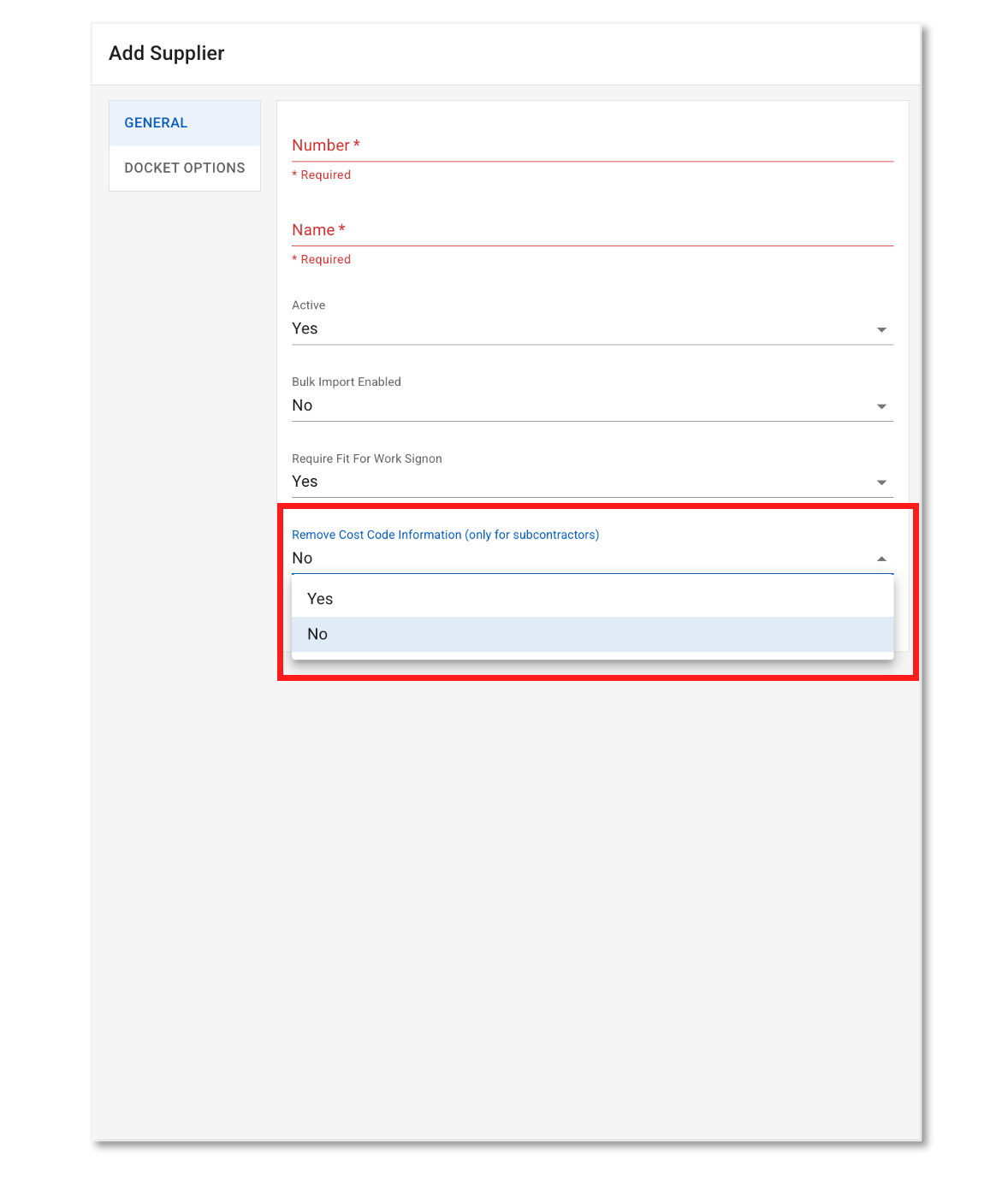
When the Remove Cost Code Information control is enabled (set to Yes), cost code information will not display for suppliers. When set to No, cost code information will display for suppliers.
The example below demonstrates the supplier view of a docket with and without this control enabled:
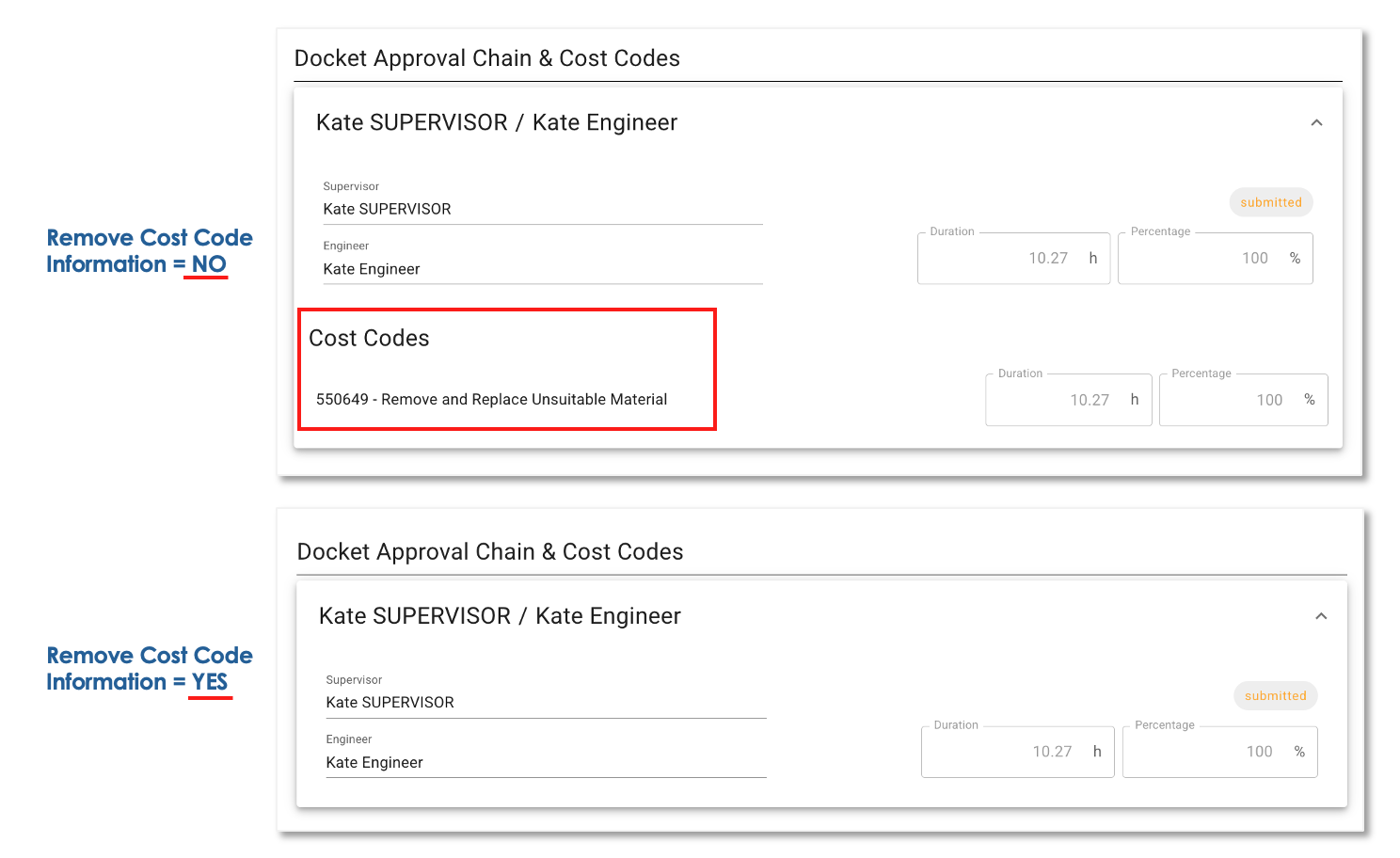
When enabled, the following areas will no longer display cost code information for the supplier:
- Virtual Super Dockets page: The cost code column will no longer display in the supplier portal.
- Docket details: When reviewing dockets in the Virtual Super and SafeSite, cost code information will not display in the Approval or Line Items portion of a docket.
The following export files, when generated by the supplier, will not contain any cost code information:
- Detailed CSV
- For Invoicing (Oracle)
- Full Docket Report
- Timesheet
Note: The default setting for this control is No (not enabled). If you want this control enabled project-wide, Virtual Superintendent support can set the default to Yes. As a result, when new suppliers are invited to your Virtual Super project, the field will automatically be pre-filled with Yes.